
Configure a form element
Configure form elements in Optimizely CMS 13. Customize basic and action elements like text fields, numbers, and selections, and reuse them across multiple forms.
Form elements are predefined building blocks for creating a form. Drag and drop them into a form container, then configure them to match your requirements. For example, add two Text fields to a form and configure one for name input and one for email input with validation. Name and reuse configured form elements across multiple forms.
NoteWhen you use a form element on a form, Optimizely creates an instance of that element in your form's For this block folder. Removing the form element from your form does not delete the instance from the For this block folder. Move the element instance to reuse it in other forms.
See Create a form for form creation details. See Form element types for a list of predefined element types.
To configure a form element:
-
Open or create a form container.
-
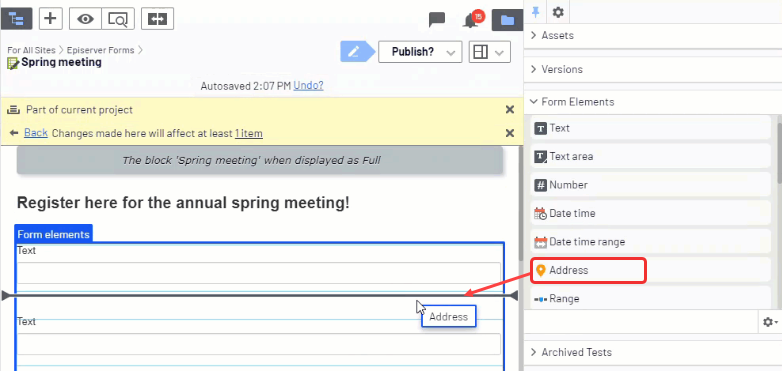
Drag a form element (for example, a Text element) from the Form Elements gadget onto the form container.
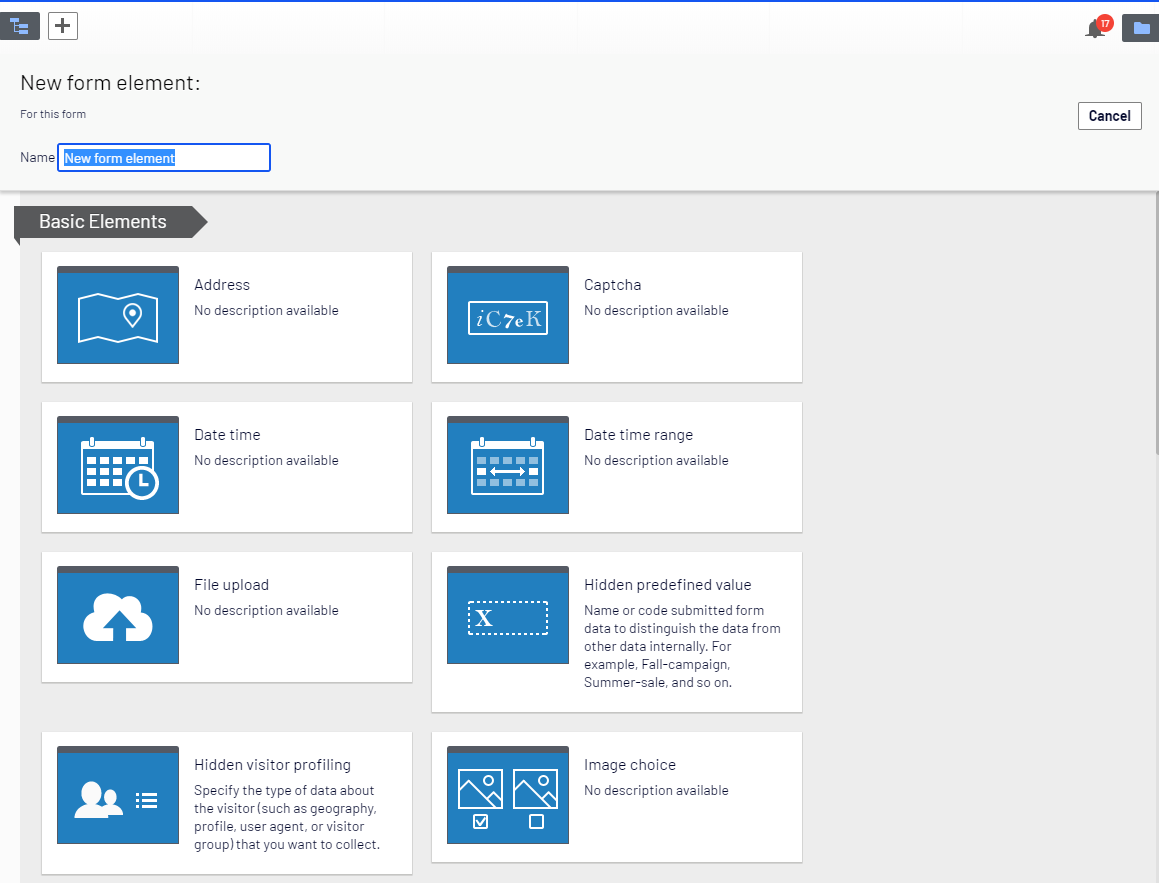
Click Browse to select a form element from the content tree.
-
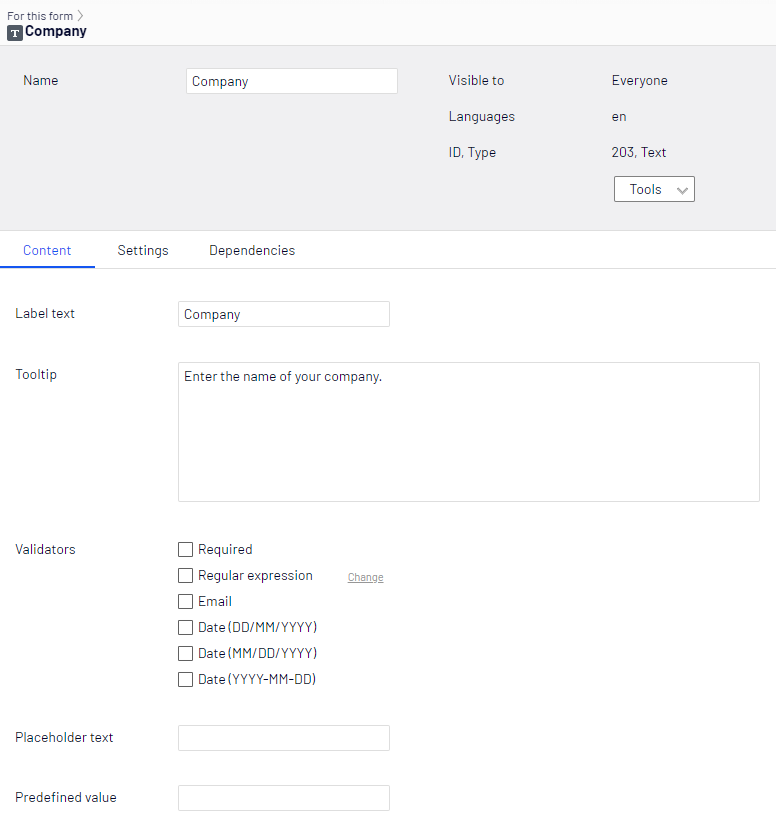
Select Edit from the context menu to configure the element with a Company label.
-
(Optional) Configure conditions in the Dependencies tab to show or hide the form element based on visitor input. See the Dependencies tab in Form element types and Example: Create a customer satisfaction survey for details.
-
Edit the properties and publish. The Company form element displays in the form container and the Form Elements gadget. Drag elements up or down to rearrange their order on the form.
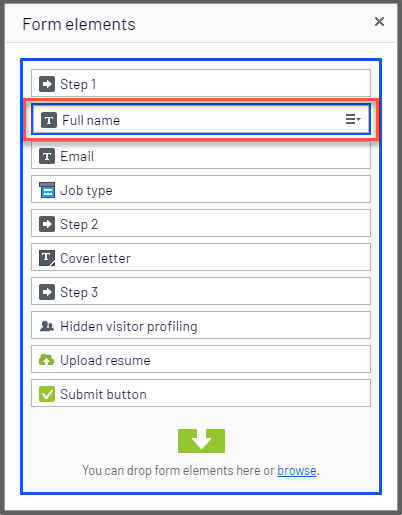
Optimizely saves the configured form element in the form's For this block folder. Reuse it in other forms from that folder.
Reuse configured form elements
Save time by reusing configured form elements across multiple forms instead of recreating them. Each form is a block type, and configured form elements are stored in the form's For this form folder under Blocks.
-
Open the form's For this form folder in the assets panel.
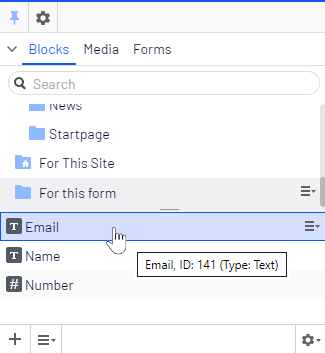
-
Select your form element and drag it into another folder.
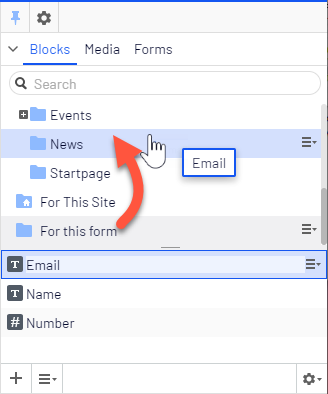
-
Open another form container.
-
Open the destination folder in the assets panel and drag the configured form element into the form container.
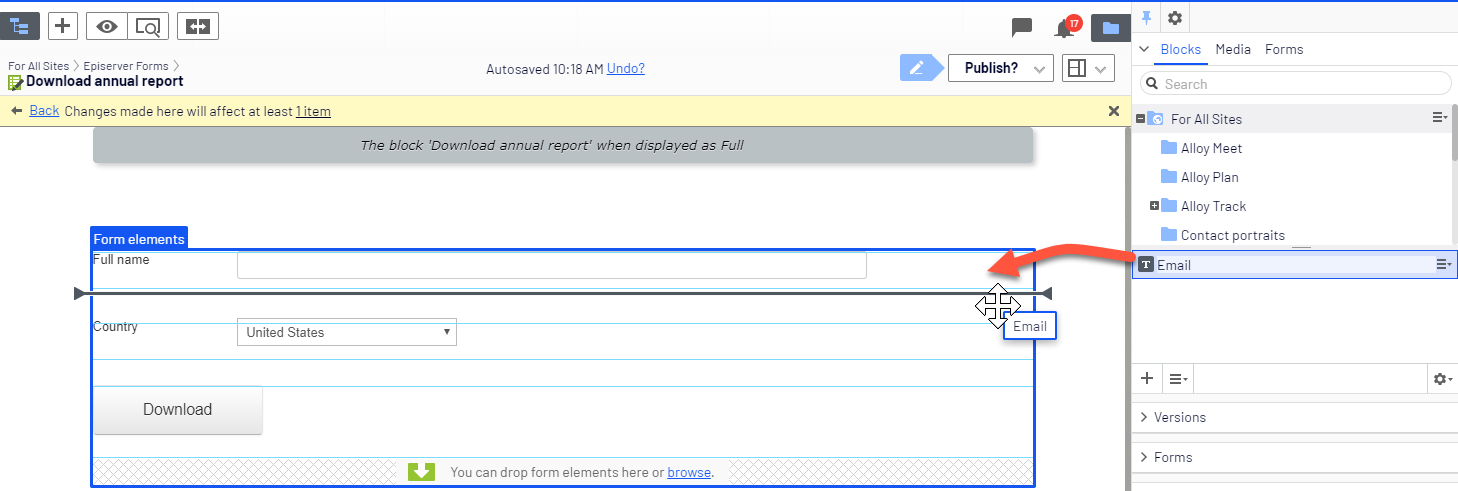
Add this form element to multiple forms from the shared folder. Changes to the element affect all forms where it is used.
Updated 2 months ago