
Select templates
Describes how templates are selected by the system, if you are using multiple templates to render content in different context and display channels in Optimizely.
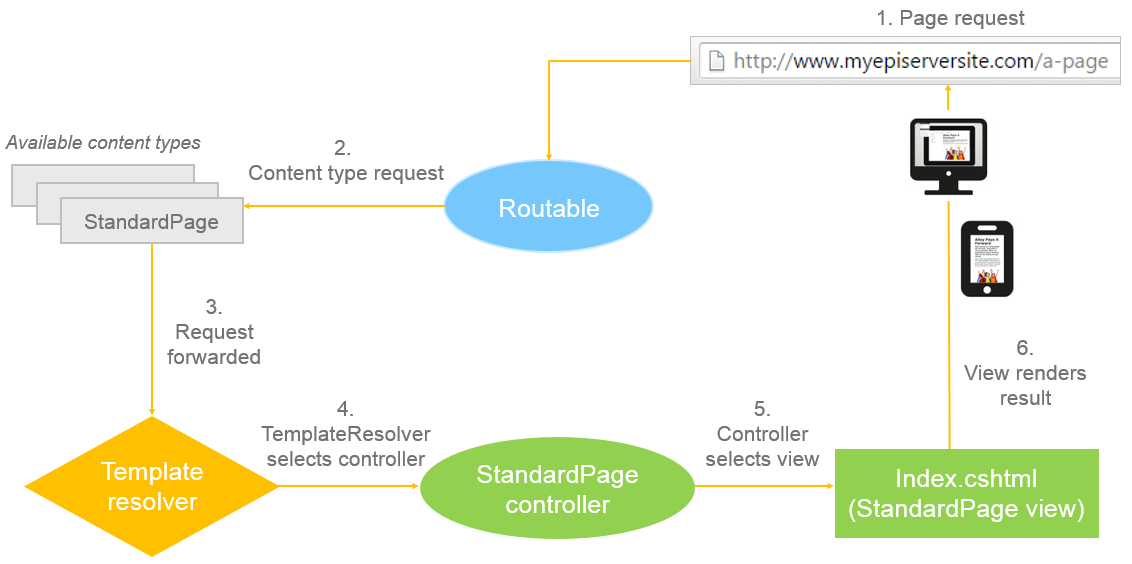
The resulting rendering template for a requested content instance is selected based on page or partial renderers, tags, and active display channels.
NoteThe examples are based on ASP.NET Core.
A page or a block can have multiple associated templates; for example, one for a web channel and one for a mobile device. Pages can also have a partial template used when the page is displayed inside the content area of another page. See Render content, TemplateDescriptor, and Tags.
If you register multiple templates, the TemplateResolver service selects the resulting rendering template using an algorithm based on the content model, template types, rendering mode (page or partial rendering), tags, and inheritance. If needed, you can use events to override the TemplateResolver selection.
Template registration
Templates can be registered in three ways. For details on each approach, see the linked pages:
IRenderTemplate<T>withTemplateDescriptor— Automatic registration through base classes (PageController<T>,BlockComponent<T>, etc.) with optional metadata via the[TemplateDescriptor]attribute. See TemplateDescriptor.IViewTemplateModelRegistrator— Programmatic registration for partial views that need tags, paths, or other configuration not achievable through conventions. See Tags for a full example.- Convention-based partial views — Razor views are automatically discovered when the filename matches a content type name (see below).
flowchart LR
    subgraph "Template registration methods"
        A["IRenderTemplate<T> + TemplateDescriptor"] --> D[Template Repository]
        B["Convention-based partial views"] --> D
        C["IViewTemplateModelRegistrator (programmatic)"] --> D
    end
    D --> E[TemplateResolver]
Convention-based partial views
Razor partial views are automatically discovered and registered as templates when the view filename matches a content type name. No [TemplateDescriptor] attribute or IRenderTemplate<T> implementation is required.
For example, a TeaserBlock content type is automatically rendered by a view at Views/Shared/Blocks/TeaserBlock.cshtml:
@* Views/Shared/Blocks/TeaserBlock.cshtml *@
@model TeaserBlock

<div>
    <h3 epi-property="@Model.Heading">@Model.Heading</h3>
    <p epi-property="@Model.Text">@Model.Text</p>
</div>
You can also create tag-specific views using a dot separator in the filename: {ContentTypeName}.{Tag}.cshtml. When a tag is requested, the renderer first looks for a view matching this pattern before falling back to the default view.
Views/Shared/Blocks/
├── TeaserBlock.cshtml          ← default (no tag)
├── TeaserBlock.Wide.cshtml     ← tag "Wide"
└── TeaserBlock.Compact.cshtml  ← tag "Compact"
NoteFor rendering Visual Builder experiences with display tags, see Render an experience with tag helpers.
Custom view locations with IViewLocationExpander
By default, the Razor view engine looks for views in the standard ASP.NET MVC locations (for example, Views/{ControllerName}/ and Views/Shared/). If you organize views in custom folders, implement Microsoft.AspNetCore.Mvc.Razor.IViewLocationExpander to tell the view engine where to find them.
The interface has two methods:
ExpandViewLocations— Returns the list of view search paths. You can add custom paths before or after the default locations to control priority.PopulateValues— Optionally adds values to theViewLocationExpanderContextfor use as cache keys (for example, to vary view locations by controller or route data).
Example: Add custom folders for blocks and page partials:
public class SiteViewEngineLocationExpander : IViewLocationExpander
{
    private static readonly string[] AdditionalPartialViewFormats =
    [
        "~/Views/Shared/Blocks/{0}.cshtml",
        "~/Views/Shared/PagePartials/{0}.cshtml",
    ];

    public IEnumerable<string> ExpandViewLocations(
        ViewLocationExpanderContext context,
        IEnumerable<string> viewLocations)
    {
        foreach (var location in viewLocations)
        {
            yield return location;
        }

        for (var i = 0; i < AdditionalPartialViewFormats.Length; i++)
        {
            yield return AdditionalPartialViewFormats[i];
        }
    }

    public void PopulateValues(ViewLocationExpanderContext context) { }
}
Register expanders in Startup.cs (or your service configuration):
services.Configure<RazorViewEngineOptions>(options =>
{
    options.ViewLocationExpanders.Add(new SiteViewEngineLocationExpander());
});
Template resolution algorithm
The default TemplateResolver implementation selects templates based on the procedure below.
- The
EPiServer.Web.ITemplateResolverEvents.TemplateResolvingevent is raised. If an event handler selects a template, that template is used with no further handling. - Templates matching the desired content type are filtered according to the rendering mode: If T is a page, a suitable request template (Controller, Razor Page, or endpoint) is selected; if it is partial rendering, a suitable view component or partial view is selected. For partial templates, the list is filtered according to the main template.
- If the template is requested with a specific tag (for example, from an active Display Channel), the list is filtered on that tag. If no template matching the tag exists, templates from step 2 are considered.
- From remaining templates, the shortest inheritance chain to the
TemplateModelis selected. When two templates have equal inheritance distance, templates without tags are preferred over templates with tags. - The
EPiServer.Web.TemplateResolver.TemplateResolvedevent is raised, providing a chance to replace the selected template. See Program a template change for examples of overriding the selection via events.
NoteThe shortest inheritance chain means that a template that is registered directly for the content model type is preferred before a template registered for a base class or interface. For interfaces, the length of the inheritance chain is defined by following the inheritance chain upwards to see where the interface is implemented.
The following examples assume you have a content model and use multiple rendering templates for different display channels. See Content, Render content, and Display channels.
Select page rendering example
The template selected to render a content instance depends on the context, such as channel and tagging. For a template to be automatically registered for rendering, it has to implement EPiServer.Web.IRenderTemplate<T> (where T states which model it can render). If you use a base class like PageController<T> or BlockComponent<T>you do not have to implement the interface for your templates explicitly. In addition, you can use the TemplateDescriptorAttribute to specify more details about the template, such as tags and inheritance. See TemplateDescriptor and Tags.
Example: A content type model is defined as shown below.
[ContentType]
public class MyPage: PageData {
  public virtual string Heading {
    get;
    set;
  }
  public virtual string MainIntro {
    get;
    set;
  }
  public virtual XhtmlString MainBody {
    get;
    set;
  }
}
Given that there are templates defined as follows:
public class MyPageController: PageController<MyPage> {
  ...
}

[TemplateDescriptor(Tags = new string[] {
  RenderingTags.Mobile
})]
public class MyPageMobileController: PageController<MyPage> {
  ...
}

[TemplateDescriptor(Inherited = true)]
public class MyFallbackController: PageController<PageData> {
  ...
}

public class MyPageTeaser: PartialContentComponent<MyPage> {
  ...
}

[TemplateDescriptor(Inherited = true)]
public class PageTeaser: PartialContentComponent<PageData> {
  ...
}
The templates above are registered as templates for MyPage. You can register a template for a base type and an interface (MyFallbackController and PageTeaser in the code sample), which are registered for PageData, not the specific type). If you want the template to be available for all subtypes, for example, to have a fallback template for content types without a specific template, set Inherited=true for the TemplateDescriptor attribute.
For the example above, a browser request for a page of the type MyPage will result in the following:
- If no
DisplayChannelis active, theMyPageTemplatetemplate is selected because no tag is active (disqualifiesMyPageMobileTemplate), andMyPageTemplatehas a shorter inheritance chain thanMyFallbackTemplate.MyPageTeaserandPageTeaserare partial renderers and are filtered away. - If a
DisplayChannelnamedMobileis active, theMyPageMobileTemplatetemplate is selected because templates with a tag matching active channels are preferred.
Select block rendering example
Blocks can be a property on a page or a shared block instance in a content area. The selection of a template for a block is similar to the selection of a page template, except that blocks can only be rendered in the context of a page template. Rendering of blocks is done using partial views or view components. When rendering a block in a page template, you can use tags to define how the block should be rendered.
Example: Templates defined for a MyBlock block type.
[ContentType]
public class MyBlock: BlockData {}

[TemplateDescriptor]
public partial class MyBlockTemplate: BlockComponent<MyBlock> {}

[TemplateDescriptor(Tags = new string[] {
  "Mobile"
})]
public partial class MyBlockMobileTemplate: BlockComponent<MyBlock> {}
You can also use a tag to define rendering in a specific area, such as a Sidebar in a page template:
<div epi-property="MyBlock" epi-template-tag="SideBar" />See Tags for information on how to apply tags.
Block layout in a content area
If you specify a tag for a content area, then content added to that area will use a template matching that tag. You can use display options to let editors define the layout of a block in a content area, from edit view. See Display options.
Updated 2 months ago