
Manage projects
Manage related content items, publishing, and collaboration in Optimizely CMS 13 using the Projects feature. Coordinate multiple content items and language versions.
The Projects feature coordinates publishing for multiple related content items. Add landing pages, blocks, and pages to a project, then publish them manually or on a schedule. Optimizely Commerce Connect extends this to include products. Projects also support different language versions to coordinate translations alongside original content.
NoteAn administrator controls whether the Projects feature is active for the entire site. When the feature is off, the project bar does not display.
The Projects feature is not available in Content Manager.
The Projects feature has the following key behaviors:
-
The feature applies to the entire site and affects all users.
-
Editing actions (creating and updating items) automatically associate content with the active project. Exceptions include moving items, setting content to expired, and changing access rights or language settings.
NoteDeactivate the project when you finish working with it. Remove items wrongly associated with a project manually.
-
Drag and drop items from the page into the project overview to associate them manually.
-
Content associated with a project is locked for editing when another project is active.
-
Each content version belongs to a specific project. For example, a single page holds a published version outside any project, a Summer campaign draft, and a VIP campaign draft as three separate versions.
-
Add, remove, and update items in a project even after publishing some or all items.
-
Add comments and replies to project items and projects to collaborate with other editors.
Optimizely Content Management System (CMS) provides two ways to work with projects:
- Use the Projects feature, enabled by default.
- Add the Projects gadget to your UI when a developer disables the Projects feature.
The following table compares the two methods:
| Projects feature | Projects gadget |
|---|---|
| Accessible to users unless turned off for the website. | Accessible to users who add the gadget. |
| Applies to the entire site and affects all users. | Added to individual UIs without affecting other users. |
| Content is automatically added when a project is active. | Content must be added manually to a project. |
| Content associated with a project requires the project context for editing. Editors must activate the project or create a draft. | Other editors (not using the Projects gadget) update project-associated content directly. |
| Work continues on a project after some or all items are published. | Publishing a project makes it obsolete and unusable. |
| Publish multiple items set to Ready to publish and leave unready items for later. | All project items must be set to Ready to publish before publishing. |
| Collaborate through comments on projects and items. | No collaboration features available. |
Projects UI
The Projects UI helps you track, review, and publish grouped content items from a central location. It consists of the Project bar, the Overview, and the Project Items navigation panel.
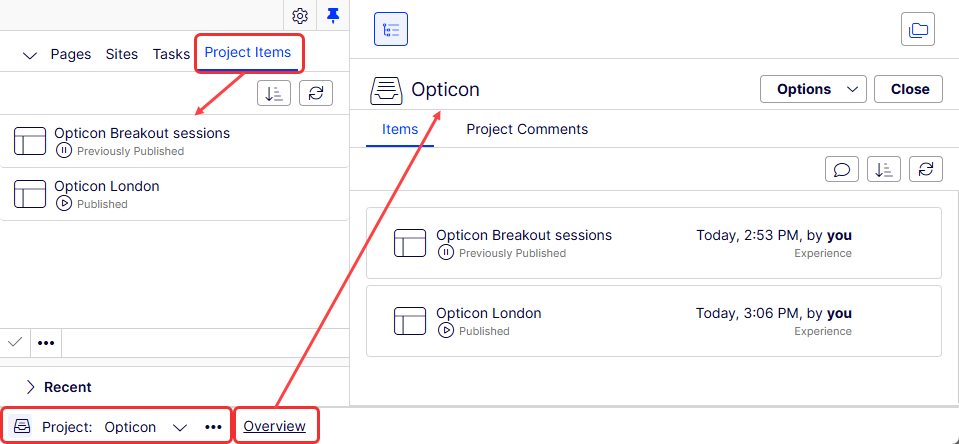
Project bar
The project bar lets you select, create, and manage projects for your editing session. It displays in the CMS window and indicates whether a project is active.

When you first open the edit view with the Projects feature enabled, the project bar shows no selection. After you select a project, CMS remembers that selection the next time you open the UI.
When a project is active (selected in the project bar), CMS automatically associates editing changes with that project. These changes include creating a page or block, updating content, and uploading an image.
Select None (use primary drafts) to work with content items without associating them with any project.
Create, rename, and delete projects from the context menu on the project bar.
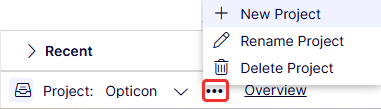
Deleting a project removes the project association from items but does not delete the items.
Project overview
The project overview displays all content items in the active project. Use it to review item status, manage publishing, and collaborate with other editors.
Click Overview in the project bar to open it.
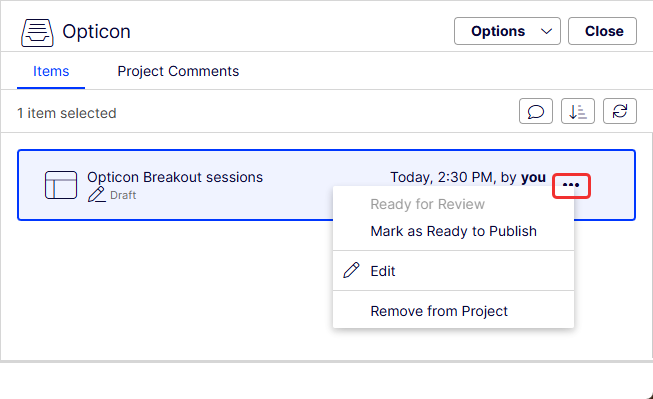
The overview shows the name, content status, content type, and last-modified date for each content item.
Hover over a content item to display its context menu. From the context menu, set the item to Ready to Publish, open it for editing, or remove it from the project. These options require Edit access rights.
Select multiple items in the overview to remove them from the project or set them as Ready to Publish at the same time. Standard mouse and keyboard selection methods work, except for Ctrl+A.
Click Options in the overview to publish all items set to Ready to publish or schedule them for later.
Click Show comments to view events connected to a project item. Add comments on each event and reply to comments. For details, go to Collaborate with comments.
Click Sort to reorder content items. Click Refresh to reload the view when multiple editors work on the same project.
Project items navigation panel
The project items navigation panel provides quick access to items in the active project. Double-click an item to open it.
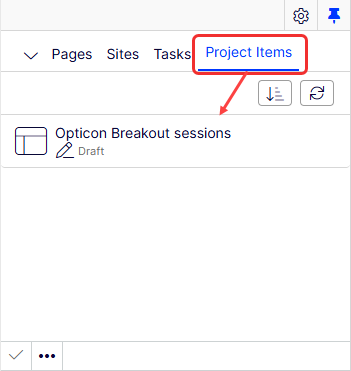
Each content item in the panel has a context menu that displays when you hover over it. The menu options match those in the project overview. Select multiple items in the list the same way as in the project overview.
Versions when you work on projects
The Versions gadget tracks which version of each content item belongs to which project. This is useful when multiple projects reference the same content.
Add the Versions gadget to your UI to see a list of versions across drafts and projects. See the Add gadgets section of CMS UI.
Each project holds only one version of a given page. A page with a published version and multiple drafts links only one of those versions to the project. If the associated version is published, the project overview displays Published for that item. Otherwise, the overview displays Draft, Previously Published, Expired, or another status.
The Versions gadget shows which project each version belongs to:
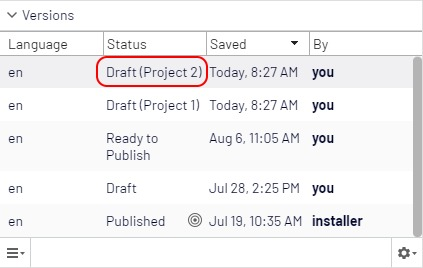
Only one published version exists at a time. Publishing a different version of the page (one not associated with the project) changes the project version status to Previously published.
When you open an item with a project active, CMS displays the version associated with the active project. Without an active project, CMS displays the primary version. The Versions gadget marks the primary version with a target symbol. The primary draft is not necessarily the most recent version.
When the Projects feature is enabled, versioning works in the following ways:
-
Project X is selected, and you create content – The draft is created and added to the active project automatically. Because this is the only version of the content, CMS sets it as the primary draft.
-
Project X is selected, and you update existing content:
-
Is the content a draft associated with the active project?
- Yes – The draft is saved and remains associated with the active project. The previous primary draft keeps its primary status.
- No, the content is a published version or a draft not associated with the active project – CMS creates a draft and associates it with the active project. The previous version remains the primary draft.
If a previous draft exists in the project for the same content item and language, the new draft replaces it. A project holds only one version of each content item per language. The replaced draft remains in CMS but loses its project association. A draft in another language is not replaced because CMS treats it as a separate version. One English draft and one French draft on the same page in the same project is valid. Two English drafts on that page is not.
-
-
No project is selected (use primary drafts) and you create content – CMS creates the draft and sets it as the primary draft.
-
No project is selected (use primary drafts) and you update content:
-
Is the content a draft? Project association does not affect this behavior.
-
Yes – The draft is updated and saved. Any existing project association remains. The previous primary draft keeps its primary status.
-
No, the content is not a draft – CMS creates a draft not associated with a project and sets it as the primary draft.
NoteIf the updated content is a media file and auto-publish is turned on, CMS publishes the media automatically at this stage.
-
-
Projects gadget
The Projects gadget lets you manage publishing for multiple related content items outside the default Projects feature. Use it when a developer disables the Projects feature for the site.
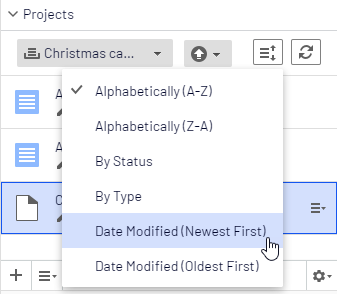
Create content or draft versions of existing content and associate the items with a project. Publish the project or schedule it for later publishing. Projects support content in different language versions to coordinate translations in the project view.
NoteAdd the Projects gadget to a side panel to access project features.
Updated 2 months ago