
Create pages and shared blocks
Create pages and shared blocks in Optimizely CMS 13. Follow step-by-step instructions to build and publish content effectively for your website.
Content in Optimizely Content Management System (CMS 13) takes the form of pages or blocks. Commerce Connect adds catalog entries. This article describes how to create pages and shared blocks in CMS 13.
To enhance your content further, see the following topics:
Content on a website can originate from different sources, depending on where on the site and who created it.
- Editors, marketers, or merchandisers create content internally on an ecommerce website.
- Visitor community members create content externally through interactive social features on the website, if available.
Create a page
Create pages to build your site structure and add content for visitors. Each page is based on a page type that contains the properties where information is added.
-
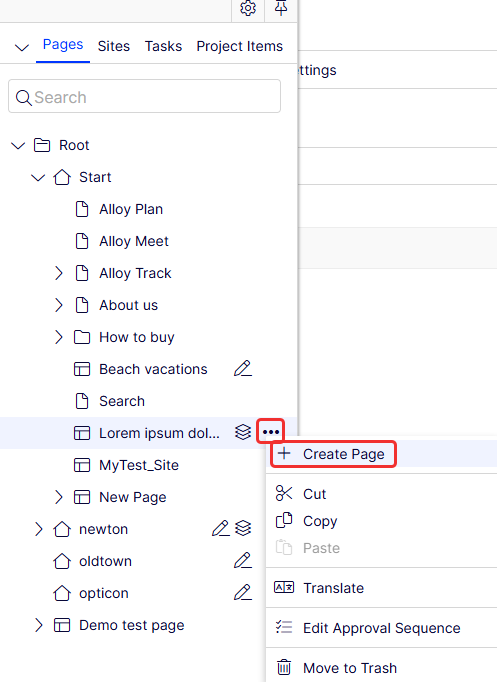
Select More (...) > Create Page in the page tree structure on the existing page under which you want to add the new page.
-
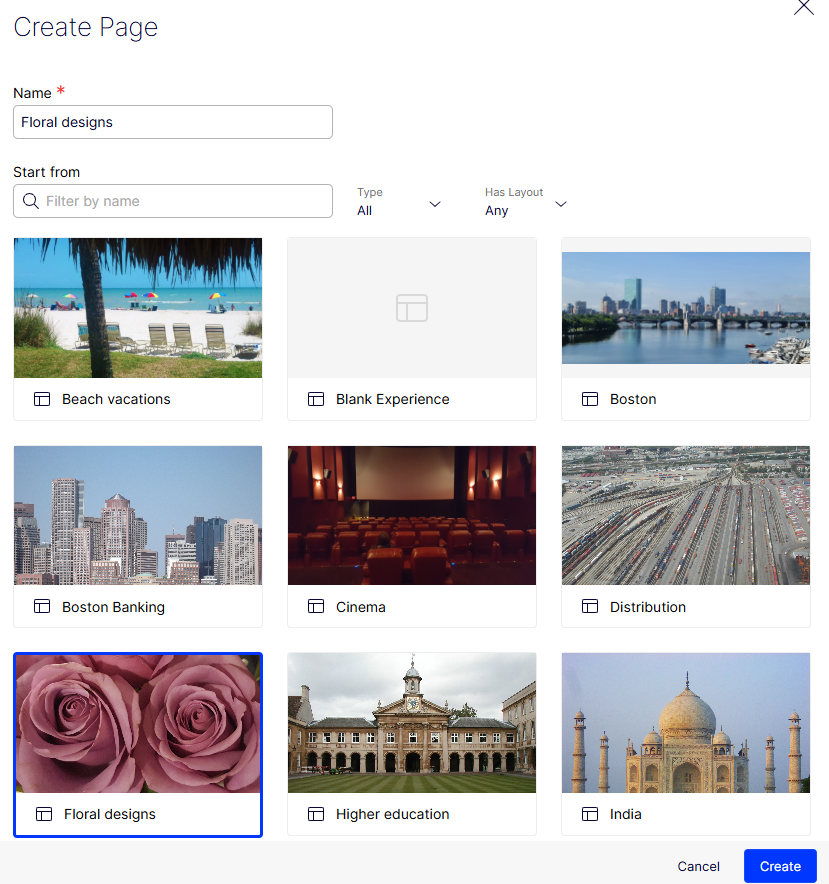
Enter a Name for the page, select the desired blueprint or page, and click Create.
-
Edit the content of the page in Visual Builder. The page preview updates in real time as you create the content.
-
Publish the page when ready.
Create a shared block
Shared blocks let you reuse content across multiple pages. Create a shared block by selecting a predefined block type that contains properties where information is added. See Shared blocks.
-
Create a shared block from the assets pane, directly from an experience outline, or from the content toolbar.
-
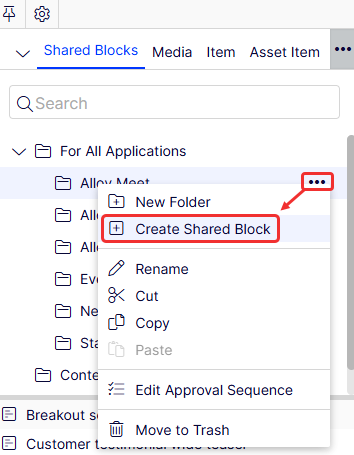
Assets pane – Click More > Create Shared Block on the asset in the assets pane where you want to create a shared block.
-
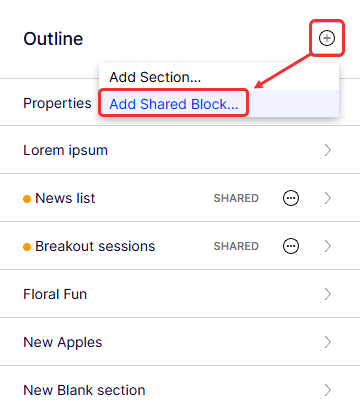
Experience outline – Click Add > Add Shared Block from the outline of an experience.
-
Content toolbar – Click Add > Create Shared Block from the content toolbar.

-
-
Select the page where you want to create the shared block (if you did not create the shared block starting from the assets pane).
-
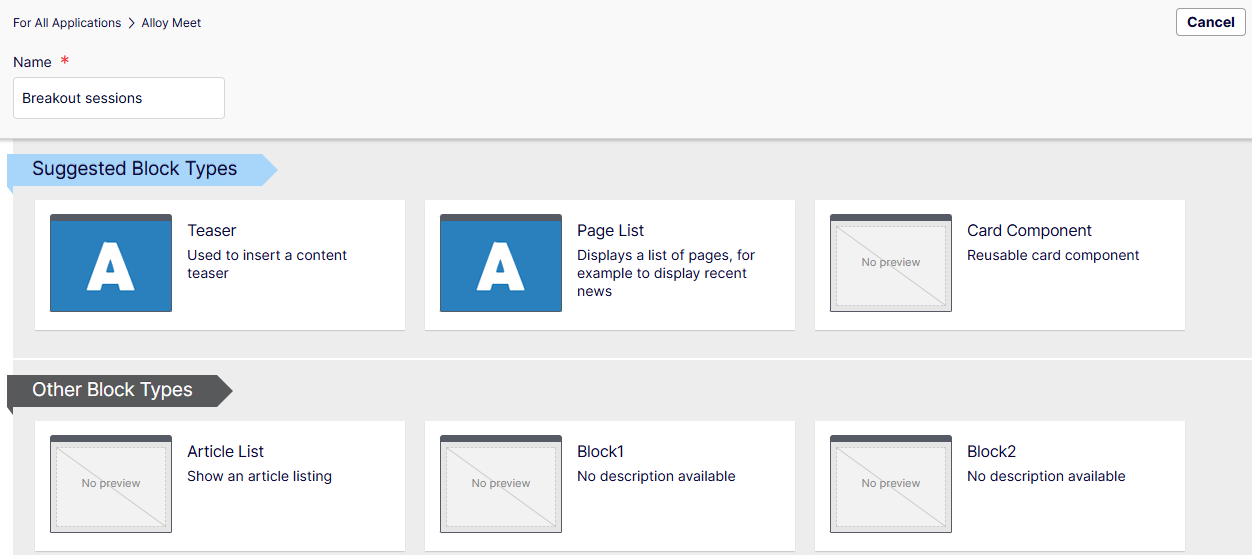
Enter a Name for the block and select a block type from the list of available blocks.
-
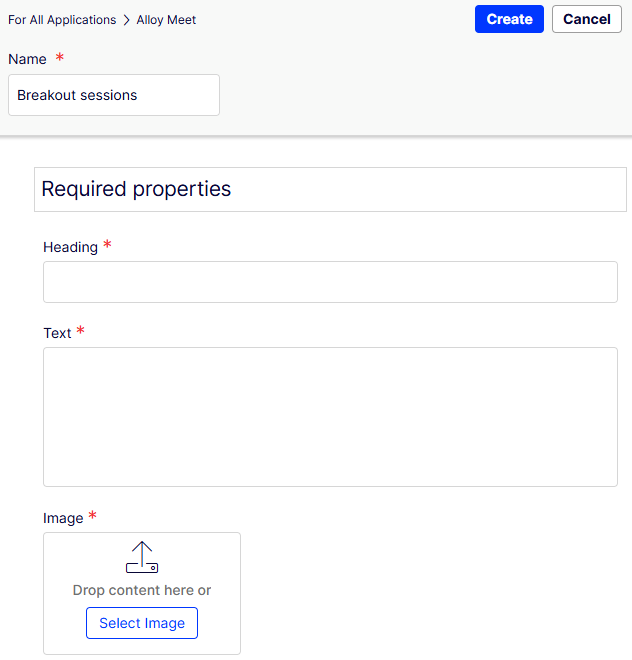
Add the required properties for the block, and then click Create.
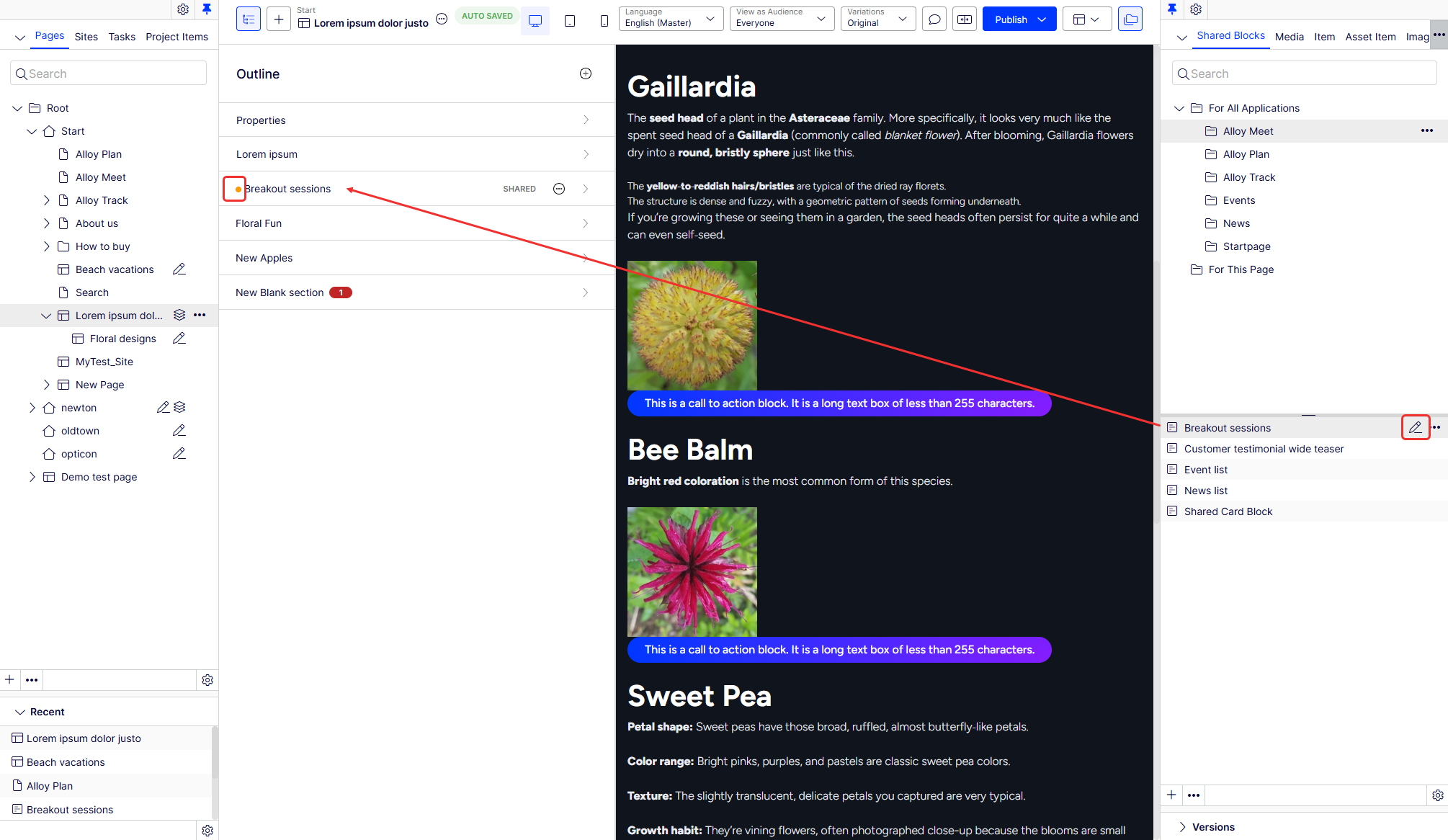
Drag a shared block into a Visual Builder experience. Unpublished shared blocks show icons to indicate they are not yet published.
Commerce Connect-related content
Creating catalog entries on an ecommerce website, such as products and variants, is similar to creating pages and blocks in CMS 13. See Manage content in the Optimizely Commerce Connect documentation.
Updated 2 months ago