
Add images with the CMP DAM asset picker
Integrate and use the Optimizely DAM Asset Picker in CMS 13. Browse, select, and manage digital assets from your embedded DAM collection directly within your CMS content.
NoteYou must have Opti ID to use the DAM asset picker with Optimizely Content Management System (CMS 13).
The Optimizely Content Marketing Platform (CMP) Digital Asset Management (DAM) asset picker lets you browse a CMP asset collection and add assets to your content without leaving CMS 13.
A developer must install and integrate the asset picker with CMS 13 and create a button to access the DAM. See Configure the DAM Asset Picker for CMS 13.
NoteLog in the first time you use the DAM library. After that, the asset picker displays automatically.
For example, if your page has a Browse the Library button, click it to open a window. Log in to CMP, select an instance from the pop-up window, and then select the assets you want to use.
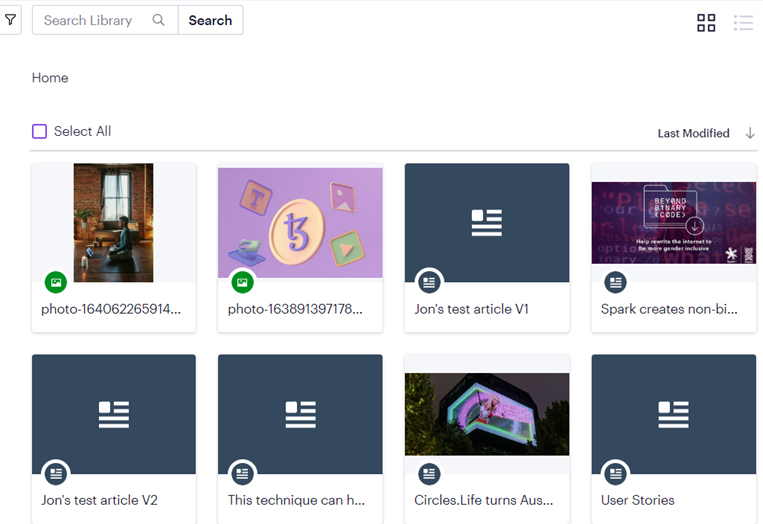
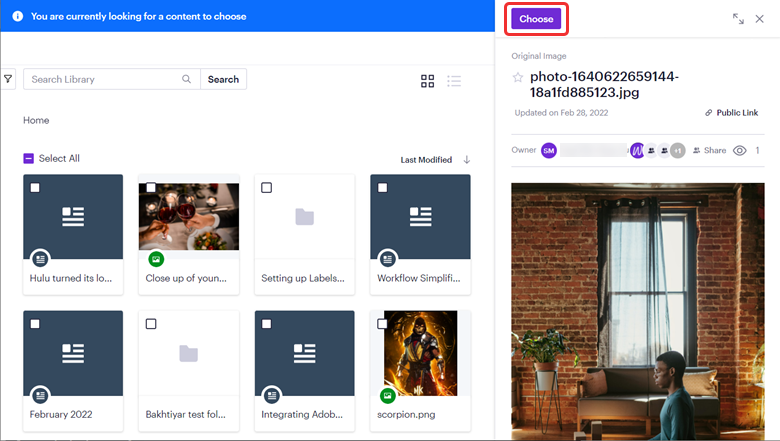
Select one or more assets. The metadata displays when you select only one asset, as shown in the following image. Click Choose to finalize the selections.
Updated 2 months ago