
Add links
Learn to add various link types and shortcuts in Optimizely CMS 13. Link to pages, media, emails, external sites, and anchors, or manage link collections.
Links connect readers to related content across your website and external sources. The following link types are available by default in Optimizely Content Management System (CMS 13):
- Page – Links from one page to another on the same website.
- Media – Links to images, documents, and other media files stored on the web server.
- Email – Creates an email message with the linked email address.
- External – Links to content on other websites or media on file shares.
- Anchor – Links to sections within a page, letting readers jump between topics on a page. Also known as bookmarks in other applications.
Shortcuts are a specific type of link used for navigation and reusing existing website information.
Create a link
Create a link through drag and drop (pages and media files), or by selecting text and clicking Insert/edit link in the rich-text editor toolbar. When you drag and drop a page or media file into a valid element, Visual Builder creates the link automatically. Edit the link the same way you insert a link in the rich-text editor by clicking Insert/edit link.
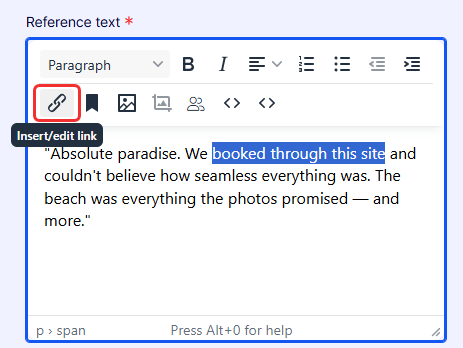
The Create Link window displays.
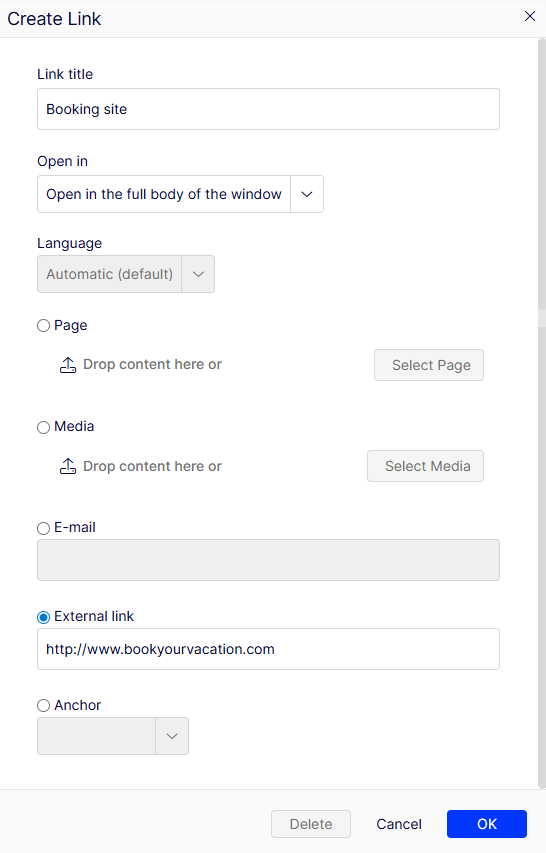
- Link title – Displays as descriptive text for the link on hover.
- Open in – Displays the link in a new window, often for links to external sources.
- Language – Links to a specific language version for content. Automatic directs visitors to the detected browsing language version.
Select one of the following link types:
- Page – Create a link to a page on the same website. See Link to page on the same website.
- Media – Create a link to a media file on the same website. See Link to media files on your site.
- Email – Create a link to an email address. See Create a link to an email address.
- External link – Create a link to a page on an external website. See Link to files on a file server or page on an external website.
- Anchor – Create a link to a specific location on a page. See Create anchor links.
Link to page on the same website
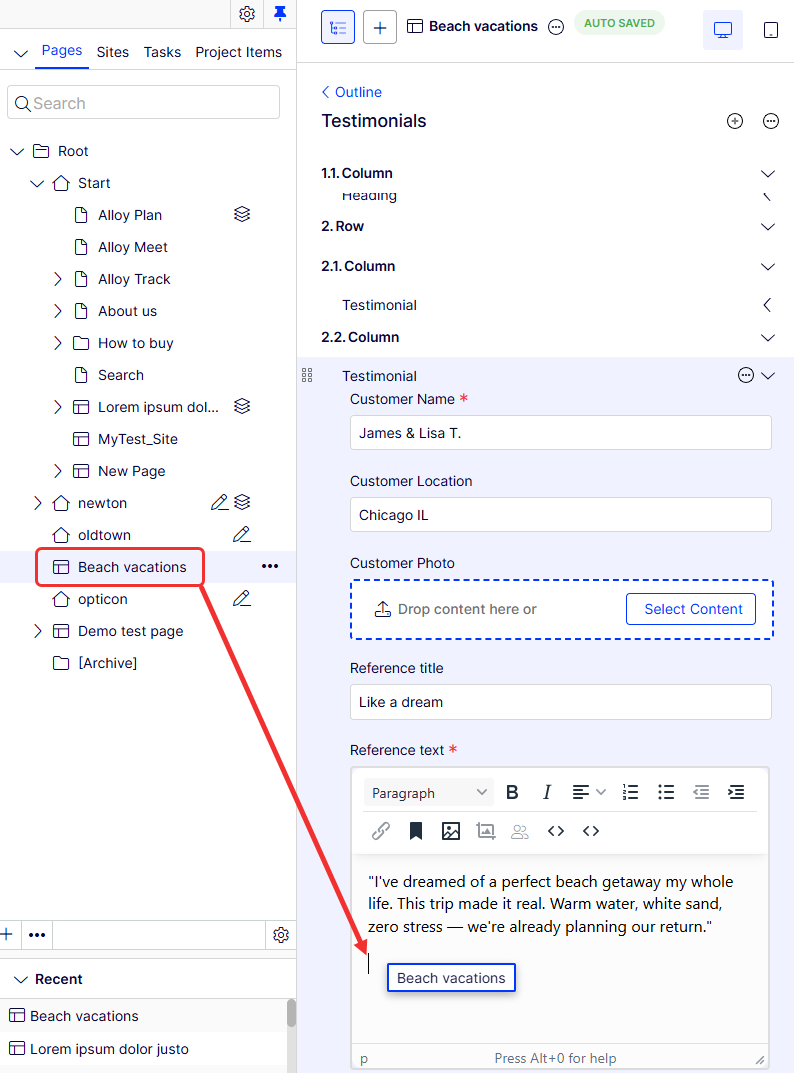
Create internal links in two ways:
-
Place the cursor in the rich-text editor where you want the link, and drag the desired page from the page tree into the location. The page name becomes the link name (which you can edit if needed).
-
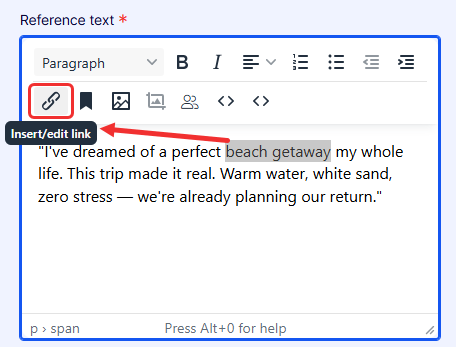
Select the text where you want the link in the rich-text editor, and click Insert/edit link. In the Create link window, complete the Link title, Open in, and Language fields, and then select the Page option and select the page to link to.
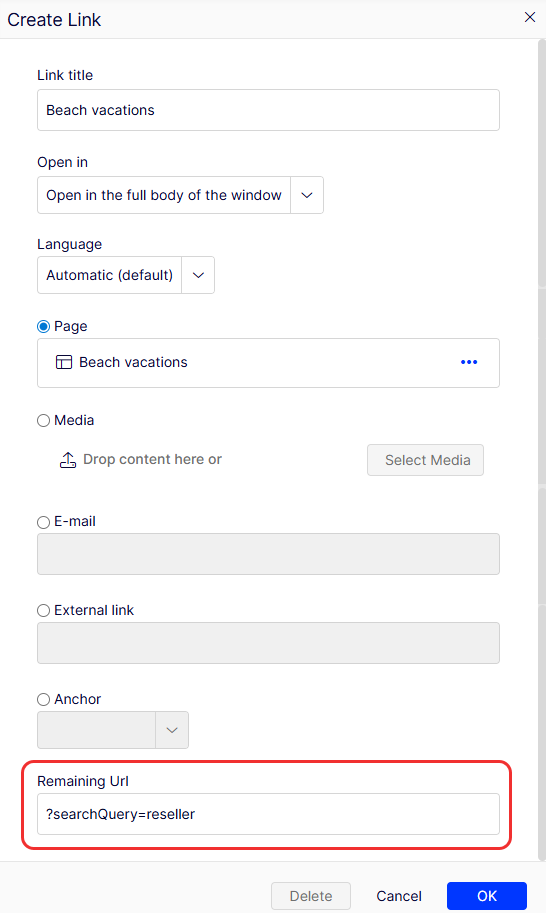
Remaining URL
Use the Remaining URL field to add or edit query string parameters. A query string is a dynamic part of a link and is not related to the website structure. It can be data from a logged-in user, data from a form submission, search result data, and so on. For example:
- Site URL with query string –
https://www.alloyexamplesite.com/Search/?searchQuery=reseller - Query string –
?searchQuery=reseller
In this example, the query string parameters following the URL open the search results for "reseller".
Link to media files on your site
Create links to media in two ways:
-
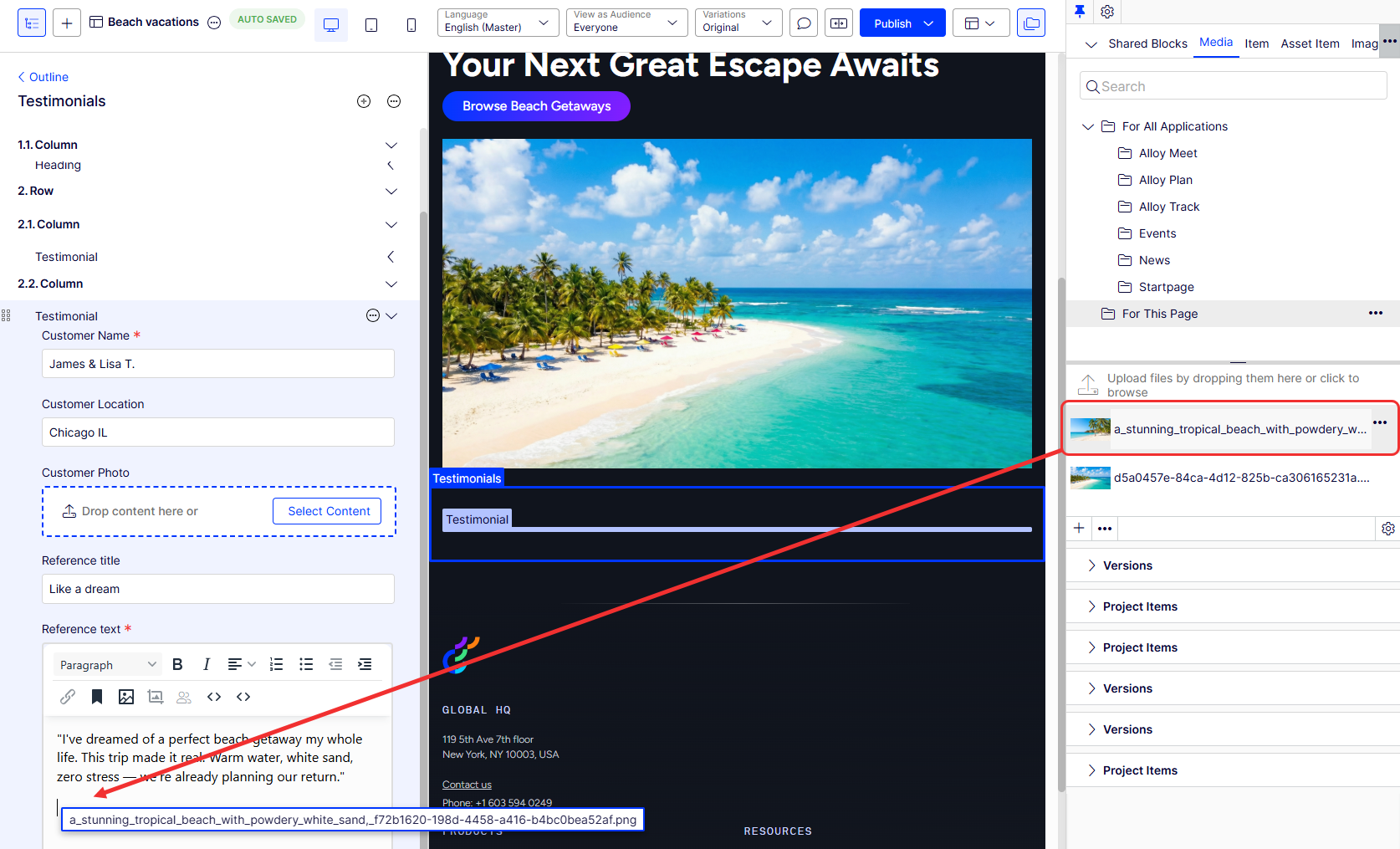
Place the cursor in the rich-text editor where you want the link, and drag the desired media file (PDF, Word, and so on) from the Media tab of the assets pane into the location. The filename becomes the link name (which you can edit if needed).
-
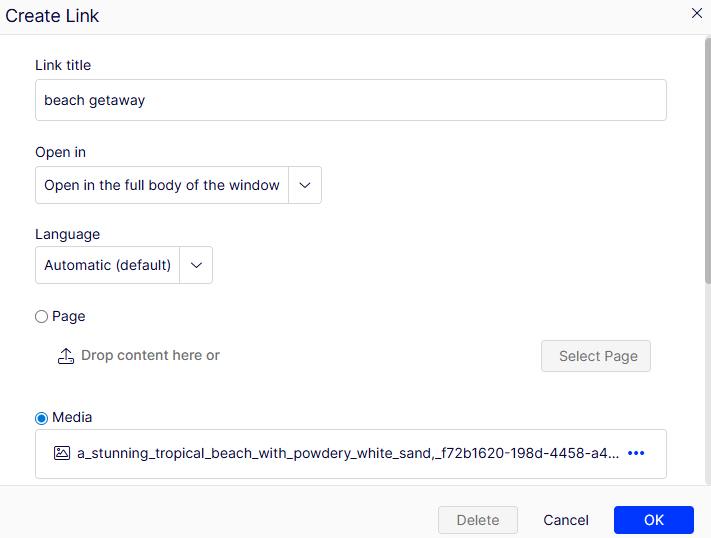
Select the text where you want the link in the rich-text editor, and click Insert/edit link. In the Create link window, complete the Link title, Open in, and Language fields, and then select the Media option and select the media to link to.
NoteCreate a link to any type of document. The behavior when a visitor clicks the link depends on the file format and the settings of the visitor's computer.
Link to an email address
-
Select the text where you want the link in the rich-text editor.
-
Click Insert/edit link.
-
Complete the Link title, Open in, and Language fields.
-
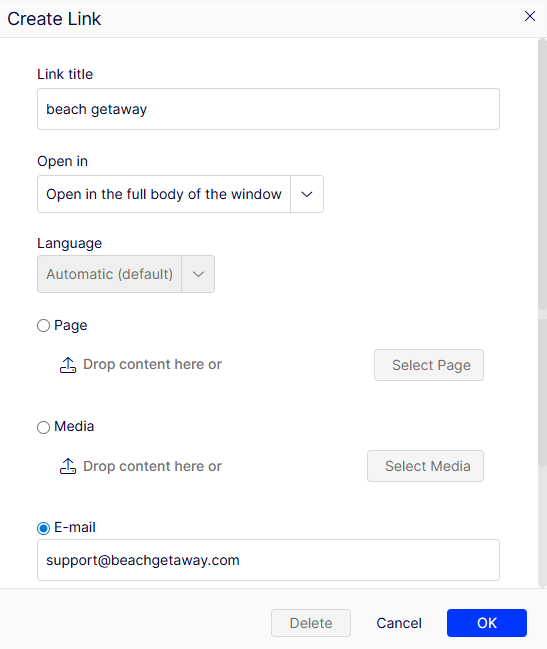
Select the Email option and enter the email address to link to.
-
Click OK. When a user clicks the link, their default email client opens with the email address entered in the email address field.
Link to files on a file server or page on an external website
-
Select the text where you want the link in the rich-text editor.
-
Click Insert/edit link.
-
Complete the Link title, Open in, and Language fields.
-
Select the External link option and enter the external link to link to.
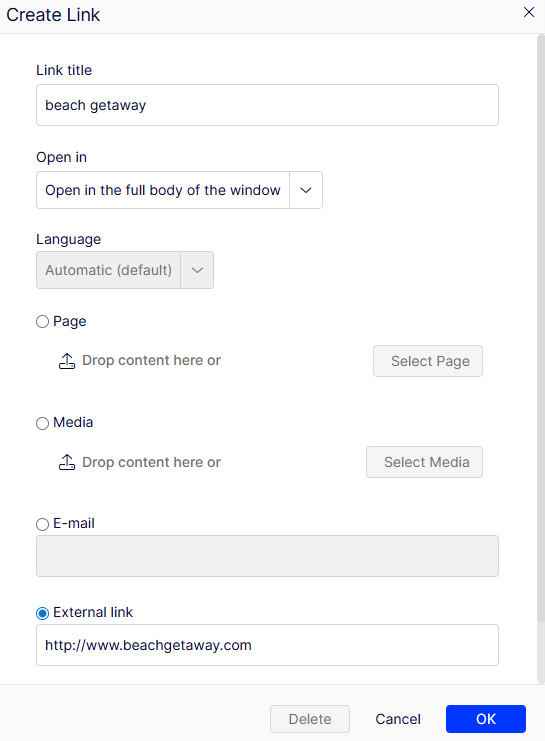
-
Click OK.
For a file server, enter the complete path, including the computer name and the filename with the file extension. The file storage network location must be properly accessible for this to work. Valid external prefixes are http, https, ftp, and file.
If you create an external link to a page found on the website you are working on, Optimizely recognizes this and automatically converts it to an internal link. If the link contains query string parameters, you can edit the query string parameters in the remaining URL.
Create anchor links
An anchor link is a link to a specific location on a page.
-
Insert an anchor from the rich-text toolbar in the location where you want to link to. Do not use special characters or spaces in the anchor name.
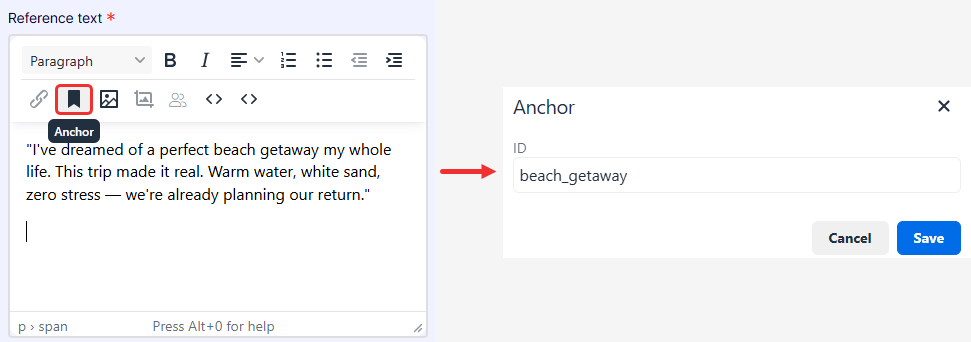
-
Select the text where you want to link from in the rich-text editor.
-
Click Insert/edit link.
-
Complete the Link title, Open in, and Language fields.
-
Select the Anchor option and select the anchor you created.
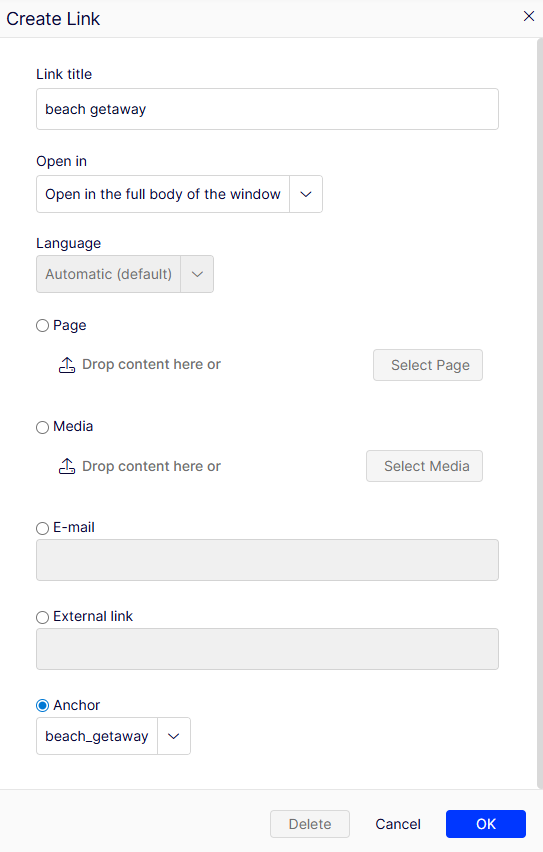
-
Click OK.
Link properties
The following examples show common implementations of link functionality on websites, with functionality similar to the link window described in the previous section.
Image link
When you add images to content areas intended for images or blocks, use an image link property to select an image from a folder in your site's media. The image link property places the image in the content area automatically. See Add and edit images.
Link collection
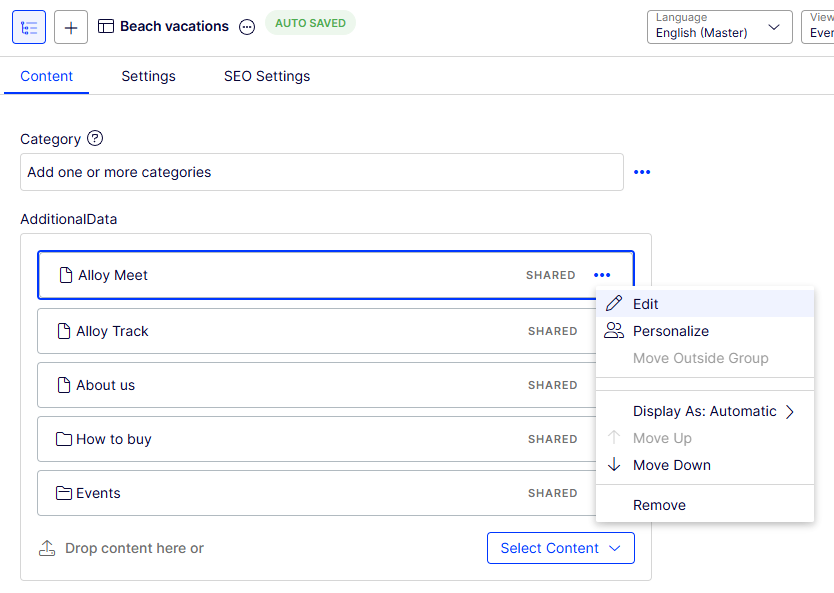
A link collection is a property where you can manage a group of links.
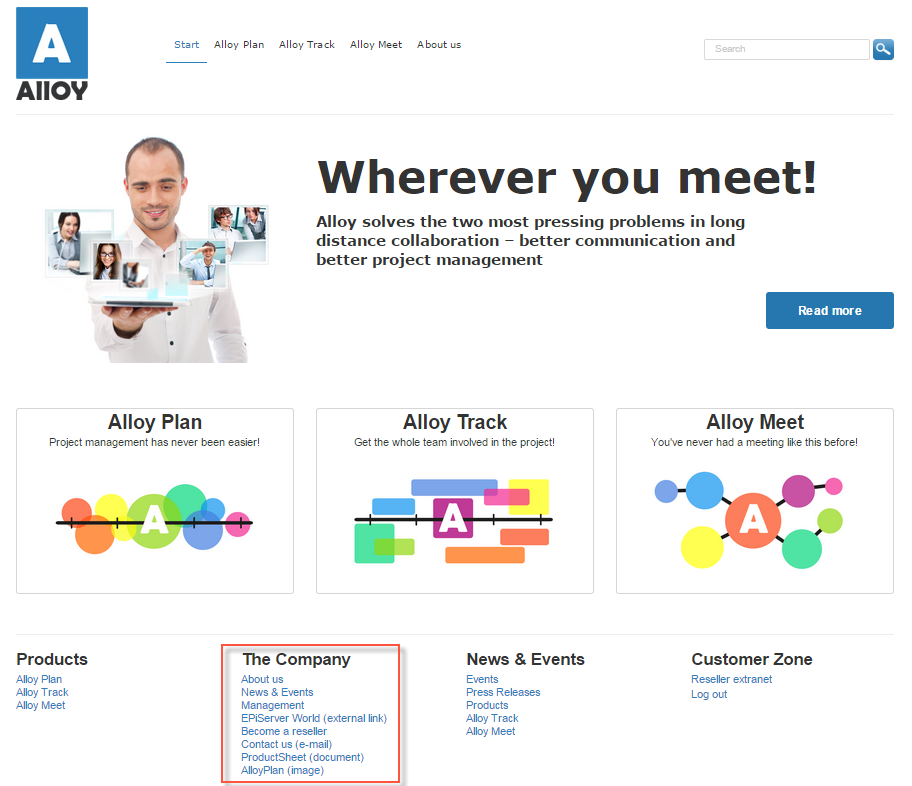
On the Content tab of the All Properties view, create links and other content by dropping pages or media files in the AdditionalData area, or by creating links through the link window. Create links for pages, media files, external sources, and email addresses. Move links to change their display order. Edit the displayed name of the link as needed.
Link to Commerce Connect catalog entries
If Optimizely Commerce Connect is installed, the link window contains an option to select items from the product catalog when you create links. See Manage content in the Optimizely Commerce Connect documentation.
Updated 2 months ago