
Manage versions of content
Efficiently manage content versions in Optimizely. Control drafts, publishing, language versions, and collaborate on web content effectively.
The version list lets you backtrack to an older version of a page or manage multiple language versions. Access the version list by using the options menu at the bottom of the Versions gadget. See the Add gadgets section in the CMS 13 UI topic for how to install the Versions gadget.
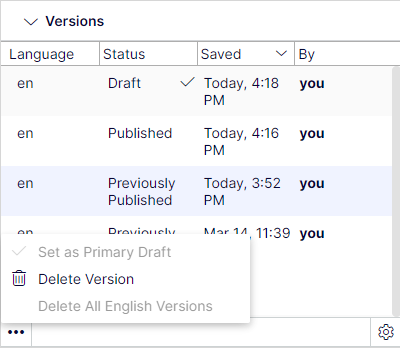
Select the column headers to sort the version list by language, status, and more.
NoteYou must add the versions gadget to the navigation or assets panel to see the version list.
View versions
Content can have the following status in the version list:
-
Draft – Content that is a work-in-progress and is not yet subject to any publishing actions.
-
Published – The most recently published version and the one publicly displayed. Only one published version can exist.
-
In review – Content must be approved before you can publish it. See Approve content.
-
Previously Published – One or more versions that were published before the latest published version.
-
Ready to Publish – Content awaiting approval and publishing.
-
Rejected – The content was set as Ready for Review or Ready to Publish and an approver has rejected the content. You can edit and update the rejected content and then set it to Ready for Review or Ready to Publish again.
-
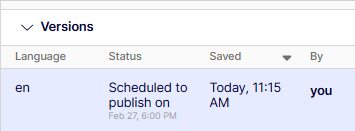
Scheduled for Publish – Content scheduled to be published at a specified time. It displays in the Versions gadget status.
-
Expired – Content where a stop publish date and time is set and passed. The stop publish date applies to all versions of a page, which means that you cannot have one version of a page that is expired and one that is published.
Set the primary draft
NoteVersioning works differently if you are working with projects. For a more detailed description of how Optimizely handles versioning in projects, see Versioning when working in projects.
The primary draft is the draft presented in edit view, when accessing the content. Multiple drafts may exist, by default the latest saved edited version is the primary draft.
Use the Set as Primary Draft option in the version list to make another draft the primary one.
A content item that is not published can have only one draft. You can create multiple drafts from published versions. Each draft is editable individually, and you can schedule for publishing at different times. Drafts are not versioned, so there is only one version of each draft.
Compare versions of content
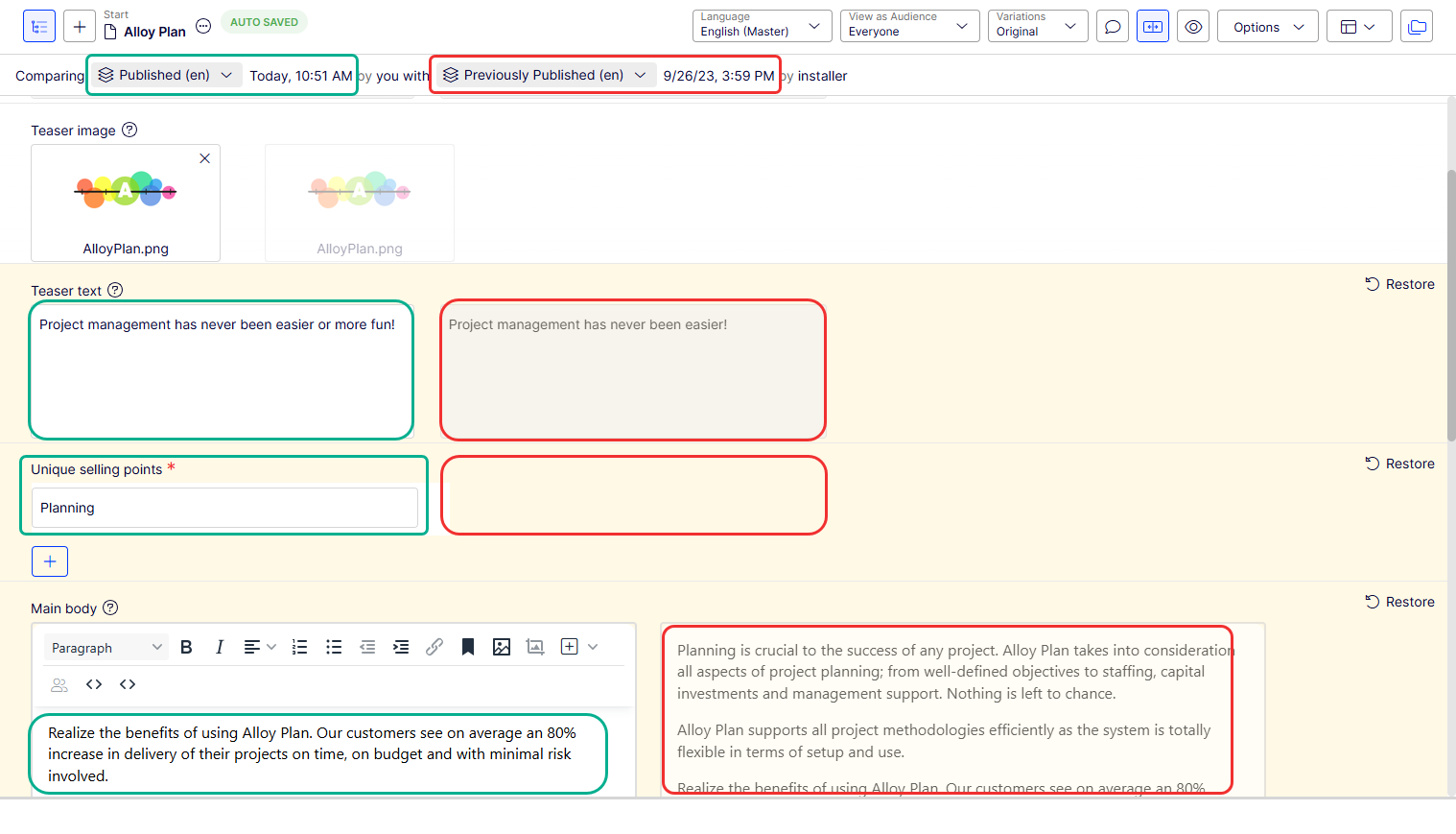
The Content tab in the compare view in Optimizely Content Management System (CMS) lets you compare properties between specific versions to see what has changed. The mode used during the last comparison is preselected the next time you enable the compare feature. By default, the draft displays in the left pane and the previously published version in the right pane. You can edit content in the draft while in compare view.
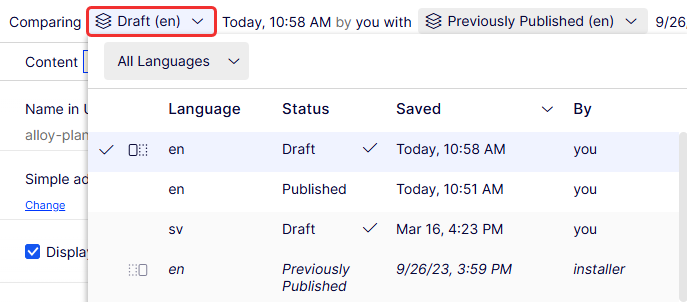
Language versions are listed in the drop-down list.
Other tabs, such as Hero, SEO, and Settings, display the two compared versions of the properties side-by-side. Tabs that contain changes between versions display the number of changed properties.

If you prefer the older version, select Restore to apply the older version content to the newer version.
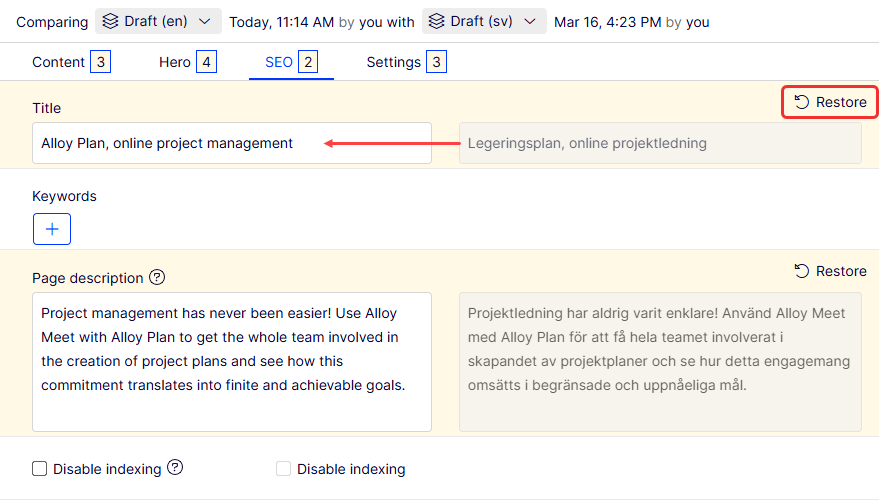
When you edit a published property, a new draft appears in the version list.
Manage language versions
If the selected content exists in multiple languages, language versions are displayed with a language code. To filter versions for a desired language, select Show Content in Current Language Only in the Pages or Sites options menu.
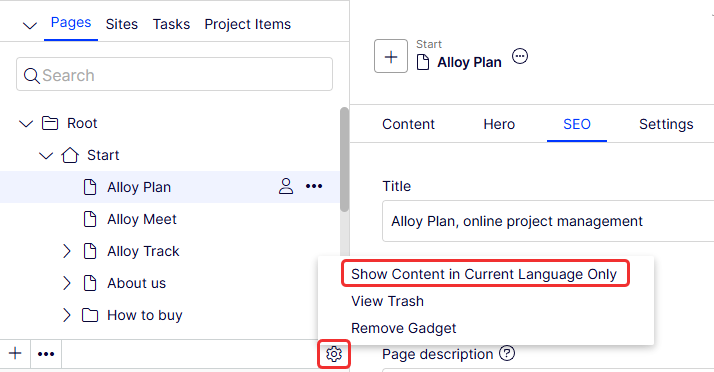
Compare language versions for translation
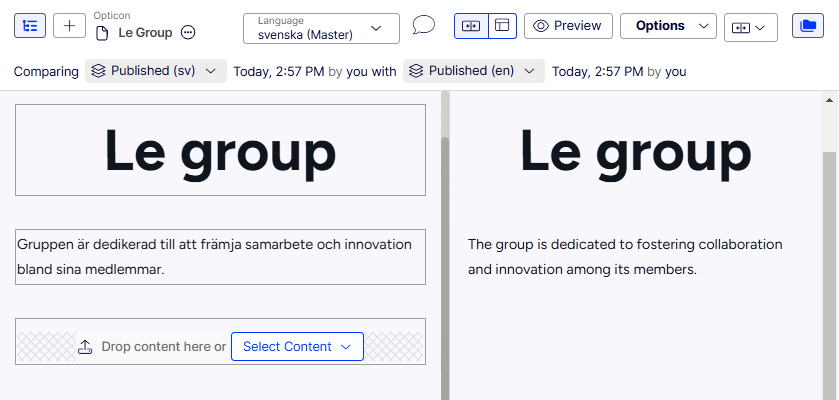
The current language is selected in the language selector list, and you can filter the versions by language. You can compare versions made in the same language or in different languages.
By comparing versions made in different languages, you can translate the content in the left pane side-by-side with the published version of the current language. You can also jump between languages to edit by selecting the current language in the version list of the left pane and then switching the language on the notification bar. The following image shows a comparison of Swedish and English versions of the topic Le Group.
Edit and delete versions
The content version selected in the version list is loaded into the editing area, from where you can edit the content or perform other available publishing actions.
Select Delete Version to delete a version. Content versions are not supported by trash management. When you delete a version in the versions gadget, the version is permanently deleted.
NoteThe version with status Published cannot be deleted. To delete it, publish another version first. Deleting content versions cannot be undone. Disable the ability to delete versions in the administration view.
Republish a version
Republish a previously published version only if no approve sequence is defined on the content item. To republish, select the desired version from the Versions gadget and select Republish from the Options menu. For traceability reasons, a new version with a new timestamp is created when you republish content, even if no changes were made.
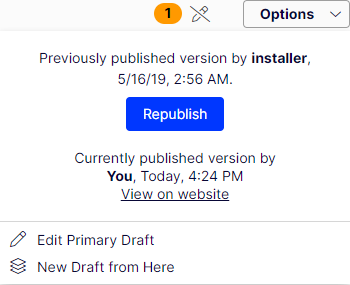
If an approval sequence is defined, you must select New Draft from Here, set the new draft to Ready for Review, and then let the draft be approved before it can be published.
You can manually create a draft from a previously published version or from a version that is scheduled for publishing at a later time. Select Options > New Draft from Here and publish the previous version of the content. You can edit the latest draft by selecting Edit Primary Draft.
Unpublish content
Unpublished content in CMS is content that is not yet published or content that you for some reason do not want publicly visible on the website.
No Unpublishing option exists in the UI. Instead, use the following options to hide published content from being publicly visible on your website.
- Set the content item to expired if you want to keep it for reference or future use.
- Remove the Everyone access rights to it.
- Delete the content item if you do not want to keep it.
Updated 2 months ago