HomeDev GuideRecipesAPI Reference
Dev GuideAPI ReferenceUser GuideGitHubNuGetDev CommunityOptimizely AcademySubmit a ticketLog In
Dev Guide

Configure multiple sites

Describes how to set up a multi-tenant instance to host multiple applications.

Optimizely Content Management System (CMS) is multi-tenant, which means that a single running instance of CMS can host multiple applications. A multi-application setup is a solution where all sites share the same file structure on the web server and the same database for storage. An applications in a multi-application setup can share content assets such as media and blocks. You can run several parallel applications on the same server.

You have the following options to add applications:

  • Single-application setup – Lets you have just one CMS site mapped to one IIS instance in your installation. The IIS mapping is to a wildcard or a specific hostname. You can have several single sites with separate databases and code bases on the same server. In this case, you would have a separate admin interface per site.
  • multi-application setup – Lets you have a single CMS site as a base (default site) and lets an administrator create additional sites that share the same root page, database, and code base. The additional sites are automatically mapped and require no additional configuration (if the base site is mapped to wild card) or need manual hostname configuration. When you work in a multi-site setup, you see sites in the same interface. One reason to run a multi-site setup with specific host name mapping (a different IIS instance per CMS site) is that you can use different application pools, which means that if one site goes down, the other sites stay running.
📘

Note

Even though CMS is multi-tenant, you can create separate IIS sites for separate CMS sites, using host headers to direct requests to the correct IIS site. The purpose of separating CMS sites into different IIS sites would be to isolate sites in different processes from a fault tolerance perspective. This can be justified in some scenarios even though memory usage may increase. When you run CMS in multiple processes, you have to configure the event system for inter-process events. As a best practice, always consider using load-balancing for fault tolerance instead of separating sites into IIS sites.

The following steps show how you set up multiple sites:

  1. IIS to configure host name mapping to applications, to listen to any hostname or specific host names.
  2. Optimizely CMS admin view to add a website.

Multi-application setup requirements

  • Each site must have a unique URL and start page in the content tree. You cannot nest start pages.
  • A multi-application license that defines the maximum number of sites the installation is licensed for.

Add an application from the admin view

If you configure the IIS application to respond to any hostname, you can launch applications from the CMS admin view without additional configuration. To define multiple applications, select the Applications tab. You can add applications and update existing applications. The application URL acts as a default URL in cases where links are generated.

You need only a root page and a URL for the application. The URL and root page are stored in the database, and applications are automatically provisioned. When you launch applications, you can also configure them to use application-specific assets. For example, when you create a campaign application, editors may want to store assets in folders only available to that specific campaign application.

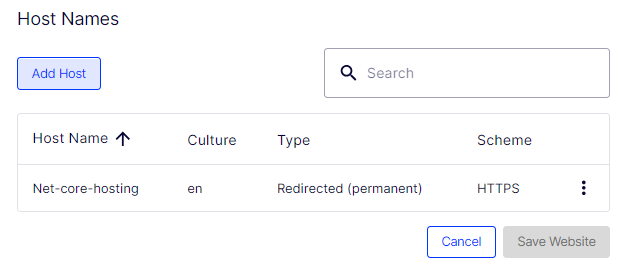
By default, one of the installed applications has the IsDefault property set to true. You can also add host mappings, such as partner.examplesite.com or customer.examplesite.com, optionally bound to a specific language. You can also set up additional hosts that should only redirect to the main host or a specific host that serves as the primary host for a specific language and the target for redirects. Redirects only apply to content; to redirect a complete application, use settings in IIS instead.

Develop for multiple Applications

Implementation code running under a web request, such as templates, does not need to consider that multiple applications exist because CMS automatically routes requests to the correct application. You can access the current application using the Application.Current property (in the namespace EPiServer.Applications).

A scenario where you may need to take multiple applications into account is when running a scheduled job. Use the IApplicationRepository interface to list applications and take appropriate action. You can use the Application.Current property to access settings shared between applications when the current application cannot be determined. An example of such a setting is the root page.

Security

A possible misconception regarding authentication in a multi-application setup is that logging out of one application while logged in on other applications would also log you out of these applications. This is not the case because using Forms Authentication stores authentication in a cookie per domain in the visitor's browser by default.