
Media types and templates
Define and register media types to enable file upload, drag-and-drop, and specialized handling in Optimizely CMS.
NoteDefine media types in your content model or from Settings before using built-in asset functionality. File upload and drag-and-drop in edit view require a defined media type. Create specific content types for images, video, and generic file types such as text or PDF files.
Media and media types work as follows:
- A media type defines a set of properties.
- A media is an instance of the .NET class that defines the media type.
- When an editor creates or uploads media, values are assigned to the properties defined by the media type.
- When a visitor requests an instance of media, the default media handler sends the binary data to the visitor.
During initialization, assemblies in the bin folder are scanned for .NET classes decorated with [ContentType] and inheriting from MediaData. Metadata for media is defined as properties on the media class and can be edited from edit view.
NoteMedia content extraction happens during upload rather than during indexing. This improves Graph indexing performance.
Generic media type
A generic media type handles common file formats such as Word or PDF documents. The example below inherits from MediaData and includes a description property available under the Content tab in edit view.
using System;
using System.ComponentModel.DataAnnotations;
using EPiServer.Core;
using EPiServer.DataAbstraction;
using EPiServer.DataAnnotations;
using EPiServer.Framework.DataAnnotations;

namespace MyOptimizelySite.Models.Media {
  [ContentType(DisplayName = "GenericMedia", GUID = "89761dbb-bf22-4cee-93c7-9d661d75cad8", Description = "Used for generic file types such as Word or PDF documents.")]
  [MediaDescriptor(ExtensionString = "pdf,doc,docx")]
  public class GenericMedia: MediaData {
    [CultureSpecific]
    [Editable(true)]
    [Display(
      Name = "Description",
      Description = "Add a description of the content.",
      GroupName = SystemTabNames.Content,
      Order = 1)]
    public virtual String Description {
      get;
      set;
    }
  }
}
MediaDescriptor attribute
The MediaDescriptor attribute associates specific file extensions with a content type and creates content of the correct type when a user uploads media through the UI.
Omitting the list of file extensions maps the content type to a wildcard valid for all extensions. Use the MediaDescriptor attribute to restrict which file extensions a content type accepts.
When creating media content from the server side, use ContentMediaResolver to resolve the same content type mapping.
Specialized media types
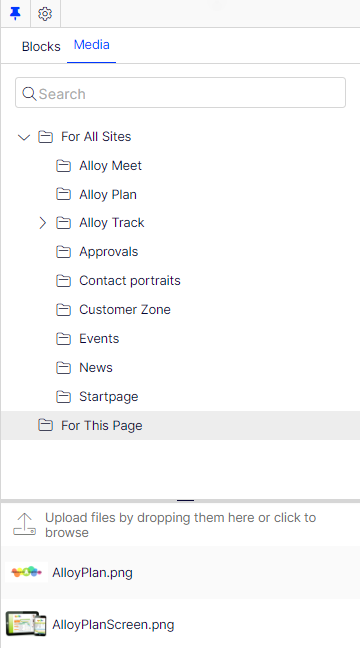
ImageData and VideoData are specialized base classes that distinguish images and videos from other generic media for special handling in edit view. Media types inheriting ImageData display image thumbnails in the Media folder listing. Both ImageData and VideoData inherit from MediaData.
The following example defines a media type for images, inheriting from ImageData, with properties for copyright and a description:
namespace MyOptimizelySite.Models.Media {
  [ContentType(DisplayName = "ImageFile", GUID = "875b3b51-e0a7-412c-8f56-44f59c184440", Description = "Used for images of different file formats.")]
  [MediaDescriptor(ExtensionString = "jpg,jpeg,jpe,ico,gif,bmp,png")]
  public class ImageFile: ImageData {
    public virtual string Copyright {
      get;
      set;
    }
    public virtual String Description {
      get;
      set;
    }
  }
}
The UIHint property attribute selects an editor, renderer, or both by defining a hint string. Use EPiServer.Web.UIHint for known types in the system, for instance UIHint.Image.
The following example defines a media type for videos, inheriting from VideoData, with properties for copyright and a link to a video preview image:
namespace MyOptimizelySite.Models.Media {
  [ContentType(DisplayName = "VideoFile", GUID = "f2285e5a-be15-47b6-8952-e3c61deaefd2", Description = "Used for specific video file formats.")]
  [MediaDescriptor(ExtensionString = "flv,mp4,webm")]
  public class VideoFile: VideoData {
    public virtual string Copyright {
      get;
      set;
    }

    [UIHint(UIHint.Image)]
    public virtual ContentReference PreviewImage {
      get;
      set;
    }
  }
}
ImageDescriptor attribute
The ImageDescriptor attribute generates scaled images automatically. When routing to a BLOB-type property, Optimizely checks whether the BLOB is null and the property has an ImageDescriptor attribute. If both conditions are true, a scaled image is generated from IBinaryStorable.BinaryData.
The following example shows the ImageData.Thumbnail property with an ImageDescriptor attribute:
public class ImageData: MediaData {
  [ImageDescriptor(Width = 48, Height = 48)]
  public override Blob Thumbnail {
    get {
      return base.Thumbnail;
    }
    set {
      base.Thumbnail = value;
    }
  }
}
Media structure
Folders organize media into a hierarchy. A folder can contain other folders or media as children, but a media instance cannot have any children. Set access rights on folders to control availability for editors.
The following criteria define the media structure:
- Global media root folder (
GlobalAssetsRoot) – media available for content across all sites in a multi-site scenario. - Site-specific media root folder (
SiteAssetsRoot) – media available only for a specific site. In a single-site scenario,GlobalAssetsRootandSiteAssetsRoottypically point to the same folder. - Folder (
ContentFolder) – an instance used to structure content. A content folder has no associated rendering and does not display on the site.
See SiteDefinition in the Optimizely CMS class library.
Change the maximum upload file size
The maximum size of uploaded files is set on UploadOptions.FileSizeLimit. The default value is ~30 MB (30,000,000 bytes). Set the value in bytes from appSettings.json:
"EPiServer": {
  "CmsUI": {
    "Upload": {
      "FileSizeLimit": 104857600
    }
  }
}
Customize the media handler
Media uses the same templating system as other content types, so any template type is available for media: not just the built-in endpoint that delivers binary data.
To extend default media handling (for example, to set response headers), register an implementation of IStaticFilePreProcessor.
The following example adds a header to the response for PDF requests:
public class PdfStaticFilePreProcessor: IStaticFilePreProcessor {
  public int Order => 10;

  public void PrepareResponse(StaticFileResponseContext staticFileResponseContext) {
    if (staticFileResponseContext.Context.Response.ContentType == "application/pdf") {
      staticFileResponseContext.Context.Response.Headers.Add("Content-Disposition", "attachment");
    }
  }
}
Register the static file pre-processor using MediaOptions:
services.Configure<MediaOptions>(o => o.AddPreProcessor<PdfStaticFilePreProcessor>());Add a custom media template for more control. If the template is based on an endpoint, add a ContentActionDescriptor to the endpoint metadata. Also add policies for CmsPolicyNames.Read and CmsPolicyNames.Preview to ensure access rights are checked.
The following example shows a custom endpoint template for PDF files that adds a header to the response:
[TemplateDescriptor(Inherited = true, TemplateTypeCategory = TemplateTypeCategories.HttpHandler)]
public class PdfEndpoint: Endpoint, IRenderTemplate<PdfFile> {
  private readonly static ContentActionDescriptor _mediaContentActionDescriptor = new ContentActionDescriptor {
    Inherited = true, ModelType = typeof (PdfFile)
  };
  private static readonly AuthorizeAttribute _authorizeAttribute = new AuthorizeAttribute(CmsPolicyNames.Read);
  private static readonly AuthorizeAttribute _previewAttribute = new AuthorizeAttribute(CmsPolicyNames.Preview);

  public PdfEndpoint(IBlobHttpHandler blobHttpHandler): base(context => ProcessRequest(blobHttpHandler, context),
    new EndpointMetadataCollection(_mediaContentActionDescriptor, _authorizeAttribute, _previewAttribute), nameof(PdfEndpoint)) {}

  private static Task ProcessRequest(IBlobHttpHandler blobHttpHandler, HttpContext context) {
    context.Response.Headers.Add("Content-Disposition", "attachment");
    return blobHttpHandler.Invoke(context);
  }
}
Updated 3 months ago