
All properties editing view
Information on the All Properties editing view in Optimizely CMS 13.
The All Properties editing view provides access to content properties, including those not available in the Visual Builder. Select All Properties in the toolbar to access these additional properties.
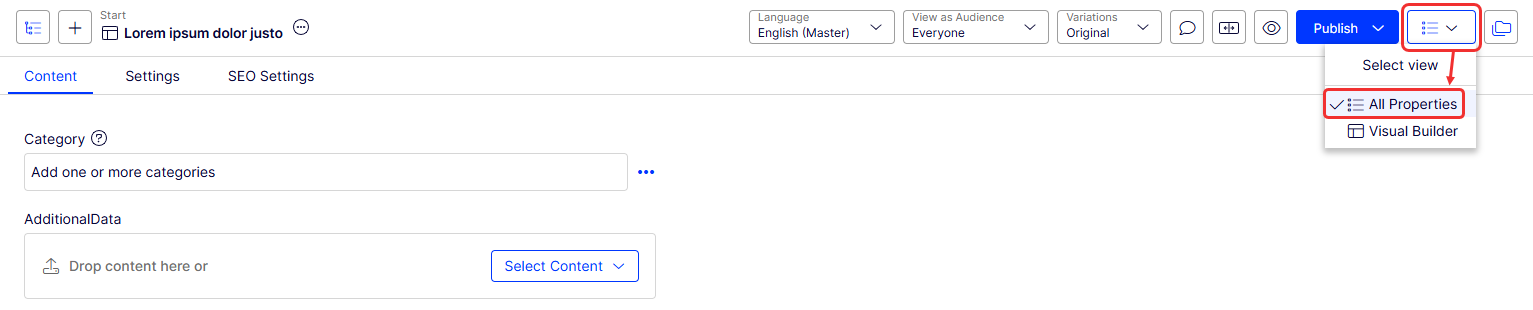
This view is particularly useful for content editors who need to manage complex pages with multiple elements or for developers who are setting up templates and need to ensure all properties are correctly configured.
Content tab
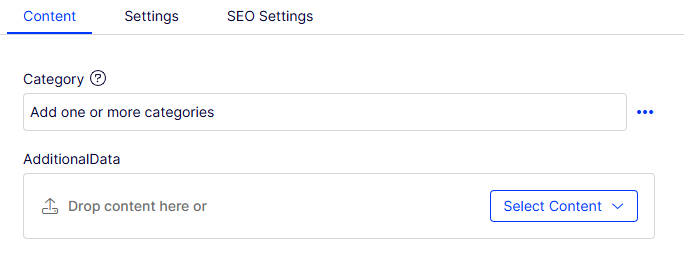
The Content tab displays by default and lets you manage and edit the content elements of a page or block. This tab provides an overview of available content properties where you make changes directly.
From the administrative interface, customize and configure default values for selected properties or make certain properties mandatory for editors to fill in. See Define page properties.
Settings tab
The Settings tab contains built-in properties for managing publication dates, sort order, shortcuts, and more.
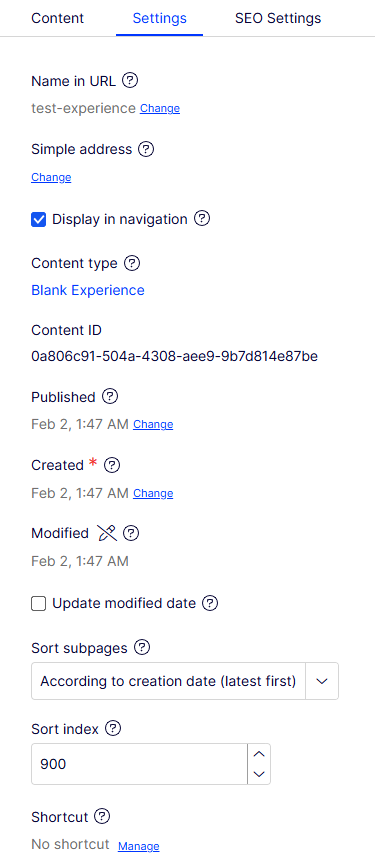
- Name in URL – The URL is created automatically based on the page name and its place in the navigation. Whether this URL is visible in links depends on the implementation. If you copy a page, the URL of the original page is copied with a number added to it. Change this if you create content based on existing page copies. Changing the URL for an existing page can cause broken links.
- Simple address – Add this unique URL to frequently requested pages on your application, letting visitors locate the page by typing the simple address name after the main URL. For example, providing products as a simple address lets you find the page by entering
https://www.company.com/productsin the browser address bar, even if the products page is further down in the navigation tree. Use Reports to manage simple addresses for your application. - Display in navigation – Select this checkbox if you want to display the page in the site navigation (as opposed to only in listings).
- Content type – Click the link to edit the properties of the content type.
- Content ID – The unique ID set by the system.
- Published, Created, and Modified – System-generated timestamps for the content. Change these if necessary.
- Update modified date – Select this checkbox when you make significant changes to the content and want the system to update the modification date. For example, publish a fix to a typographical error without updating the modified date because it is a minor correction. If you change the content significantly, select Update modified date to show the date the content was updated, letting readers know how recently you updated the information.
- Sort subpages – Define the order in which children of the page are displayed.
- Sort index – Specify an integer for the index number of the page. When you select According to sort index for the parent of the page, the page with the lowest index is shown at the top.
- Shortcut – Create a shortcut to another content item. For example, link to a page on the same website or a different website.
SEO Settings tab
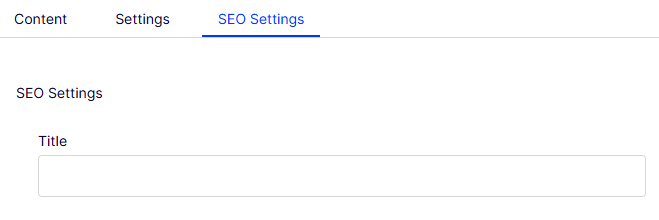
Improve search engine visibility for your pages by adding keywords and metadata. Add keywords for search engine optimization (SEO).
Preview tab
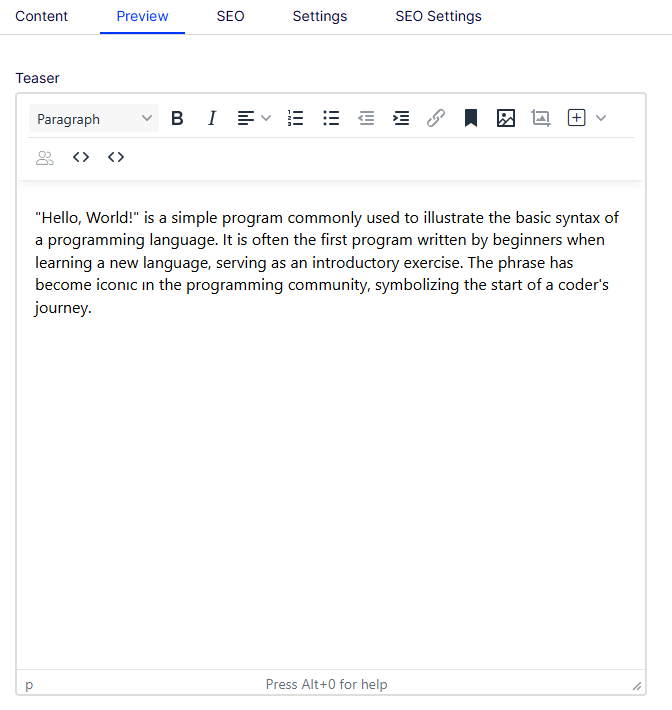
Available for some types of content, the Preview tab manages content elements, like the Content tab, but for previews.
Updated 2 months ago