
Link property
Understand link properties in Optimizely CMS 13. Learn to manage internal and external links for content, navigation, and user experience.
The Link property type stores link-related items such as URLs, document references, and image links. Use it to connect content to internal pages, external addresses, or downloadable files. The following image shows Link property type examples.
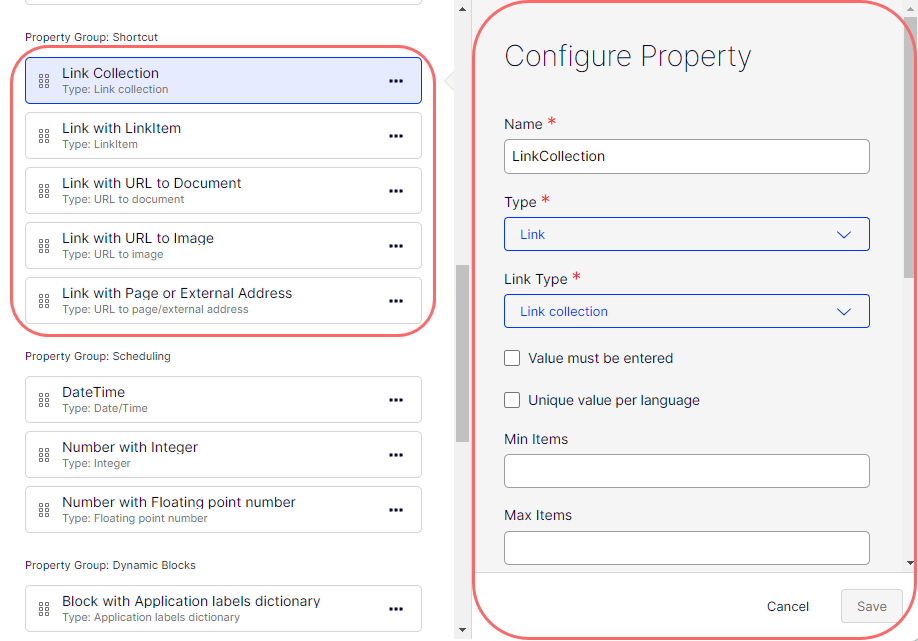
Configure Link property
The following attributes are available when you configure a Link property.
-
Name – Enter the name of this Link property type. This name is used for programming and language settings.
-
Type – Lets you change the content type to any other.
-
Link type – Select how to manage links to resources, navigation elements, downloadable content, and other linked assets within an application's content structure.
-
Link Collection – A grouping of link items. You can set the minimum and maximum number of link items. It looks similar to this when rendered in the All Properties edit view .
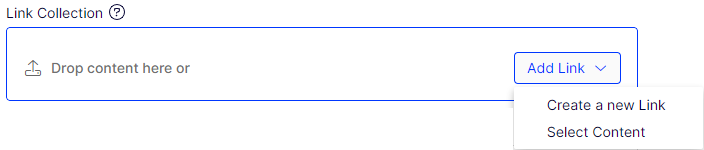
When you select Add Link > Create a new link, the Create Link page displays.
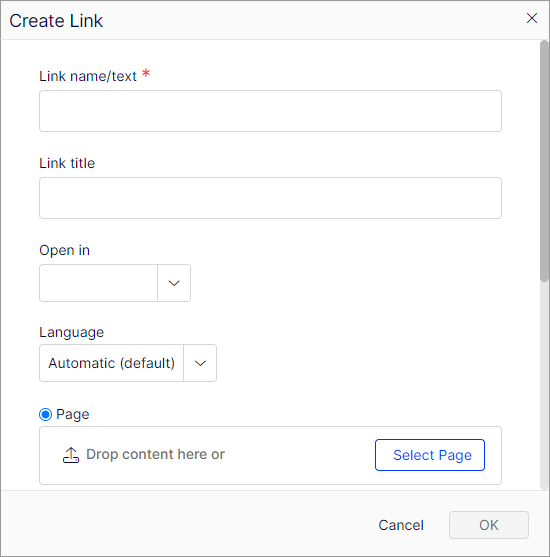
-
LinkItem – Stores a URL, the text to display, and a target property to specify whether the link should be opened in the same window or a new one. It looks similar to this when rendered in the All Properties edit view.

-
URL to Document – A link that points to a document resource. The document could be a PDF, Word file, Excel file, and so on. It looks similar to this when rendered in the All Properties edit view.

When you click Select Media, the Select Media page displays media types you can select.
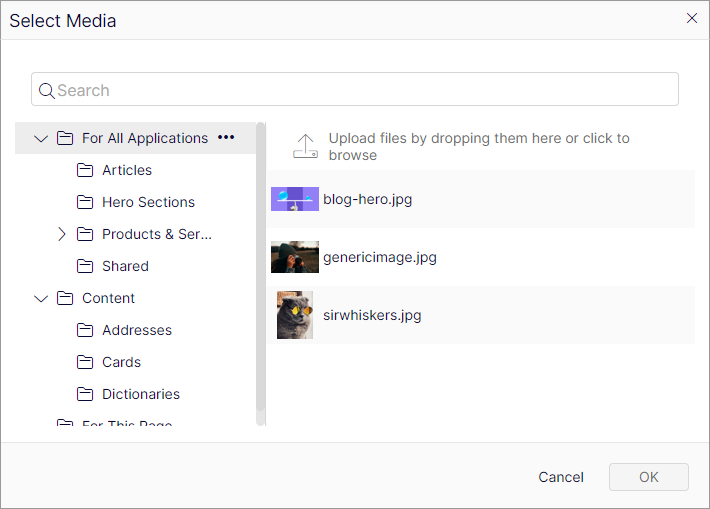
-
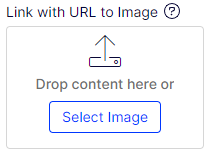
URL to image – A link that points to an image resource. It looks similar to the following when rendered in the All Properties edit view.
-
URL to page/external address – A link to a page in CMS 13 or a link to an external web address. The system might maintain the link for internal pages even if the page's location changes within CMS 13's structure. For external applications, it is a traditional hyperlink to a web address. It looks similar to this when rendered in the All Properties edit view.

-
-
Value must be entered – Select to require the user to enter a value in a Link field. Required fields display a red asterisk (*).
-
Unique value per language – See Define language-specific properties.
-
List – Unavailable.
-
Property Indexing Type – Unavailable.
-
Default value – Select the options to define the Link field's value.
-
No default value – The field is empty (no pre-populated content).
-
Inherits value – The field value is derived from another source. This is often used in hierarchical systems where child elements inherit values from their parent elements. For example, a sub-page inherits some property values from its parent page.
-
Custom – Enter a value to display in the field. The following image shows
www.optimizely.comdisplayed as the default value.
-
-
Display in edit view – Unavailable.
-
Display name – Enter the text you want to display above the Link element on the page in the All Properties view.
-
Help text – Enter text to display next to the Display Name. The following image shows how the help text displays.

-
Sort index – Specify a value to determine the order in which data is displayed or processed.
-
Property Group – Select a property group (Categories, Content, Dynamic Blocks, Preview, Scheduling, SEO Settings, Shortcut) to organize your content on tabs in the All Properties edit view of the content type.

Updated 2 months ago