
Shared blocks
Create, edit, and use shared and inline blocks in Optimizely CMS 13. Reuse content across applications, organize with folders, and manage versions, languages, and access rights.
Blocks are reusable pieces of content that you maintain in one place and share among applications. Blocks do not have their own URL and must be part of other content, such as a page.
Shared and inline blocks
Optimizely Content Management System (CMS) supports two block types, each suited to different reuse scenarios:
- Shared blocks – Unique instances with their own publishing lifecycle, available in the CMS Assets panel. Multiple content instances and applications can reuse a shared block. Use shared blocks for reusable components such as campaign teasers, banners, videos, and news feeds.
- Inline blocks – Stored as part of the content instance where they are created, such as a page. Inline blocks do not require individual publishing and do not display in the Assets panel. Use inline blocks for structures that do not serve a purpose on their own, such as editorial blocks.
Manage shared blocks
Organize and create blocks in folders from the Shared Blocks tab in the Assets panel. Drag shared blocks into the content area of CMS pages to use them.
Find a shared block
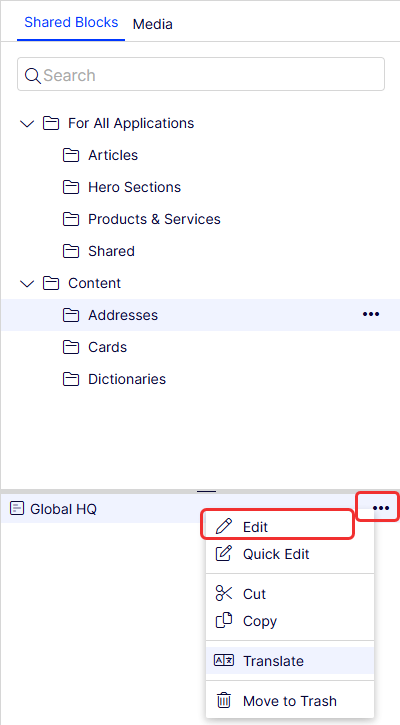
Locate shared blocks by searching or browsing the folder structure in the Assets panel.
Use the search field to enter search criteria and retrieve shared blocks. Click a search result to expand the folder where the block is located. Click a folder to browse its subfolders and content.
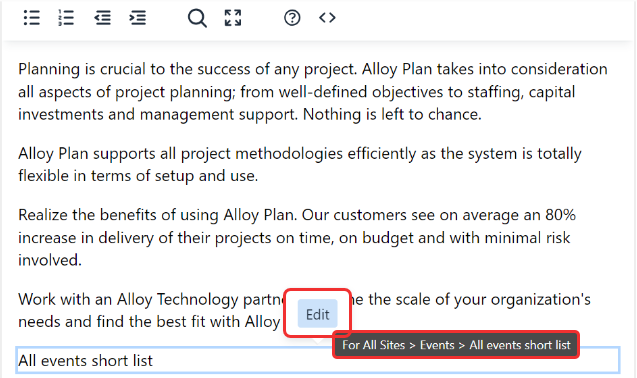
To find where an inserted shared block is stored, select the block in the rich-text editor to display Go to shared block. Click Edit to open the block, or hover over the block to see its storage location.
Create a shared block from the assets panel
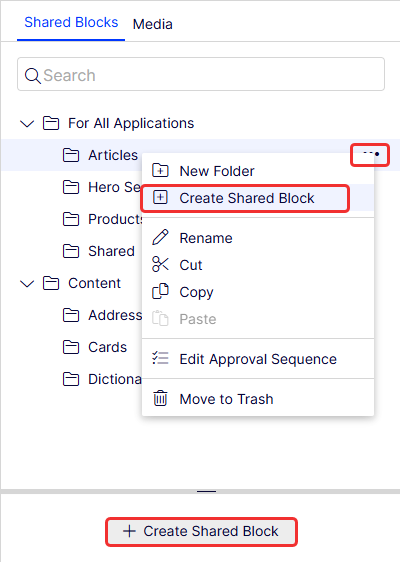
Create shared blocks from the Assets panel to control where they are stored in the folder structure.
- Save a block under For All Sites or For This Site to make it available to other pages.
- Save a block under For This Page to restrict it to the current page.
NoteCreate access rights are required for the folder under For All Sites or For This Site where you create the shared block. Create access rights to the current page are required when creating a shared block in the local For This Page folder.
-
Select the folder where you want to create the block.
-
Select Create Shared Block from the context menu, or select More (…) > Create Shared Block.
-
Select the block type.
-
Enter a name for the block.
-
Add content as appropriate for the block type.
-
Publish the block immediately or schedule it for later publishing.
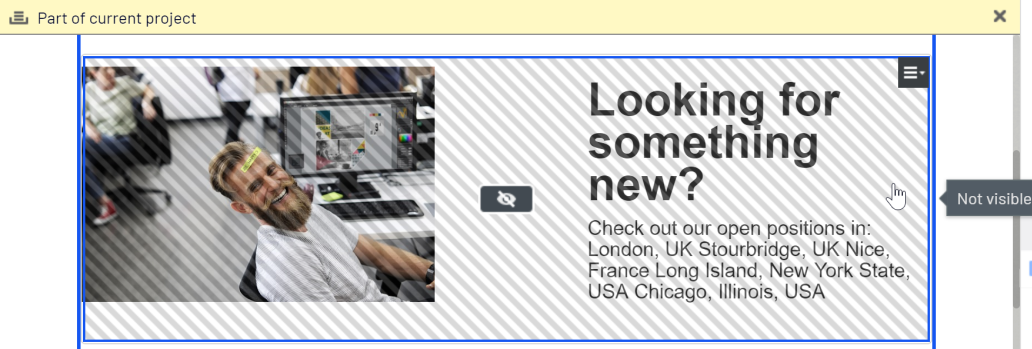
Unpublished shared blocks are not visible to visitors. They display dimmed in edit view when added to a content area.
Create an inline block from a content area
Create inline blocks directly within a content area. CMS stores the inline block as part of the page, so it does not display in the Assets panel.
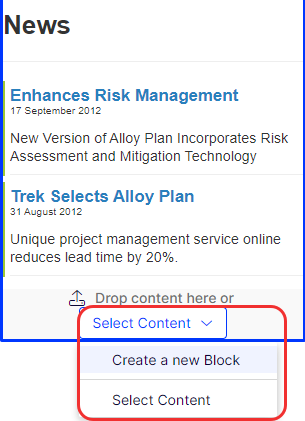
- Select Select Content > Create a New Block in the content area from the On-Page Editing or All Properties view.
- Select the block type.
- Enter a name for the block.
- Add content as appropriate for the block type.
- Click Create.
If a content approval sequence applies to the page, or if you do not have publishing rights, CMS creates the inline block as a draft. Otherwise, CMS publishes it immediately.
Edit blocks in Visual Builder
Configure inline blocks for use as sections and elements in Settings. An inline block can serve as both a section and an element. Go to Content types in the UI for details on block configuration.
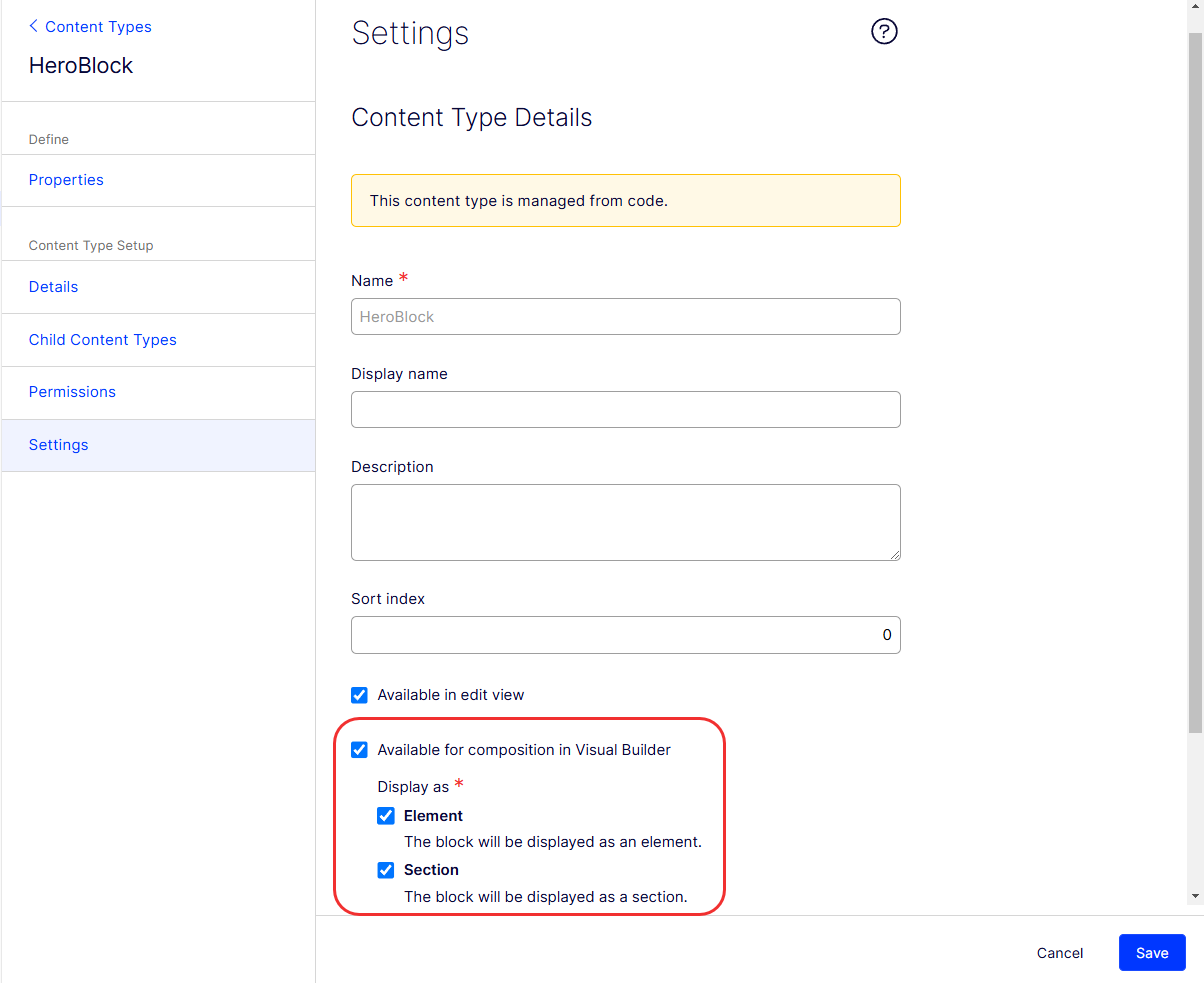
Blocks with complex types (such as nested block types) cannot serve as sections or elements. CMS displays the following message: Cannot set Enable as Element because this content type contains property type that elements cannot have. (See property 'SiteLogoType')
Edit a shared block
Update shared block content from the content area or the Shared Blocks tab in the Assets panel. Changes to a shared block apply to every location where the block is used.
- Select the shared block to edit.
- Select Quick Edit from the context menu to open the block in Quick Edit view. Select Edit to open it in On-Page Editing or All Properties view instead.
- Change the content as appropriate for the block type.
- Save or publish the block:
- In Quick Edit view, save the block to return to the page. Set the block to Ready for Review or Ready to Publish, or publish immediately.
- In On-Page Editing or All Properties view, set the block to Ready for Review or Ready to Publish, publish immediately, or schedule for later publishing.
To rename the shared block, use the All Properties view.
Edit an inline block
Update inline block content directly from the content area. Changes to an inline block affect only the page where the block was created.
- Select the inline block to edit.
- Select Edit from the context menu.
- Change the content as appropriate for the block type.
- Click Save to keep your changes, or click Cancel to revert.
Publish the page before changes to the inline block display on the site.
Use blocks in content
Add shared blocks to content areas that support blocks to build dynamic page layouts.
- Open the Assets panel in edit view.
- Select a block from the Shared Blocks tab.
- Drag the block into a content area on the page.
A blue frame indicates valid drop locations.
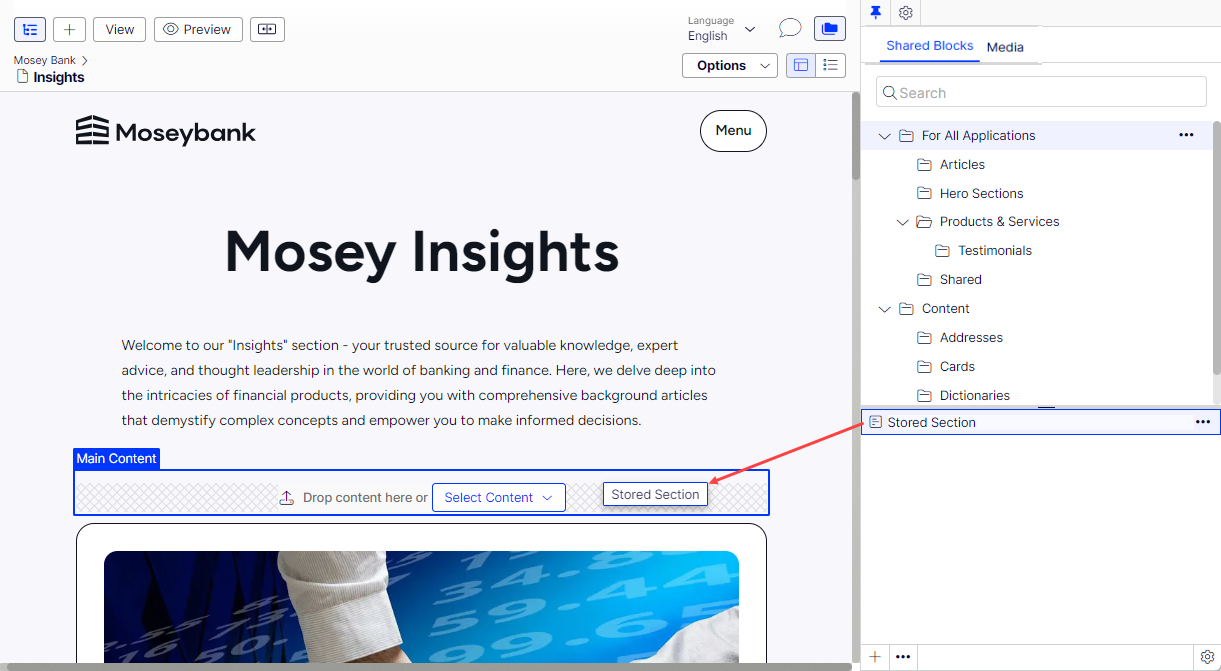
Add multiple blocks to the same area. Drag each block above or beneath an existing block and drop it when the separator displays. Add blocks through the All Properties view as well.
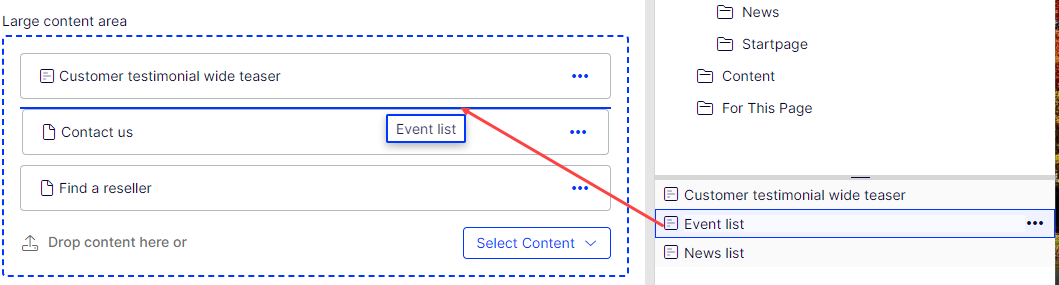
Drag pages from the page tree into a content area to render their content. The page template determines how the content displays.
To remove a block from a content area, select Remove from the context menu.
Blocks do not have a web address (URL), so direct links to blocks are not possible. Add links to pages and media files from the rich-text editor (XHTML string property) within a block.
Arrange blocks in a content area
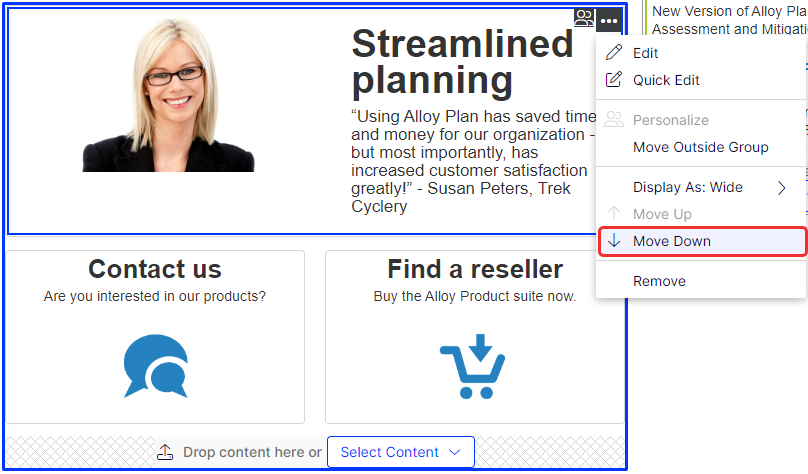
Reorder blocks in a content area through drag-and-drop or through the context menu. Select Move up or Move down to reposition a block.
Move, copy, and remove shared blocks in folders
Manage shared blocks in the folder structure through the context menu, similar to managing pages. Shared blocks and media files share the same folders, so removing a folder affects both block and media content. CMS notifies you about content usage before moving items to the trash.
A shared block is no longer available on the site when moved to trash. Select View Trash from the context menu to see removed shared blocks.
Manage versions, content languages, and access rights
Control the lifecycle, translations, and permissions of shared blocks through the same tools used for other CMS content types.
- Versions – CMS creates a version when you update shared block properties. Manage versions through the Versions gadget. Go to Publish versions of content for details.
- Content languages – Manage shared block translations the same way as other content types. Go to Translate content for details.
- Access rights – Define who creates and views shared blocks. Set rights directly on a shared block in the All Properties view, or set rights on a shared block structure from the admin view. Developers can restrict which block types a content area accepts through code. Go to Access rights for details.
Updated about 2 months ago