
Media
Manage media files in Optimizely CMS 13. Upload, publish, insert, preview, download, edit metadata, rename, and replace images, videos, and documents.
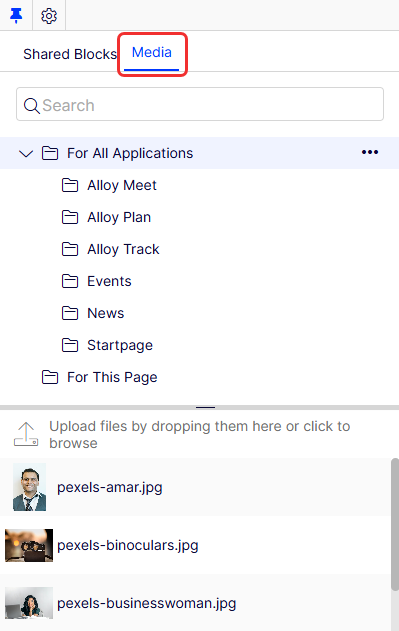
Media in Optimizely Content Management System (CMS) includes images, documents (such as PDF or Word files), videos, and audio files. Store media files on the Media tab in the Assets panel to make them available across CMS.
Upload a file to the Assets panel and drag and drop it onto a page or block. Drag and drop a file from your computer directly onto a page or block as an alternative. CMS uploads the file automatically and stores it in the For This Page or For This Block folder. Go to Folders for details on organizing files.
Search for media
Locate media files by searching or browsing the folder structure in the Assets panel.
Use the search field to enter search criteria and retrieve media files. Click a search result to expand the folder where the file is located. Click a folder to browse its subfolders and content.
Upload media
Add media files to the library by uploading them to a folder in the Assets panel.
Drag and drop files from a file location to upload them. Click the upload area to add files. Select Upload Files from the context menu of the target folder.
NoteCreate access rights are required for the folder under For All Sites or For This Site where you upload a media file. Create access rights to the current page are required when uploading to the local For This Page folder.
Publish media
Publishing controls when uploaded media files become visible to site visitors.
If your system does not publish media files on upload automatically, publish or schedule them for later publishing, as with other content types.
WarningPublishing media files
- Publish access rights are required for the folder if media files publish automatically on upload.
- An automatically published media file is indexed by search engines and appears in search results immediately. Consider this before uploading sensitive information that should not be accessible until a specific date, such as an annual report.
- Media files are never published automatically when a content approval sequence is set on the media folder. The same applies when a project is enabled during upload.
Insert media
Add links to uploaded media files or insert images and embedded media such as videos into your content. Go to Add links and Add and edit images for details.
Preview media
Thumbnail images represent media files in list views. CMS renders common image file formats for preview by default. Developers can add rendering support for other formats.
Download media
Save a copy of a media file to your local machine through the context menu or the preview view.
Select the media file in the Media structure and select Download from the context menu. When previewing a media file, select Download this file from the Options menu.
Edit metadata for media
Update metadata properties such as photographer, description, and copyright information for media files. Available metadata fields depend on the implementation.
- Select the media file in the Media structure.
- Select Edit from the context menu.
- Switch to the All Properties view.
- Edit the metadata properties.
Rename media
Change the name and URL of a media file through the All Properties view. Renaming preserves internal links on the website. Incoming links from external websites break if they reference the original URL.
- Select the media file in the Media structure.
- Switch to the All Properties view.
- Update the Name and Name in URL fields.
Replace media
Overwrite an existing media file by uploading a file with the same name to the same folder. The replacement publishes immediately and affects every location on the website where the file is used.
If you change the Name property of a file, the database file name changes. For example, renaming Button1.png to Button1 removes the file extension from the stored name. To overwrite the renamed file later, upload a file named Button1 without the extension. Uploading Button1.png creates a separate file.

Website caching delays visibility of replaced images. Refresh the page to see the updated image.
Manage media file versions
Track and restore previous versions of media files through the Versions gadget. CMS manages media file versions the same way as other content types. Go to Publish versions of content for details.
Updated about 2 months ago