
Editing UI
Describes the architecture and components of the editing UI in Optimizely CMS.
The editing UI in Optimizely Content Management System (CMS 13) provides a pluggable panel framework. Extend the editing UI to add custom gadgets, context-aware panels, or tailored editing experiences for content authors.
The UI framework has a server-side layer based on ASP.NET MVC and a client-side layer that uses the Dojo JavaScript library (a toolkit for building web UIs). Components reload automatically when the editing context changes. Each component displays content tailored to the selected item.
The editing UI supports the following editing modes:
- On-page editing – Opens an editor on the page for simple property types such as short strings, integers, and decimal numbers.
- Forms editing – Opens a form-based editing view for properties not visible on the page.
Editors switch between modes without losing context.
Prerequisites
- Optimizely CMS 13 installed
- Familiarity with ASP.NET MVC and Razor views
- Access to the editing environment.
Autosave
Autosave persists changes to the server automatically, ensuring that editors never lose work.
The client saves changes and syncs them to the server after a short delay. Each property or content block edit creates an undo step. Undo and redo steps persist while the editor remains on the page. Editing changes sync to the server even if the editor leaves the page or closes the browser.
Architecture
The two-layer architecture separates editing controls from page rendering, making it easier to extend the UI and troubleshoot rendering issues.
The editing UI separates concerns into two layers:
- UI layer – Loads Optimizely scripts and CSS files and handles editor interaction.
- Content page layer – Renders inside an iframe with minimal differences from the visitor-facing page. HTML5
dataattributes injected in edit view identify editable blocks. A custom stylesheet loads when editing is enabled. No other scripts or markup are injected. To access theepiobject, see Load the "epi" communication object. When this layer loads, the UI layer scans for editable nodes and attaches event handlers that trigger the correct editor.
Enable editing for a specific area by adding the data-epi-property-name attribute to an HTML tag:
<h1 data-epi-property-name="PageName">
  @Model.CurrentPage.PageName
</h1>
Clicking a node loads the editor configured for the PageName property.
A property can display in multiple places on a page. Editing the property in one place updates every other instance. Disable editing for a specific instance while other instances still receive updates.
Configure editors separately from the HTML. Additional data attributes override default behavior.
When a user triggers an editor, the editor factory class creates it based on data attributes and property metadata. Optimizely extracts metadata from the following sources:
- Metadata attributes from the model class
- Global editor descriptors that define rules for a common language runtime (CLR) type
- Custom metadata providers that supply metadata
NoteFor a description of the Optimizely object editing system, see Edit objects.
Create page properties from typed model classes or the admin UI. The PageData class assembles metadata through a custom metadata provider. It sends the metadata to the client through a REST service as a hierarchical representation of the page and its properties. The following example shows how a property is described:
modelType– The name of the CLR type, including its namespace.uiType– The default client-side editor widget.customEditorSettings– Information about a non-standard editor type such as an inline editor.settings– A settings object passed to the editor widget constructor.
{
  "name"                 : "PageName",
  "modelType"            : "EPiServer.Core.PropertyString",
  "uiType"               : "dijit.form.ValidationTextBox",
  "uiPackage"            : null,
  "customEditorSettings" : {
    "uiWrapperType" : "inline",
    "uiType"        : "epi.cms.widget.ValidationTextBox"
  },
  "layoutType"    : null,
  "defaultValue"  : null,
  "displayName"   : "Name",
  "groupName"     : null,
  "displayOrder"  : -81,
  "settings"      : {
    "label"          : "Name",
    "required"       : true,
    "missingMessage" : "The Name field is required.",
    "invalidMessage" : "The field Name must be a string with a maximum length of 255.",
    "regEx"          : "^.{0,255}$",
    "maxLength"      : 255
  },
  "additionalValues" : {},
  "properties"       : [],
  "groups"           : null,
  "selections"       : null
}
NoteDijit is the UI widget library included with Dojo.
Server communication
Server communication manages data flow between the client-side editor and the server, ensuring that property changes render correctly without blocking other updates.
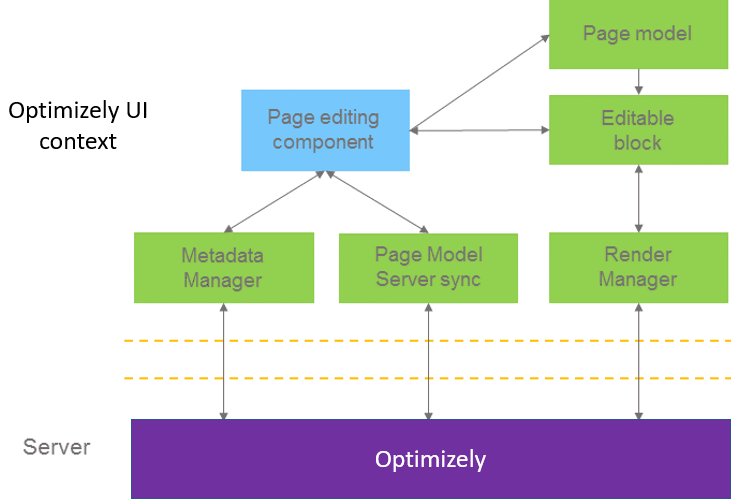
The page editing component performs the following tasks:
- Creates editable blocks for each node in the page with
dataattributes. - Stores page data in the page model.
- Syncs changes using the page model server sync class.
Editable blocks handle property data editing and use a render manager to render properties on the page. Rendering occurs on the client side or server side. Server-side rendering uses a queue to render properties sequentially rather than simultaneously. A change to one property triggers re-rendering of dependent properties on the page.
Editable blocks
Editable blocks connect the on-page content to the correct editor and wrapper, letting you override default editing behavior per property.
Clicking an editable block creates the editor and an editor wrapper for the block. The editor factory decides which wrapper and editor to use based on the data attributes and property metadata. Connect to an event in the editor factory to change values at runtime.
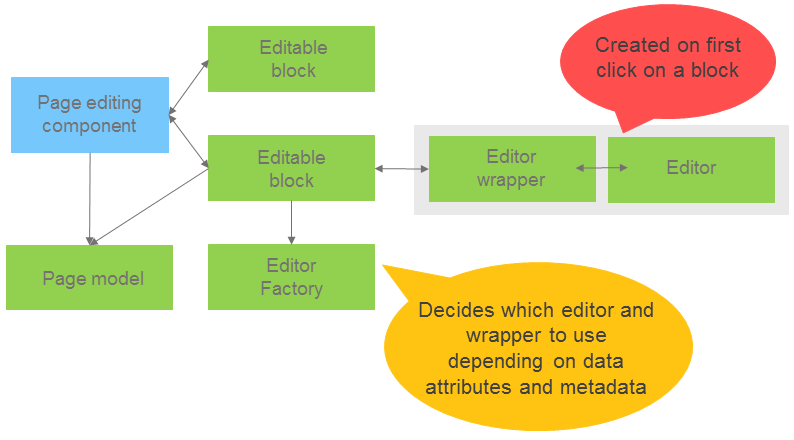
The data attributes take higher precedence than metadata. Use a non-standard editor for a property on a specific page by setting the appropriate attribute. Inline editing requires an editor designed for inline use. In other cases, the editor is a widget.
In MVC, pass values as anonymous objects to the PropertyFor helper method. Pass render settings using the additionalViewData parameter and editor settings using the editorSettings parameter.
The following table lists the RenderSettings for the PropertyFor anonymous object:
| Data property | Type | Default | Description |
|---|---|---|---|
CustomTag | String | "div" | When in edit view, PropertyFor renders a wrapping element. This property decides the type. |
CssClass | String | empty string | The classes to add to the wrapping element. |
ChildrenCustomTagName | String | "div" | Content areas render each child with a wrapping element. This property decides the type. |
ChildrenCssClass | String | empty string | The classes on the child wrapping elements. |
EditContainerClass | String | "epi-editContainer" | The default class sets the minimum editing width and height. |
The following example customizes the rendering of a string:
<p>This article originated in
  @Html.PropertyFor(x => x.CurrentPage.CountryOfOrigin, new { CustomTag = "span"}).
</p>
Refresh on-page editing overlays
Automatic overlay refresh ensures the editing interface stays current when the DOM changes dynamically.
If the DOM adds elements with data-epi-property-name, the overlays update automatically. The overlays also update when existing elements change their property name value.
Edit data attributes
| Data attribute | Type | Required | Description |
|---|---|---|---|
data-epi-edit | String | Yes (see note) | Equivalent to setting data-epi-property-name with the same value, data-epi-property-render="none", and data-epi-property-edittype="floating". |
data-epi-property-name | String | Yes | Name of the property. |
data-epi-property-render | String | No | Type of renderer to use. Possible values: client (default), none, or a custom value (for example, my/CustomRenderer). |
data-epi-property-edittype | String | No | Type of wrapper to display the editor in. Possible values: floating (default), flyout, inline, webcontrol. Inline editing requires custom inline editing widgets. Dijit widgets do not support inline editing. |
data-epi-property-editorsettings | JSON | No | Settings for the editor. |
data-epi-property-rendersettings | JSON | No | Settings for rendering, for example, a custom tag. |
data-epi-property-editor | String | No | Type name of property editor widget. |
data-epi-use-mvc | Boolean | Yes | Selects the property renderer. Set to True when using ASP.NET MVC. Not needed when setting data-epi-property-render="none". |
Edit data attributes for blocks in content areas
When rendering a content area, each block requires the data-epi-block-id attribute to be editable in the content area.
| Data attribute | Type | Required | Description |
|---|---|---|---|
data-epi-block-id | String | Yes | ContentLink ID of the content area item. |
Edit data events
Edit data events let you respond to content changes in real time, enabling custom behaviors such as logging, analytics, or dependent UI updates when a property value is saved.
When a property value is saved, the system publishes a message on the contentSaved topic with an object containing the content link. Listen to this event with the following code:
// Wait for the scripts to run so we can use the 'epi' global object.
window.addEventListener("load", function () {
  epi.subscribe("contentSaved",
    function (event) {
      console.log("On Page Edited!");
      console.log(event.contentLink);
    });
});
The event object has the following structure:
{
  "contentLink": "6_164"
}
Edit context on the client
The client-side edit context lets your front-end code detect the current editing mode and adjust rendering or behavior accordingly.
The epi communication object contains the following properties:
inEditMode–truein edit mode and preview mode.isEditable–truein edit mode andfalsein preview mode.ready–trueif theisEditableproperty is initialized. Otherwise, subscribe toepiReadyto receive the properties when available.
const context = {
  inEditMode: false,
  isEditable: false
};

// Listen to the `epiReady` event to update the `context` property.
window.addEventListener('load', () => {
  // Expect `epi` to be there after the `load` event. If it's not then we're
  // not in any editing context.
  if (!window.epi) {
    return;
  }

  function setContext() {
    // The event only has `isEditable`, but the epi object has both.
    context.inEditMode = window.epi.inEditMode;
    context.isEditable = window.epi.isEditable;
  }

  // Check that ready is an actual true value (not just truthy).
  if (window.epi.ready === true) {
    // `epiReady` already fired.
    setContext();

    // The subscribe method won't be available in View mode.
  } else if (window.epi.subscribe) {
    // Subscribe if the `epiReady` event hasn't happened yet.
    window.epi.subscribe('epiReady', () => setContext());
  }
});
Load the "epi" communication object
To access the epi object, add the [RequireClientResources] attribute on your controller, unless the controller already inherits from PageController or ContentController.
Then require the resources in the Razor view where other scripts are included: @Html.RequiredClientResources("Footer")
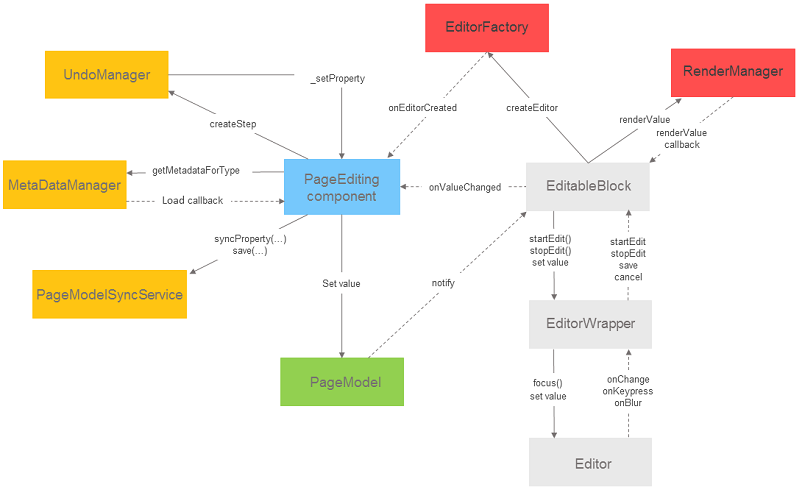
Architecture diagram
The following diagram shows the full editing UI architecture. It illustrates how the UI layer, content page layer, editor factory, and server communication components interact.
Updated 2 months ago