
Example – Create audience criteria
Build a custom Cookie Exists criterion that checks for a specific cookie in the visitor's browser.
(Thanks to Ted and Gustaf for this example.)
This example builds a custom audience criterion that checks whether a specific cookie exists in the visitor's browser. A common use case is identifying returning customers who have previously completed a purchase.
The example follows these steps:
- Create the settings and criterion classes
- Implement the settings class
- Implement the criterion class
- Test the criterion
Create the settings and criterion classes
Audience criteria require a settings class and a criterion class. The settings class persists editor-facing configuration. The criterion class contains the logic that determines whether a visitor belongs to the audience.
Create the two classes in a suitable folder structure:
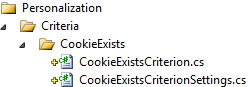
Implement the settings class
The settings class stores the cookie name that the criterion evaluates. The only required configuration for this criterion is the name of the cookie to detect.
-
Make the
CookieExistsCriterionSettingsclass inherit theCriterionModelBaseclass:public class CookieExistsCriterionSettings : CriterionModelBase -
Add a
publicproperty to let editors specify the cookie name:[Required] public string CookieName { get; set; } -
(Optional) Implement the
IValidateCriterionModelinterface for custom validation logic when a criterion is saved. TheValidatemethod customizes validation before saving a criterion for an audience.The abstract
CriterionModelBaseclass requires aCopy()method implementation. For simple value types, return a shallow copy as shown. For details, go to Create custom audience criteria.public override ICriterionModel Copy() { return ShallowCopy(); }
The following code shows the complete CookieExistsCriterionSettings class:
public class CookieExistsCriterionSettings: CriterionModelBase {
[Required]
public string CookieName {
  get;
  set;
}
public override ICriterionModel Copy() {
  return ShallowCopy();
}
}Implement the criterion class
The criterion class evaluates the HTTP request to determine whether the specified cookie exists.
-
Make the
CookieExistsCriterionclass inherit the abstractCriterionBaseclass with the settings class as the type parameter:public class CookieExistsCriterion : CriterionBase<CookieExistsCriterionSettings> -
Add a
VisitorGroupCriterionattribute to define the category, name, and description. For additional attribute properties, go to Create custom audience criteria:[VisitorGroupCriterion( Category = "Technical", DisplayName = "Cookie Exists", Description = "Checks if a specific cookie exists")] -
Implement the
IsMatch()method to check whether the specified cookie exists in the request. Access the criterion configuration through theModelproperty:public override bool IsMatch(IPrincipal principal, HttpContextBase httpContext) { return httpContext.Request.Cookies[Model.CookieName] != null; }The complete criterion class:
[VisitorGroupCriterion( Category = "Technical", DisplayName = "Cookie Exists", Description = "Checks if a specific cookie exists")] public class CookieExistsCriterion: CriterionBase<CookieExistsCriterionSettings> { public override bool IsMatch(IPrincipal principal, HttpContextBase httpContext) { return httpContext.Request.Cookies[Model.CookieName] != null; } }
NoteAccess the criterion settings instance through the
Modelproperty.
Test the criterion
Test the criterion by creating an audience that uses the cookie criterion.
-
Set the cookie name to
.EPiServerLogin, the cookie created when a user logs in to Episerver:
-
Select content in the editor to restrict to logged-in users:

-
Select Personalized Content > Episerver User audience.
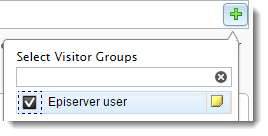
This content now displays only to users logged in to Episerver:

After publishing the page:
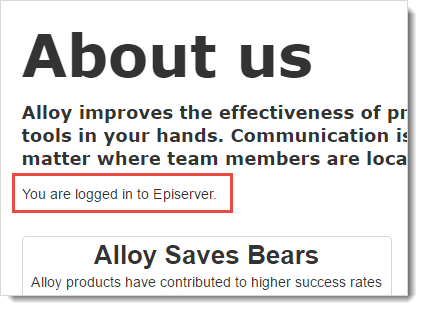
After logging out of Episerver, the personalized content no longer displays:

Updated 2 months ago