
Building blocks of content modeling
Understand the foundational building blocks of content modeling in Optimizely CMS 13. Learn to create flexible and structured content.
Content modeling defines how content is structured and reused across an application. Understanding the building blocks of content modeling helps create flexible, maintainable content types in Optimizely CMS.
Optimizely Content Management System (CMS) properties are the building blocks of CMS content types that make up an application's UI content.
When modeling content, consider the level of control you want to give the user, the freedom to adjust the layout and structure of the content, and the reusability of the content. Take the following approaches to model content.
- Top-down – Identify the main types of content first, such as blogs, product pages, forms, search, and galleries. Instead of specific pages on the application, think about the types of pages, then work down to the details one level at a time.
- Bottom-up – Start with the finer details, then group individual elements to form a larger content item. For example, think about the text in a call to action (CTA), the CTA object itself, the title text, and the body text. Then group the elements as a promotion box or a card.
- Hybrid – Balance high-level thinking and granular detail design, providing flexibility to ensure complete coverage.
NoteSee an interactive demo on how to approach content modeling in CMS and Visual Builder.
CMS uses the following types of properties:
- Built-in properties – Set by the system and are available for pages and blocks regardless of type. See the following topics for property details:
- User-defined properties – Added to the page, block, and experience type definitions (in code or from the admin view). See:
Property types
The following diagram shows the properties with their property types.
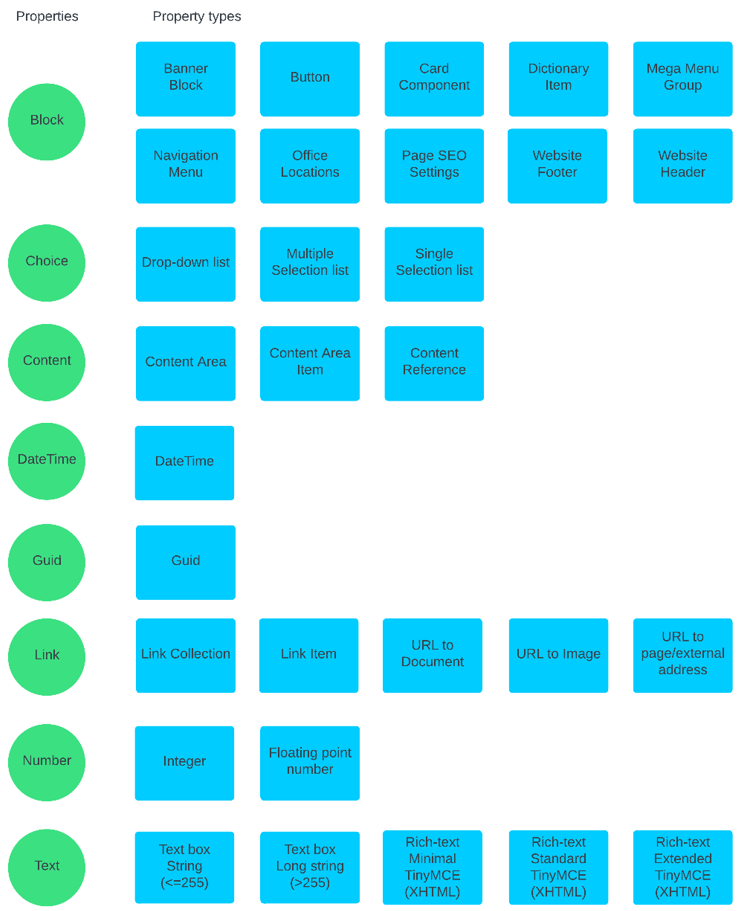
Each property group has several property types to build named pieces of content for content types.
For example, the Number property has two types:
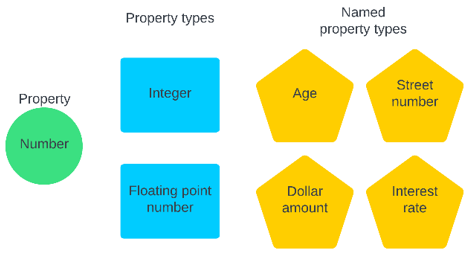
-
Integer – Create an Age or Street number field.
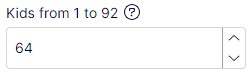
-
Floating point number – Create a Dollar amount or Interest rate field.
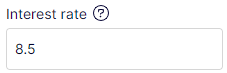
Define the property type building blocks that suit your organization and application. Different content types reuse a field, such as Age or Dollar amount; you do not need to define it repeatedly.
Content types
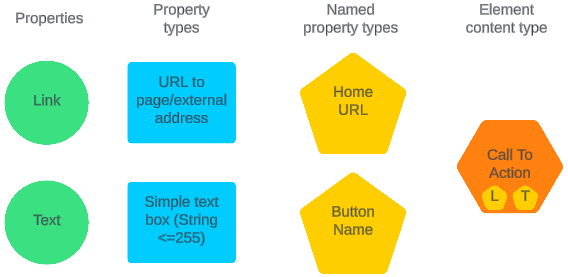
A content type is a collection of properties for a specific use, such as a Call to action content type that has two named properties.
Build an editorial content type
The following diagram shows the Call To Action content type, which contains a Home URL field and a Button Name field. The Home URL field is a link of the URL to page/external address type. The Button Name field is a Simple text box field with a String less than or equal to 255 characters.
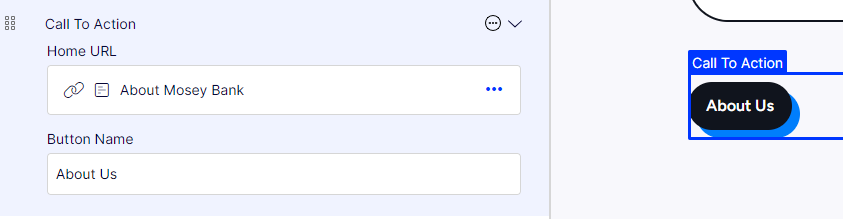
The following image shows the Call To Action content type added to an experience in Visual Builder. For the content type to appear in the Visual Builder composition, set the correct composition behavior.
Build a block content type
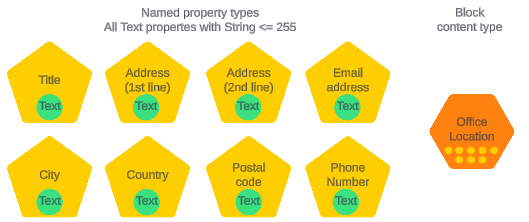
Content types support many properties. For example, an Office Location content type with eight simple text box strings with different names.
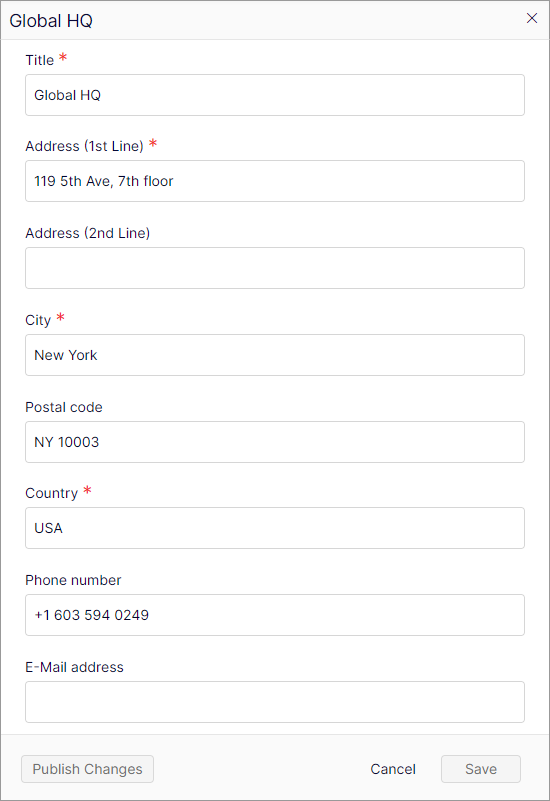
The following block, called Global HQ, uses the Office Location content type. Red asterisks (*) indicate that the field is required.
The following image shows Global HQ on a page.

Configure composition behavior
Set the composition behavior for a block content type to make it available when designing Experience content in the Visual Builder. Find the composition behavior under Settings for the block type.
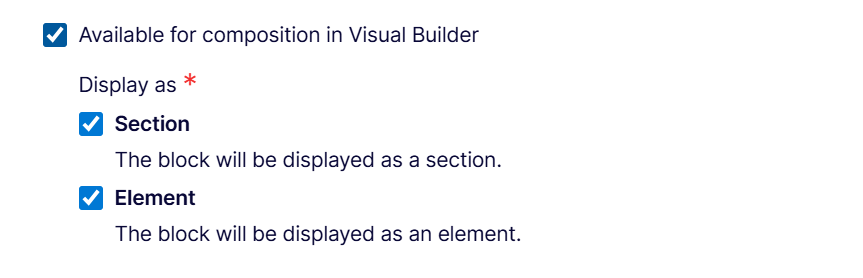
The available composition behaviors are:
- Section – The block type is available to use in the Experience outline
- Element – The block type is available to use in the Section grid
Build a page content type
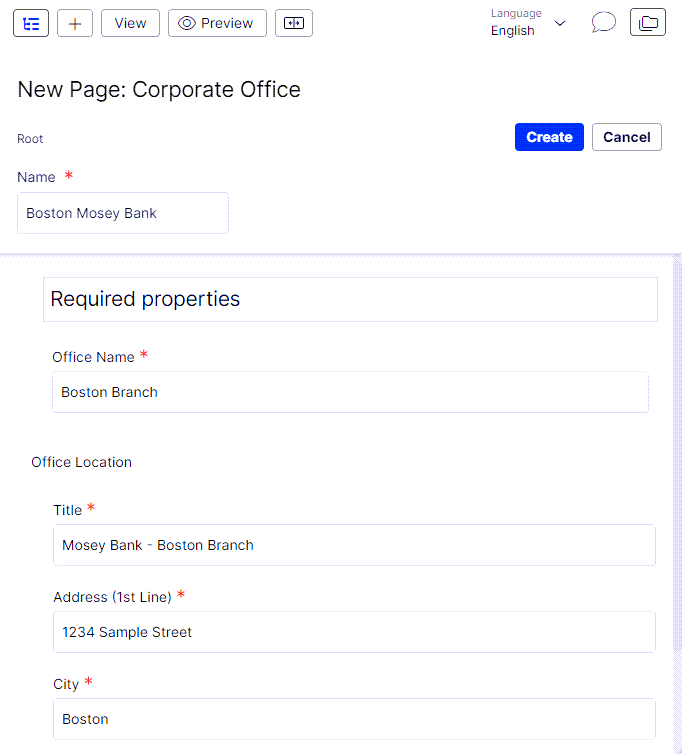
The following image combines a simple Text property (called Office Name), a Content Area (called Office Image), a Block with eight properties (called Office Location), and a Text property with extended rich-text editing features (called Description) to create a page content type (called Corporate Office).
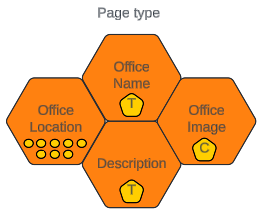
These content types are combined to create a page content type called Corporate Office.
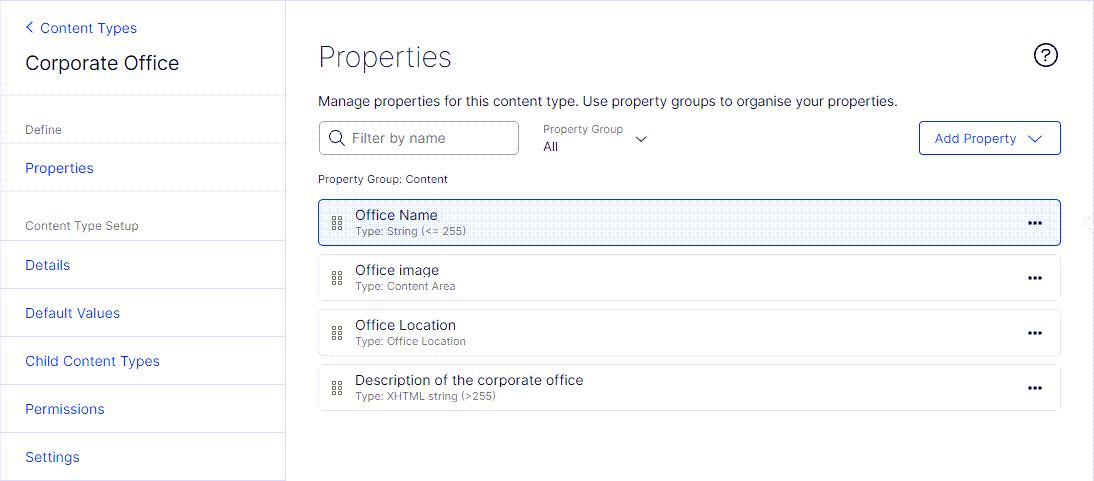
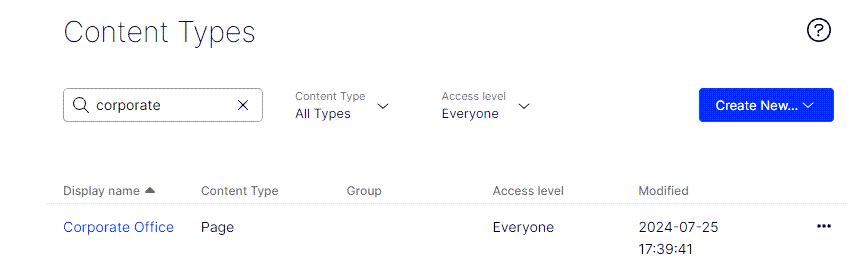
After you create it, Corporate Office shows in the Content Types list as a Page content type.
When you create a new page, Corporate Office displays in the Page Types list.
Select it and fill in the required fields.
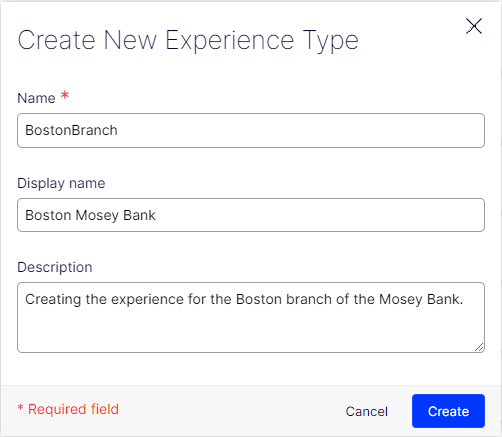
Configure blank experience
An experience type is an extension of the page type, enhanced for use with Visual Builder.
Go to Settings > Content Types and select Create New > Experience type.
Build an experience content type
An experience is a built-in definition of Experience content type managed from code, so you cannot adjust the Settings, but you can modify Permissions and add properties to the All Properties view of the experience.
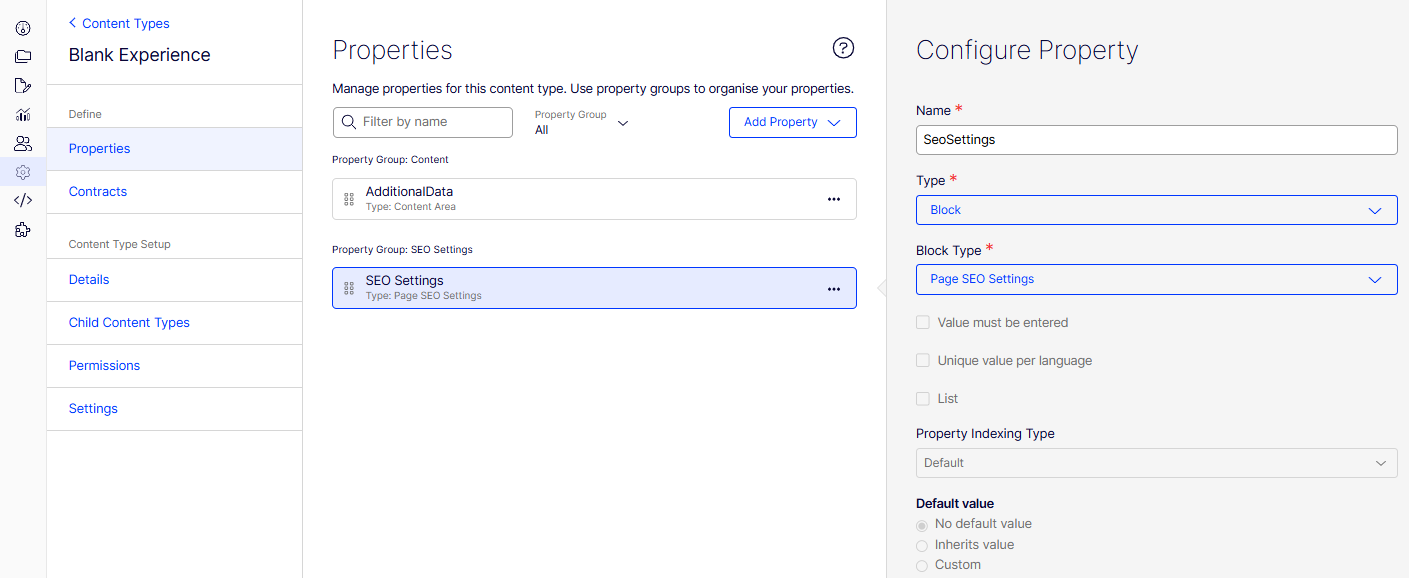
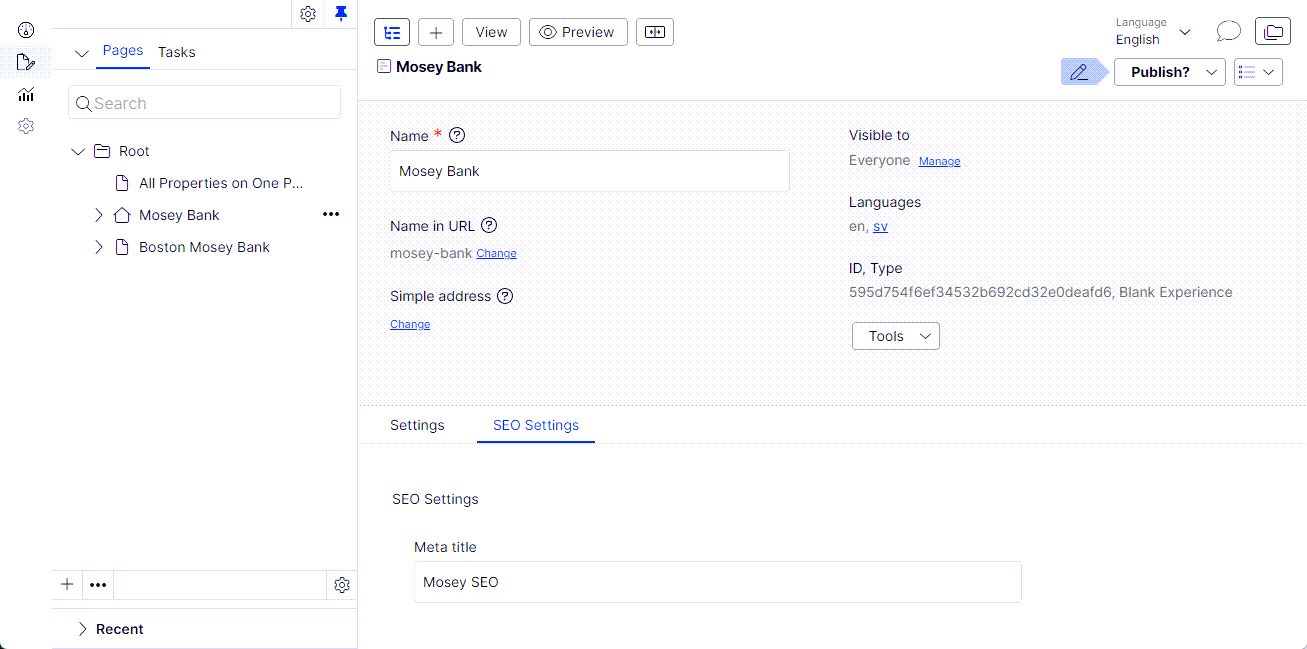
The following images illustrate a Blank experience experience content type with added SEO settings content type to the All Properties view, made from a Block property of the Page SEO Settings property type.
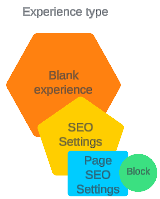
The SEO Settings tab displays in the All Properties view with the Block type.
Build a media content type
Media can have the following types:
- Image – jpg, png, webp, svg
- Video – mp4, avi, mov, wmv, webm
- Other media – pdf, doc, mp3, zip, iso
Go to Settings > Content Types and select Create New > Media type.
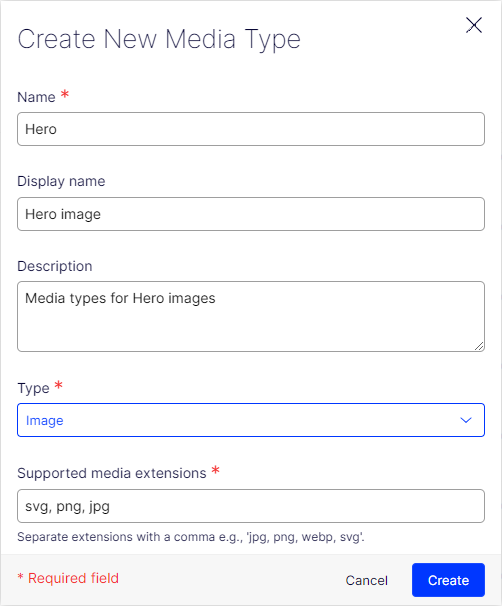
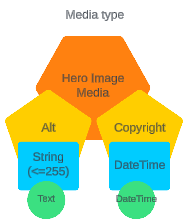
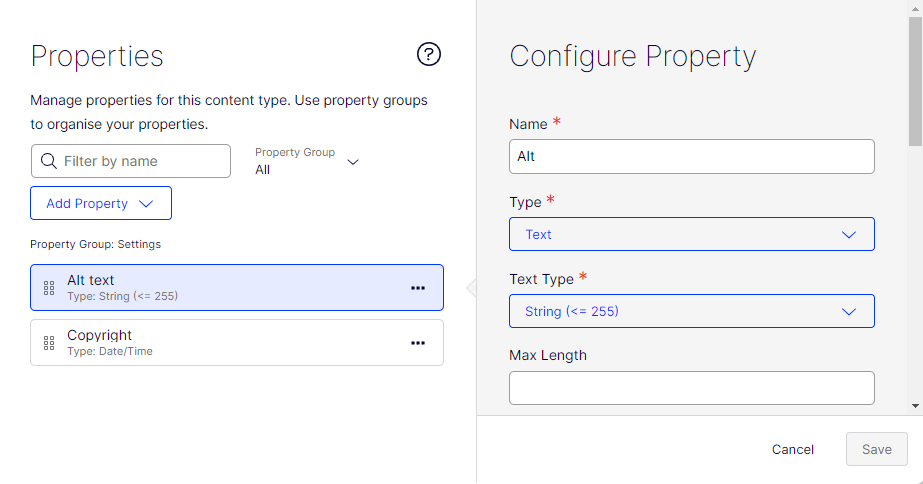
The following images illustrate a Media content type, with a Hero image named media content type, made of a Text property for Alt text and a DateTime property for Copyright.
Updated 2 months ago