
Configure a fallback language
Configure fallback and replacement languages in Optimizely CMS 13 for multi-language websites. Ensure content displays in a defined language when translations are unavailable.
Configure fallback and replacement languages to control what visitors see when content is not translated into their selected language. This prevents blank pages and ensures visitors always see content in a defined language.
On multi-language websites, only parts of the content exist in every available language. Translations are not yet complete, content is irrelevant for a specific language, or content should display in a defined language.
CMS provides the following language options:
- No fallback or replacement – Content is not visible to visitors browsing the website in a language without a translation.
- Fallback language – Content displays in the fallback language until a translation is available in the target language.
- Replacement language – Content displays in the replacement language regardless of other available translations. When you define a replacement language, the fallback language does not apply.
NoteFallback and replacement languages cause mixed languages to display on the website.
CMS supports two levels of fallback language configuration:
- Per-content fallback — Configure fallback languages on individual content nodes in Edit Mode. Each content node inherits language settings from its parent by default, but you can override the settings for any subtree. This is the standard approach and requires no additional configuration.
- Global fallback — Define a single fallback language per language branch in Admin Mode. When applied, these settings are written to the root page and inherited by all content below it. This is optional and useful when you want a simple, site-wide default. Do not combine global fallback with per-content fallback overrides unless you understand the inheritance behavior, as global settings overwrite the root node's per-content settings when applied.
Configure per-content fallback
To configure a fallback language for a specific page, complete the following steps:
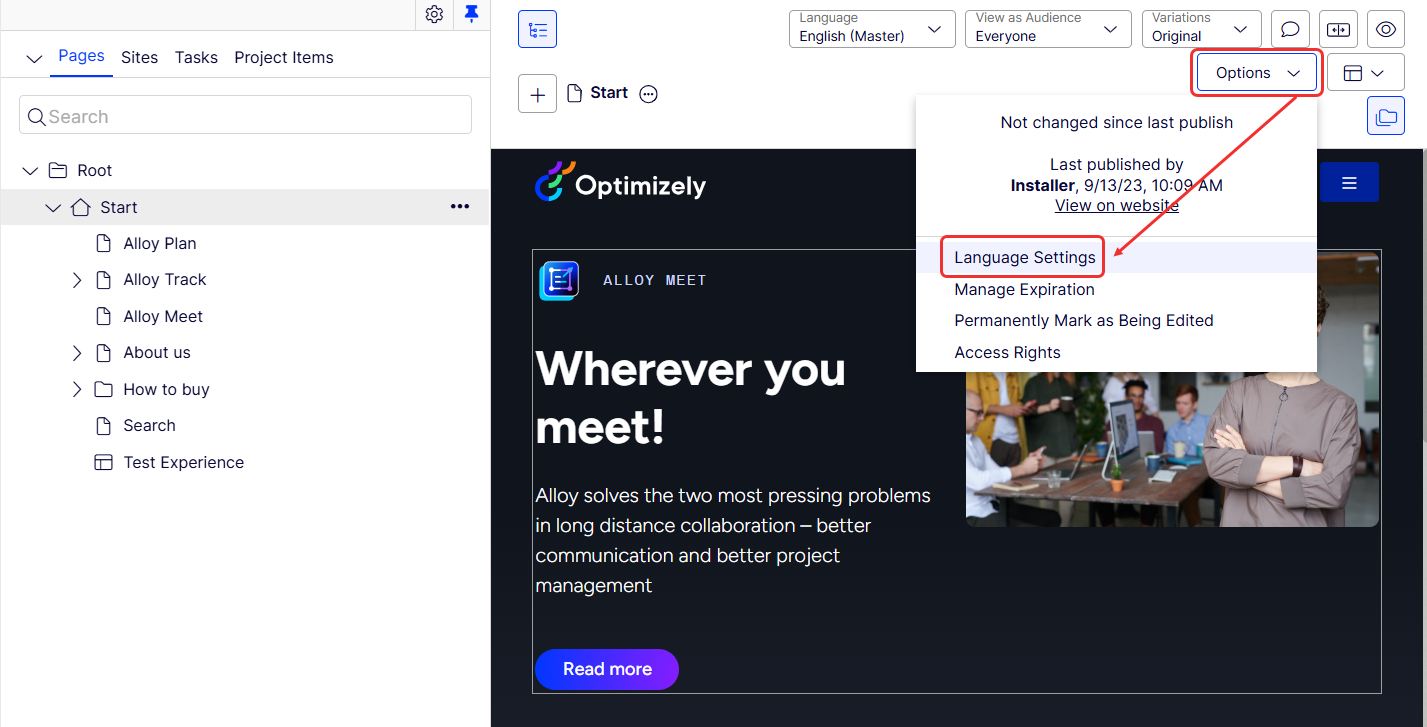
- Go to Options > Language Settings in the Visual Editor.
- Configure the available languages and fallback languages for the page.
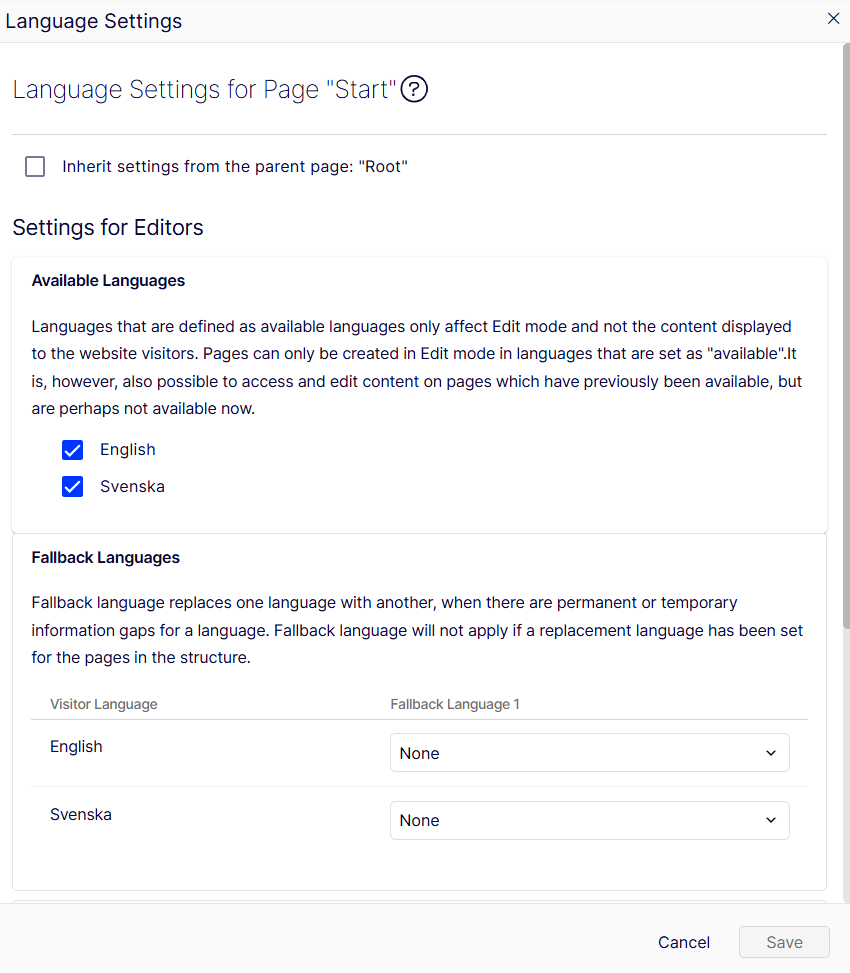
If the parent page has language settings defined, you can select Inherit settings from the parent page to reuse them. To define custom settings for a subtree, deselect the checkbox and configure the fallback languages for that page.
Configure global fallback (optional)
Global fallback languages let you define a site-wide default fallback language per language branch from admin mode. When applied, the fallback settings are written to the root page and inherited by all content below it.
By default, the Global Fallback Languages section is hidden. To enable it, set GlobalFallbackLanguages to true on CmsFeatureOptions.SectionsVisibility in your startup configuration:
services.Configure<CmsFeatureOptions>(o =>
{
    o.SectionsVisibility.GlobalFallbackLanguages = true;
});
After you enable it, a Fallback Language column displays in the languages list under Settings > Languages. Select a language and set its fallback language. Click Apply Changes to write the settings to the root page.
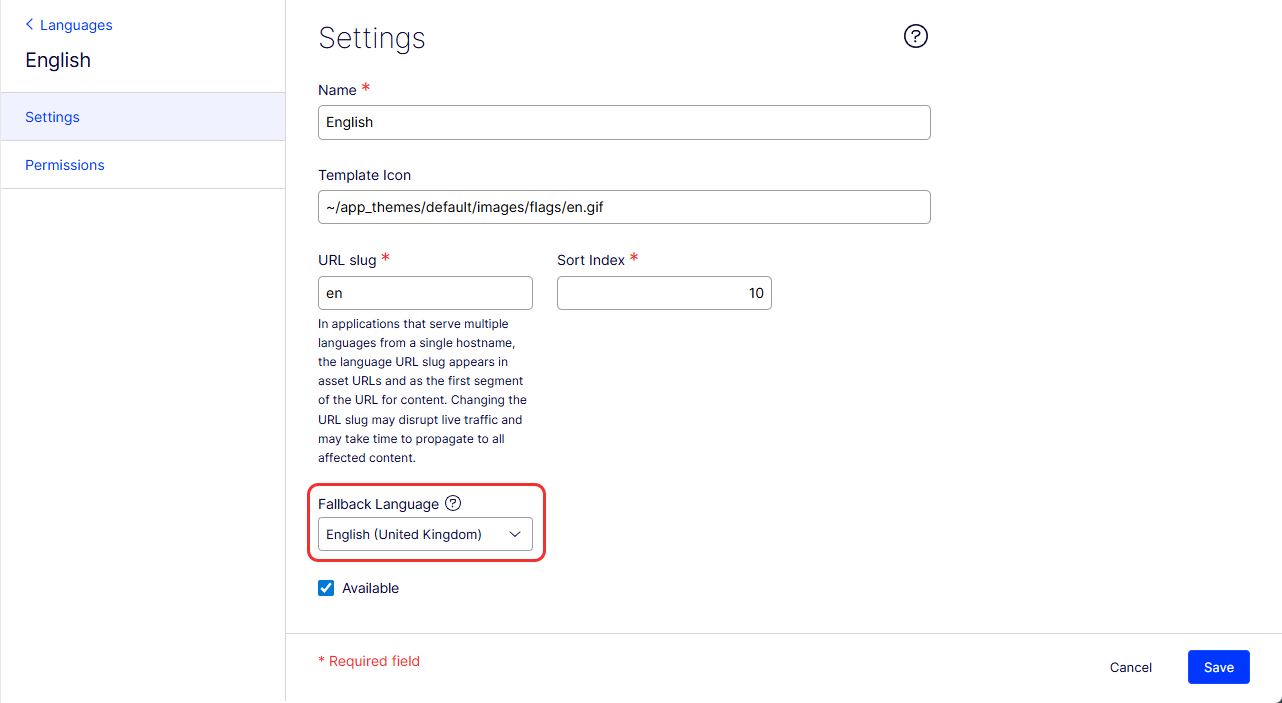
WarningApplying global fallback settings overwrites the root page's per-content fallback settings. If you already use per-content fallback overrides on the root page, applying global fallback replaces them. Usually, per-content language fallback is sufficient for typical multi-language setups.
The following articles provide related information:
- Translate content – Translate Optimizely CMS content into different languages.
- Optimizely Languages gadget – Extend the translation functionality in Optimizely CMS.
Updated about 2 months ago