
Delete and restore content
Learn to delete and restore content in Optimizely CMS 13. Move pages, blocks, and media to trash, then restore or permanently delete them.
Optimizely Content Management System (CMS) provides support for restoring deleted content such as pages, blocks, folders, and media files. When you remove content, CMS moves it to trash rather than deleting it. From there, you can restore the content or permanently delete it.
NoteOptimizely Commerce Connect does not support trash management when deleting catalog entries.
Move content to trash
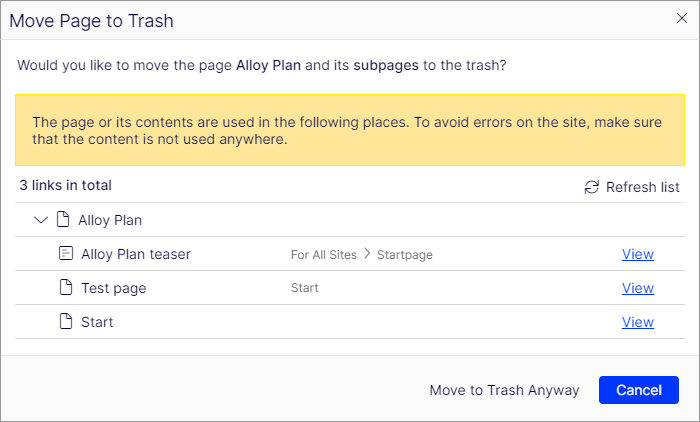
Select the content to delete and Move to Trash from the context menu.
Content that is moved to trash is automatically unpublished from the website. When moving content to trash, you receive a notification if other content links to the content you are about to remove because the deletion might result in broken links.
NoteContent versions are not supported by trash management. When you delete a version in the versions gadget, the version is permanently deleted.
Restore content
-
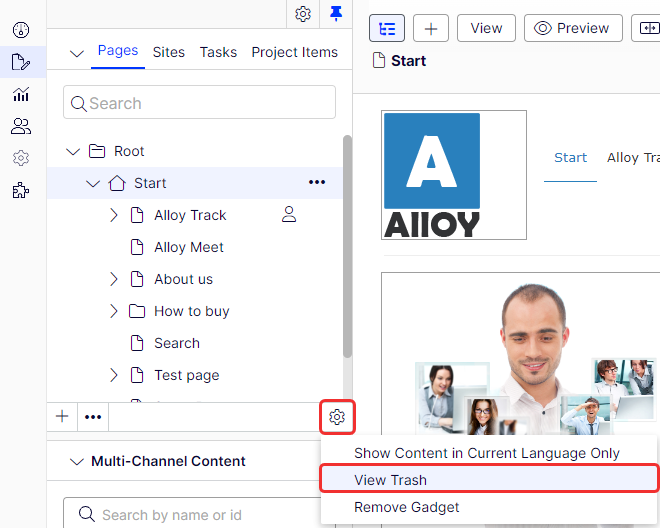
Select View Trash from the panel settings in the navigation or assets panel.
-
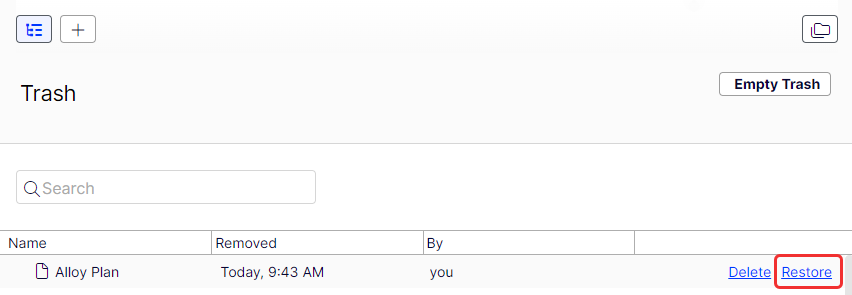
Hover over the desired content item in the list and select Restore. Confirm the restoration. The content is restored to its original location and republished. You must restore content before you can edit it.
Delete content permanently
Select View Trash from the panel settings in the navigation or assets panel.
- One item in the trash – Select the item and select Delete. If that single item has children, those children are also deleted permanently.
- All items in the trash – Select Empty Trash to delete the trash content permanently. This action may require administrative access rights. A scheduled job can also empty the trash automatically on a regular schedule.
Updated 3 months ago