
Approve changes
Ensure certain actions affecting website structure or content are reviewed and approved in Optimizely CMS 13. Manage changes to access rights, language settings, and content movement.
The Approve changes add-on for Optimizely Content Management System (CMS) ensures that certain actions affecting website structure or content are reviewed and approved before they take effect. Use it to enforce review workflows for changes to access rights, language settings for fallback and replacement languages, expiration dates, and the moving of pages and assets such as blocks, images, and media.
Moving a page does not trigger a change; it remains under the same parent page, when the page is moved only to change the sort order.
Approve changes works with approve content, which requires content to be reviewed before publication. Both features use the same approval sequences, so the same reviewers approve changes to content and settings such as access rights and language settings.
NoteOptimizely Digital Experience Platform (DXP) contains many features to support you in your daily work. Depending on how your solution is configured, some features described in this documentation may not be available.
Set up an approve sequence that defines the reviewers. An administrator sets up the sequence and can specify any number of approval steps and any number of reviewers in each step.
When a user performs one of the actions that trigger change approvals, the approval process starts. The change must be approved or declined (or the review request canceled) before any other change that requires approval can proceed.
When one of the reviewers in a step approves the change, that step is complete. The reviewers in the next step are then notified. The change takes effect when all steps in the approval sequence are approved.
Example: One-step change approval
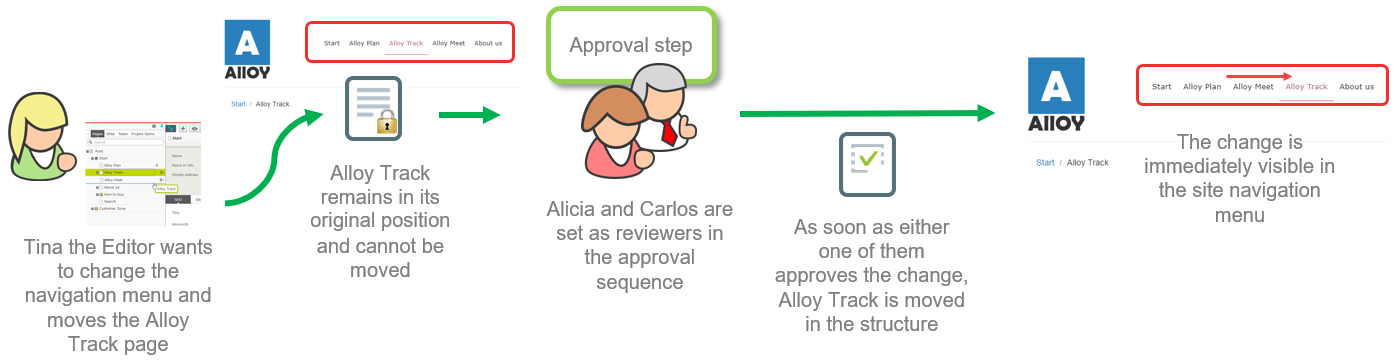
Tina was asked to change the order of the products in the Alloy top navigation menu. Because the navigation menu order is controlled by the order of the pages in the page tree, she moves the Alloy Track page in the page tree. The Alloy Track page has an approval sequence defined, so the page is not immediately moved, and Tina sees a message that the page move is awaiting approval. Alicia and Carlos are notified to approve that move when they log in. Carlos approves the move, and the page is moved immediately. The top navigation menu is updated on the website. If Carlos had declined, the page would have remained in its original position.
Configure an approval sequence
Approve changes uses the same approval sequences as approve content. If you configure a content approval sequence for a content item, the same sequence and the same reviewers apply when a change action is performed on that content item.
Open the approval sequence overview from a page or assets folder More (…) menu.
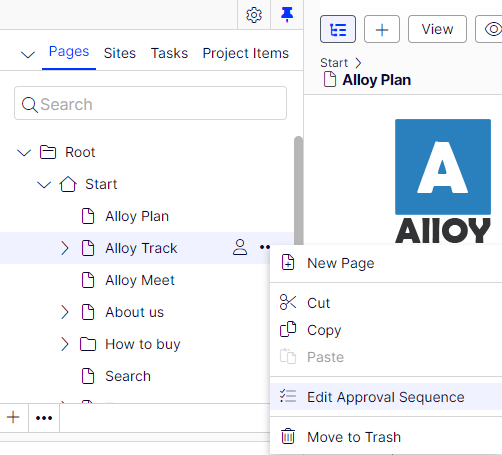
When configuring an approval sequence, a language setting is available. This setting applies only to content approvals, where you can configure different reviewers for different languages. Change approvals do not consider this setting. Appointed reviewers can approve changes in all languages.
Effect on editors and administrators
If you have the access rights to change one of the settings controlled by approve changes, change settings or move pages and blocks the same way as without it. After changing the setting, a notification message displays: Your changes have been saved and sent for approval. The changes will come into effect when they have been approved. The content item also displays a notification bar indicating that a change is in review.
While a change is in review, you cannot move the item or edit a setting that requires approval until the review request is approved, declined, or canceled. Cancel the review and revert your change by selecting Cancel review request from the Options menu.
When the last appointed reviewer approves the change, the change takes effect automatically.
Approve or decline a change as a reviewer
Depending on how the approval sequence is configured, you may not be allowed to approve or decline a change you made, even if you are one of the appointed reviewers.
-
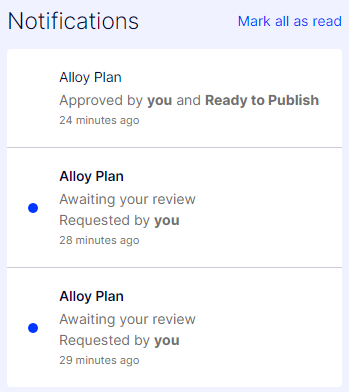
Log in to Optimizely CMS. A notification displays if you have a change to approve.
-
Select a notification to go to the page.
-
Use the compare tool to review the differences on the page.
-
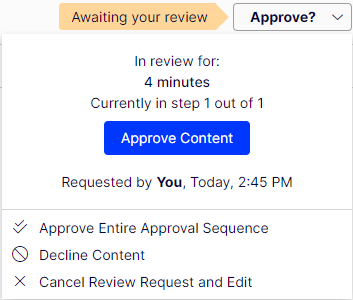
Select Options and then select Approve Content or Decline Content.
Approve changes does not verify whether the reviewer has the access rights to perform the proposed change. It only verifies that the user who makes the change has the access rights. For example, if you remove the Everyone access rights to a page, approve changes verifies that you have the right to do so. The reviewer who approves the change does not need that right.
Email notifications for change approvals are not available. You are notified only in the UI when you have a change to review.
Approve content and changes at the same time
When you use Approve content and send content for review, the content (that is, the specific version) is locked for editing. You can still move the page or block and change the language settings. You cannot change access rights or the expiration date.
When you use Approve changes and send a change for review, you can still edit the content. However, you cannot move the page or block or change language settings, access rights, or the expiration date.
Updated 3 months ago