
Create content variations
Describes how to create and edit content variations in Optimizely CMS 13.
Content variations let you create multiple versions of a page or content item. Each variation is identified by a unique string in its variation field. These variations are useful for optimizing content performance and enhancing user engagement. The following are some examples of how you can use content variations:
- Run an A/B test – Compare different versions of a page or content element to see which performs better based on engagement, conversions, or other key metrics. Let Opal choose the winning variant automatically.
- Deliver personalized content – Show variations based on user segments, demographics, or behaviors to create a more relevant experience.
- Localize content – Display different versions for different languages or cultural preferences to better reach a global audience.
- Support seasonal campaigns – Tailor content for specific promotions or time-based events without changing the original structure.
- Improve content performance – Test variations of headlines, images, or calls-to-action to boost search engine optimization (SEO) and increase interaction.
- React quickly to feedback – Make content changes based on market trends or user behavior without disrupting the original content.
An icon displays in the page tree navigation pane next to content that has a variation, as shown in the following image:
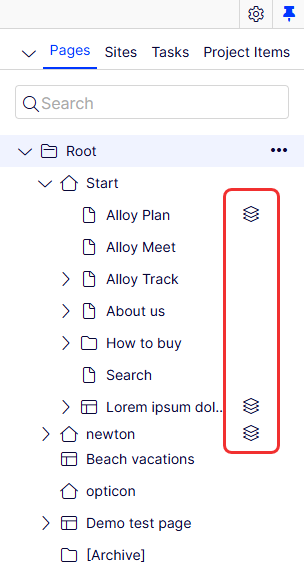
NoteIf you are using Optimizely Graph to retrieve content, you can filter and query content variations directly in your GraphQL queries. GraphQL queries must, by default, only return items that do not have any value in the
variationfield.
Add a content variation from the original
-
Select a page from the content tree.
NoteYou cannot create a variation from Root.
-
Click Variations > Add variation.
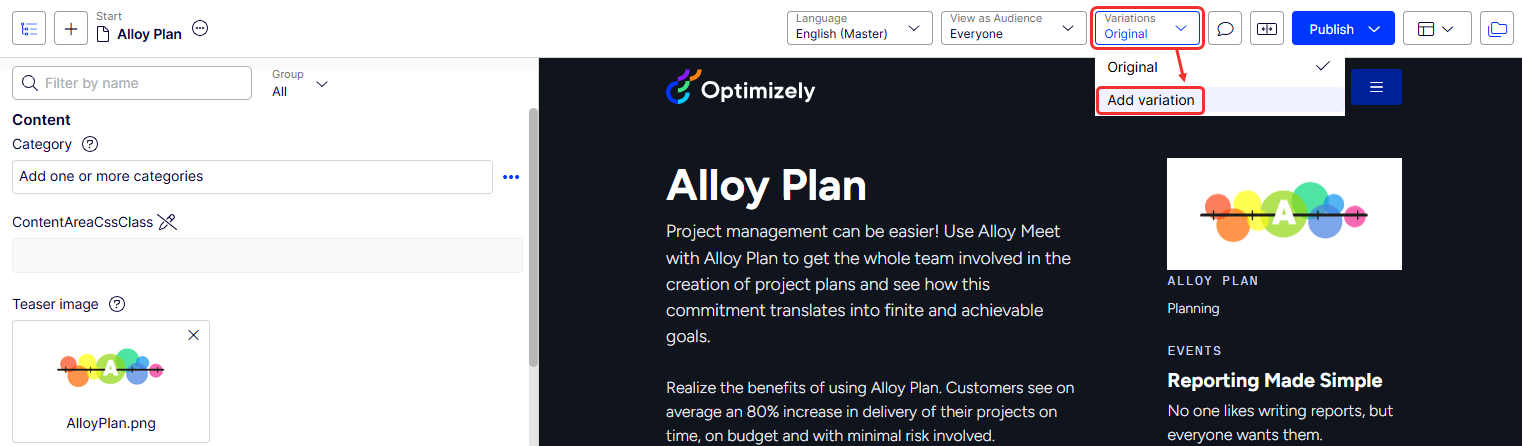
The Add variation window displays.
-
Enter a Name for the content variation, like WinterCampaign. The name cannot start with a number or include spaces.
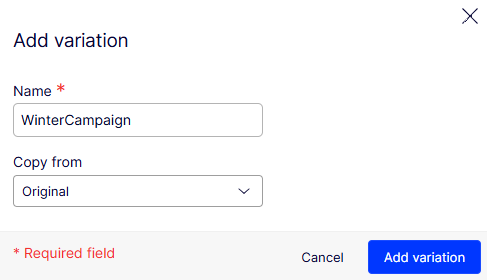
-
Click Add variation. The Visual Builder automatically displays the variation and adds it to the Variations drop-down list.
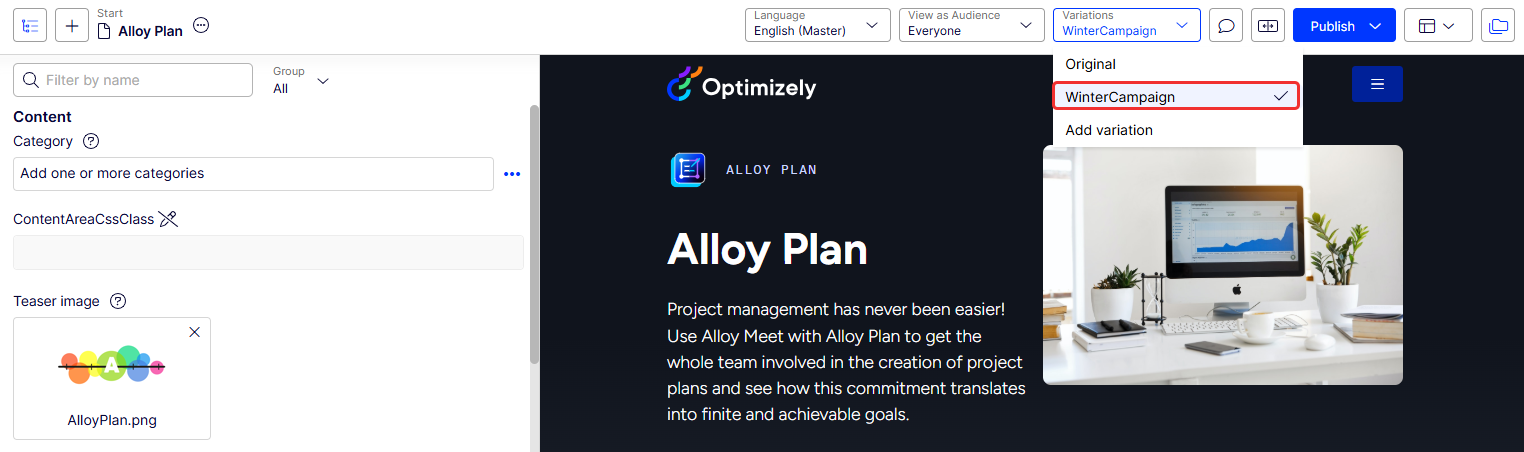
Edit a content variation
Modify a variation to test different content approaches or update seasonal campaigns.
-
Select the variation you want to edit from the Variations drop-down list.
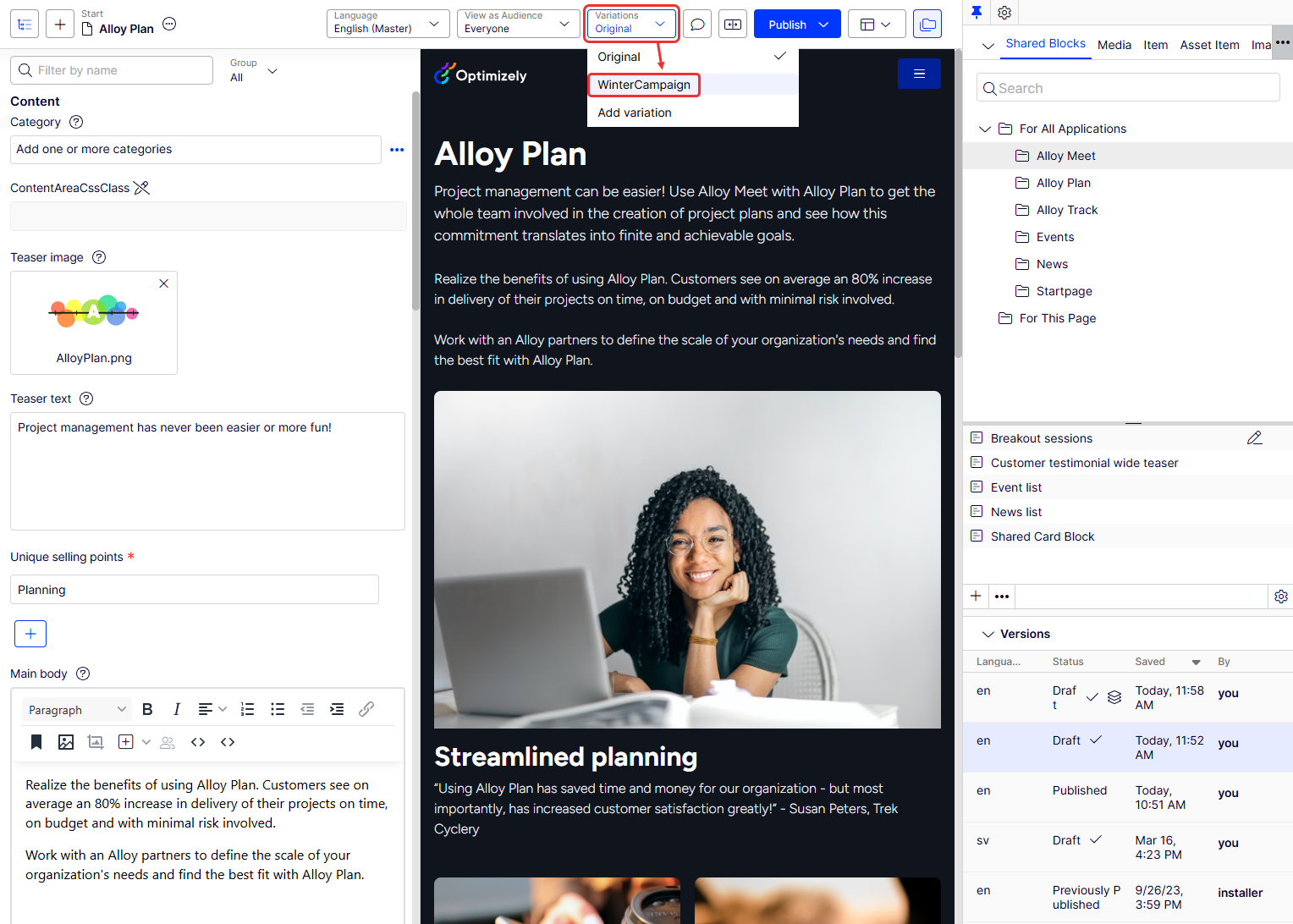
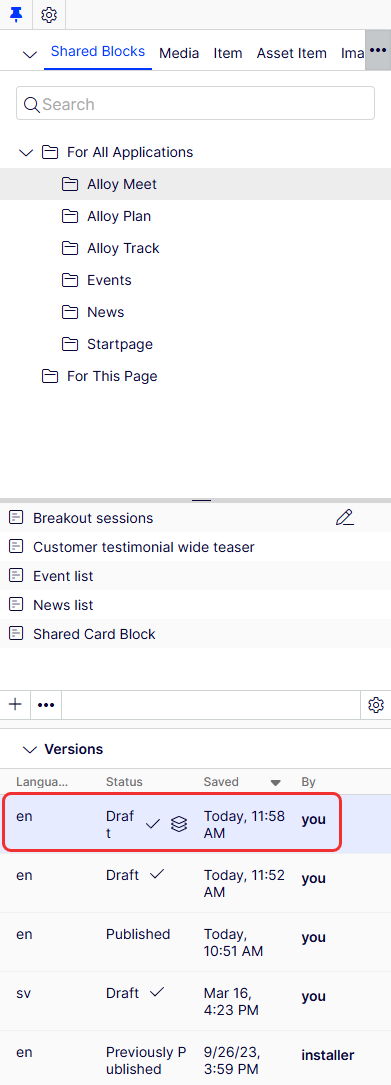
Because the variation is a version of the page, it displays in the Versions section of the assets pane with an icon.
-
Make your desired changes to the variation. Toggle between the original and the variation as you make changes.
-
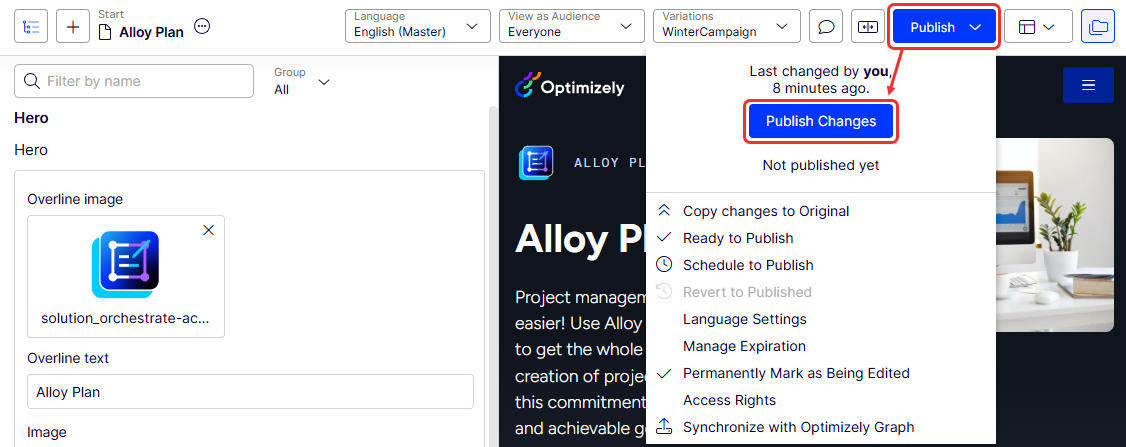
Click Publish > Publish Changes when you are done making changes to the variation.
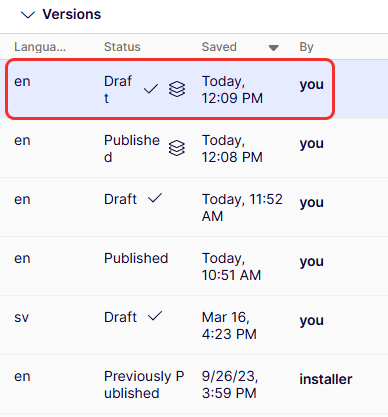
If you subsequently update the variation again, another version displays in the list of versions because each variation has the same publication cycle as the language version.
Add a content variation from a variation
-
Click Variations > Add variation.
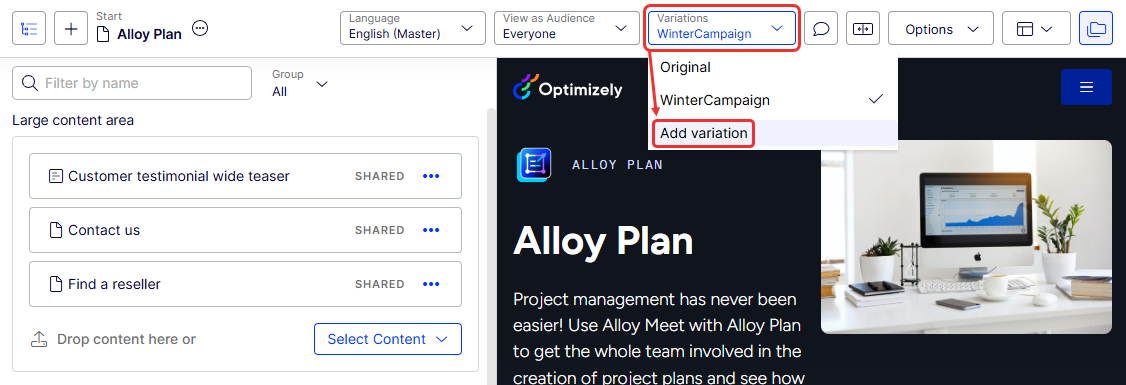
The Add variation window displays.
-
Enter a Name for the content variation, like SummerCampaign. The name cannot start with a number or include spaces.
-
Select a variation from the Copy from drop-down list.
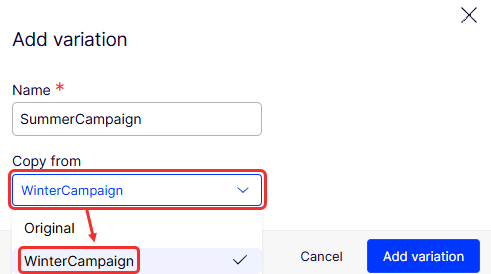
-
Click Add variation. The Visual Builder automatically displays the variation and adds it to the Variations drop-down list.
Promote a variation to the original content
Promote a variation to overwrite the original when you want it to become the baseline for further variations.
-
Go to the variation you want to become the original.
-
Go to the Publish (Options) drop-down list and select Copy changes to Original.
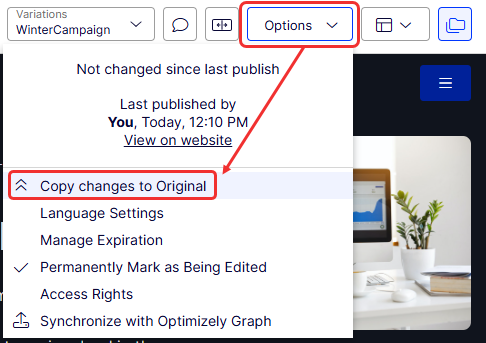
Updated about 2 months ago