
CMS edit user interface
Explore the Optimizely CMS 13 edit user interface (UI). Learn about its design, key features, and how it enhances content management workflows.
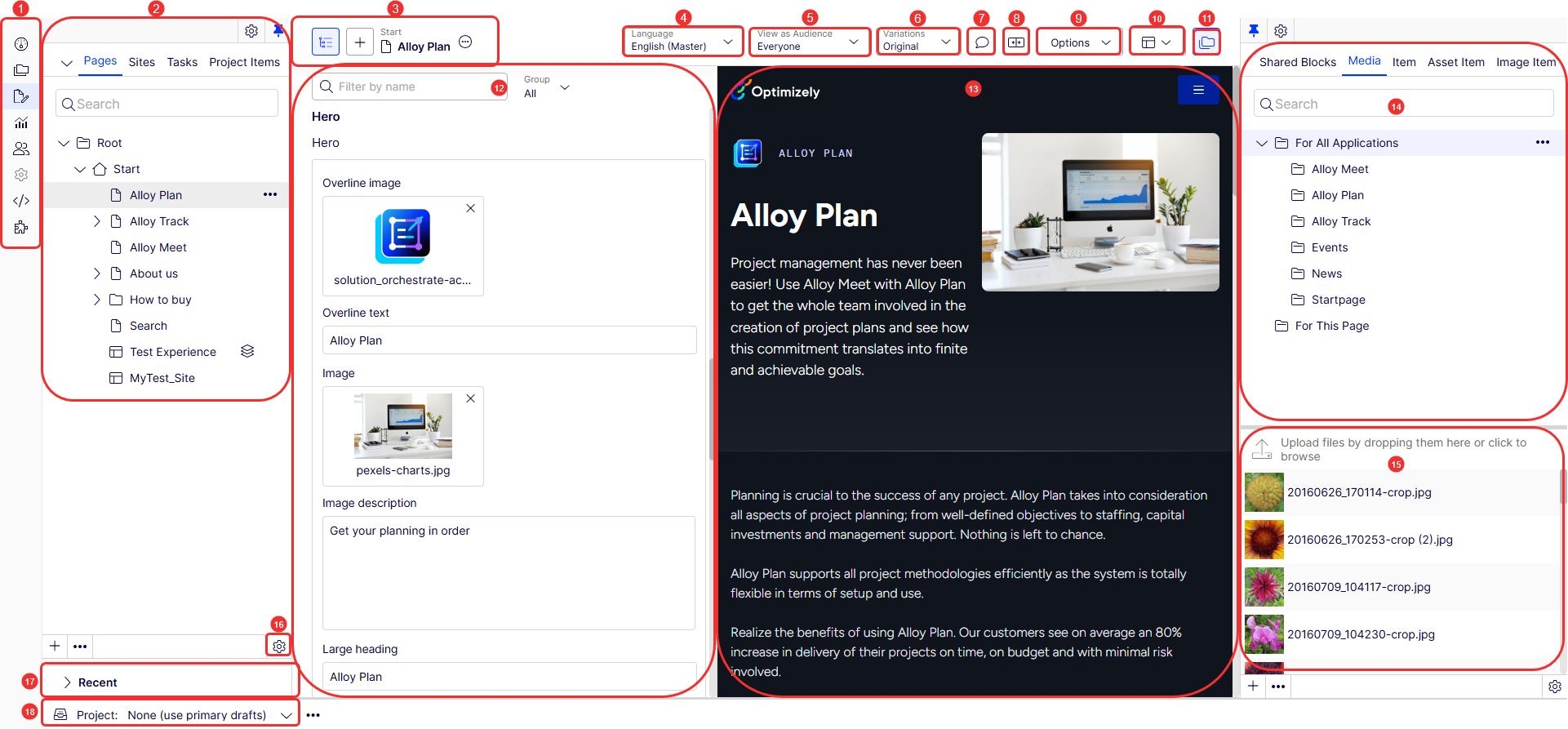
The toolbar and panels in the Optimizely Content Management System (CMS) edit view provide access to functions for working with content. The edit view includes the top menu and toolbar, with adjustable panes to the left and right.
Edit UI window layout
-
Left navigation bar – Provides access to the following:
- Dashboard – Displays information about your content that lets you access it from one place. See CMS Dashboard.
- Content – Display the Content Manager.
- Edit – See Create Visual Builder content from scratch and Edit content using TinyMCE.
- Reports – See Reports for CMS content.
- Audiences – See Set up audiences.
- Settings – See Settings.
- GraphiQL – Explore the schema, test queries, and preview results in real-time.
- Apps (add-ons) – See Apps (add-ons) platform compatibility.
-
Content tree – Contains the page tree structure (Pages), language branch (Sites) navigation, tasks management (Tasks), and project items (Project Items) by default.
-
Content functions –
- Toggle navigation pane (content tree)
- Create Content
- Content title with menu (Rename, Undo, Redo)
-
Language – Select from available website languages.
-
View as Audience – Select an audience to view the pages as the audience would.
-
Variations – Select a variation of the page.
-
Comments – Add comments to content for colleagues to collaborate.
-
Compare different versions – Toggle to show the current content against previous versions of the content.
-
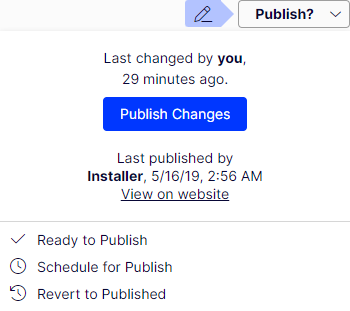
Options – Displays as Publish when unpublished content is open. Otherwise, it displays as Options. Publish content (if you have publishing rights), schedule it for later publishing, or revert to the published version. Reverting discards the current draft and displays the last published version. See also publishing options, which vary depending on content status and user access rights.
-
Visual Builder and All Properties editing views – Visual Builder view provides quick access to direct editing of a selection of content properties. All Properties editing view provides access to available properties, including more advanced ones such as access rights and language settings.
NoteIf you also want the On-page edit view, a developer must enable it in code. In
Startup.cs, configureCmsFeatureOptionsso thatSectionsVisibility.OnPageEditingis true.using EPiServer.Cms.Shell.UI.Configurations; services.Configure<CmsFeatureOptions>(options => { options.SectionsVisibility.OnPageEditing = true; }); -
Toggle assets pane – Toggle and pin the Assets pane.
-
Properties panel – Editors configure and manage the structured content properties of a page here. It displays the editable fields for the selected page or content item. The available fields depend on the page type, such as:
- Category
- ContentAreaCssClass
- Teaser image
- Teaser text
- Large content area
-
Content page – The main content area. The display depends on the selected page type and your access rights configuration.
-
Assets tree – Contains the Shared Blocks and Media folder structures. Drag and drop one or multiple items from the assets panel into the content you are currently working on.
You can also drag and drop multiple items within the assets panel and delete, cut, or copy and paste them from the context menu or with standard keyboard shortcuts. Any unselected children folders are also moved, copied, or deleted. Copying and pasting multiple folders on different levels are on the same level when pasted.NoteIf Commerce Connect or Optimizely Forms are installed, the assets panel displays the Catalogs and Forms gadgets by default.
-
Assets – Displays assets associated with the selected Blocks or Media folder.
-
Settings – Configure or remove a gadget or rearrange gadgets. Options depend on the gadget. For example, the Content Tree and Assets gadgets have different settings options.
-
Recent – A gadget that can be added to the navigation panel. It can be expanded and collapsed with the arrow.
-
Project – Displays only when the projects feature is enabled. Create and delete projects, activate an existing project, and access the project overview from this toolbar.
A notification toolbar displays below the main toolbar, showing information, confirmation, and error messages.

Dashboard
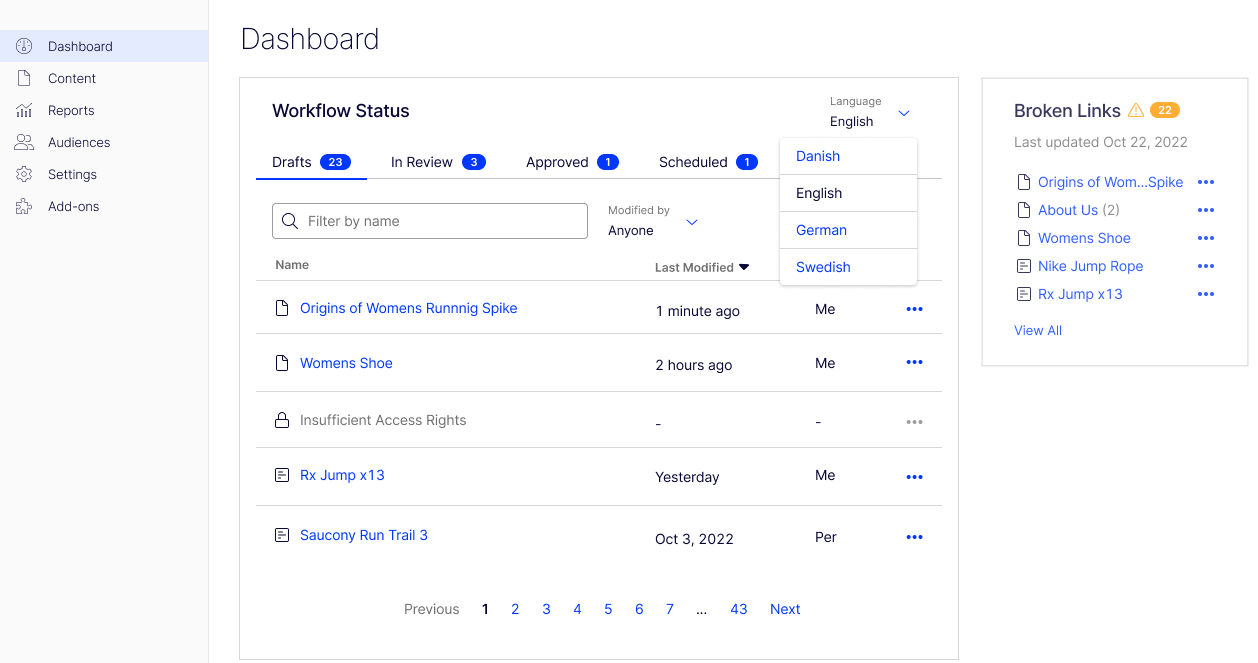
The CMS Dashboard provides a central location to review content status and track workflow progress.
NoteCMS edit privileges are required to access the dashboard.
The dashboard displays information about your content and lets you access it from one place. Numbers display on each tab. Click the tabs to update the numbers.
Edit content
CMS provides two editing views for working with content:
- Visual Builder – Provides quick access to direct editing of selected content properties.
- All Properties editing view – Provides access to all available properties, including access rights and language settings.
When working with content such as pages and blocks in CMS, or catalog content in Commerce Connect, see All Properties editing view.
My settings
Change account settings from the top menu by selecting your avatar > My settings. Your username and password are usually configured in an external system, such as Windows or an SQL database, and cannot be changed in CMS.
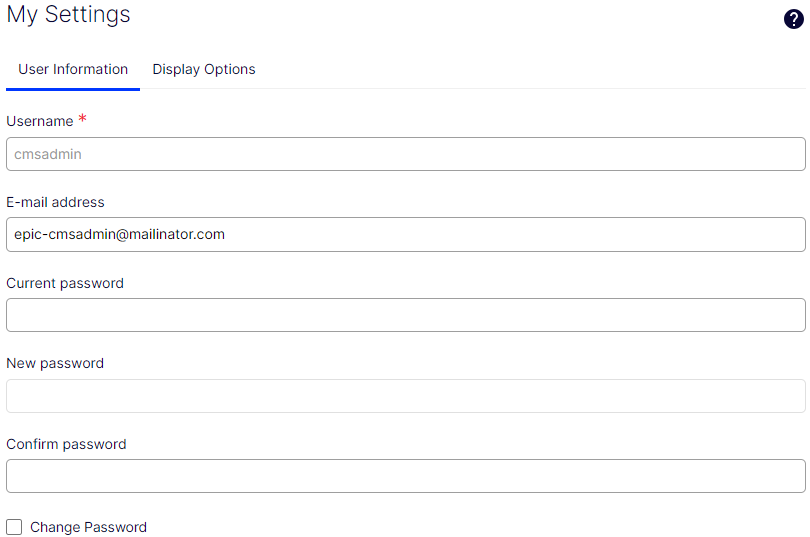
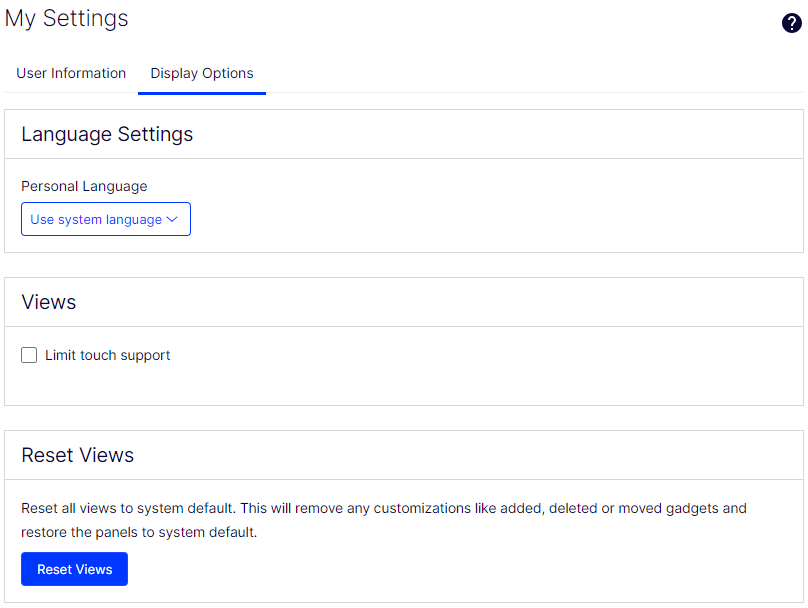
The Display Options tab contains the following settings:
-
Personal language – Select your desired UI language from the drop-down list. This setting affects the language of the UI, such as texts in buttons and dialog boxes. It does not affect the language of your website.
CMS supports the following UI languages. English is the master language, and the others are translated languages. You can have many more content languages than you can UI languages.
- DA – Danish
- DE – German
- EN – English
- ES – Spanish
- FI – Finnish
- FR – French
- IT – Italian
- JA – Japanese
- NL – Dutch
- NO – Norwegian
- SV – Swedish
- ZH – Simplified Chinese
You can set the preferred UI language in your user profile.
- Select your user profile avatar > My Settings.
- In the Display Options tab, select your preferred language from the Personal Language drop-down menu.
- Click Save. The UI displays the selected language.
-
Views – Limit touch support – On touch-screen devices, browsers can have difficulty prioritizing between touch input and mouse input, which can prevent pane resizing. Enable Limit touch support to prioritize mouse input over touch input, allowing drag-and-drop, panel resizing, and related interactions.
-
Reset Views – Resets your UI views to the default settings. If you have added, moved, or deleted gadgets, those changes are undone, and the default views display.
Add gadgets
A gadget is a small application that you add to the assets and navigation panes in CMS. CMS includes gadgets for forms, version management, and the product catalog (when Commerce Connect is installed). Developers can create custom gadgets to extend CMS functionality.
Add apps as gadgets to the navigation or assets panes in edit view. Some gadgets are available by default in the UI. Add others manually.
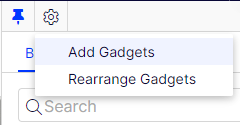
Select Add Gadgets, and select a gadget to add from the list of available gadgets.
The Gadgets dialog box displays.
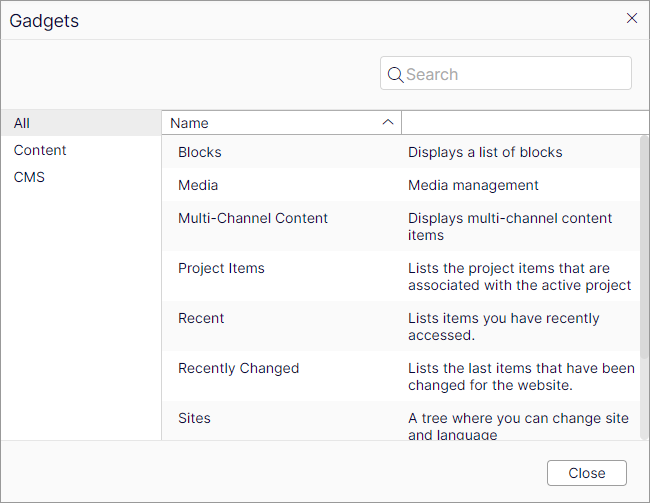
- Shared Blocks – Used to access blocks (default in the assets panel).
- Form Elements – Displays the forms elements that can be used when creating a form (default in the assets panel if the Forms add-on is installed).
- Forms – Used to access forms (default in the assets panel if the Forms add-on is installed).
- Media – Used to access media files (default in the assets panel).
- Projects – Used to view items belonging to a project. You can multi-select and mark items as Ready to Publish from this gadget.
- Sites – Displays the page tree for the website.
- Recent – Displays items you have viewed during your current browser session.
- Recently changed – Displays recently changed content on the website.
- Tasks – Displays tasks to be done on the website. This gadget lets you filter items on status. You can, for example, see a list of items set as Ready to Publish.
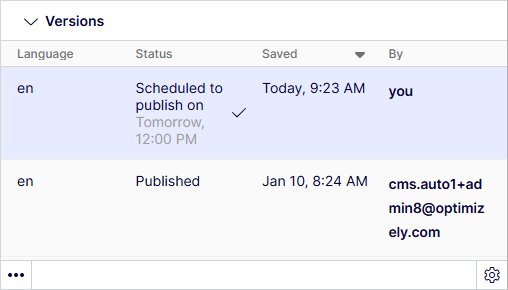
- Versions – Lets you manage content history, track changes, and control publishing workflows to ensure content governance and collaboration. See also Compare versions of content for information on working with versions. The Versions gadget can display the following statuses for content versions:
-
Draft
-
Published
-
In review
-
Previously Published
-
Ready to Publish
-
Rejected
-
NotCreated
-
CheckedOut
-
AwaitingApproval
-
CheckedIn
-
DelayedPublish (Scheduled to publish on)
-
To move or remove a gadget:
- Select Rearrange Gadgets, select a gadget, and drag it to the desired position on the dashboard or in a panel.
- Select Rearrange Gadgets, and click the Remove gadget symbol next to the gadget you want to remove from the dashboard or panel.
Integrated apps
Optimizely integrated apps (also called add-ons) extend CMS capabilities. Optimizely or Optimizely partners develop these plug-ins and modules. A developer or someone with access rights installs most apps.
General CMS features
CMS includes the following features across the edit view:
-
Context-sensitive actions – Some features are available only in certain contexts. The toolbar presents relevant actions depending on what you are doing, and the add (+) control also offers context-sensitive options.
-
Primary actions – Some actions open in a window, for example, a page delete confirmation. The background is then dimmed, meaning you must finish the primary action to continue.
-
Action feedback and notifications – A message in the notification bar confirms a completed action. A notification also displays when an error requires you to take action.
-
Drag-and-drop operations – Drag-and-drop is supported in many areas. For example, you can drag pages, media files, and blocks into the rich-text area or content areas or rearrange the page tree structure using drag-and-drop.
-
Tooltips – Hover over a button or field, and a short tooltip displays.
-
Keyboard commands – Standard keyboard commands are supported in many areas, such as moving pages in the page tree or the rich-text editor.
-
Search – Supported in many areas to locate, such as pages in the page tree or media in the folder structure.
-
Adaptable work environment – Resize and pin the panes depending on what you are currently doing, and add and remove gadgets of your choice for quick access to functionality.
-
Support for time zones – Publishing actions in the edit view use your local time zone. Administrative actions use server time.
-
Context menus – Available in many areas, such as the panes, page tree, and item listings. The menu displays different options depending on the context.
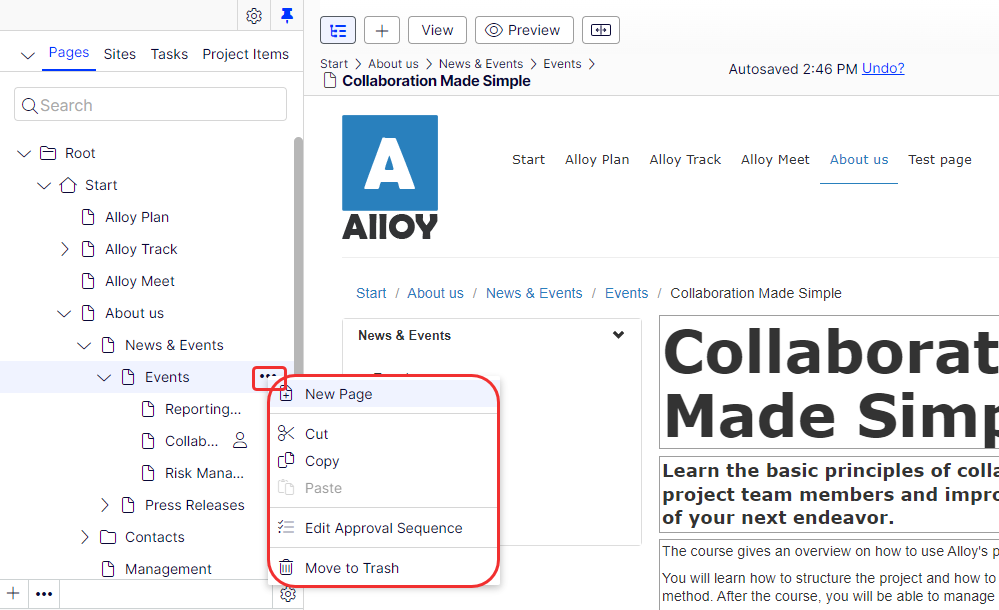
Page tree symbols
Page tree symbols provide information about the structure, such as content status and type. Point to a page in the tree structure to display details such as ID and page type. Some icons display only for the first draft version of a page before any published version exists.
NoteYour website can include custom symbols that the partner developer implemented.
Real-time updates
CMS immediately displays project comments and changes to projects in the UI. The following dialog box displays if CMS experiences problems with these immediate updates.
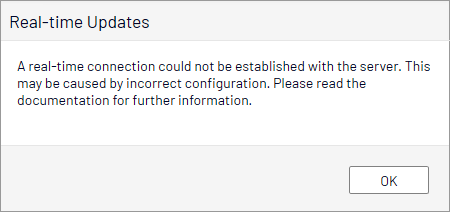
The Real-time Updates dialog box displays for two main reasons: CMS has encountered a network problem and cannot connect to the web server, or your system does not have the WebSocket protocol enabled.
Network problems
Network problems occur if there is an error in the web server configuration or if there are problems with your corporate network or the Internet connection. If there is a problem, you cannot continue working with CMS.
CMS tries to reconnect to the web server automatically. If it cannot connect after several attempts, the following error message displays: The server has been unavailable for an extended period of time. Please verify the internet connection and refresh the browser.
Contact your IT department or Internet service provider if the problem persists.
WebSocket support
WebSocket is an Internet protocol used to automatically update the CMS UI.
If you use the Projects feature, the WebSocket protocol checks for new or updated comments and project items from other users. When one of your colleagues adds a comment or project item, CMS automatically updates your UI and displays the comment or item (assuming you have the Projects interface open).
An administrator must enable the WebSocket protocol on your system for real-time updates to work. If WebSocket is not enabled, you can still use CMS, projects, and comments, but you must click Refresh to see updates from other users.
Depending on the system configuration, the Real-time Updates dialog box might or might not display when the WebSocket protocol is disabled.
Updated about 2 months ago