
Expire content
Set and manage content expiration in Optimizely to control when pages and blocks become invisible on your website. Learn how to use this feature.
Content expiration lets you control when pages and blocks become invisible on your website. Use it to take content offline at a specific date or immediately, while retaining the content for internal reference.
- Content becomes invisible on the front end of the site immediately or at a specified future time.
- Remove the expiration from the content to make it display on the website again.
- Editors can still access expired content when logged in.
NoteThe expiration sets a stop publish date on the content. This date applies to all versions of the content. For example, if you set a page to expired and then create a draft from the latest published version and publish that draft, the page is still expired and does not display on the website. You must manually remove the expiration for the page to be public.
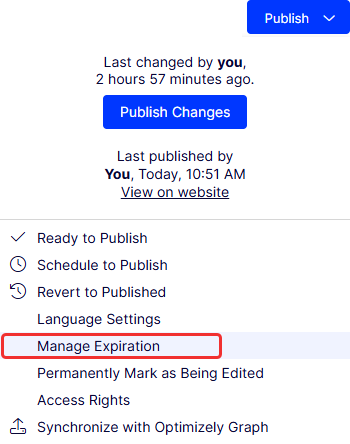
To expire content, select Publish > Manage Expiration.
The Manage Expiration dialog box displays.
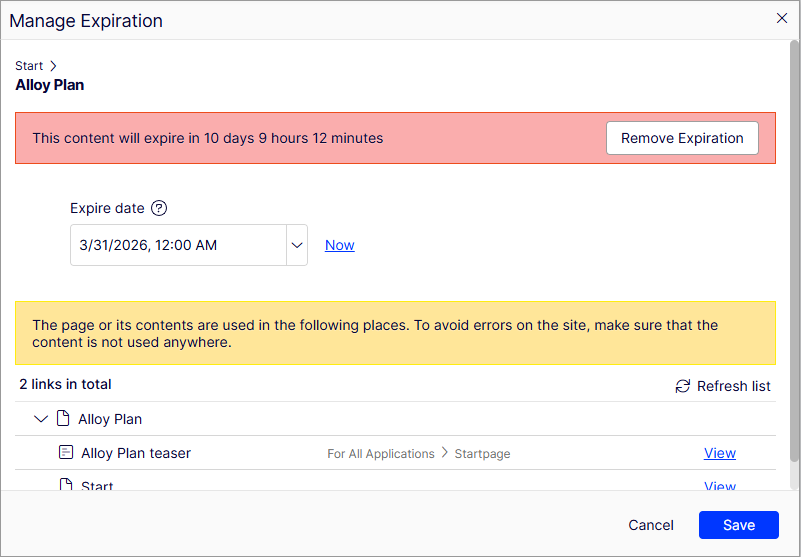
- Select Now if you want the expiration to apply immediately.
- Select a date if you want to expire content at a specific date and time, perhaps for time-limited content.
- Select Remove Expiration to restore the content to the site.
- The Manage Expiration dialog box displays other content items that link to the page you want to expire. Select View to open the page and address the link reference. The link breaks when you expire the page if the reference is not updated.
Updated 3 months ago