
Convert pages
Convert pages and subpages to different page types in Optimizely CMS 13. Map properties, manage child pages, and test conversions before applying changes.
Convert Pages lets you change pages from one page type to another and map their property values. Use it when restructuring content types or migrating content to a different template.
Go to Settings > Convert Pages to convert a page and its child pages to a different page type.
WarningSelecting Remove property permanently for unmatched properties deletes the property values on conversion. You cannot undo this action.
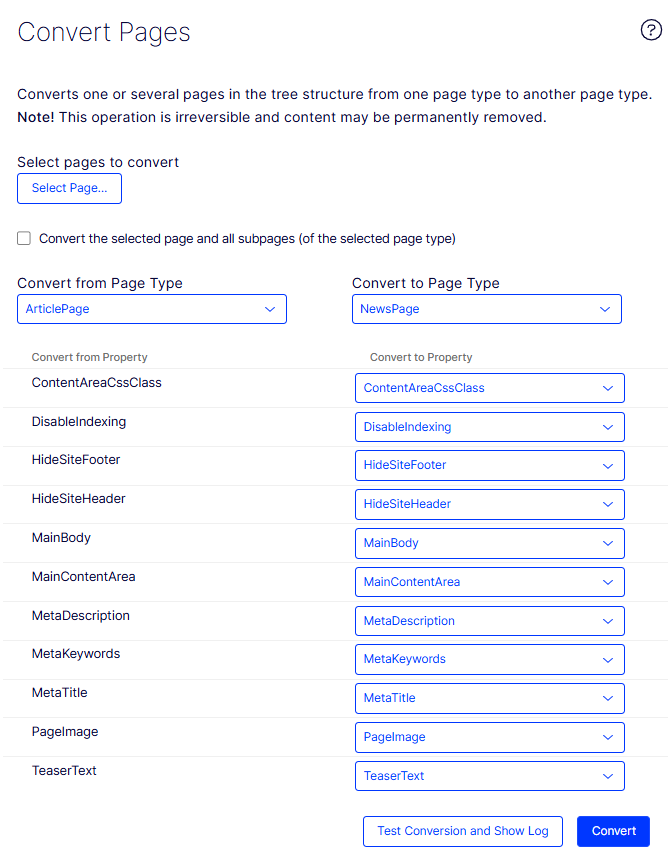
NoteProperties differ between page types. Decide how to handle properties that have no match in the target page type before converting.
- Select Page – Displays the content tree. Select the page to convert.
- Convert the selected page and all subpages – Select this checkbox to convert child pages of the selected page as well.
- Convert from page type – Displays the properties of the source page type.
- Convert to page type – Displays the properties of the target page type.
- Convert from property – Lists each property of the source page type.
- Convert to property – Shows the default property mapping for each source property.
- If a property has a match, it carries forward to the target page type by default. To use a different property, select a compatible one from the menu.
- If a property has no match, Remove property permanently is selected by default. Select a compatible property from the list to preserve the value instead.
- Test Conversion and Show Log – Preview the conversion results before applying them.
- Convert – Apply the conversion to the selected page type.
After the conversion completes, open the converted page in edit view to confirm that properties mapped as expected.
Updated 3 months ago