
Scheduled jobs through the UI
Administer scheduled jobs in Optimizely CMS. Start, stop, and configure built-in or custom jobs for tasks like archiving, trash emptying, and link validation.
A scheduled job is a service that performs a task at a defined time interval. An administrator can start a job manually. Optimizely CMS and Commerce Connect include several scheduled jobs by default. Some are enabled by default with preset values. Develop custom scheduled jobs for specific website tasks.
See also Scheduled jobs through code.
Administer scheduled jobs
Go to Settings > Scheduled Jobs. The Scheduled Jobs window displays.
- Filter by name or Status: Any, Running, Failed, Idle, or Manual.
- To run the scheduled job manually, click Start. The job runs immediately.
- To run the scheduled job on a schedule, select the job and set the time interval in the Settings tab. Each scheduled job's run time displays in the Start Date field.
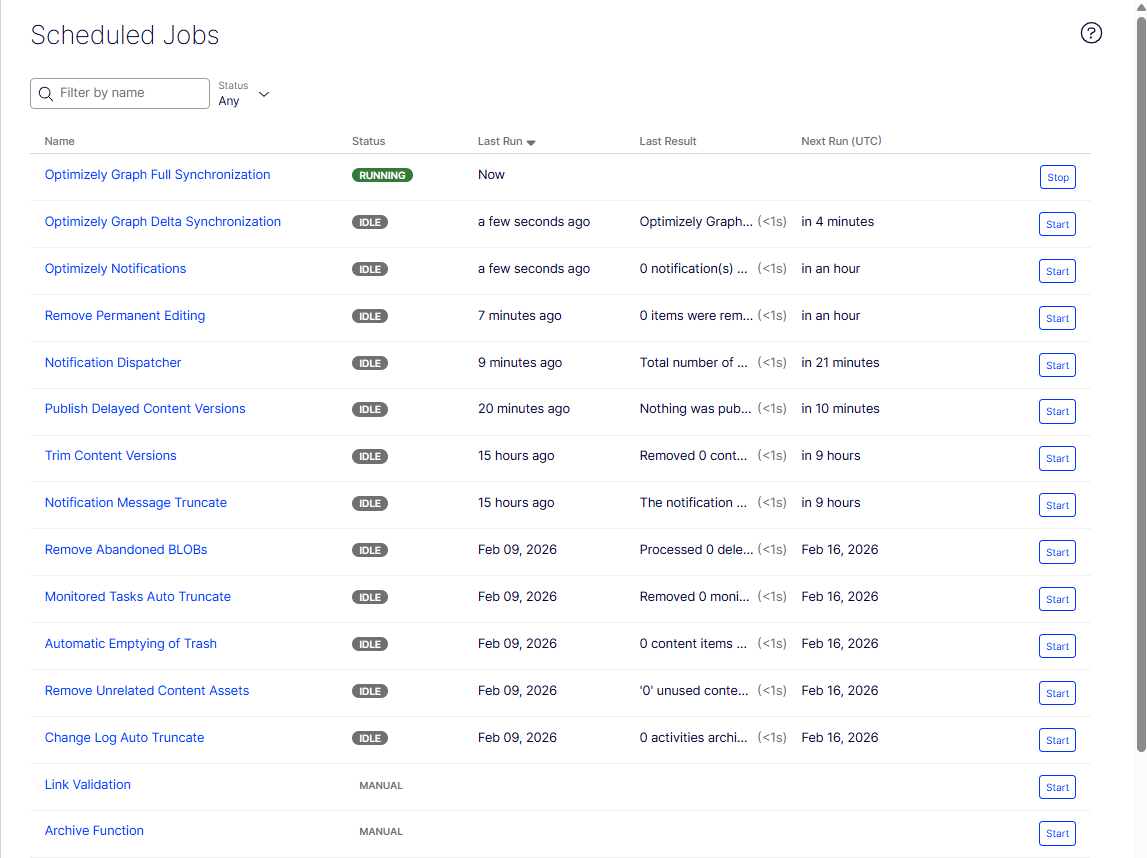
Details tab
The Details tab lets you run the scheduled job manually. Click Start, and the job runs immediately.
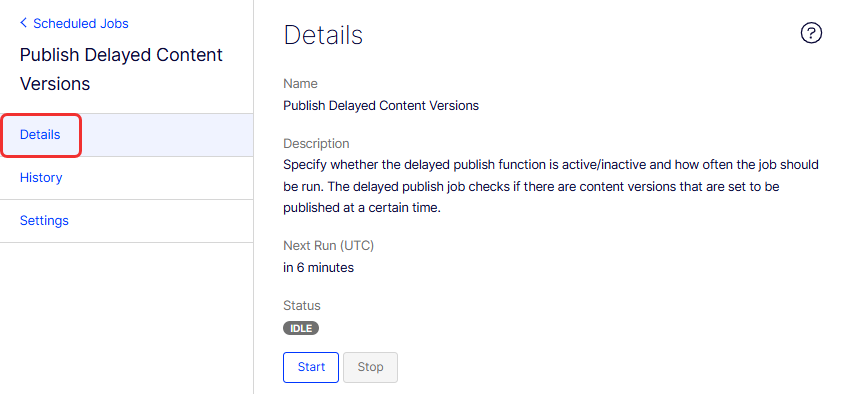
History tab
The History tab lets you monitor the status and results of each scheduled job execution. If a job fails, failure details display in the Message column.
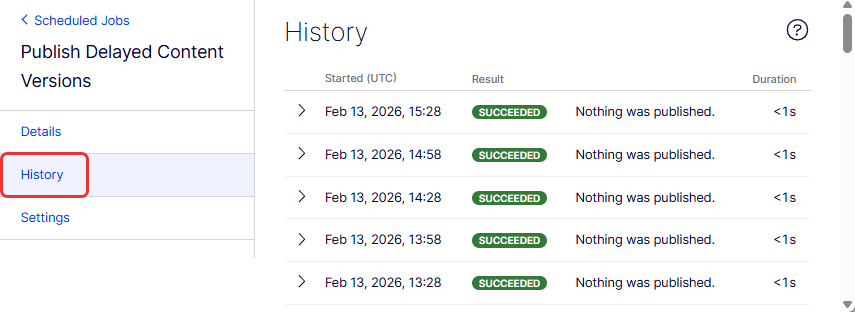
Settings tab
The Settings tab lets you set the time interval. Each scheduled job's run time displays in the Start Date field.
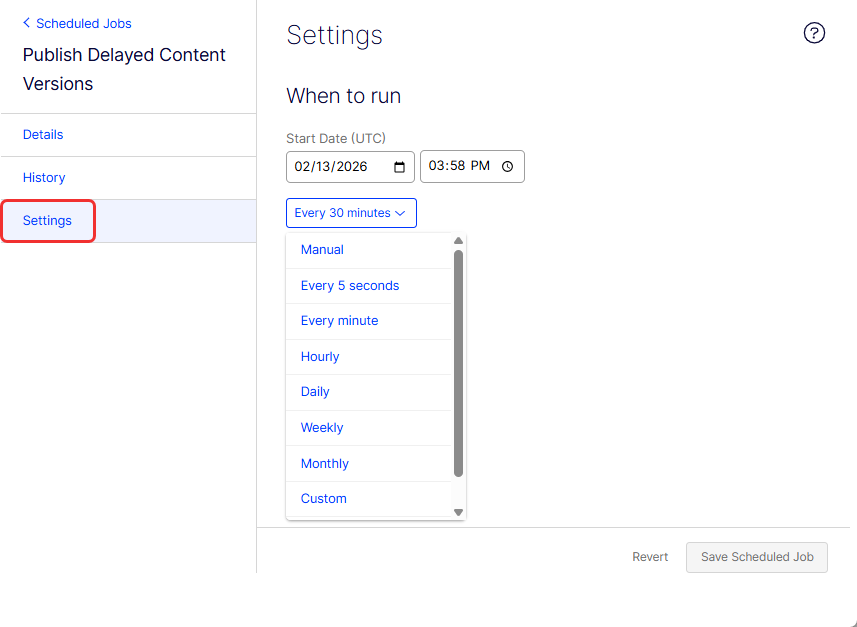
-
If you select Manual, the Start Date field does not display, and the job is inactive. Inactive jobs must be started manually.
-
The other options are counted as active status and display the Start Date field.
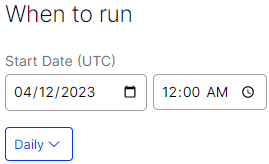
-
If you modify any fields, click Save Scheduled Job (or Revert to remove your changes).
CMS scheduled jobs
-
Archive Function – Sets how often the system archives information after the publication period expires with the Archive Function job.
NoteA delay can occur between when content is unpublished and when it appears in the archive, because the archiving job runs once a day by default.
-
Automatic Emptying of Trash – Sets how often your trash empties. With automatic emptying, content in trash older than 30 days is permanently deleted by default. You can also manually delete Trash permanently. The job is enabled by default and set to run weekly.
-
Change Log Auto Truncate – Deletes items from the change log that are more than one month old and do not have any dependencies registered against them by another part of CMS (for example, Mirroring). The job is enabled by default and set to run weekly.
NoteEarlier versions of this description referenced Mirroring as an example dependency source. Mirroring was removed in CMS 13. If your implementation includes custom subsystems that register change log dependencies, those entries are preserved regardless of age until the dependency is released.
-
Clear Thumbnail Properties – Clears generated thumbnail images in the Products list and Media list views and adds them again. Run this job manually if you experience problems with refreshing thumbnails, such as on the website and BLOB-supported content.
-
Link Validation – Checks links on your website to identify broken links. The system tries to contact the target for the link to verify that it is responding. Links are returned only if they are unchecked or checked earlier than when the job started. The job continues until no more unchecked links are received from the database. If many consecutive errors are found for external links, in case of a general network problem with the server running the site, the job stops. The result of the link validation job is a report called Link Status in the Optimizely CMS Report Center.
-
Monitored Tasks Auto Truncate – Truncates the status of monitored tasks. It is a clean-up job that deletes 30 days of statuses of monitored and completed jobs. The job is enabled by default and set to run weekly.
-
Notification Dispatcher – Sends notifications, such as email notifications, from Optimizely CMS to users regularly. The Projects feature uses it to send out email notifications of new or updated comments and replies posted in projects and also by approve content to send out email notifications on review requests; see Which actions trigger a notification? for a list of actions that generate a notification. Emails are sent only when an action has triggered a notification since the job last ran. The job is enabled by default and set to run every 30 minutes.
-
Notification Message Truncate – Truncates or deletes three-month-old notification messages that could not be sent and are still in the system. The job is enabled by default and set to run every day.
-
Optimizely Graph Delta Synchronization – Sets how often the system syncs the changed content. Only content modified since the last sync is processed. The job produces improved execution logs that include:
- Document counts – Total number of documents processed in each indexing step.
- Skipped items – Items excluded from indexing, with the reason for exclusion.
- Failed items – Items that could not be indexed, with error details.
- Timestamps – Start and end times for each indexing step, making it easier to identify bottlenecks.
After each execution, check the History tab to review the detailed log output.
-
Optimizely Graph Full Synchronization – Sets how often the system syncs all content and content types. A full sync reindexes the entire content tree regardless of change history. The job produces the same improved execution logs as the Delta Synchronization job, including document counts, skipped and failed item details, and per-step timestamps. Review the History tab after execution for a full indexing report.
-
Optimizely Graph Smooth Rebuild Synchronization – Sets how often the system syncs Optimizely Graph Smooth Rebuild data. A smooth rebuild reindexes content into a new index in the background and then switches traffic over atomically, avoiding downtime during a full reindex. Like the other Graph sync jobs, this job logs document counts, skipped items, failed items, and timestamps for each indexing step. Review the History tab for the execution report.
-
Publish Delayed Content Versions – Sets how often the system checks for content versions with a specific future publication date and time. The job is enabled by default and set to run hourly.
-
Remove Abandoned BLOBs – CMS can store media files in a cloud service instead of the website's database. When you delete CMS files, this job ensures the stored data is deleted from the BLOB provider. The job is enabled by default and set to run weekly.
-
Remove Permanent Editing – Clears the Permanently Mark as Being Edited marking of pages in the edit view (if editors have forgotten to remove the marking). The job is enabled by default and set to run hourly.
-
Remove Unrelated Content Assets – Deletes content folders containing media related to deleted items. The job is enabled by default and set to run weekly.
-
Synchronize with Graph – Triggers an immediate, direct synchronization of content to Optimizely Graph. Unlike the scheduled Graph sync jobs, this operation:
- Bypasses the indexing queue – Content is pushed directly to Graph without waiting for queue processing.
- Skips hash validation – All selected content is re-sent to Graph regardless of whether it has changed since the last sync.
Use this job to force a full re-push of content outside the normal scheduled sync cycle. For example, run it after a schema change or to resolve indexing discrepancies.
NoteBecause hash validation is skipped, this job produces higher API load than the standard delta or smooth rebuild jobs. Use it selectively rather than as a replacement for the scheduled sync jobs.
-
Trim Content Versions – Specifies whether the trim of content versions is active or inactive, and how often the job should be run. The job removes previously published versions so the number of versions per content does not exceed the configuration setting. The default value is 20 versions. You can decrease the value of the Maximum number of versions by going to Admin > Config > System Configuration > Editing tab. You can see the Maximum number of versions setting.
Optimizely Commerce Connect-related scheduled jobs
Installing Optimizely Commerce Connect adds scheduled jobs to your implementation. See Scheduled jobs in the Optimizely Commerce Connect section.
Orphaned scheduled jobs
When a NuGet package that registered one or more scheduled jobs is removed from your project (for example, Geta.NotFoundHandler, EPiServer.Forms.UI, or similar add-ons), the corresponding job records remain in the tblScheduledItem database table. These orphaned records are harmless: CMS does not attempt to execute them if the backing type can no longer be resolved, and they do not cause runtime errors.
However, they display in the Scheduled Jobs list with no associated functionality. Delete orphaned job records from the Scheduled Jobs list or directly from tblScheduledItem to keep the list clean.
Other scheduled jobs
Customized modules and add-ons include their own scheduled jobs. See the technical documentation for each module.
Updated 2 months ago