
CMS dashboard
Explore the Optimizely CMS 13 dashboard. Understand its features, widgets, and how to efficiently manage your content and site performance.
The Optimizely Content Management System (CMS) dashboard provides a central location to review content status, track workflow progress, and identify broken links across your site.
NoteCMS edit privileges are required to access the dashboard.
The dashboard displays information about your content and lets you access it from one place. The following features are available:
-
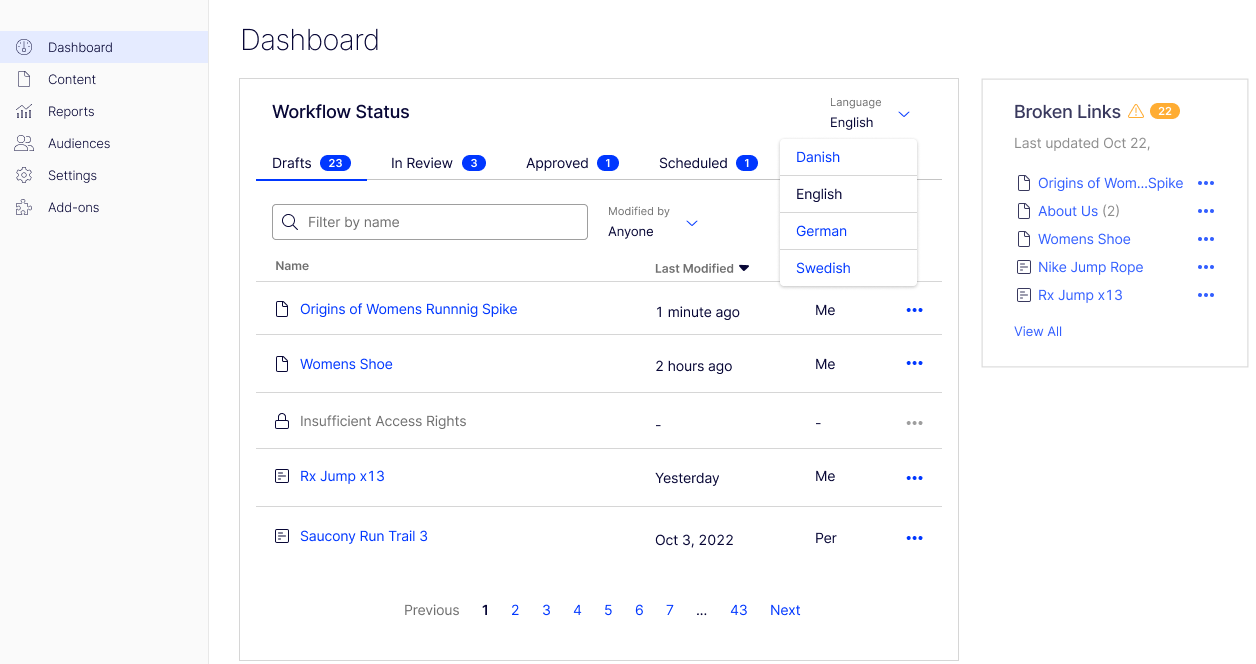
Click any Workflow Status tab, then click a link name to open the page in edit view. Select More (...) to edit the page or its workflow. See Approve sequences.
-
Sort the Name, Last modified, and Modified by columns by clicking them.
-
The following image shows activity on 29 pages: 23 Drafts, three In Review, and one each of Approved, Scheduled, or Rejected status. It also shows 22 broken links. When the dashboard loads, numbers display on each tab. Click the tabs to update the numbers.
-
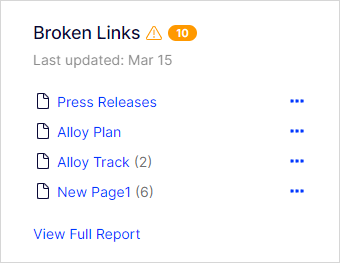
Click View Full Report to open the Reports tab and view broken links.
The broken links report shows the total count of broken links in the database and lists pages with at least one broken link. Each page displays only once, regardless of how many broken links it contains. For example, one page with 25 broken links shows as 25 broken links with one page listed. The report shows only content you have permission to edit, so you can click through to fix the links.
 Note
NoteBroken links do not update automatically. Refresh the dashboard to update the broken links gadget.
-
Select from the available languages to view the dashboard in that language. Each workflow status tab displays only content in the selected language.
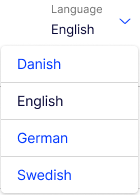
Administrators can enable the language filter options. If you select a language (for example, Swedish), the selection persists when you go to another page and return to the dashboard. When you log out, the language filter resets to the default language.
Updated 2 months ago