
Content property
Understand content properties in Optimizely CMS 13. Learn to define and manage various content types for flexible and structured content.
The Content property type stores references to other content items. Use it to embed content areas, content area items, and content references within your content types. The following image shows Content property type examples.
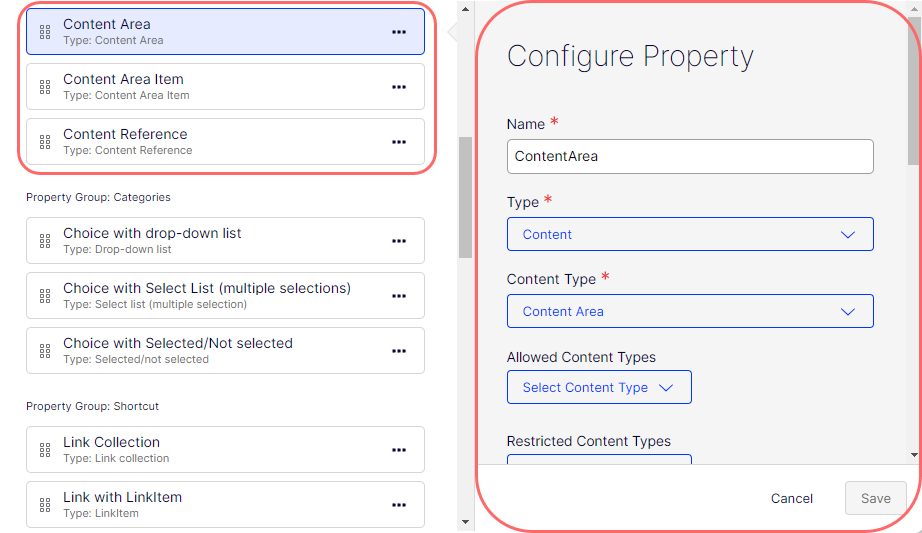
Configure Content property
The following attributes are available when you configure a Content property.
-
Name – Enter the name of this Content property type. This name is used for programming and language settings.
-
Type – Lets you change the content type to any other.
-
Content Type – Content types are used to construct and manage web content. Select one of the following:
-
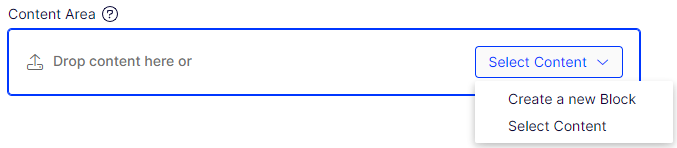
Content Area – Stores a collection of content area items (blocks or pages), letting editors manage order, group, and display of different pieces of content. It supports drag-and-drop functionality in the editorial interface for rearranging or adding content. It looks similar to the following when rendered in the All Properties edit view.
-
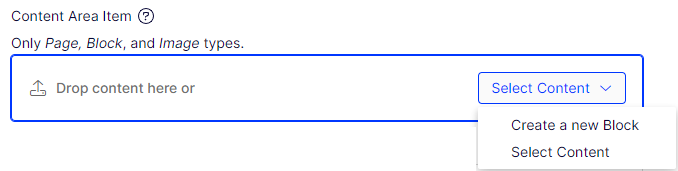
Content Area Item – Content area to drop content, select content from the content tree, or create content from scratch. Only page, block, or image content is allowed for this content type. It looks similar to the following when rendered in the All Properties edit view.
-
Content Reference – Store a content reference link by dropping content (stored elsewhere in the CMS) or selecting content from the content tree. For instance, refer to a page or a block to display in multiple places. This helps maintain a single source of truth and reduces redundancy in content management. It looks similar to the following when rendered in the All Properties edit view.
NoteContent Reference is the only content type available for elements.

When you select Content Reference, a Reference Type field appears. If you select a property with a specific type (other than Any), the CMS:
- Limits the content picker to show only content matching the declared type.
ContentReference<T>is a strongly typed variant of the standard Content Reference property. It restricts the property to accept only content of a specific typeT, enforcing type safety at the property level and improving the precision of content relationships. - Returns the full typed object in Optimizely Graph — for example, if a property references a
ContactBlock, Graph returns the complete object including fields such asnameandemail. - Returns only the
contentLinkwhen the Reference Type is set to Any with allowed content types, rather than the full typed object.
- Limits the content picker to show only content matching the declared type.
-
-
Allowed Content Types – Open Select Content Type to select the content type you want to permit to be used with the content type you are defining. The content type is then listed, and you can repeat the process for the remaining content types. Remove them by clicking the trash can. You can also change a selected content type.
-
Restricted Content Types – Open Select Content Type to select the content type you want to disallow from being used with the content type you are defining. The content type is then listed, and you can repeat the process for the remaining content types. Remove them by clicking the trash can. You can also change a selected content type.
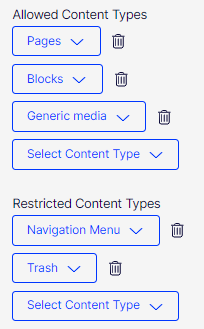
The following image shows what the display looks like:

-
Value must be entered – Select to require the user to enter a value in a content field. Required fields display a red asterisk (*).
-
Unique value per language – See Define language-specific properties.
-
Min items – Enter the minimum number of items this content type permits.
-
Max items – Enter the maximum number of items this content type permits.
-
Property Indexing Type – Unavailable.
-
Default value – Select the options to define what value the Number field displays.
- No default value – The field is empty (no pre-populated content).
- Inherits value – The field value is derived from another source. This is often used in hierarchical systems where child elements inherit values from their parent elements. For example, a sub-page inherits some property values from its parent page.
- Custom – Enter the field's default value.
-
Display in edit view – Unavailable.
-
Display name – Enter the text you want to display above the content element on the page in the All Properties view.
-
Help text – Enter text to display next to the Display Name. The following image shows how the help text displays.

-
Sort index – Specify a value to determine the order in which data is displayed or processed.
-
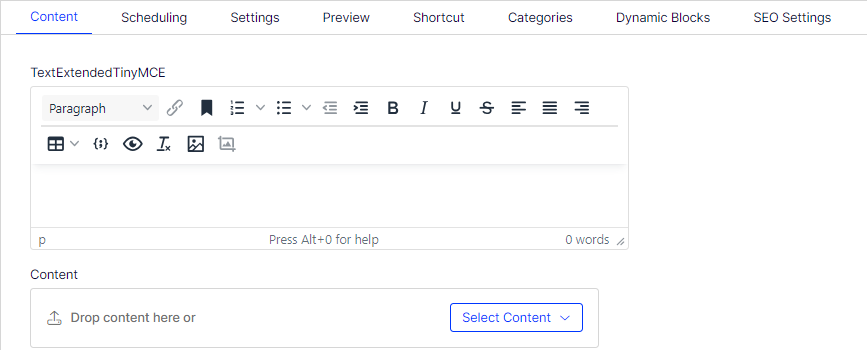
Property Group – Select a property group (Categories, Content, Dynamic Blocks, Preview, Scheduling, SEO Settings, Shortcut) to organize your content on tabs in the All Properties view of the content type. The following image shows text fields on the Content tab (property group).
Select global contracts for typed content reference properties
When configuring a typed Content Reference property, you can select global contracts as the allowed Reference Type. Global contracts define a shared, cross-schema content structure that connected content sources implement.
Key behaviors when a global contract is selected:
- The content picker surfaces all connected content types that implement the selected global contract, alongside standard CMS content types.
- Administration settings for the connected content type become highly restricted — only the External edit URL is editable. Fields such as Content ID and Content Name become read-only.
- This restriction ensures that the contract's structural integrity is preserved across all connected external sources.
Example — defining a typed reference to a global contract:
// A property restricted to any content type implementing the IProductContract global contract
[Display(Name = "Featured Product", Order = 100)]
public virtual ContentReference<IProductContract> FeaturedProduct { get; set; }
NoteIn the Visual Builder UI, typed references to global contracts are configured through Settings > Content Types > [Content Type] > Properties, by setting the Reference Type to a specific content type or contract rather than Any.
Property mapping for external content
When integrating external content sources — such as Shopify, Bynder, or other GraphQL-connected sources — properties from the external schema must map to CMS property types. External content follows less strict property mapping rules than internal CMS content, allowing a wider range of compatible target types for a given source type.
Less strict mappings
For external content sources, the CMS applies relaxed type-compatibility rules during property mapping. A source field of one type can map to a broader set of target CMS property types than would normally be allowed for internal content.
The following list shows common source-to-target mapping compatible CMS target property types
ShortString–ShortString,LongString,XHTMLString,LinkItem,URLLongString–LongString,XHTMLStringInteger–Integer,LongString,ShortStringBoolean–Boolean,ShortStringDateTime–DateTime,ShortString,LongStringURL–URL,ShortString,LongString,LinkItem
NoteThese relaxed mappings apply only to properties sourced from external (connected) content types. Standard CMS-to-CMS property mappings enforce stricter type compatibility.
How mappings behave
- Read-only – Properties included in a mapping become read-only in the CMS Edit UI. Their values reflect the external source directly.
- Editable – Properties excluded from a mapping remain fully editable within the CMS.
- Late additions – If a mapping is updated to include additional properties, those properties automatically transition to a read-only state.
- Depth – Mappings support scalar properties inside a block at one level of depth.
- Directionality – You can swap source and target to reverse the direction of a mapping.
Map ShortString to richer target types
A ShortString source field from an external content type can map to the following richer CMS types:
LongString– Use when the external field may grow beyond a short text constraint, or when you want to allow longer editorial overrides.XHTMLString– Use when the external field value must render as formatted rich text in the CMS editor. The raw string value populates the rich text field as plain text.LinkItem– Use when the external field holds a URL string that should be treated as a navigable link with a label. The mappedShortStringvalue populates the link'sHref.URL– Use when the external field contains a URL string that should be stored and resolved as a direct URL reference.
Example – Configure a ShortString-to-URL mapping (UI)
- Go to Settings > Content Types and select the target CMS content type.
- Open the Mappings tab and select Create Mapping.
- Define the Source Content Type (for example,
ShopifyProduct) and the Target Content Type (for example,Teaser Block). - In the Map Properties window, set the Target property (for example,
PrimaryImageUrlof typeURL) and the Source Property (for example,image_urlof typeShortString). - Save the mapping. The
PrimaryImageUrlproperty becomes read-only in the Edit UI and resolves its value from the external source.
NoteWhen mapping
ShortStringtoXHTMLString, the CMS does not apply HTML encoding or transformation to the source value. Validate that the external source does not supply HTML-unsafe strings before using this mapping in production.
Updated 2 months ago