
Organize content types and properties
Describes how to group content types and properties into logical entities, to make the editing experience more intuitive.
Organize page types in groups to make it easier for editors to select the correct page type when creating pages in edit view. Properties can be grouped and ordered under tabs in the All Properties editing view.
Content types
To group content types, add the GroupName property to the content type to specify a group, and use the Order property to determine the order in which the groups are displayed. This is used, for example, when creating pages in edit view and listing content types in the admin view.
The following example shows two page types, StandardPage and ArticlePage, belonging to the groups Basic pages and Facts articles respectively.
[ContentType(GroupName = "BasicPages",
  Order = 1,
  GUID = "abad391c-5563-4069-b4db-1bd94f7a1eea")]
public class StandardPage: PageData {}

[ContentType(GroupName = "FactsArticles",
  Order = 2,
  GUID = "b8fe8485-587d-4880-b485-a52430ea55de")]
public class ArticlePage: PageData {}
The result when creating a page in edit view:
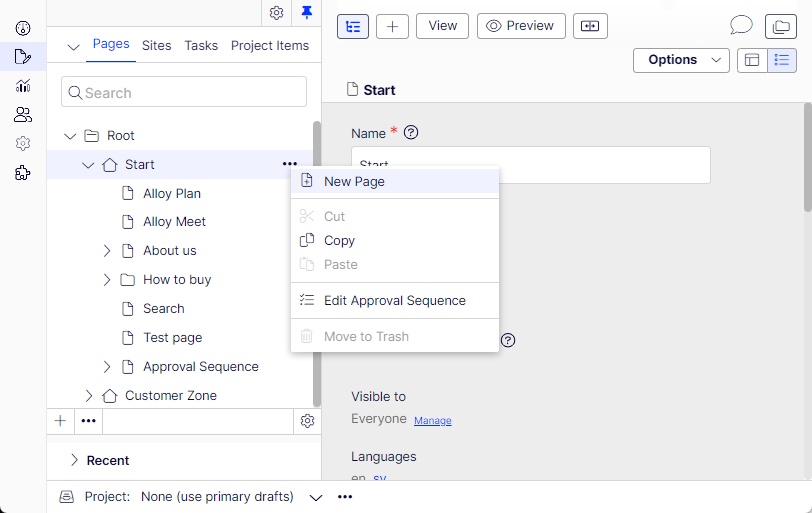
This also applies to other types of content, for example, products and variants in Optimizely Commerce.
Properties
Group properties under tabs. Use the Display attribute to specify the GroupName that is displayed as a tab. The Order property controls the order of the displayed properties on the tab.
The following example shows the Article page with two properties, Author and Classification, displayed under a tab named Details. The Author property is displayed first on the tab because it has the lowest sort order number.
[Display(GroupName = "Details", Order = 1)]
public virtual string Author { get; set; }

[Display(GroupName = "Details", Order = 2)]
public virtual string Classification { get; set; }
Built-in groups
Optimizely Content Management System (CMS) provides a set of built-in tabs and groups used by built-in properties. These built-in groups are only used for properties, not for content types. Add custom properties to the groups to make them display under the built-in tabs. Constants for the built-in tabs are defined in EPiServer.DataAbstraction.SystemTabNames.
| Name | Sort index | Description |
|---|---|---|
Content | 10 | Default group used for properties that do not specify a group name. The actual group name is Information. |
Settings | 30 | Used for some of the more advanced built-in properties. The actual group name is Advanced. |
PageHeader | N/A | The page header that is shown above the tabs or by scrolling up in the On-Page editing view. The actual group name is EPiServerCMS_SettingsPanel. |
The Content and Settings tabs are available by default. To edit tabs, go to Settings > Edit Tabs. From here, define access levels to create tabs with properties only available for selected editor groups.
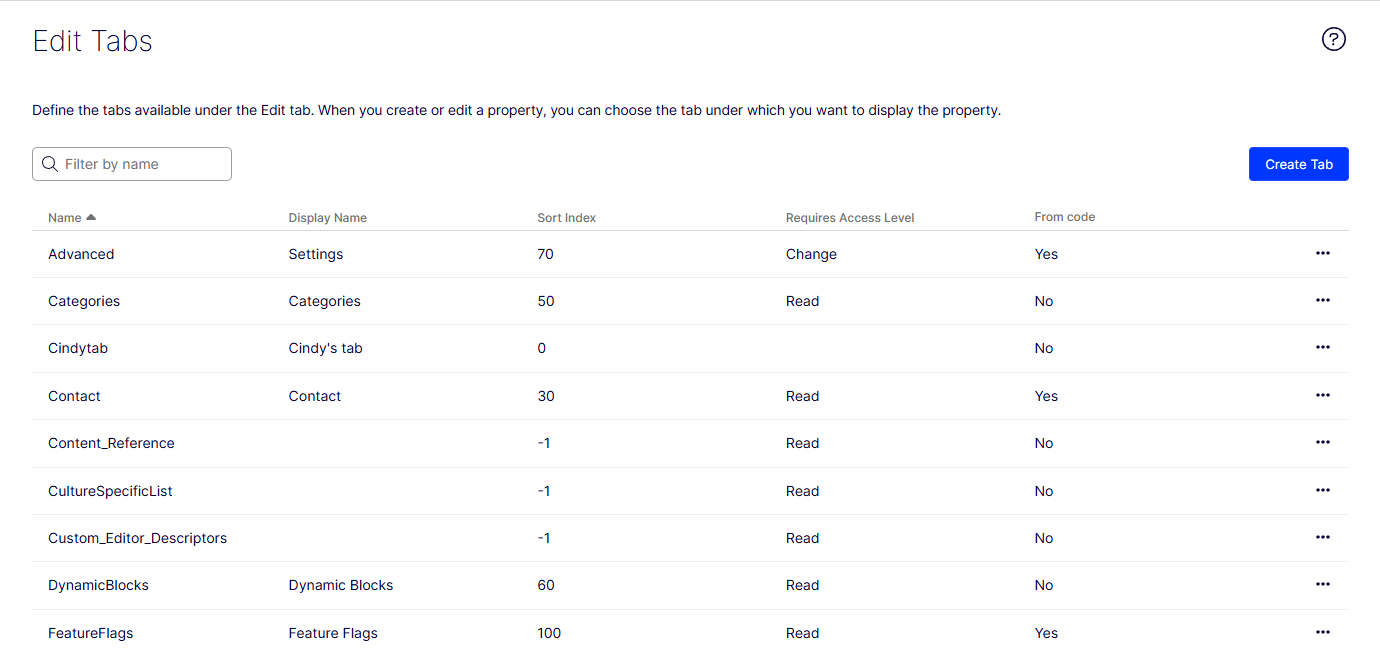
NoteTabs without properties do not display in the All Properties editing view. Scheduling, Shortcut, and Categories are obsoleted groups.
Group definitions
Define sort order on individual content types and properties as described. The order set indirectly defines in which order content groups display when creating content, and in which order tabs are shown when editing content in the All Properties editing view.
When the number of content types and properties increases, define the order of groups at a higher level, and then use order to sort among the content types and properties in each group. Normally, define groups as a list of constants that you use in the DisplayAttribute.
The following example shows the ArticlePage type with a News content type group, and a Contact tab with an Image property.
[ContentType(GroupName = GroupNames.News, Order = 1)]
public class ArticlePage: PageData {
  [Display(GroupName = GroupNames.Contact)]
  public virtual ContentReference Image {
    get;
    set;
  }
}

public static class GroupNames {
  public
  const string News = "News";
  public
  const string Contact = "Contact";
}
Define the group names as constants in a separate class, and decorate the class with the GroupDefinitions attribute (which is automatically picked up). Define multiple classes with the GroupDefinitions attribute, but only define a single group name on one class. Groups defined in code cannot be edited in the admin view.
The following example sets the order of the group.
[GroupDefinitions]
public static class GroupNames {
  [Display(Order = 150)]
  public const string News = "News";
}
Set the order in which groups are displayed with the Display attribute. Properties and content types are sorted within each group by each order. Groups that have no order defined get Order=-1 and are displayed first.
Apply access levels
When you group content types and properties, apply access levels so that an editor must be part of a role, function, or other criteria to access the group. The required access level applies to groups of properties and groups of content types.
The following example shows the Contact group with access level set to Publish.
[GroupDefinitions]
public static class GroupNames {
  [Display(GroupName = "MyNews", Order = 1)]
  public
  const string News = "News";
  [RequiredAccess(AccessLevel.Publish)]
  public
  const string Contact = "Contact";
}
Override sort order of built-in groups
Groups without defined order fall back to the indirect sorting and have the sort index set to -1. Override built-in groups to change sort order.
The following example overrides the default sort order for the Content tab.
[GroupDefinitions]
public static class GroupNames {
  [Display(Order = 1000)]
  public
  const string Content = SystemTabNames.Content;
}
NoteGroups that are defined in code cannot be edited from the admin view.
Updated 2 months ago