
Folders
Organize content in Optimizely CMS 13 using folders in the Assets panel. Create, rename, move, and delete global, site-specific, and local folders for media and shared blocks.
Folders in the Assets panel organize content in Optimizely Content Management System (CMS). Store media files (images, videos, and documents) and shared blocks in folders. Use global folders to share content between websites in a multi-site installation. Use site-specific or local folders to limit content to a single website, page, or block.
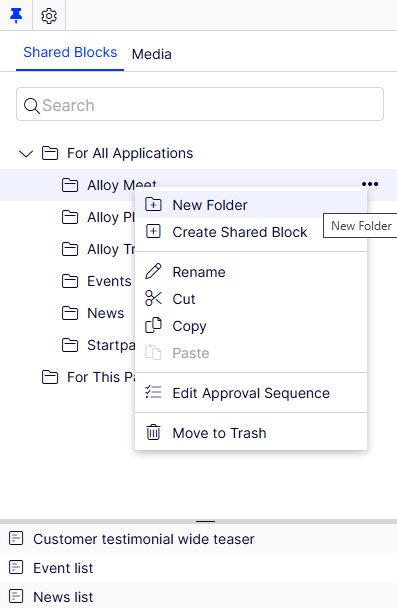
Media and blocks share the same folder structure. Creating a folder under Media creates the same folder under Shared Blocks.
Your implementation determines which predefined folders display:
-
For All Sites – A global folder. Content is available to pages and blocks across all websites in a multi-site installation.
-
Content – A site-specific folder. Content is available on the current website only.
-
For This Page or For This Block – A local folder. Content is available for a specific page or block only. Use local folders for images or assets with a single purpose.
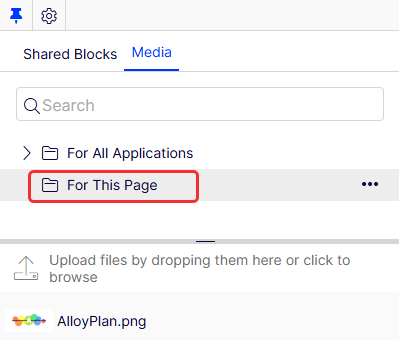
Copying page content that includes a locally stored image does not copy the image to the target page. The browser cache displays the image temporarily, but the link is broken.
Local folders are not available for catalog content in Commerce Connect.
Create, rename, and move folders
Manage your folder structure through the context menu. Renaming or moving folders preserves internal content links. Incoming links from external websites or search engine indexes break if they reference the folder path directly.
To create a folder:
- Select the parent folder in the structure.
- Select New Folder from the context menu.
- Enter a name for the folder.
To rename a folder, select Rename from the context menu and enter a name.
To move a folder, drag and drop it or use Cut and Paste from the context menu.
Delete folders
Remove folders and their contents by moving them to the trash. Restore deleted folders from Trash if needed. Local folders cannot be deleted.
- Select the folder to delete.
- Select Move to Trash from the context menu.
Blocks and media share the same folder structure, so removing a folder affects both structures. CMS notifies you about existing references to the content before removal.
Set access rights for folders
Control who accesses and modifies content within specific folders. The global folder is available to everyone by default. Local folders inherit access rights from the associated page or block.
Define access rights for folders from the admin view in CMS. The process follows the same steps as setting access rights for pages in the page tree.
Manage folders in multiple languages
Folders are not language-specific. The folder structure for blocks and media looks the same regardless of the language selected under the Sites tab. Include a language code in folder names to distinguish language-specific content.
Updated 2 months ago