
Select Visual Builder styles
Choose rendering options for your Optimizely CMS 13 Visual Builder experience. Apply styles to rows, columns, elements, and sections to customize content display.
Style lets you choose rendering options for parts of your experience to control how content displays to visitors. Your organization configures the style selections to ensure that only brand-approved styles display, and a developer configures the names and available options.
When configured, change styles on experiences, sections, rows, columns, and elements to affect the content that displays. For example, you can have the same (headless) content but with different styles that affect how the content elements display in the Preview panel.
Changing the Display as option changes the particular settings available.
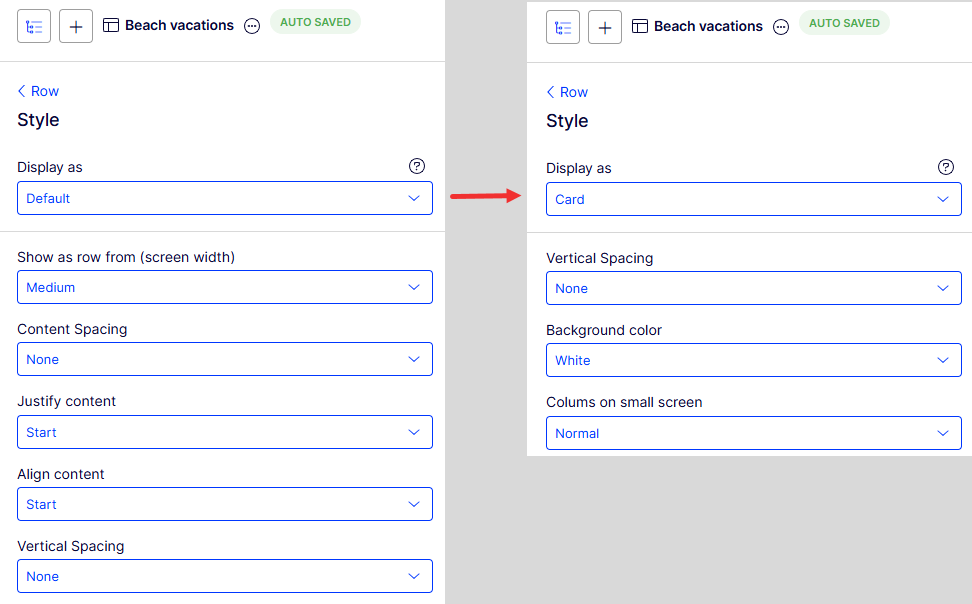
For example, for the row style, when you set Display as to Card, the row not only changes appearance but also the remaining settings you can select (Vertical Spacing, Background color, Columns on small screen). When displaying the same row as Default, the appearance and available settings change.
Change the style
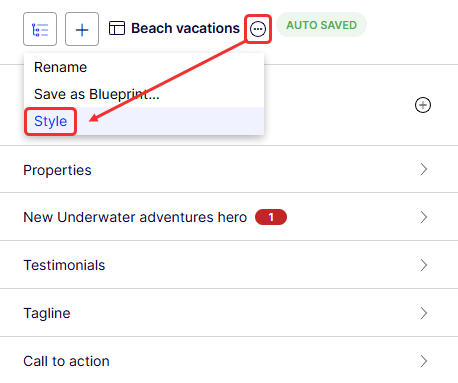
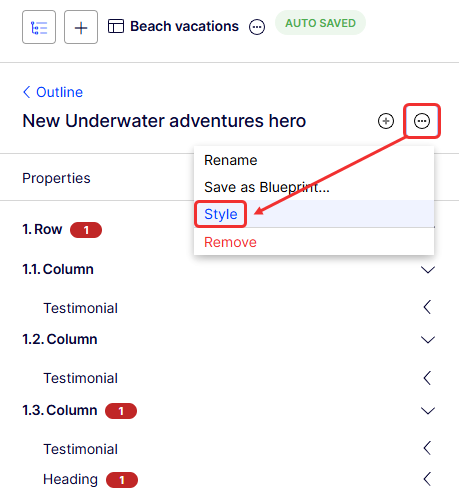
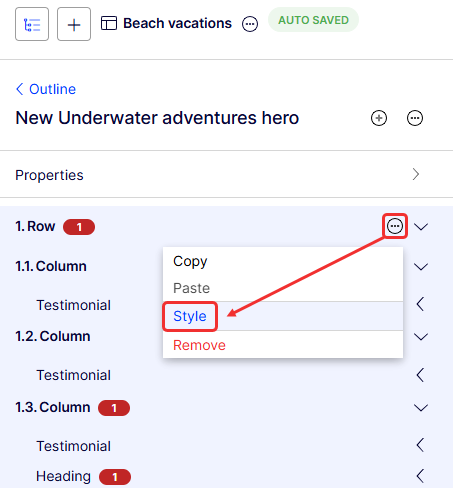
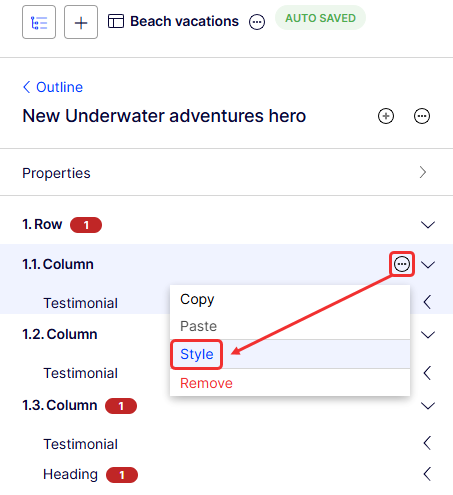
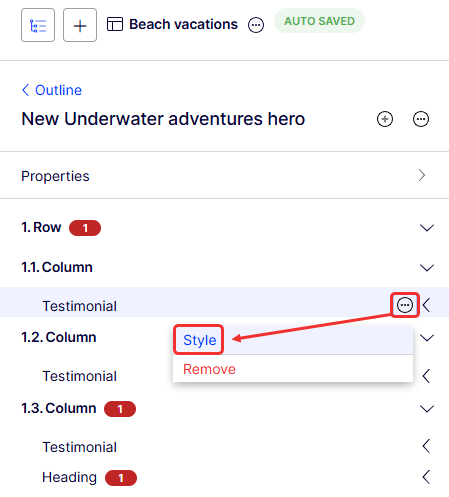
To change the style of experiences, sections, rows, columns, and elements, select More (...) > Style on the experience, section, row, column, or element.
-
Experience style
-
Section style
-
Row style
-
Column style
-
Element style
Updated 2 months ago