
Edit content using TinyMCE
Edit content using the TinyMCE editor in Optimizely CMS 13.
The TinyMCE rich-text editor lets you enter and format text, images, tables, and links to other content. Use the rich-text editor for elements and pages in Optimizely Content Management System (CMS 13).
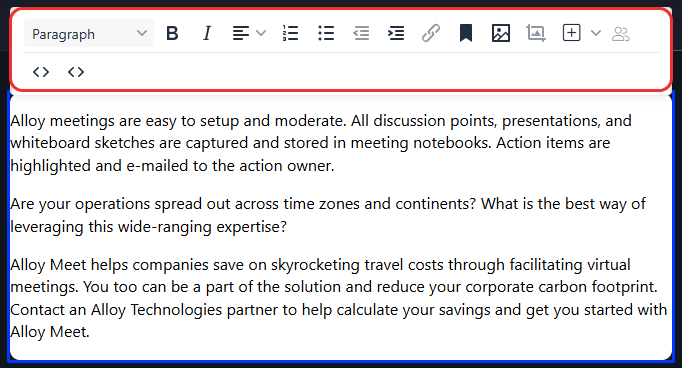
The CMS sample templates have a standard selection of activated editor functions (buttons in the previous image). Contact your administrator for information about your specific TinyMCE implementation.
Editor keyboard shortcuts
The following standard keyboard shortcuts are supported in the rich-text editor in CMS 13:
| Command | Windows | Mac |
|---|---|---|
| Select all | CTRL+A | CMD+A |
| Copy | CTRL+C | CMD+C |
| Cut | CTRL+X | CMD+X |
| Paste | CTRL+V | CMD+V |
| Undo | CTRL+Z | CMD+Z |
| Redo | CTRL+Y | CMD+Y |
| Find and replace | CTRL+F | CMD+F |
| Insert link | CTRL+K | CMD+K |
| Bold | CTRL+B | CMD+B |
| Italic | CTRL+I | CMD+I |
| Underline | CTRL+U | CMD+U |
| Paragraph break | Enter | CTRL+O |
| Line break | Shift+Enter | Shift+Enter |
| H1–H6 headings | ALT+Shift+1–6 | CTRL+ALT+1–6 |
| Focus to toolbar | ALT+F10 | ALT+F10 |
| Toggle fullscreen | CTRL+Shift+F | CTRL+Shift+F |
NoteCertain shortcuts may not work as described depending on customizations and the browser you are using.
Updated 2 months ago
Did this page help you?