
Project examples
Explore Optimizely CMS 13 project examples. Learn to publish customer events, sales campaigns, and manage multi-language content versions simultaneously using the Projects feature.
These examples illustrate how projects coordinate publishing across common scenarios. Apply these patterns to organize multi-item campaigns, scheduled releases, and multi-language content.
Publish a customer event
Publish an invitation to a customer event. The project includes a registration form (using a block), a thank you page, and a teaser block for the start page. All content items for the event publish simultaneously on a schedule.
-
Create a project for the event from the project bar and name it Customer event.
-
Prepare a page with information about the event. The page is automatically added to the project. Set the page to Ready to publish or do that later.
-
Prepare a thank you page.
-
Create a registration form using the built-in form feature or the Optimizely Forms add-on. Configure the form to direct visitors who register to the thank you page.
-
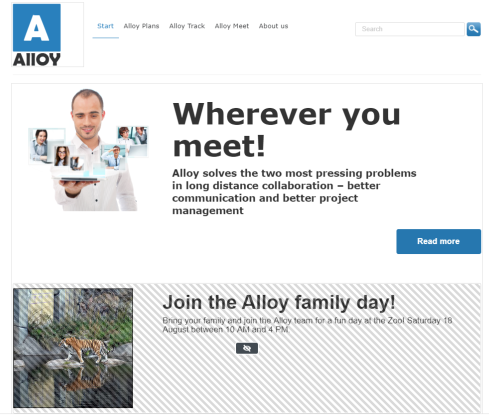
Create a teaser block to promote the customer event on the start page and drag it to the page. The Customer event project now contains the related items.
-
Click Preview to verify the pages.
- Does the start page show the teaser?
- Does the teaser lead to the customer event detail page?
- Does the form direct you to the thank you page after submission?
-
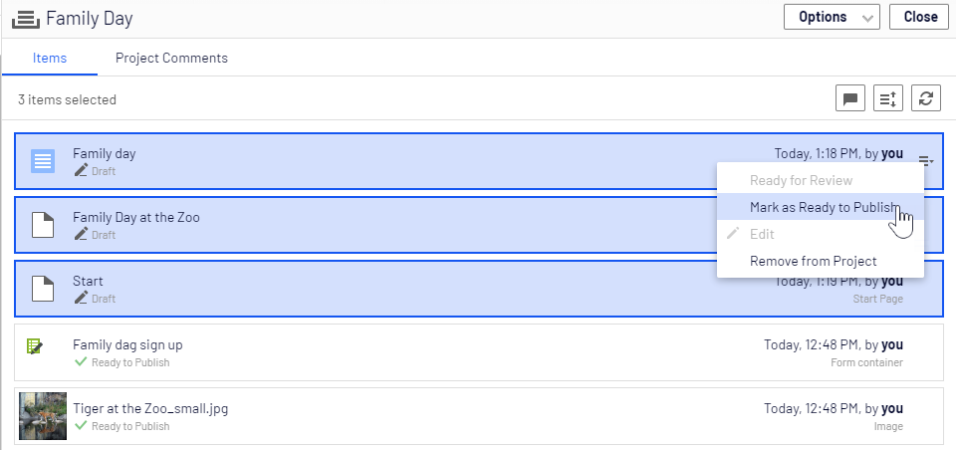
Open the overview and select all items using Shift and clicking the first and last items.
-
Choose Ready to publish from the context menu of one of the items to mark all selected items.
-
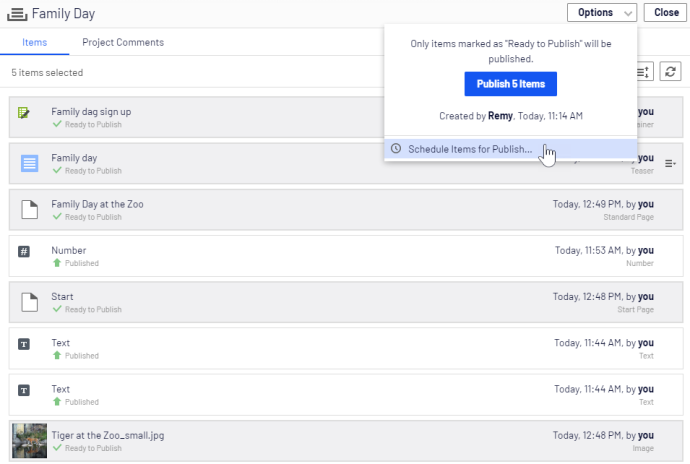
Select Options > Schedule Items for Publish in the overview.
-
Select August 1 at 11 AM and click Select.
NoteScheduled item versions in a project cannot be edited. To publish the start page before the scheduled version, create a draft and publish it. To include the same changes in the scheduled project version, remove the scheduling, edit the content, and reschedule.
Publish a campaign
Create a fashion sales campaign with multiple content items on a website running Optimizely Content Management System (CMS) and Optimizely Commerce Connect. The campaign goes live on a specified date. It contains a landing page with a product listing block, two products, and a teaser block for the start page. Create the project first and then add the content items.
-
Create a project for the campaign in the Optimizely Commerce Connect catalog tree and name it Spring Collection.
-
Prepare draft versions of the catalog items in Optimizely Commerce Connect. Create and edit the catalog entries and add product descriptions and assets.
-
Drag the prepared catalog entries from the Catalog gadget to the Project gadget. (Optional) Set the products to Ready to Publish before adding them.
-
Switch to the CMS edit view and create the landing page for the Spring Collection. Add text and assets, and drag the landing page to the Spring Collection project.
-
Create a block listing the products included in the spring collection, and include it in the landing page. Add the product listing block to the project.
-
Create a teaser block for the landing page to promote the spring collection, and add it to the project.
-
Drag the teaser block to the start page, and add the start page to the project. The Spring Collection project now contains the items for the campaign.
-
Preview the content items in the project, edit as needed, and set to Ready to Publish when done.
-
Schedule the project for the defined go-live date of the campaign.
NoteVersions of content items in a scheduled project cannot be edited. To update the start page before the scheduled project publishes, create a draft and publish it. To include the same changes in the scheduled project version, remove the scheduling and edit the content.
Manage multiple content language versions
Create a page with a registration form block for an event. The items must be available in English (the original website language), French, and German. Use a project to manage the translations.
-
Create a project and name it Spring Meeting.
-
Create the page and the related forms in English first. CMS automatically associates them with the project.
-
Enable and activate the languages (French and German in this example) on your website. An administrator performs this step.
-
Switch to the French language branch and create a French version for the page and form block.
-
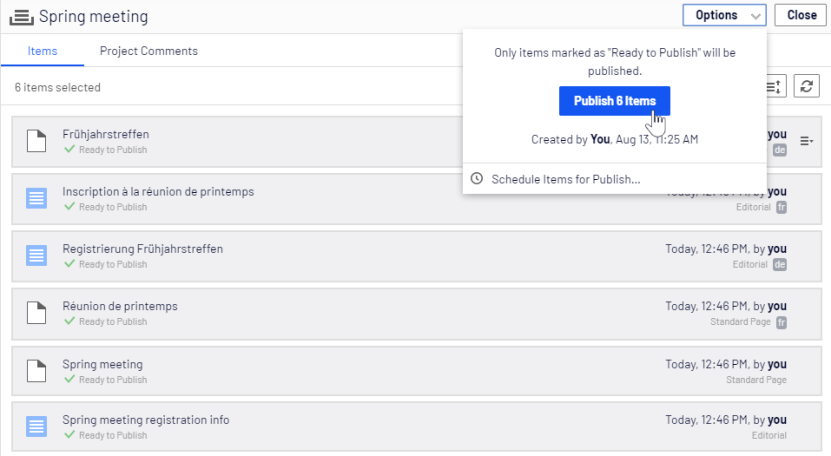
Repeat the previous actions for the German version. The project now has six content items, two for each language. All six items display in the Project Items navigation panel.
NoteA language code displays for items in other languages. In the following image, the English site is selected under Sites. Items in English do not have a language code.
-
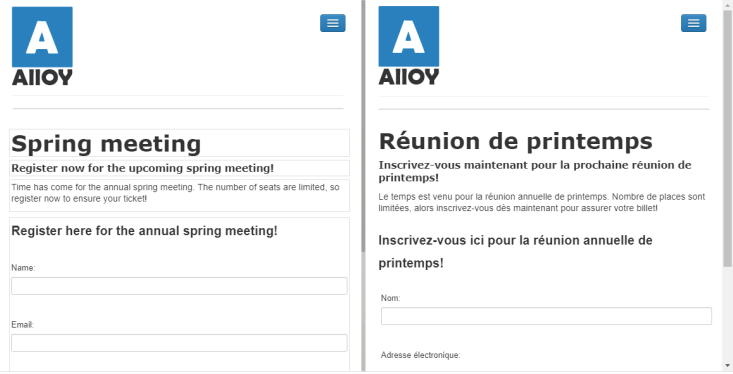
Translate the content items into French and German. Use Compare to display the original English version during translation. Use Preview to verify the different language versions.
-
Set all content items to Ready to Publish when done. Publish the project or schedule it for later from Options in the project overview.
Updated 2 months ago