
Troubleshoot Optimizely Opal tools
Common issues and their resolutions when working with Opal tools for Content Management System (CMS 13).
"Authorization failed" (401)
Your Opti ID token is invalid or missing.
Resolution
- Verify you are logged in to CMS 13 with a valid Opti ID session.
- Check that the Opti ID token has not expired. Log in to CMS to get a new token.
- Confirm the
EPiServer:Cms:OptimizelyIdentitysettings are configured in your application.{ "EPiServer": { "Cms": { "OptimizelyIdentity": { "Authority": "https://login.optimizely.com/oauth2/default", "InstanceId": "INSTANCE_ID", "ClientId": "CLIENT_ID", "ClientSecret": "CLIENT_SECRET" } } } } - Ensure the Opal Chat widget is configured with matching
InstanceId.
"Access denied"
You do not have the required CMS permissions for the requested operation.
Resolution
- Read operations – You need at least
Readaccess to the content item. - Write operations (create, update, delete, publish) – You need
Editor higher access to the content or its parent container. - Content type operations (list, create, update, delete) – You need a CMS administrator role.
- Property group operations – You need a CMS administrator role.
- Check your role assignments in CMS Admin > Access Rights.
- Verify the content item's access rights are not restricted.
"Content not found"
The specified content globally unique identifier (GUID) does not match a content item in CMS 13.
Resolution
- Verify the
contentKeyis a valid GUID format (for example,c3558e08-00a6-45d0-bfff-5bd2bda3acb5). - Check that the content is not permanently deleted. It may be in the waste basket.
- Use
paas_cms_list_content_typesand the CMS UI to search for the correct content item. - If working with a specific version, verify the
contentVersionnumber exists.
"Content type not found"
The specified content type key does not exist in CMS 13.
Resolution
- Use
paas_cms_list_content_typesto get the correct content type key. - Content type keys are case-sensitive. Verify the casing is exact.
- The content type may be deleted. Check CMS Admin > Content Types.
"Cannot update published version"
The SEO edit tool rejected changes because the target content version is published.
Resolution
- Create a draft version of the content before applying SEO edits.
- Use the CMS 13 editorial UI to create a new draft, then retry the operation with the updated version number.
- The tool returns the correct version number to use after creating a draft.
"Property not found"
A property specified in the update or SEO edit does not exist on the content type.
Resolution
- Use the
paas_cms_get_content_type_detailstool to list all available properties for the content type. - Verify that property names are case-sensitive and match the content type definition exactly.
- Metadata properties (system properties such as
PageNameorPageLink) cannot be updated through the tools. - For SEO edits, verify the
actualPropertyNamesmapping is correct for your content type.
"No content item exists with the specified key"
The permanent link mapper cannot resolve the content GUID.
Resolution
- The GUID may be from a different CMS 13 instance or environment.
- Verify you are connected to the correct CMS 13 instance.
- The content may be permanently deleted (not just moved to waste basket).
"This composition would remove N node(s)"
The composition you sent leaves out nodes that are stored on the experience. paas_cms_update_content_item refuses the write rather than detaching them. The message names up to 10 of the affected nodes. The tool saves nothing, including the properties in the same request. An empty nodes array produces the related message An empty composition would remove all N node(s) on this experience.
Resolution
- Read the stored layout with
paas_cms_get_content_data, then send the complete structure back. - Include the named nodes in the
nodesarray to keep them. - Omit the
nodesarray on a section, row, or column to keep the children stored under it. Sending"nodes": []empties it instead. - Set
allowNodeRemovaltotruewhen you intend to remove the nodes. The nodes stay in CMS 13 and lose their place on the experience.
"N properties did not persist"
paas_cms_update_content_item saved the content item, then found that a property you supplied is not stored. The message names the content key, the version, and each property that did not persist. The response reports "success": false, but the save already took effect and the other properties are stored. An identical retry produces the same result.
Resolution
- Check the content type for the named property. A property that the site computes or marks as read-only discards whatever you write to it.
- Read the content item with
paas_cms_get_content_datato see what the save stored. - Publish or discard the version the message names. The version exists whether or not you keep it.
Tool discovery endpoint returns empty or 404
The /opal/discovery endpoint is not responding or is returning no tools.
Resolution
- Verify
services.AddCmsOpalTools()is called in your service configuration. - Verify
endpoints.MapOpalTools("/opal/")is called in your endpoint configuration. - Verify the Opal Tools NuGet package is installed. Run
dotnet list package | grep Opal. - Verify the application is running and accessible at the expected URL.
- Check the application logs for startup errors related to tool registration.
Opal Chat widget does not load
The Opal Chat widget does not display in the CMS 13 UI.
Resolution
- Verify the
Optimizely.Cms.OpalChatpackage is installed. - Check the Opal Chat configuration in
appsettings.jsonor in user secrets.{ "Optimizely": { "OpalChat": { "ServiceUrl": "https://opal-backend.optimizely.com", "AppBaseUrl": "https://opal.optimizely.com", "SocketUrl": "https://ws.opal.optimizely.com", "InstanceId": "YOUR_OPAL_INSTANCE_ID" } } } - Check the browser console for CORS errors. The Opal backend must allowlist your application's origin.
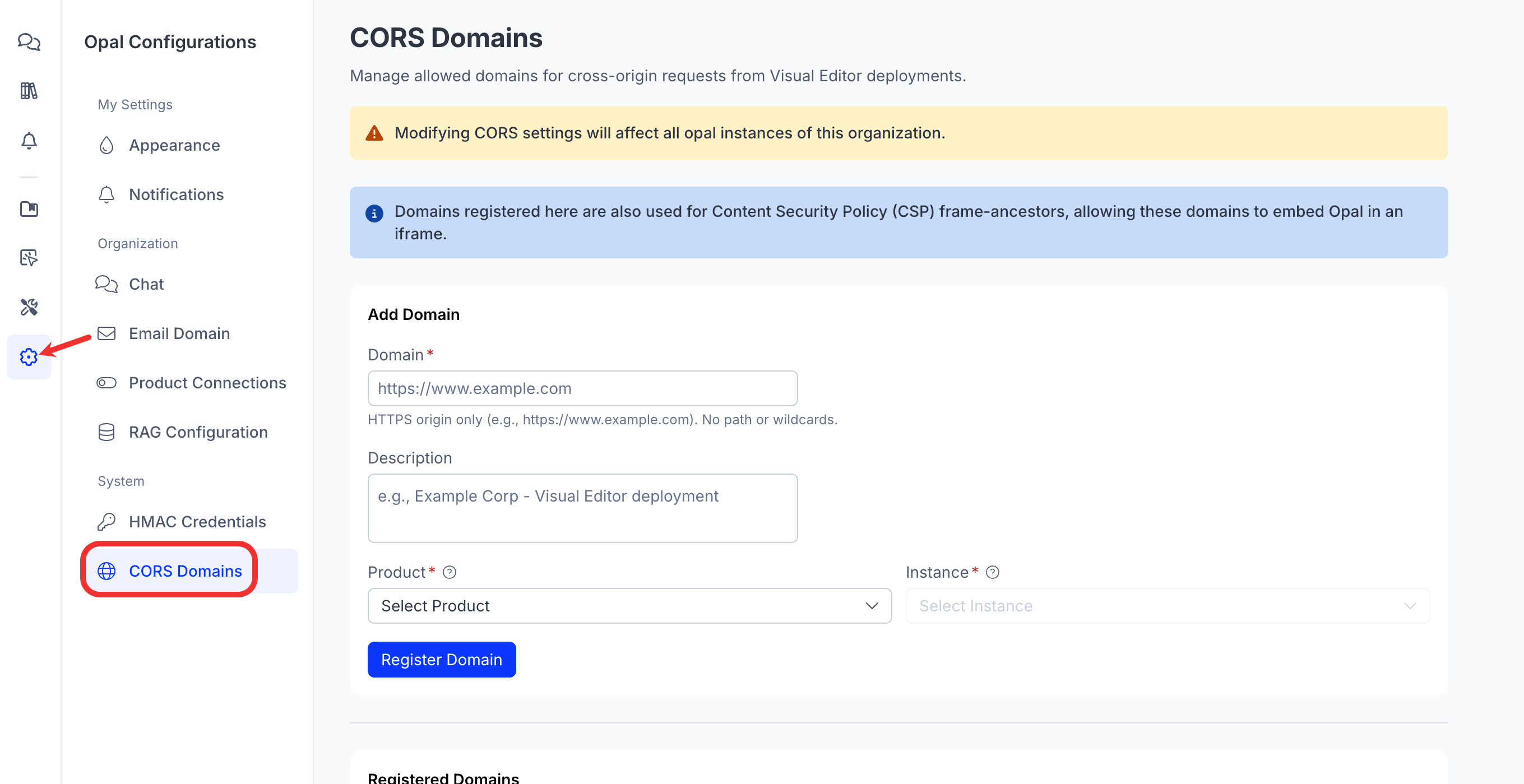
CORS errors when you connect to the Opal backend
The browser blocks requests from CMS 13 to the Opal backend due to cross-origin resource sharing (CORS) policy.
Resolution
Users with manage_chat_config permission in Opal have access to add their domain to the allowlist. Go to Settings > CORS Domains
Updated about 1 month ago