
Blob property
Understand Blob properties in Optimizely CMS 13. Learn to manage unique identifiers for content items and ensure data integrity.
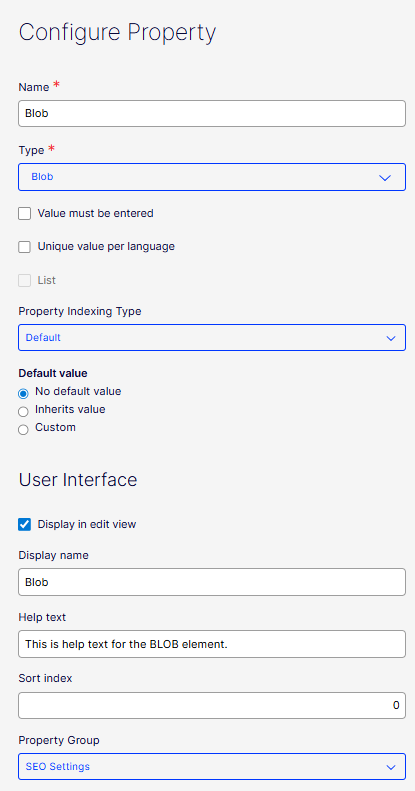
The Blob property type stores binary large object (BLOB) data, such as files, images, or serialized content that does not fit into standard scalar types. Use it when a content type requires binary data storage beyond standard text or number fields. The following image shows a Blob property type example.
The Blob property renders a field in the All Properties edit view where you can enter a Blob value.

Configure Blob property
The following attributes are available when you configure a Blob property.
-
Name – Enter the name of this Blob property type. This name is used for programming and language settings.
-
Type – Lets you change the content type to any other.
-
Value must be entered – Select to require the user to enter a Blob. Required fields display a red asterisk (*).
-
Unique value per language – See Define language-specific properties.
-
List – Unavailable.
-
Property Indexing Type – Select one of the following to determine how the property is indexed for search. The correct setting depends on the nature of the data in the property and how you intend data to be searched or queried.
- Default – The property is stored and returned in query results, but excluded from all filter, sort, facet, and full-text search operations. Intended for display-only fields.
- Queryable – Indexes to be part of search queries. For example, this indexing type lets you run a search query such as Find all pages where PropertyName equals Value.
- Searchable – Search data inside the property through the search function. For example, use it as part of a free text search where the system looks through searchable fields to find a match. This is useful when you want a content editor or end user to search a body of text, like a product description. It is beneficial to avoid undesired property values in the search index. By default, all properties are searchable.
- Disabled – The property is not indexed for searching purposes. It is not used in search queries, and its content is not searched. This is often used for properties that contain data irrelevant to search results, and disabling indexing enhances system performance.
-
Default value – Select the options to define what value the Blob field displays.
- No default value – The field is empty (no pre-populated content).
- Inherits value – The field value is derived from another source. This is often used in hierarchical systems where child elements inherit values from their parent elements. For example, a sub-page inherits some property values from its parent page.
- Custom – Enter the field's default value.
-
Display in edit view – Select to display this Blob element on your page. Clear it to hide the Blob element while keeping all the property information.
-
Display name – Enter the text you want to display above the Blob element on the page in All Properties view.
-
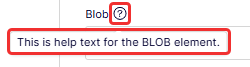
Help text – Enter text to display next to the Display Name. The following image shows how the help text displays.
-
Sort index – Specify a value to determine the order in which data is displayed or processed.
-
Property Group – Select a property group (Categories, Content, Dynamic Blocks, Preview, Scheduling, SEO Settings, Shortcut) to organize your content on tabs in the All Properties edit view of the content type.

Updated 18 days ago