
Write custom attributes
Describes how to write custom attributes to improve the editor experience, add business rules, or add custom validation.
Restrict access for editing a certain property
Custom attributes let you control which roles edit a specific property by combining validation and UI metadata. Restrict access in the following ways:
- Create a
ValidationAttributeto add server-side validation when data is saved. - Implement
IDisplayMetadataProviderfor your attribute to add metadata that affects the editing experience of the property.
Combine the IDisplayMetadataProvider attribute with a ValidationAttribute to control which roles edit a specific property.
The following example makes a property read-only in the editorial interface. It also adds server-side validation if content changes outside the editorial interface:
using EPiServer.Core;
using EPiServer.Security;
using EPiServer.Shell.ObjectEditing;
using Microsoft.AspNetCore.Mvc.ModelBinding.Metadata;
using System.ComponentModel.DataAnnotations;
using System.Linq;

namespace EPiServer.Samples {
  public class PropertyEditRestrictionAttribute: ValidationAttribute, IDisplayMetadataProvider {
    public PropertyEditRestrictionAttribute(string[] allowedRoles) {
      AllowedRoles = allowedRoles;
    }

    public string[] AllowedRoles {
      get;
      set;
    }

    protected override ValidationResult IsValid(object value, ValidationContext validationContext) {
      if (validationContext.ObjectInstance is IContentData content) {
        if (!content.Property[validationContext.MemberName].IsModified) {
          return ValidationResult.Success;
        }

        return IsInRole ? ValidationResult.Success : new ValidationResult("You do not have access");
      }

      //This attribute only handles instances of IContentData. return ValidationResult.Success;
      return ValidationResult.Success;
    }

    public void CreateDisplayMetadata(DisplayMetadataProviderContext context) {
      if (IsInRole) {
        return;
      }

      var extendedMetadata = context.DisplayMetadata.AdditionalValues[ExtendedMetadata.ExtendedMetadataDisplayKey] as ExtendedMetadata;
      if (extendedMetadata == null) {
        return;
      }
      extendedMetadata.IsReadOnly = true;
    }

    private bool IsInRole => AllowedRoles.Any(r => PrincipalInfo.CurrentPrincipal.IsInRole(r));

  }
}
Apply the attribute to the model as follows. The example uses the group name administrators2 to ensure you are not a member of this group.
[PropertyEditRestriction(new string[] {
  "administrators2"
})]
public virtual XhtmlString MainBody {
  get;
  set;
}
Open the Optimizely edit view to confirm the editor is disabled in the All Properties editing view:
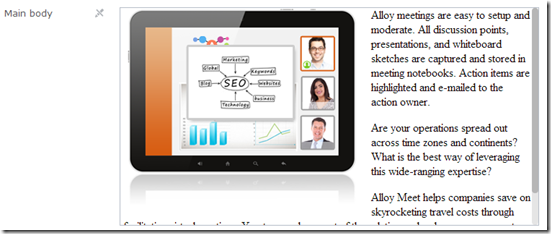
In the On-page editing view, the property looks editable. However, clicking the overlay loads a read-only editor and removes the overlay entirely.

Validate the server
Server validation prevents unauthorized property updates. The example above adds server validation to the same attribute as the previous section. This blocks fake property updates posted to the server without correct access.
Comment out the line that makes the property read-only and edit the property to verify that server validation works.
Updated 3 months ago