
Change log
Administrators monitor changes in Optimizely CMS using the Change Log. Filter by date, category, action, and user to track modifications to pages, files, and directories.
The change log records every modification to pages, files, and directories in Optimizely CMS. Administrators use it to audit content activity, trace who made a change, and reconstruct the history of an item. Find it under Settings > Tools > Change Log.
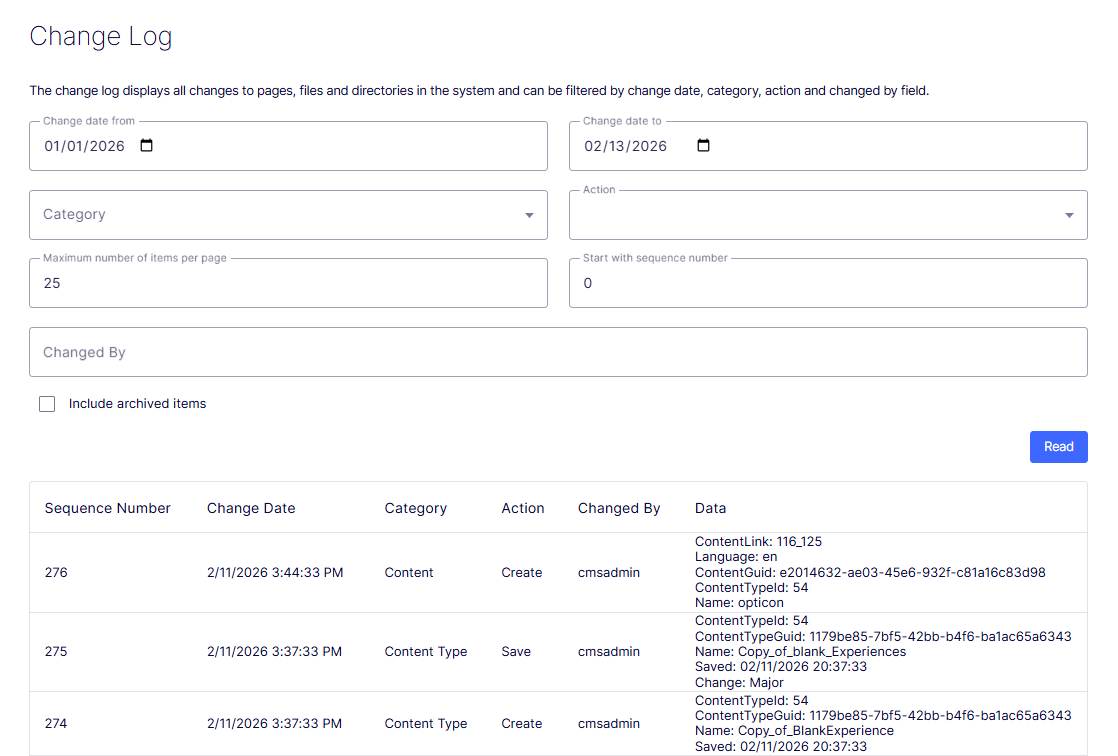
Filter the change log by one or more of the following options:
-
Change date from – Select a date and time to show only items changed after this date and time.
-
Change date to – Select a date and time to show only items changed before this date and time.
-
Category – From the Category drop-down list, select an activity type. If no category is selected, the log shows every activity type:
- Access Rights – Changes to access rights for a user or group. Example:
ContentGuid: 43fxxxx9-9bxx-4xx3-97b2-61cxxxxxx7c9 SaveType: 4 Entries: Everyone|1|1;SearchIndexer|5|1;WebAdmins|63|1;WebEditors|31|1 Inherited: False PreviousEntries: Everyone|1|1;SearchIndexer|5|1;WebAdmins|63|1 PreviousInherited: False - Approval – Changes associated with a content approval sequence.
- Project – Changes associated with a project.
- Message – Changed messages. Messages are a type of activity in the Projects feature.
- Content Type – Changes to content types. Example:
ContentTypeId: 54 ContentTypeGuid: 1179be85-7bf5-42bb-b4f6-ba1ac65a6343 Name: Copy_of_BlankExperience Saved: 02/11/2026 20:37:33 - Content – Changed content items such as pages, blocks, and media. Example:
ContentLink: 116_125
Language: en
ContentGuid: e20xxxx2-aexx-45xx-9xxf-c8xxxxxx3d98
ContentTypeId: 54
Name: opticon
- Access Rights – Changes to access rights for a user or group. Example:
-
Action – Filter by action to display only changes of a specific type:
- Check in – The user has finished editing and released a content item.
- Publish – Marks a content item as publicly available on the website.
- Delete – Removes a content item from its current location and moves it to trash.
- Save – Stores changes made to a content item without publishing it.
- Move – Changes the location of a content item within the site structure.
- Create – Records the initial creation of a content item.
- Delete Language – Removes a specific language version of a content item.
- Empty Trash – Permanently deletes all content items currently in the trash.
- Content Deletion – Indicates the permanent removal of a content item from the system.
- Rejected – Marks a content item as not approved in a workflow process.
- Delayed Publish – Schedules a content item to be published at a future date and time.
- Request Approval – A content item has been submitted for approval in a workflow.
- Delete Version – Removes a specific historical version of a content item.
Website developers can configure which categories and actions are available, so the options you see may differ from those listed.
-
Maximum number of items per page – Limits the number of items displayed. Use Previous and Next to page through the list.
-
Start with sequence number – Enter a sequence number to list the change log from that point. For example, after a previous filter run, enter the sequence number from that run to repeat the same filter.
-
Changed by – Enter the CMS user name to filter for a specific user.
-
Include archived items – Select to also list archived items.
Click Read to run the query. The change log lists matching items.
Updated 3 months ago