
Import data to CMS 13
Import data to Optimizely CMS 13 websites. Transfer content items, types, and files for test, development, or production environments.
Import a single .episerverdata package into Optimizely CMS 13 to move content items, content types, and linked files between environments. Administrators use import to promote work from development to test or production without rebuilding content manually. Sign in with an account in the Content Admins group or an equivalent Opti ID role before starting.
Use Import Data to load content exported from the same or another Optimizely application.
-
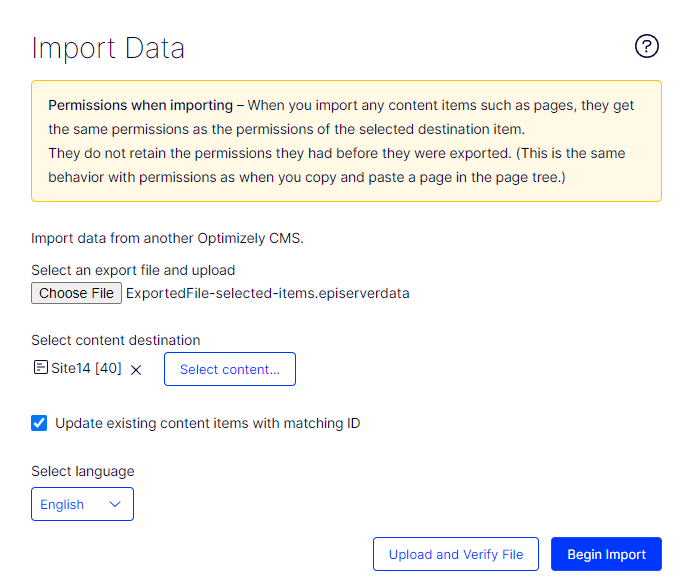
Go to Settings > Import Data.
-
Click Choose File and select the file to import. Files must end with
.episerverdatafor the import to work. Export packages created using Export data from CMS 13 use this format.NoteThe maximum supported file size is 500 MB.
-
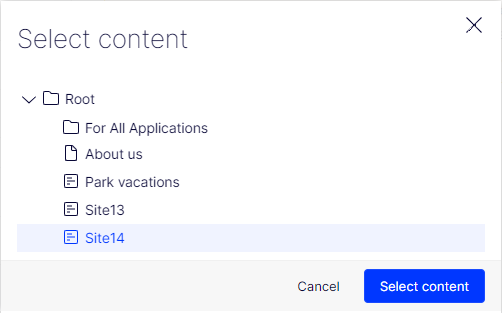
Click Select Content to choose the destination for the imported files.
-
Select Update existing content items with matching ID to keep the same globally unique identifiers (GUIDs) for imported items (such as pages, shared blocks, and files) as they had on the source application.
The import function checks whether a GUID already exists. If it does, the item is updated when the imported item has a later changed date than the existing item. Content items with the same IDs are replaced instead of added.
If the exported pages contain links to shared blocks and media, select Export files that pages link to when exporting so those assets are updated during import.
-
Clear Update existing content items with matching ID to import items with new IDs.
If you import to the same application you exported from, shared blocks and media merge into folders with the same name in the assets panel.
Duplicated items receive a number appended to the name. For example, exporting
ABCand importing it as a copy on the same application results in two items:ABCandABC2. This also affects the URL, which in the case of the copied item would bewww.exampleapplication.com/abc2. -
From the Language drop-down list, select All if the export package contains multiple language versions. To import one language, select that language.
-
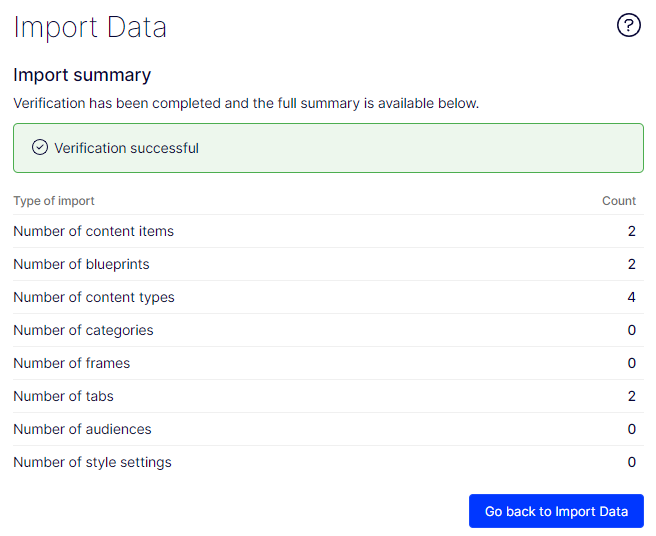
Click Upload and Verify File to verify the file content. The files are read and checked, and verification information displays. If the verification report shows errors, resolve the issues in the source before importing. Common causes are missing content types in the target environment and file sizes exceeding the limit.
-
Click Begin Import.
Updated 2 months ago