
Logging options
Monitor, troubleshoot, and debug Optimizely CMS 13 with application logs, log streams, Application Insights, and edge logs.
Optimizely CMS 13 provides multiple logging options to help you troubleshoot errors, monitor performance, and debug application behavior.
The following options are available:
- Application logs
- Log streams
- Application Insights logs
- Edge logs
Go to Work with BLOB storage containers for additional log access through storage.
Application logs
Application logs help diagnose runtime issues and track application behavior across environments.
Access application logs from the DXP Management Portal as a live stream or download them for offline analysis. Azure Web Apps in DXP environments have application logging enabled by default, with logs stored in BLOB storage for 90 days.
The provisioning process applies the logging configuration to environments. Change the configuration for the Integration environment directly. Contact Optimizely to change any of the following for Preproduction or Production environments:
- Web server log access
- Logging level (temporary)
- Detailed error messages (temporary)
- Failed request tracing (temporary)
For details on the data structure and Microsoft logging abstraction, go to Log in .NET Core and ASP.NET Core.
Log stream
View real-time log output to troubleshoot deployment errors without downloading log files. This option is included in your DXP subscription.
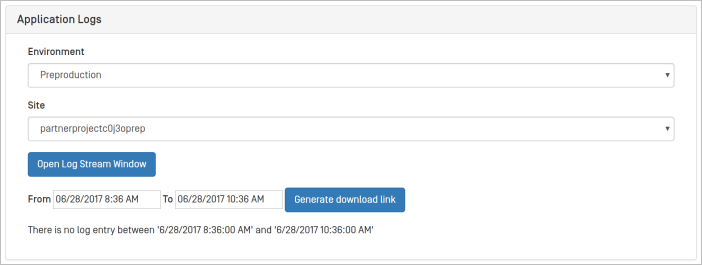
Click Open Log Stream Window to open the log stream. Connect Optimizely logs to monitor the live stream from site instances.
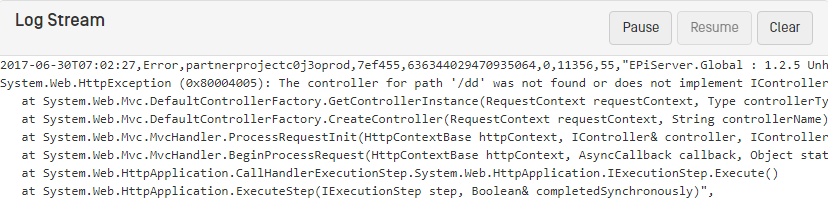
Click Pause or Resume to stop or continue the log stream. Click Clear to remove recent log output.
Go to Troubleshoot DXP for additional troubleshooting tools.
Application Insights logs
Application Insights logs let you manage application performance and monitor web apps. Go to Create an Optimizely Cloud Account to request access to Application Insights for your environment.
The ILogger logs to Application Insights automatically. By default, the system captures warning-level logs and above. Override the logging configuration for the ApplicationInsights provider to change this behavior. The following configuration captures information-level logs and above:
{
  "Logging": {
    "LogLevel": {
      "Default": "Warning"
    },
    "ApplicationInsights": {
      "LogLevel": {
        "Default": "Information"
      }
    }
  }
}
For details on the log structure and configuration, go to Application Insights for ASP.NET Core applications.
Stream edge logs with CDN
BetaThis feature is in beta. Register interest for betas to request access. Optimizely reaches out by email to enable the feature.
Stream CDN logs to an Azure storage account and retrieve them through SAS URIs. Use edge logs to debug issues, identify configuration improvements, and create custom analytics.
Get the edge log location
Retrieve the edge log storage location by calling the following endpoint, where projectId is a GUID:
GET /api/v1.0/projects/{projectId}/edgelogs/locationThe response returns the storage location:
{
  "application/json": {
    "success": true,
    "errors": [],
    "result": {
      "location": "https://episite.blob.core.windows.net/location"
    }
  }
}
Use the EpiCloud PowerShell module
The EpiCloud PowerShell module provides Get-EpiEdgeLogLocation cmdlets for edge log operations through PowerShell. Go to Deploy using PowerShell for installation and authentication setup.
Get-EpiEdgeLogLocation creates a read-only SAS link to the edge logs that expires after one day:
# Fetch edge logs location based on projectId
Get-EpiEdgeLogLocation -ProjectId "ac138482-0a55-420a-ab4a-b1a700206a64"
https://sitrcmsli879s2af.blob.core.windows.net/cloudflarelogpush?sv=2023-01-03&st=2024-07-09T06:21:45Z&se=2024-07-10T06:26:45Z&sr=c&sp=rl&sig=r2NBPDR%2FTTEta4ggqLVGDOKayYupdLIFfgjXdpsKn%2FA%3D
Configure API credentials
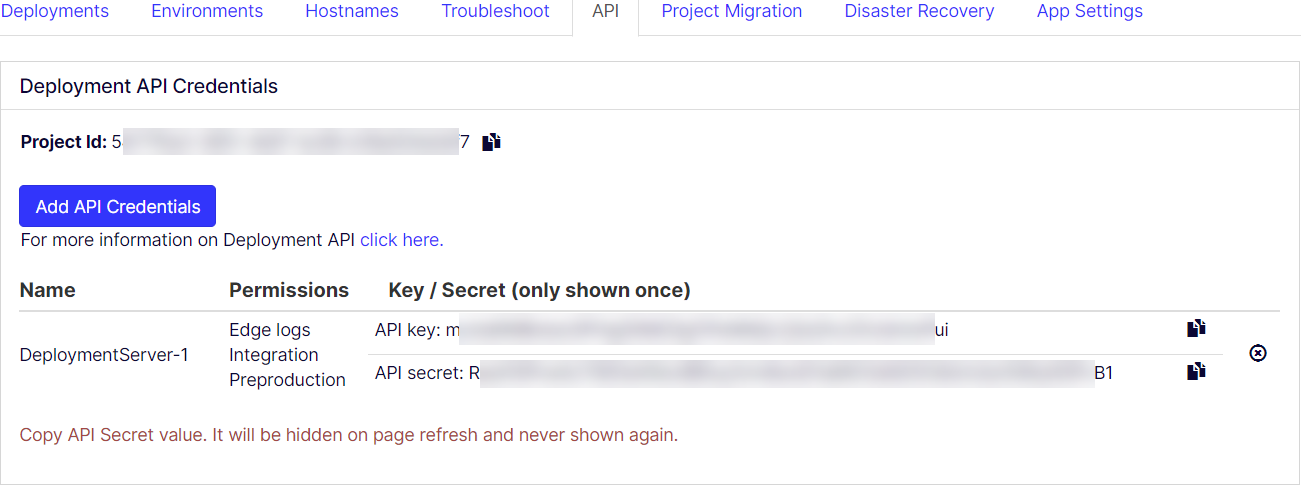
Use Get-EpiEdgeLogLocation from the EpiCloud module, or make an API call with a client key and client secret. Generate credentials through the self-service feature in the DXP Management Portal and link them with the edge logs permission.
-
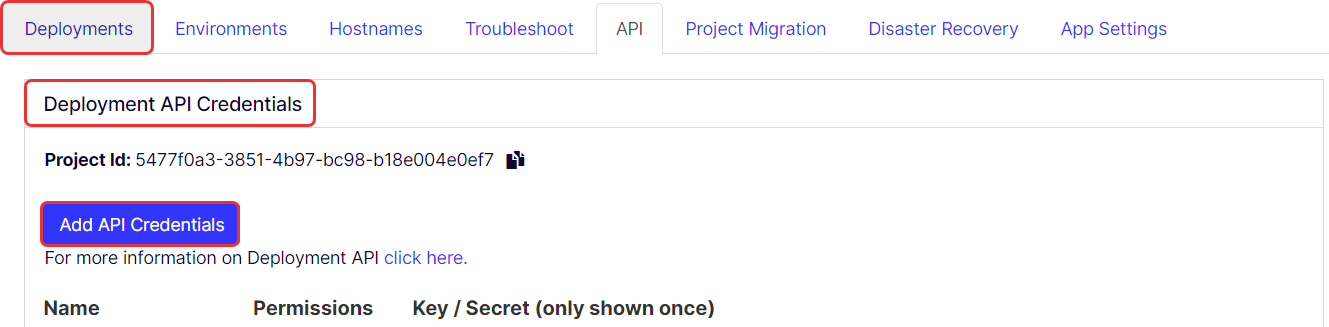
Go to Deployments > Deployment API Credential to view current credentials.
-
Click Add API credentials.
-
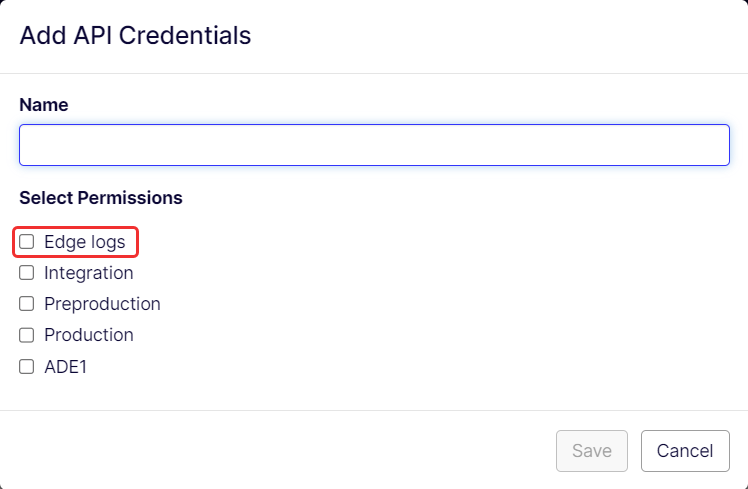
Enter a name for the credential.
-
Select the Edge logs permission.
-
Click Save.
The credentials list displays the API key and secret. The API secret displays only once and is no longer visible after you refresh the page.
Download logs from the SAS link
Download edge logs from the cloudflarelogpush BLOB container using Microsoft Azure Storage Explorer.
-
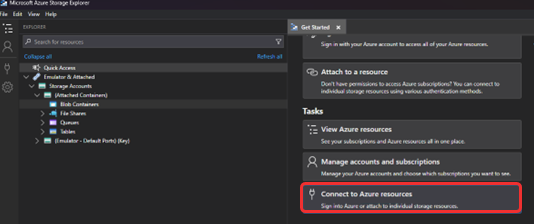
Open Microsoft Azure Storage Explorer and click Connect to Azure resources.
-
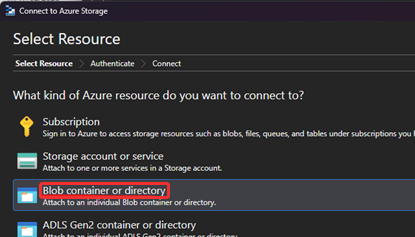
Select Blob container or directory.
-
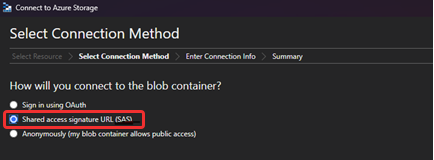
Select Shared access signature URL (SAS).
-
Enter the connection information, then click Connect.
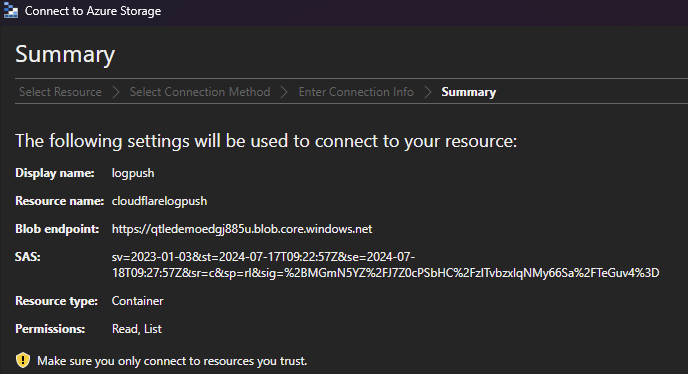
-
Open BLOB Containers in Explorer and select the BLOB container.
-
Select the log file and click Download.
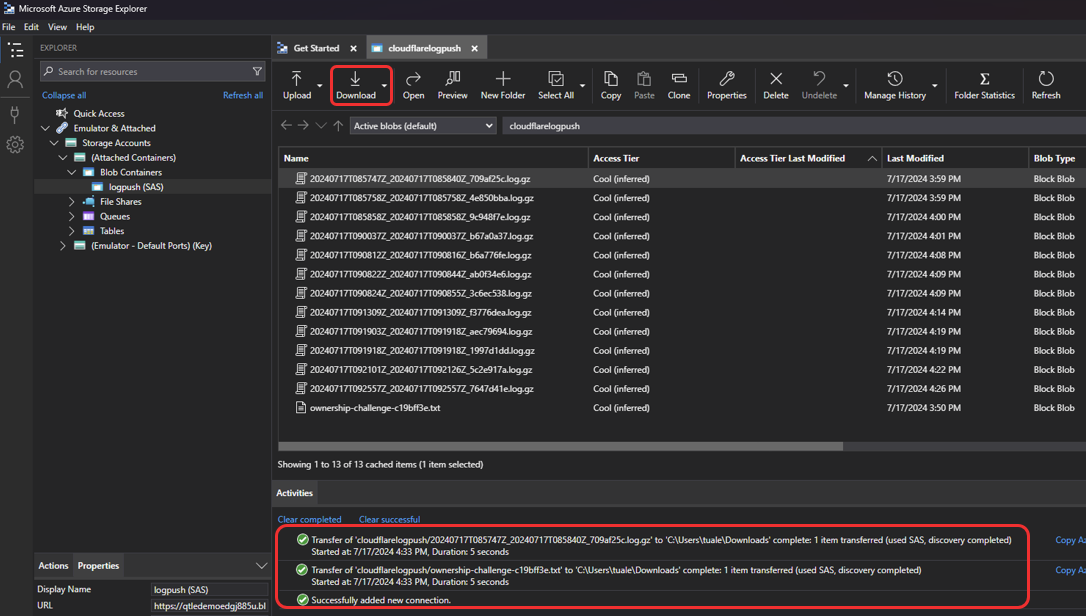
NoteThese logs contain personally identifiable information (PII) in the form of IP addresses.
For details on the data structure, go to Log fields.
General logging FAQs
The following questions address common concerns about edge log integration, retention, and support.
-
Can I integrate with my own SIEM or push logs to external systems that Cloudflare or Azure integrates with, such as Splunk?
Create custom integrations to send logs programmatically from the container to other destinations. The log retention period is seven days. The export does not support field selection, but a custom integration can filter fields.
-
What is the maximum retention setting for the SAS link?
168 hours (seven days).
-
What is the log retention period?
Seven days. Export and save logs programmatically to retain them longer.
-
For various log options, what is the Optimizely responsibility?
For questions about log access, setup, or troubleshooting, contact Optimizely Support. Optimizely does not control log structure, formatting, or fields included in the logs.
Updated 2 months ago