
Create audience criteria
Define audience criteria in Optimizely CMS 13 for personalized content. Use site, technical, time, URL, and forms criteria to target specific visitor segments.
Audience criteria are the rules that determine whether a visitor belongs to an audience (formerly called a visitor group). Combine criteria such as visit count, location, or referrer to define the visitor segments you want to target with personalized content. See Manage audiences for how audiences use these criteria. CMS includes the following audience criteria, grouped by category.
Prerequisites
Confirm the following before you create audience criteria:
- Role and access – Members of the VisitorGroupAdmins role manage criteria from the Audiences tab.
- Optimizely Forms add-on – Install Optimizely Forms and the Optimizely Forms Samples package to use forms criteria.
- Geolocation provider – Register a geolocation provider (such as
AddCmsClientGeolocationor anotherIGeolocationProvider) to use the Geographic Location criterion.
Audience membership
Use the audience membership criterion to compose audiences from other audiences.
-
Audience Membership – Match membership in an existing audience. For example, select Member of Alloy Track for free or Not a Member of Start Customer Club.

Site criteria
Site criteria match visitor behavior on the website, such as pages visited, language viewed, or visit count.
-
Number of Visits – Matches the number of times a visitor visited the website. Specify Less than, Equal, or More than for a given time period or in total. For example, Less than 1 visit within 10 days.

-
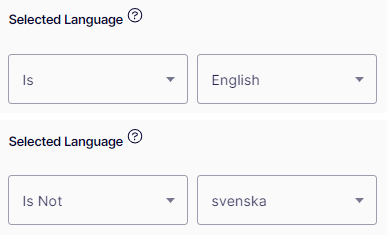
Selected Language – Matches the language a visitor views a page in when the page uses language fallbacks. Select Is to match a language or Is Not to exclude one. For example, select Is > English to match English-language visitors. The drop-down list shows defined and enabled languages.
-
User Profile – Matches a user profile property against a specified value, such as email address contains Optimizely. Select Comment, Username, Email address, or Phone number. Choose Equals, Contains, Starts with, or Ends with and enter the criterion value.

-
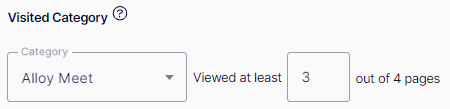
Visited Category – Matches a page category on the website. Specify a minimum number of visited pages that use the category. For example, Category Alloy Meet viewed at least three pages out of four pages.
-
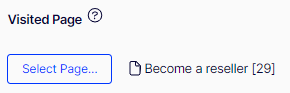
Visited Page – Matches when a visitor visited a selected page during the current session.
Technical criteria
Technical criteria match visitor attributes such as device type, IP address, browser, or access role.
-
Display Channel – Matches the visitor's display channel. Use this criterion to distinguish between web and mobile visitors. Select Mobile or Web channel.

-
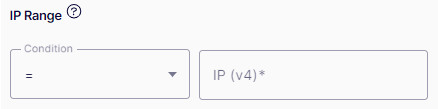
IP Range – Matches a visitor's IP address against a defined value. The following conditions are available:
-
Equal to (=) – Matches an exact IP address.
-
Equal to or above (>=) – Converts both the visitor's IP address and the specified address to integers. The criterion matches when the visitor's integer is equal to or higher than the specified integer.
-
Equal to or below (<=) – Converts both the visitor's IP address and the specified address to integers. The criterion matches when the visitor's integer is equal to or lower than the specified integer.
-
-
OS & Browser – Matches the visitor's operating system and browser.

-
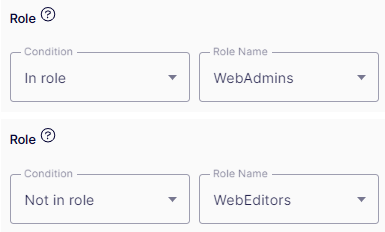
Role – Matches the visitor's access role. Include roles with the In role condition or exclude roles with the Not in role condition.
Time and place criteria
Time and place criteria match visitor context such as geographic location, time of day, or event schedule.
-
Event – Matches a set date period. For example, target sale events on the first day of every month by selecting the Every Month recurrence.

The following recurrence options are available:
-
Every Month – Occurs on a specific day in every month, starting from the set Start Time.
-
Every Year – Occurs once a year on a specific day, starting from the set Start Time.
-
Never – The criterion does not recur. The condition matches only within the period defined by Start Time and End Time.
NoteWhen you select Every Month or Every Year, End Time is unavailable.
-
-
Geographic Location – Matches a visitor's location against a specified geographic area.

Two requirements must be met to populate the Continent, Country, and Region fields:
-
Geolocation configuration – Your environment must have geolocation capabilities configured. In CMS 13, ensure that
AddCmsClientGeolocation(...)or anotherIGeolocationProvideris registered and configured. Without this configuration, the Geographic Location controls are unavailable. -
Geolocation provider data – The system relies on a geolocation provider (such as Cloudflare CDN) to supply geographic information. The level of detail depends on the provider. For example, Region is unavailable when the provider does not supply regional data for the selected country.
NoteBoth prerequisites are required. Missing either requirement disables one or more Geographic Location fields.
-
-
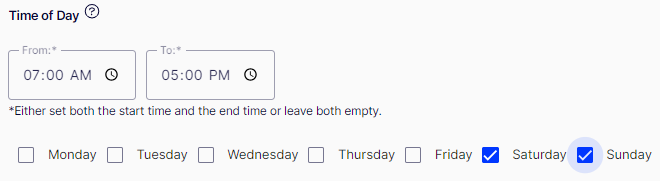
Time of Day – Matches the set time period. For example, Saturday and Sunday between 7 a.m. and 5 p.m.
-
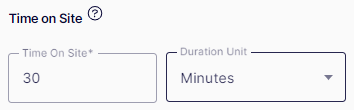
Time On Site – Matches when the total length of a visitor's session is equal to or greater than the configured time.
-
Time On Site – The value range is 0 to 60.
-
Duration Unit – The duration is Seconds, Minutes, or Hours.
-
-
Time Period – Matches when the visit falls within the specified time period.

URL criteria
URL criteria match visitor requests based on the landing URL, referrer, query string, or downloaded files.
-
Download File – Matches a specific file that the browser viewed or loaded. The file path is the file name or a relative path. The criterion matches when the path to a loaded resource contains the configured path. For example, enter the path to an image (
CompanyLogo.png) to target visitors who viewed it.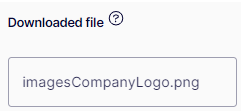
-
Landing URL – Matches the URL the visitor uses to enter the site. Select Equals, Starts with, or Ends with and enter a value. For example, contains
www.examplematcheswww.example.com,www.exampleURL.com, and so on.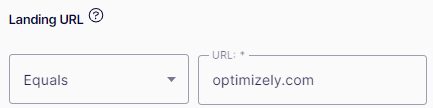
-
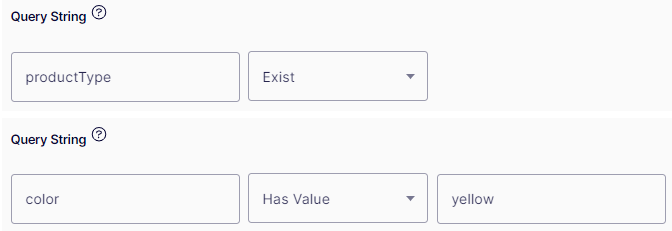
Query String – Matches a query string key in the request URL. The following conditions are available:
-
Exist – Checks only whether the key exists in the query string.
-
Has Value – Checks both the key and its value in the query string.
When you select Exist, the Value text field is unavailable.
-
-
Referrer – Matches the host name or URL of the referring page, such as a search engine result page. Select whether the criterion matches on Equals, Contains, Starts with, or Ends with for the host name or URL.

-
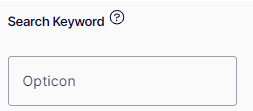
Search Keyword – Matches the search term in the URL of the referring page. A developer defines a regular expression to extract the search term from the URL.
 Note
NoteGoogle search privacy restrictions block this criterion.
Optimizely Forms criteria
Install Optimizely Forms separately, then install the Optimizely Forms Samples package to enable the forms audience criteria. See Form element types for the Optimizely Forms Samples package section.
- Submitted Form – Matches when a visitor submits (or does not submit) a particular form. Select the form from a drop-down list. For example, Has Submitted Job Application.
- Submitted Form Value – Matches when a visitor submits a particular form value.
Updated 2 months ago