
Migrate from CMS 12 to CMS 13 with Optimizely Graph
Upgrade your Optimizely CMS 12 project with Optimizely Graph to CMS 13 in place using DXP deployment slots. Prepare a new Graph instance to avoid downtime, or run a smooth rebuild.
CMS 13 introduces a breaking Optimizely Graph schema change. A CMS 12 site and a CMS 13 site cannot share the same Graph instance without migrating the schema, so upgrading Optimizely Graph is part of the CMS 13 upgrade.
Upgrade in place using DXP deployment slots. Handle Optimizely Graph during the upgrade in one of two ways:
- Prepare a new Optimizely Graph instance (zero downtime, recommended) – DXP Management Portal provisions a separate Graph instance for CMS 13. Your live CMS 12 site keeps using the existing instance while the CMS 13 deployment slot uses the new one, so Graph has no downtime.
- Smooth rebuild on your existing instance (downtime) – Run a smooth rebuild on the current Graph instance behind a maintenance page, then deploy CMS 13. The schema migration causes downtime.
NoteIf you have not implemented Optimizely Graph in your CMS 12 project, follow the standard DXP upgrade. Deploy to
Integration, thenPreproduction, and thenProduction. Graph provisioning is not part of your upgrade, and none of the Graph steps in this article apply.
For related information, see the following:
Understand deployment slots
A deployment slot is a temporary cloned website that DXP creates during a deployment. DXP mirrors your production configuration, deploys your code to the slot, warms it up, and swaps the slot into production if validation succeeds.
Deployment slots provide the following capabilities:
- Zero-downtime releases.
- Pre-go-live validation (smoke testing).
- Safe rollback on failure, before the swap.
- Production-like testing before the traffic switch.
Prepare a new Optimizely Graph instance for CMS 13 (zero downtime)
Use this path if you already use Optimizely Graph on CMS 12 and want to avoid Graph downtime. This path is opt-in. If you prefer, run a smooth rebuild on your existing instance instead.
What the Prepare for CMS 13 option does
In DXP Management Portal, open the Optimizely Graph Service Configurations panel on the API tab. While Graph Service is enabled, click Prepare for CMS 13. The portal does the following:
- Provisions a separate Content Graph instance for each environment.
- Keeps your current CMS 12 Graph instance and its keys in use, so your live site is unaffected.
- Holds the new credentials aside until you deploy CMS 13. CMS 12 deployments to other environments are unaffected and keep using the existing instance.
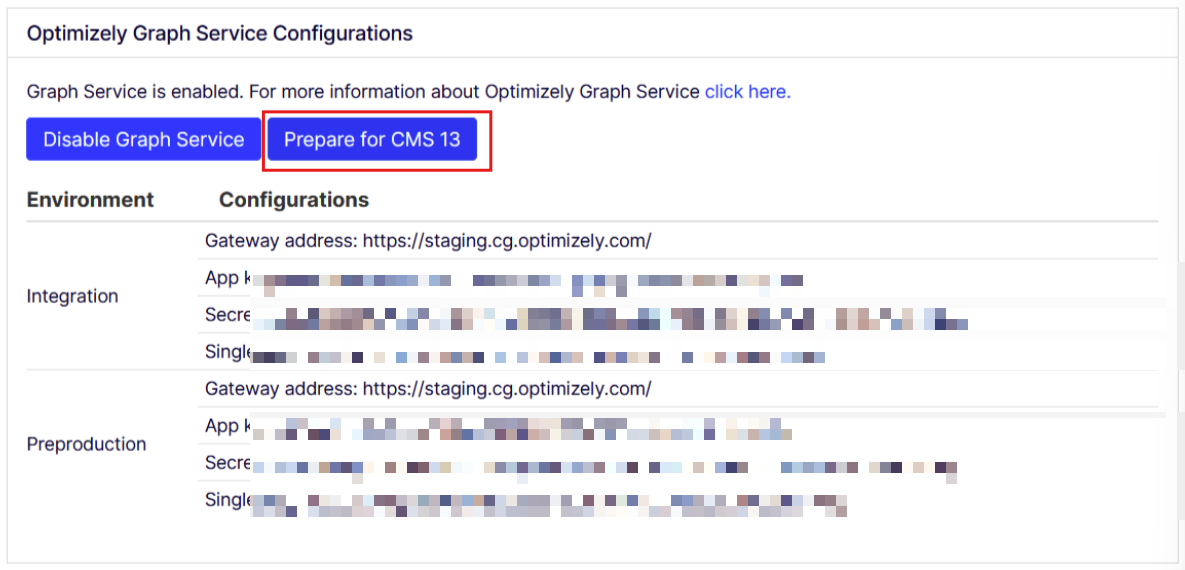
In the previous screenshot, Prepare for CMS 13 displays next to Disable Graph Service. The table lists your current CMS 12 Graph configuration for each environment, including gateway address, app key, secret, and single key. These credentials stay in use until you deploy CMS 13.
The Content Graph keys panel shows a status badge for each environment as the migration progresses:
- Ready – The new instance is provisioned but not yet live.
- Live – The CMS 13 credentials are live in the environment after the slot swap.
- Keys rotated on old instance – The old CMS 12 instance keys are rotated (Stage 1 decommission).
- Old instance decommissioned – The old instance is deleted (Stage 2).
New CMS 13 keys are tagged Live when they take effect for an environment. The old CMS 12 keys are tagged About to be decommissioned when key rotation is scheduled.
When migration is underway, the panel shows two tables: the existing configuration and a New CMS 13 Configurations table. Each environment migrates independently.
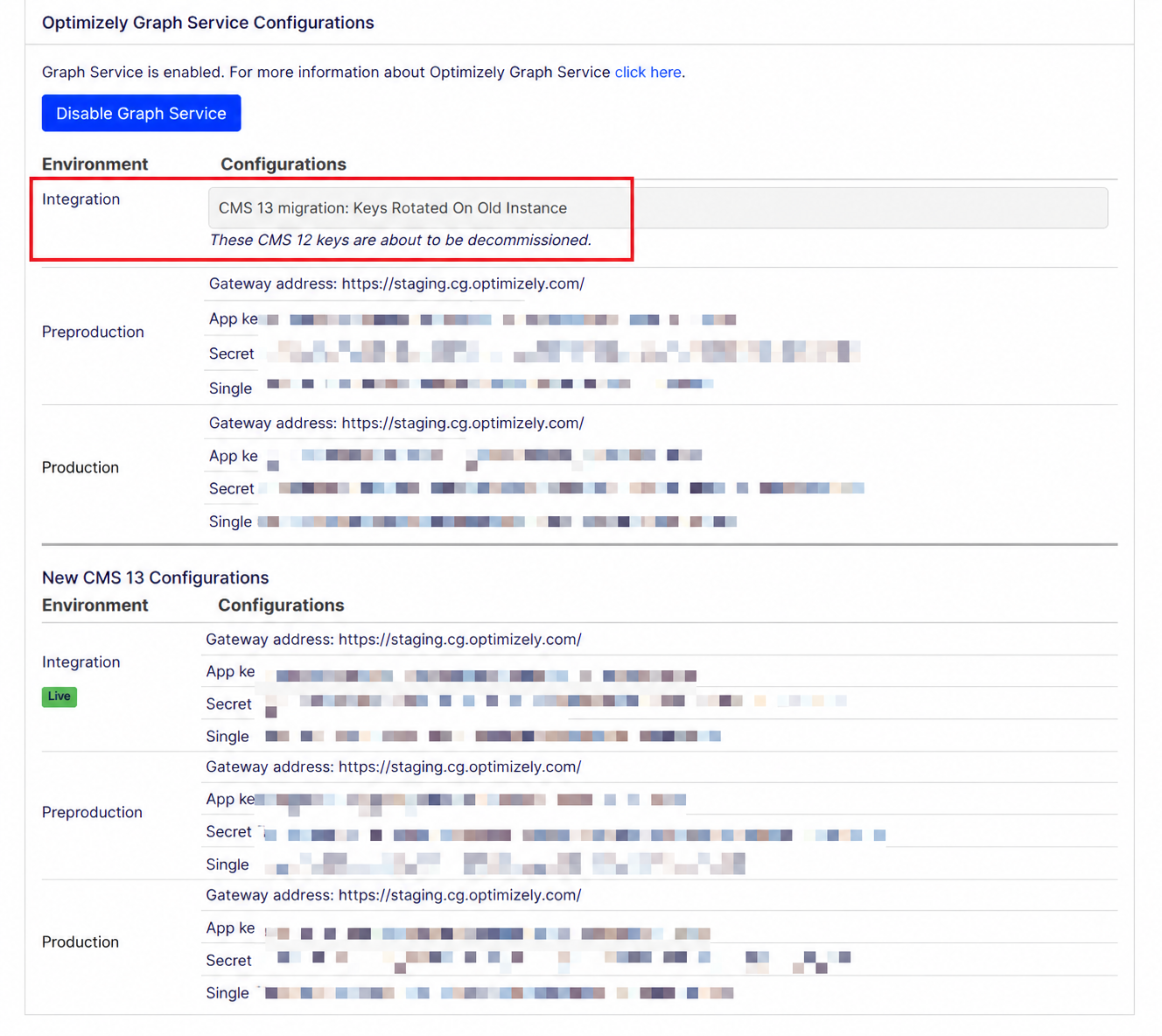
In this example, Integration migrated to CMS 13 and its old CMS 12 keys are rotated. In the existing configuration table, its row shows CMS 13 migration: Keys Rotated On Old Instance, with a note that the CMS 12 keys are about to be decommissioned. In the New CMS 13 Configurations table, its new key is tagged Live. Preproduction and Production have new CMS 13 instances prepared but are not yet live, so they appear in both tables: their CMS 12 keys in the existing table and their new keys in the new table.
Deploy CMS 13 using the new instance
Migrate one environment at a time, starting with the lowest. Deploy to Integration, then Preproduction, and then Production, and validate each environment before you move up so that issues surface in a lower environment before Production.
- Click Prepare for CMS 13 and confirm that the new instance is Ready for the environment you are deploying.
- Deploy your CMS 13 code through a deployment slot. During the deployment, the slot uses the new Graph credentials while production keeps the old ones.
- Validate the slot. Because the slot points at the new instance, you test against the CMS 13 Graph schema without touching your live CMS 12 Graph data.
- Complete the deployment to swap the slot. Production uses the new credentials, and the environment status becomes Live.
During and after the slot swap
- Before the swap – Your live site continues to use the CMS 12 Graph instance. If you reset the deployment before you complete it, the portal restores the CMS 12 credentials as a safe rollback.
- At the swap – Production picks up the new CMS 13 Graph credentials automatically.
- After the swap – The old CMS 12 instance still exists during a grace period, described in Old instance lifecycle. Rolling back to CMS 12 after the swap is not self-service. Open a support ticket to roll back.
This zero-downtime flow removes the Graph schema reason for a maintenance page, because the new instance already has the CMS 13 schema and the schema migration (smooth rebuild) is not part of the swap. You may still need a maintenance page, or zero-downtime read-only or read-write mode, for the CMS 13 release itself, depending on the changes it contains, such as breaking database or content-type changes.
Frontend (headless) environments
If your project has linked front-end hosting environments, deploy each one so that it picks up the new Graph credentials.
- Deploy each linked front-end environment. The portal automatically applies the new Graph credentials during deployment, so you do not need to configure them manually.
- Until you deploy a front-end onto the new key, it keeps using the old Graph instance. The Content Graph keys panel lists any Frontend environment still on the old key.
Digital Asset Management (DAM)
DAM is not yet supported on CMS 13If your project integrates Digital Asset Management (DAM), part of Optimizely Content Marketing Platform (CMP), with Optimizely Graph, DAM does not yet work with the CMS 13 Optimizely Graph instance. Support for DAM on CMS 13 is planned for a later release. If you depend on DAM, factor this into your migration timing, and contact Optimizely Support for guidance.
Old instance lifecycle
After CMS 13 is live, the old CMS 12 Graph instance is retired in two stages, so that any remaining consumers of the old Graph keys have time to switch over.
Stage 1 – Key rotation (soft delete) runs when both of the following are true:
- All linked front-end environments, if any, are confirmed on the new key.
- A grace period (default seven days) has elapsed, measured from that confirmation, or from go-live when there are no linked front-end environments.
Key rotation disables the old instance keys, so any service still on the old credentials starts to fail visibly. This surfaces stale configuration before the instance is removed.
Stage 2 – Hard delete removes the old Graph instance after a further grace period (default 30 days) following Stage 1.
Smooth rebuild on your existing instance (downtime)
If you do not provision a new instance, migrate the schema on your existing Graph instance. This path requires downtime. The CMS 13 schema change is breaking, so the site must be offline behind a static maintenance page during the rebuild. You cannot use zero-downtime read-only or read-write mode for this path.
Consider this path if your site is not yet live, or if some downtime behind a maintenance page is acceptable. It keeps your existing Graph instance and credentials, so external consumers of Optimizely Graph do not need updating. This can make it simpler than provisioning a new instance.
- Apply a maintenance page in CMS.
- Run a smooth rebuild to migrate the Graph schema to CMS 13.
- Deploy CMS 13 through a deployment slot.
Run this path in Integration and Preproduction first. This lets you measure how long the rebuild takes so that you can size the maintenance window before you run it in Production.
Deploy through a deployment slot
For the full deployment-slot process, including packaging, slot creation, warmup, and swap, go to Deploying (DXP). The following steps cover the zero-downtime options relevant to the CMS 13 Graph migration.
- Log in to DXP Management Portal at
https://paasportal.episerver.net. - Locate your organization and project, and open it.
- Click Deployments.
- Choose how the site stays available during the deployment. Zero downtime mode and Use maintenance page are mutually exclusive, so choose one:
- Zero downtime mode keeps the site online through a cloned slot that is swapped into production. Then choose the slot behavior:
- Read Only (recommended) – The cloned site runs in read-only mode, so no changes and no data loss occur.
- Read Write – The cloned site accepts writes. The system discards any data written to the slot when the deployment completes, so use read-write mode only when data loss is acceptable, and tell editors not to make updates.
- Use maintenance page takes the site offline behind a static maintenance page for the deployment. This is required for the smooth-rebuild path, and for releases that cannot use zero-downtime mode (that is, when read-only mode is not supported and data loss is not acceptable).
- Zero downtime mode keeps the site online through a cloned slot that is swapped into production. Then choose the slot behavior:
- Click Start Now. A progress bar and a confirmation message display.
- Click View output log for step details.
- (Optional) Click Cancel to stop and roll back before completion.
- Click Preview to verify the slot site. Use routing rules to validate the slot.
- Verify the swap result. The system swaps the slot into production if validation succeeds, or aborts and saves the files for troubleshooting if validation fails.
- Proceed with Production only after Integration and Preproduction succeed.
For headless implementations, deploy each linked front-end environment as part of the upgrade. The portal applies the new Graph credentials automatically when you do. For details, go to Frontend (headless) environments.
Updated about 2 months ago