
Edit multi-channel content
Explore headless and hybrid multi-channel content modes in Optimizely CMS 13. Learn to add the Multi-Channel Content gadget, create content, and set access rights.
Multi-channel content in Optimizely Content Management System (CMS 13) lets you create and manage headless content that is delivered to any channel or device. Use multi-channel content to decouple content from a specific rendering, making it available through APIs for websites, mobile apps, and other platforms.
Headless-only mode
Developers can enable pure headless mode, letting you create only headless content in CMS 13. When headless-only mode is enabled, the Multi-Channel Content gadget is the only gadget that displays in the navigation pane (no page tree navigation). Preview is available depending on the content type and its rendering. Page-specific editing functionality is not available.
Hybrid multi-channel content mode
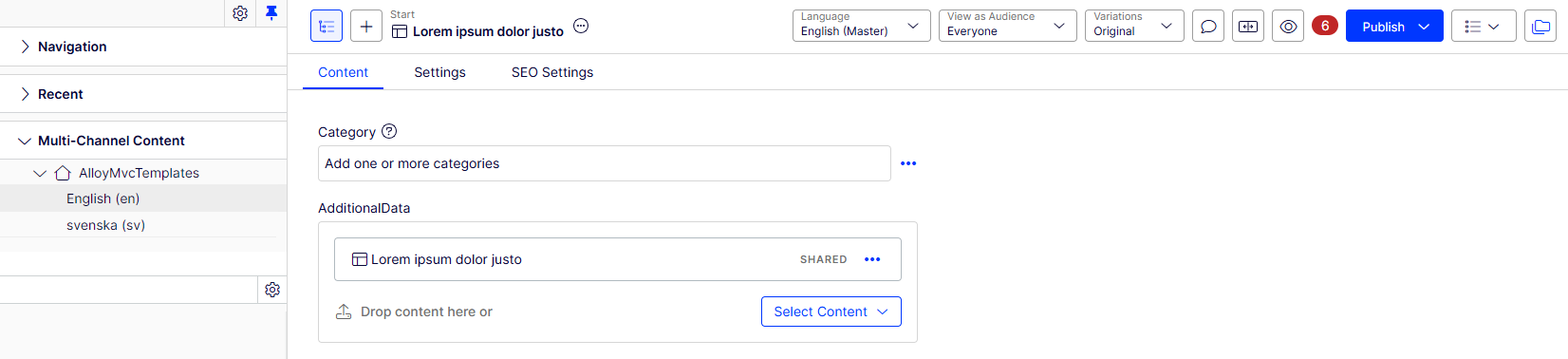
Create headless content even when a developer does not turn on headless mode. Add the Multi-Channel Content gadget to the navigation pane alongside the page navigation tree.
-
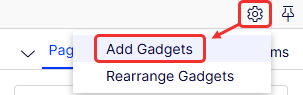
Click Settings > Add Gadgets.
-
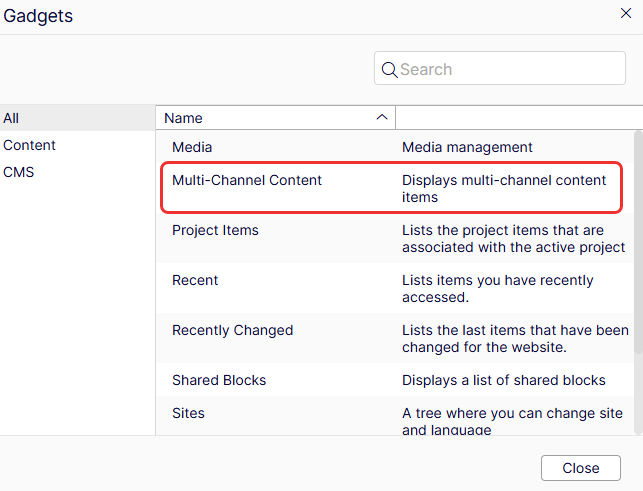
Select Multi-Channel Content.
The Multi-Channel Content view displays in the left navigation pane.
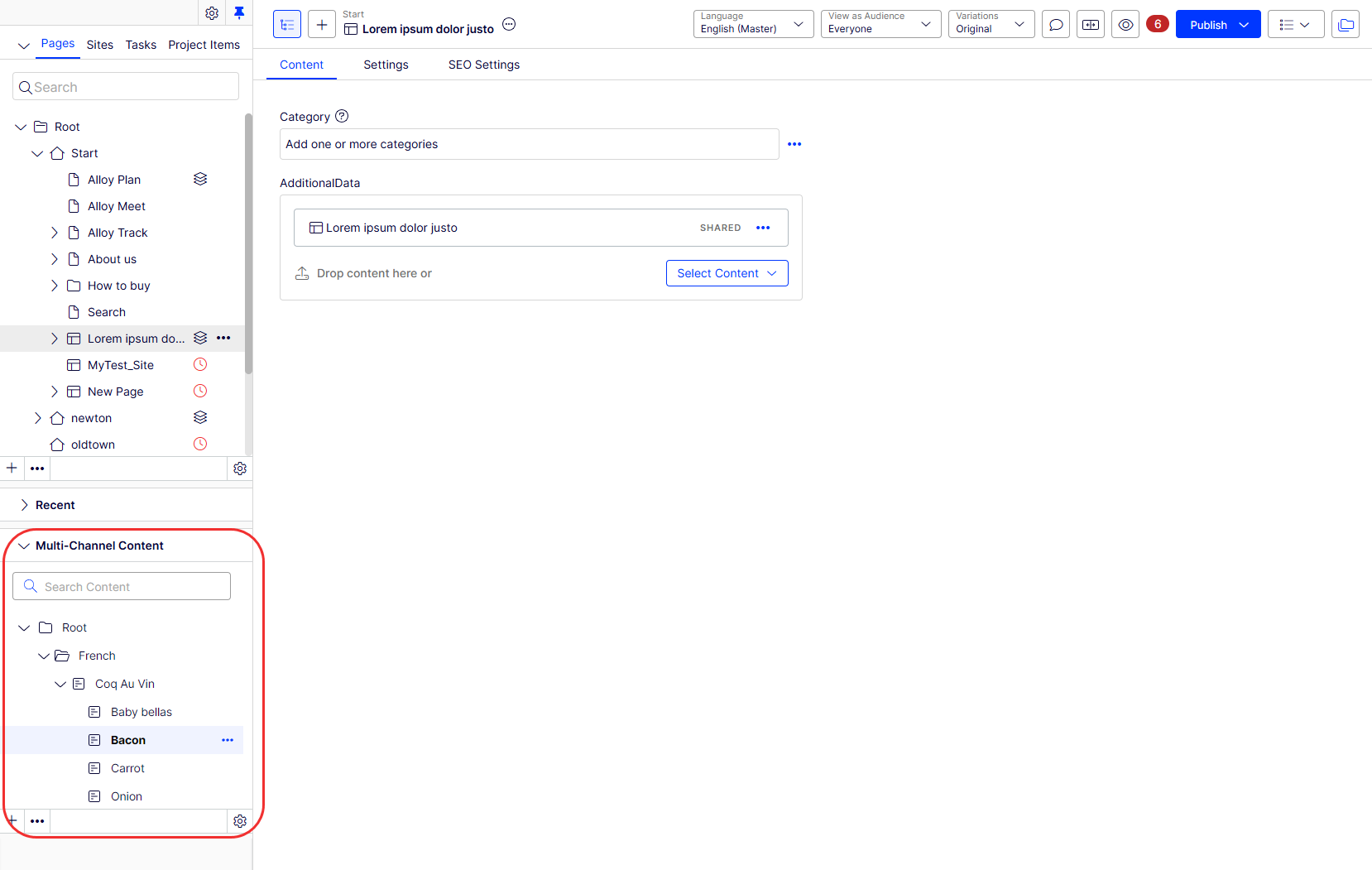
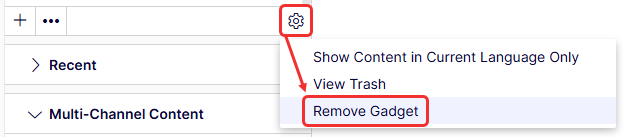
When you add the Multi-Channel Content gadget, you can remove and re-add the Navigation and Assets gadgets through the Add Gadgets settings option. To remove a gadget, open the gadget's settings and select Remove Gadget.
Differences between the Multi-Channel Content view and the Navigation view
The Multi-Channel Content view is similar in appearance and functionality (with a search box and content tree) to the Navigation view (Pages, Sites, Tasks, Project Items) and the Assets view (Blocks, Media), with the following multi-channel content-specific differences:
- Multi-Channel Content folders and blocks are decoupled from the CMS and do not display in the Navigation or Assets views, which are part of the coupled CMS. Headless folders and blocks display in the Access Rights settings page. See Set access rights for multi-channel content.
- Multi-channel content has the same root as For All Sites.
- Unlike in the Assets view, you can create a block under a block as an organizational structure. However, you can only store images in a folder (and not in a block).
- You can see multi-channel blocks and media in the Assets folder. Still, when Multi-Channel Content mode is disabled, you cannot access those blocks and media (except programmatically through the properties of those contents).
- Apply approval sequences to folders, but not blocks.
Create multi-channel content
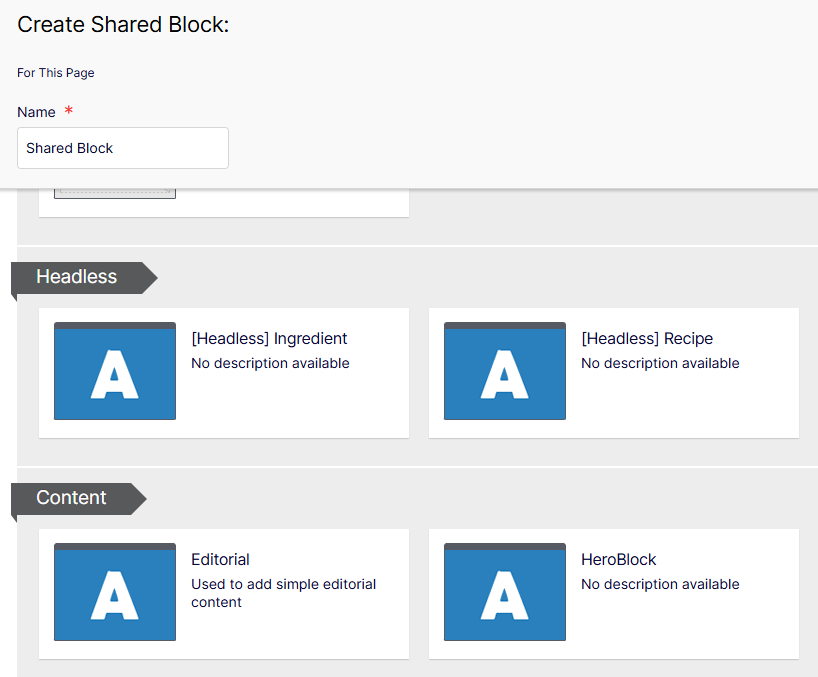
Create folders and blocks the same way you create them for coupled CMS content.
Set access rights for multi-channel content
Multi-channel content folders and blocks do not display in the Navigation or Assets gadgets, but multi-channel content displays in Set Access Rights with the rest of the CMS content, and access rights are set in the same way.
-
Go to Settings > Set Access Rights.
-
Click the folder for your multi-channel content and set the access rights you want.
Updated 3 months ago