
Reports for CMS content
Access and analyze reports for your CMS 13 content. Gain insights into content performance, user engagement, and optimize your digital strategy.
Reports help content editors, website owners, marketers, and merchandisers monitor website activities. Optimizely Content Management System (CMS) includes reports to locate broken links, find expired pages, and review simple addresses used on the website.
To access reports, select the Reports tab.
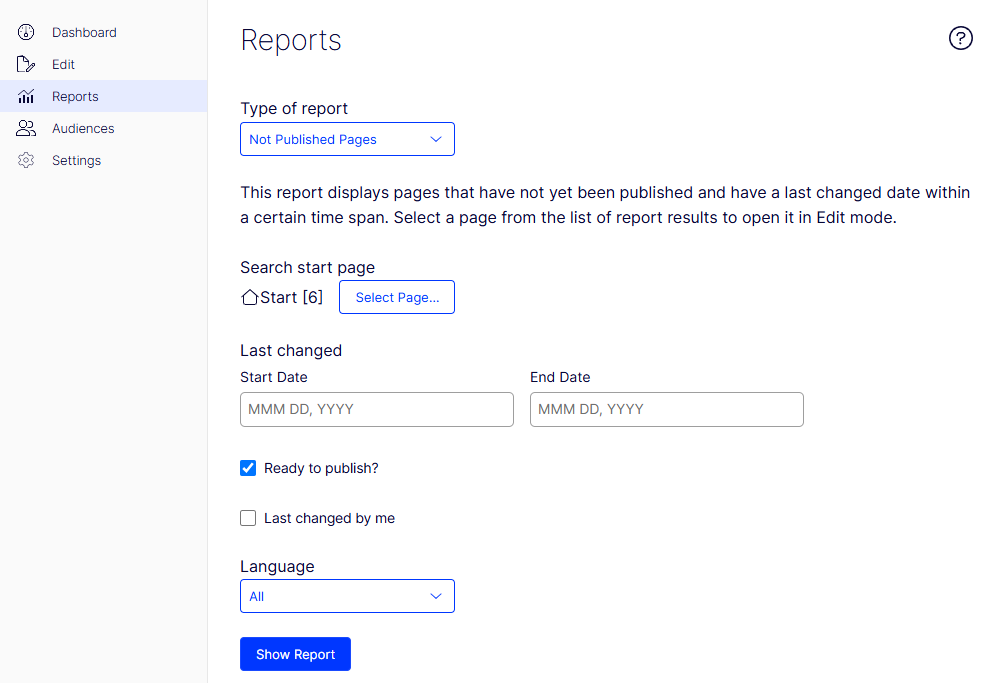
To generate a report:
- Select the desired report.
- Select the starting point in the page tree for the report data.
- Click Show Report.
Filter data by time and language. Click a page link in the report results to open it in edit view.
The following sections describe the reports available in CMS.
NoteSome reports rely on scheduled jobs that run in the background to generate report data. See Scheduled jobs in the CMS Administration section.
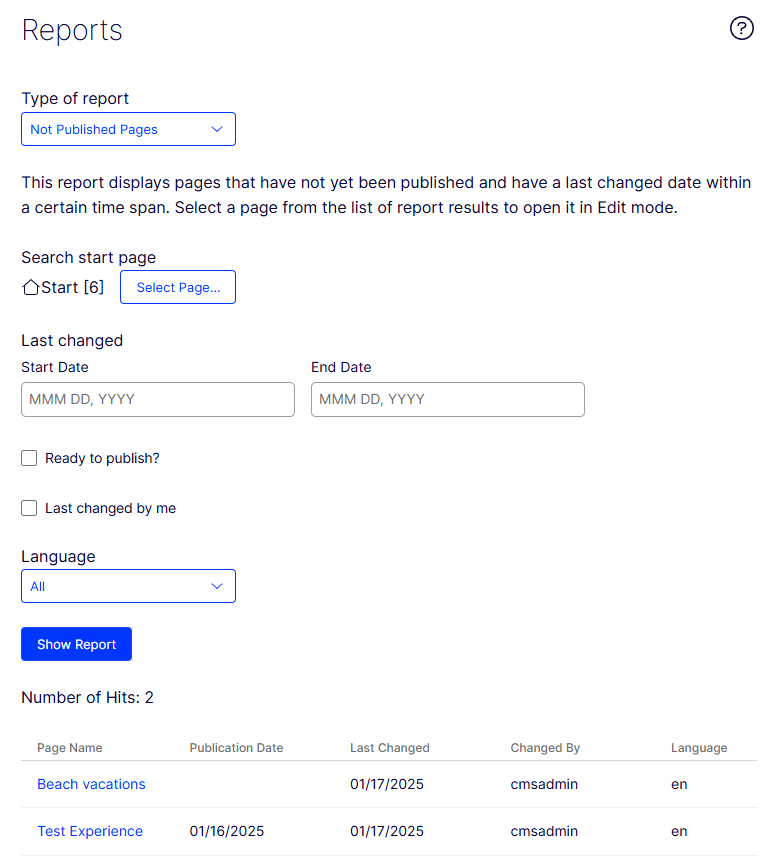
Not published pages
Displays unpublished pages that have a change date within a specified time span.
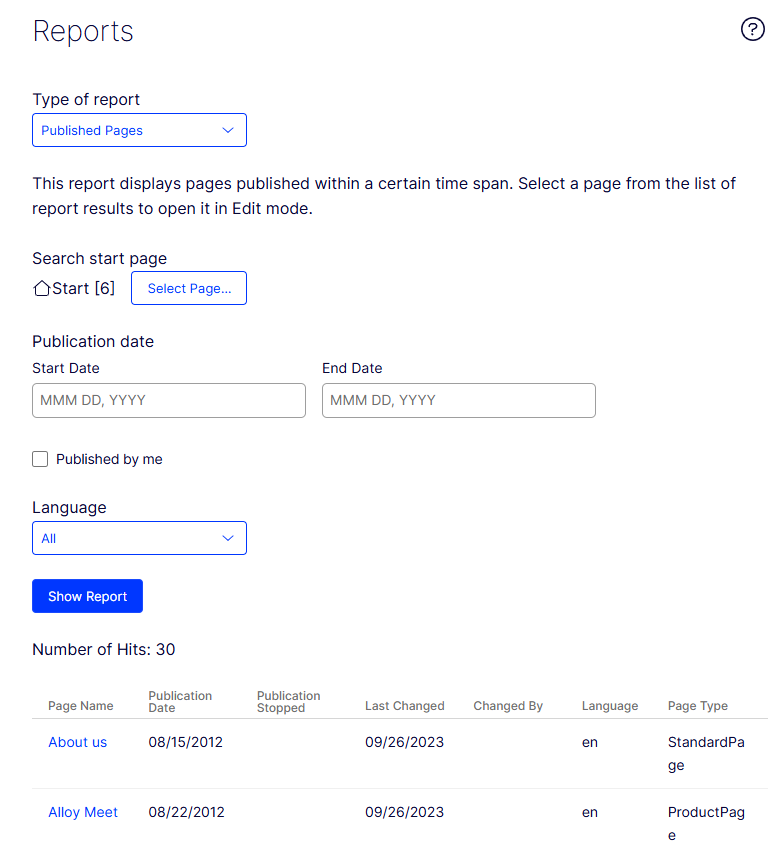
Published pages
Displays pages that have a publish date within a specified time span.
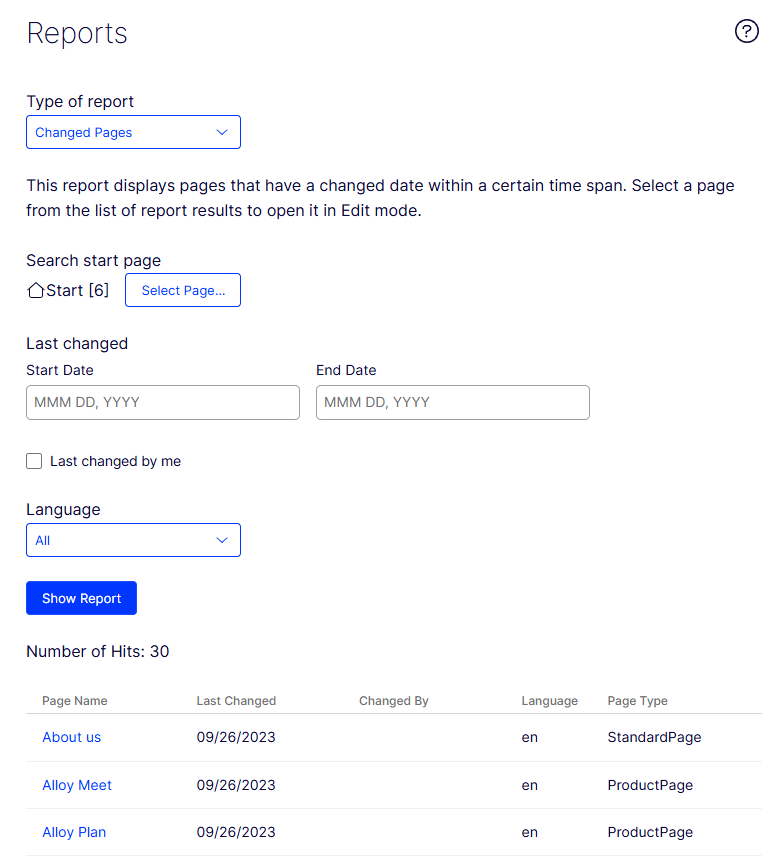
Changed pages
Displays pages that have a change date within a specified time span.
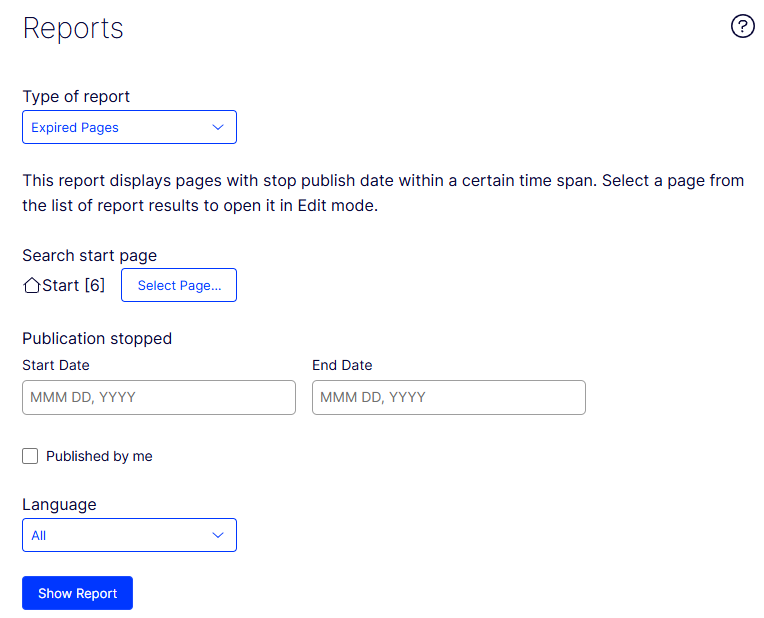
Expired pages
Displays pages with a stop publish date within a specified time span.
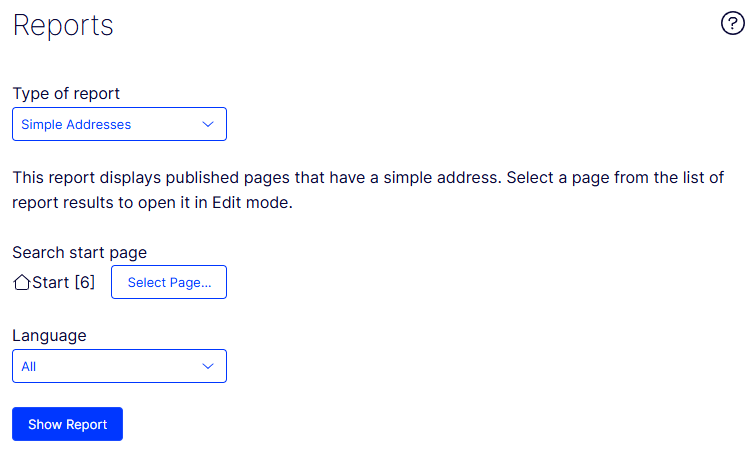
Simple addresses
Displays pages with a simple address.
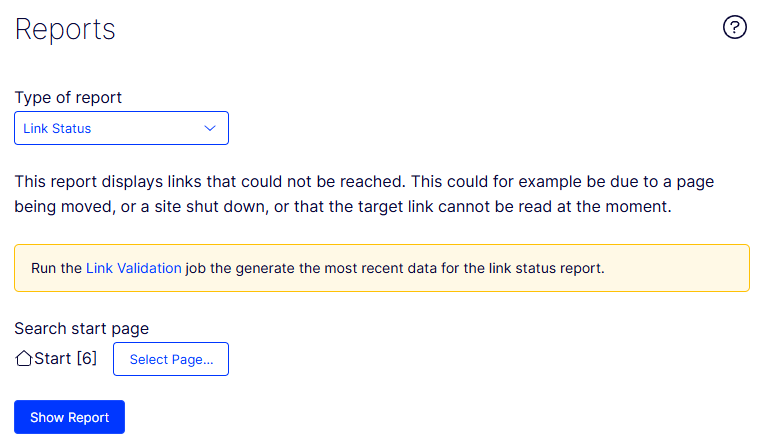
Link status
Displays links that could not be contacted in the link check scheduled job.
Reports in Optimizely Commerce Connect
Use Commerce Connect reports to track sales performance and monitor product inventory. See Reporting if Commerce Connect is installed on your website.
Updated 2 months ago