
Enable Optimizely Graph service to sync DAM and CMS
Enable the Optimizely Graph service in the DXP Management Portal. Follow these steps to configure your instance and sync CMS and embedded DAM content for your application.
NoteYou must use Opti ID to embed Optimizely Digital Asset Management (DAM) in Optimizely Content Management System (CMS 13).
To provide your CMS 13 instance with Optimizely Graph service capabilities, complete the following steps in your project settings:
-
Go to DXP Management Portal and select your organization and project (for example,
CMSUI / cmsasdf) and click the API tab.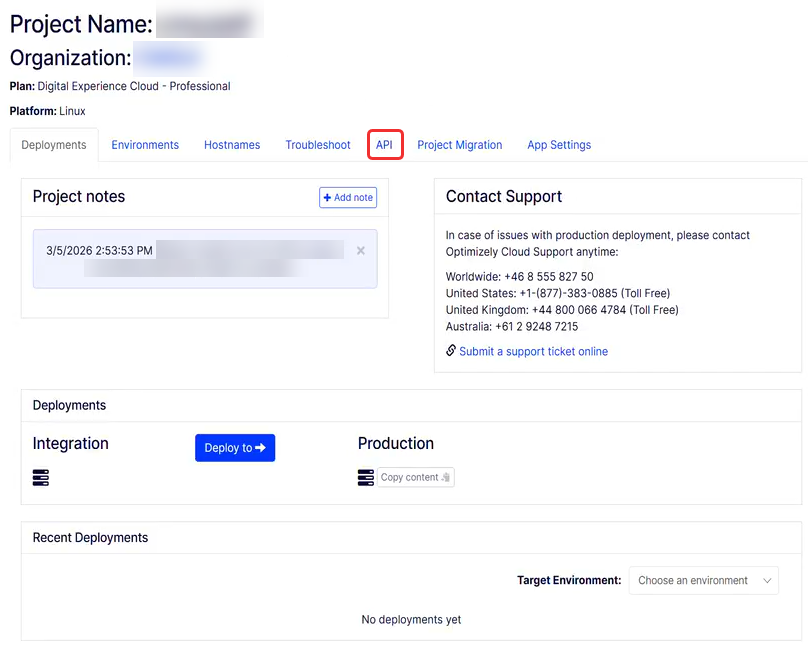
-
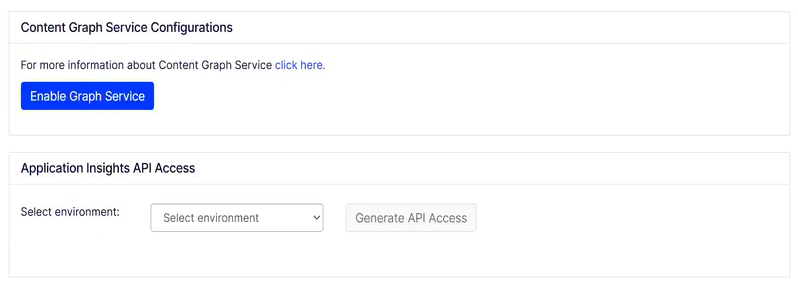
Go to the Content Graph Service Configurations section and click Enable Graph Service.
-
Confirm by clicking OK in the Enable Graph Service window.
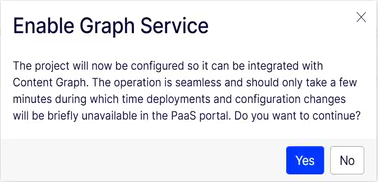
The portal displays a status message indicating the service is being enabled.
-
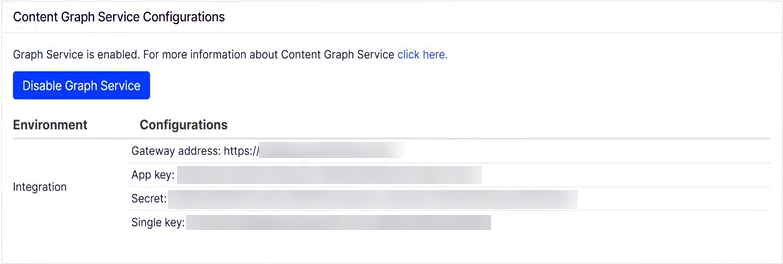
Click the API tab and return to the Content Graph Service Configurations section to verify the configuration.
-
Configure CMS to use the App key (
ClientID), Secret (ClientSecret). Inappsettings.json, add the configuration for the CMP API Client app and/or DAM Library Picker endpoint:{ "Optimizely": { "Cms": { "DamUI": { "Endpoint": "https://cmp.optimizely.com" } }, "Cmp": { "Client": { "TokenUrl": "https://accounts.cmp.optimizely.com/o/oauth2/v1/token", "ApiUrl": "https://api.cmp.optimizely.com/v3/", "ClientId": "", "ClientSecret": "", "UseHmacAuthentication": false } } } } -
Register services in
Startup.csby adding this line:services.AddDamUI(); -
In
.\Views_ViewImports.cshtml, also add this line to enable DAM TagHelpers. See Render properties with tag helpers for information about streamlining the rendering of DAM assets in Razor views. Developers can render<img>,<video>, and<a>tags for various asset types, including images, videos, and supported documents (7zip, Excel, Word, PowerPoint, PDF, Zip, Openformats).@using EPiServer.Cms.DamIntegration.UI.Helpers -
Run a full sync from CMS to Optimizely Graph. Go to your CMS instance, Settings > Scheduled Jobs and click Start. You can also click Optimizely Graph Full Synchronization to modify settings and see job history. See Scheduled Jobs.
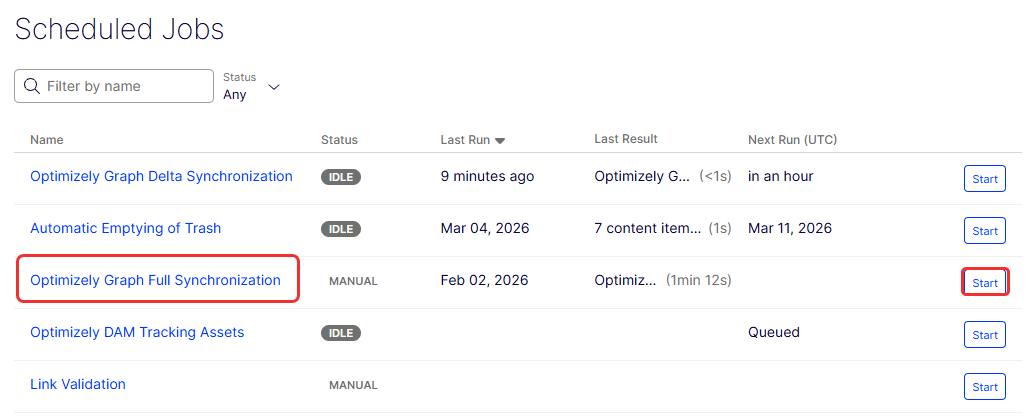
-
Contact Optimizely Support to request syncing embedded DAM to Optimizely Graph for your CMS.
After you enable the service, you can populate your empty graph database and use the Graph API to query and retrieve data for your application.
Updated 2 months ago