
Collaborate with comments
Enhance collaboration in Optimizely CMS 13 using commenting features. Add, edit, and reply to comments on content items and projects, and tag colleagues for review.
Editors produce most application content. On some applications, someone must review and approve content or other changes before publication. To support collaboration among editors when creating content and among reviewers when approving changes, Optimizely Content Management System (CMS 13) provides a commenting feature. Add comments on content items and projects and tag colleagues, who receive notifications about your comments.
Comments are a good way to add information about changes you have made or ask other editors to review the item. Other editors can view your comments, reply to them, and add their own. Opt in to email notifications to stay informed of other editors' actions.
If you use the Approve content feature, an administrator may also have made it mandatory to add a comment when you set an item for Ready for Review.
Add comments on content items
Add comments on any content item, such as when you work on an item that needs a review and want to let the reviewers know what you updated. Access rights to the item are required to view and post comments.
-
Click Show Comments to open the comment pane. The icon is blue when the pane is open; white when closed.
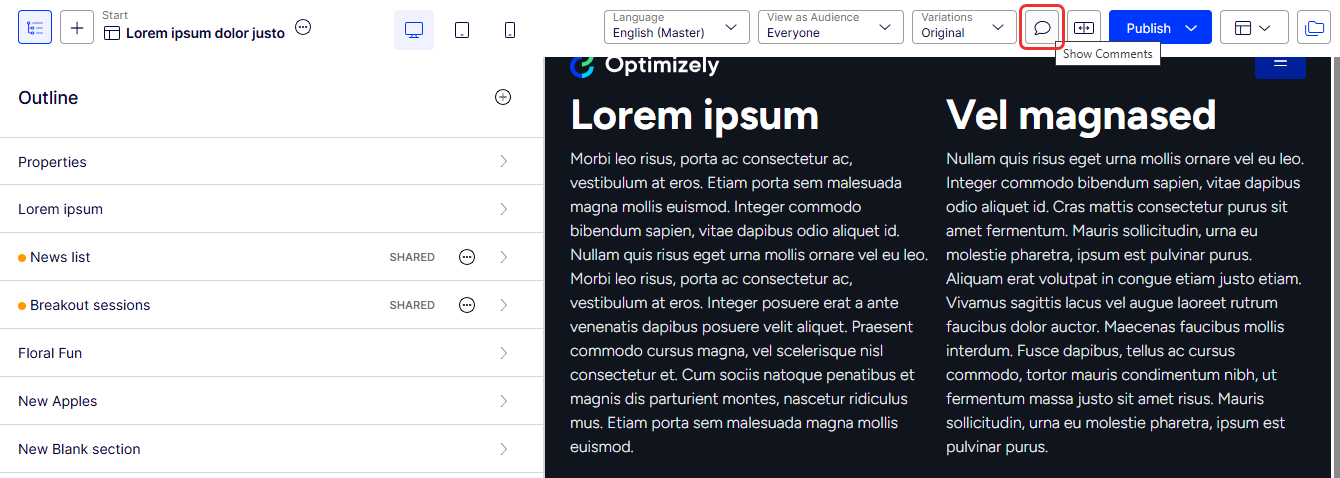
-
Enter your comment and click Post.
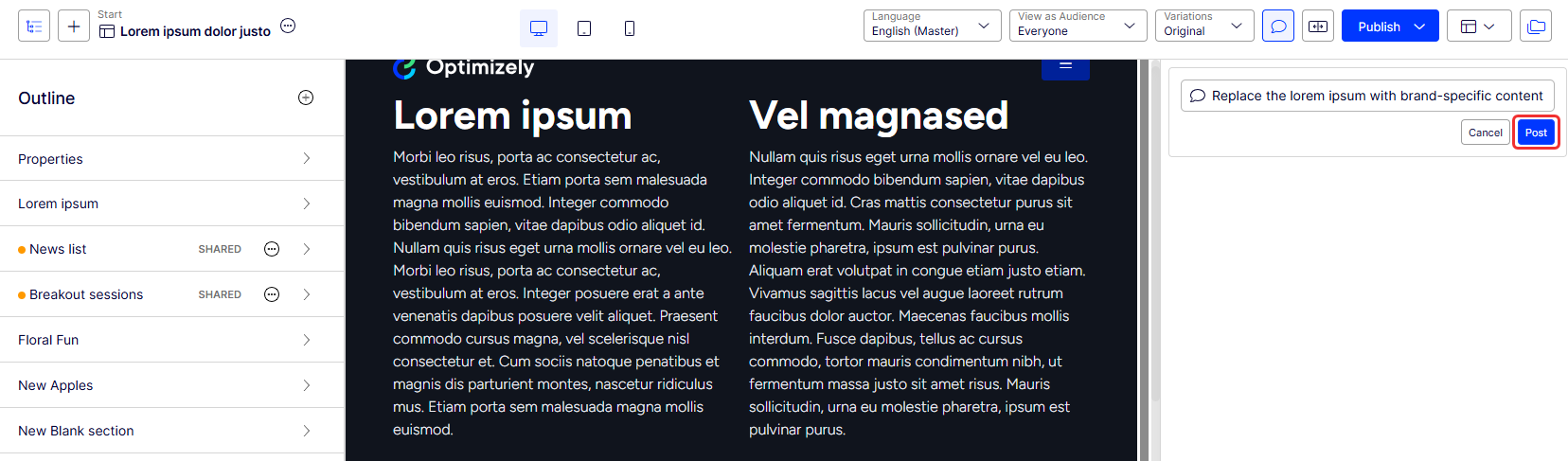
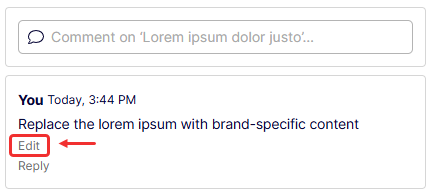
You can click Edit to modify your comment.
-
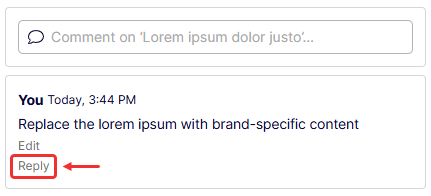
Click Reply to reply to a comment.
 Note
NoteYou cannot delete comments or replies. However, comments are connected to a specific version of an item. If you delete an item version, comments on that version are also deleted.
Add comments on projects
Comment on a project, specific project items, or actions to coordinate work across your team.
NoteThe project is automatically activated if you go to the project overview to read a comment. If you do not want to continue working on the project, you have to deactivate it again.
Comment on a project
-
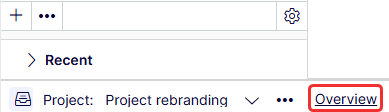
Click Overview in the project bar.
-
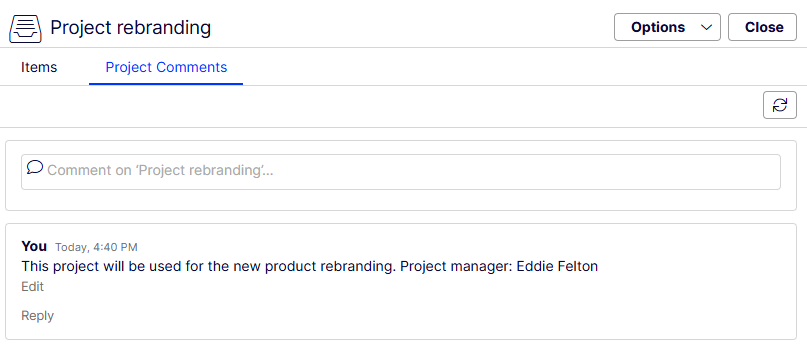
Go to Project Comments.
Comment on a project item
-
Click Overview in the project bar.
-
Go to Items.
-
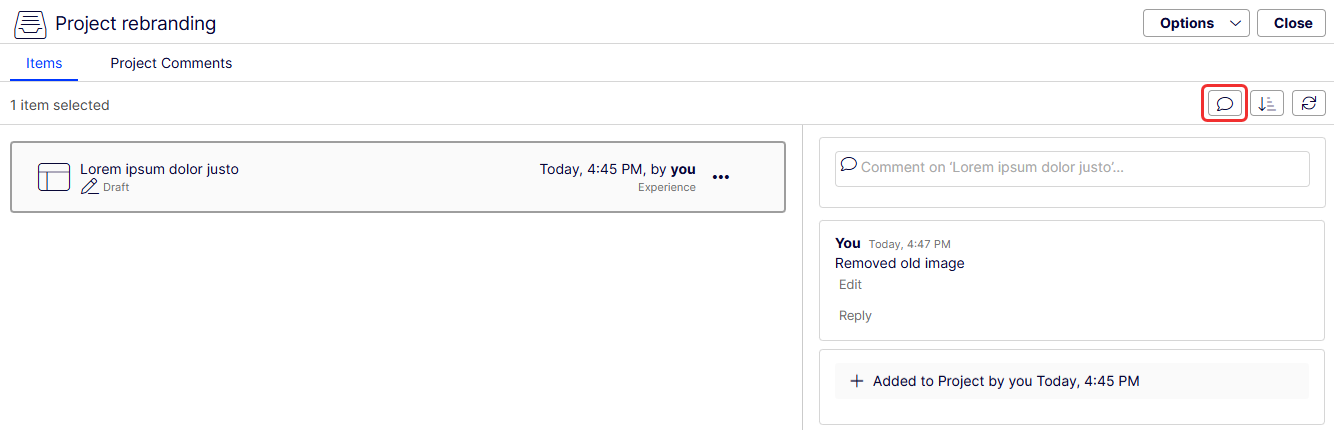
Select an item, and then click Show Comments. Items that already have comments are marked with a comment icon. Add, reply to, and view comments for items.
Tag someone in a comment
Tag colleagues in comments to notify them directly and request their input.
Enter @ and partial usernames to tag another editor and select from a results list. When you tag a user in a comment, they receive a notification in the UI and can also receive an email notification depending on the system configuration. Tag any available user, but the tagged user still needs access rights to the project item to see the actual comment.
Updated 2 months ago