
GraphiQL
Explore the Optimizely CMS 13 GraphiQL interface. Learn to build, execute, and manage GraphQL queries, browse schemas, and customize your API exploration experience.
GraphiQL in Settings provides an interactive environment for building and running GraphQL queries against Optimizely Graph. GraphiQL is the browser-based query editor built into CMS 13 Settings. Optimizely Graph is the underlying API it queries. Use GraphiQL to test queries, browse the schema, verify content indexing, diagnose search issues, and explore the content model. For GraphQL fundamentals, see GraphQL basics in the Optimizely Graph documentation.
GraphiQL views
GraphiQL views provide separate panels for browsing the schema, replaying past queries, and customizing the editor. Use these views to construct queries faster and verify content indexing without leaving the CMS.
-
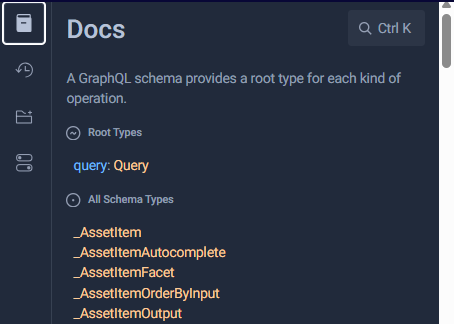
Show Documentation Explorer – Browse the schema and construct your queries.
-
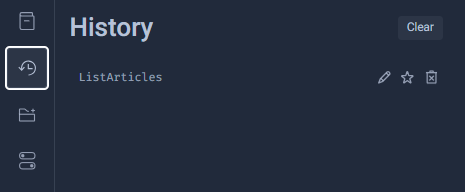
Show History – View previously executed queries.
-
Show GraphiQL Explorer – Lists the types and fields available in your GraphQL schema.
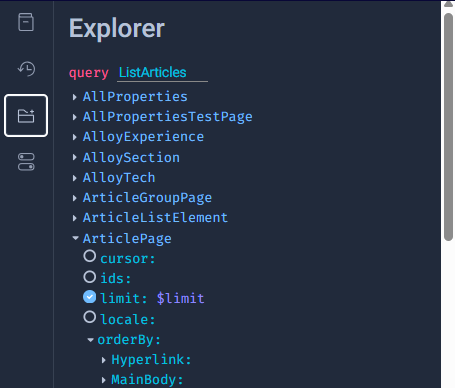
Build GraphQL queries visually by interacting with the schema instead of typing the entire query:
-
Browse the schema – See all available types and their fields.
-
Select types – Choose the main type to query (for example, Block1).
-
Select fields – Select the checkboxes or radio buttons next to the fields to retrieve for that type (for example, ids, limit, total).
-
Specify arguments – Use the text fields or drop-down lists next to arguments such as
limit,skip,orderBy, orwhereto filter, paginate, or sort results. -
Drill down – Expand complex fields to select nested sub-fields or arguments and build the query structure.
As you make selections, the Explorer generates the corresponding GraphQL query in the Query Editor panel.
Toolbar controls
The GraphiQL toolbar provides controls for managing flags, schema updates, keyboard shortcuts, and editor settings.
-
Show Flags – Displays feature flags that control experimental GraphQL behaviors. Off is the default.
-
Refetch GraphQL schema – Send a request to the Optimizely Graph API endpoint to download the latest schema definition. Refetch the schema in the following situations:
- The underlying GraphQL API changed. For example, content types, fields, or mutations were added, modified, or removed.
- The GraphiQL cached schema is outdated. Refetch to ensure the Explorer panel, autocomplete suggestions, and documentation reflect the current API state.
-
Open Short-keys dialog – Displays keyboard shortcuts to common commands.
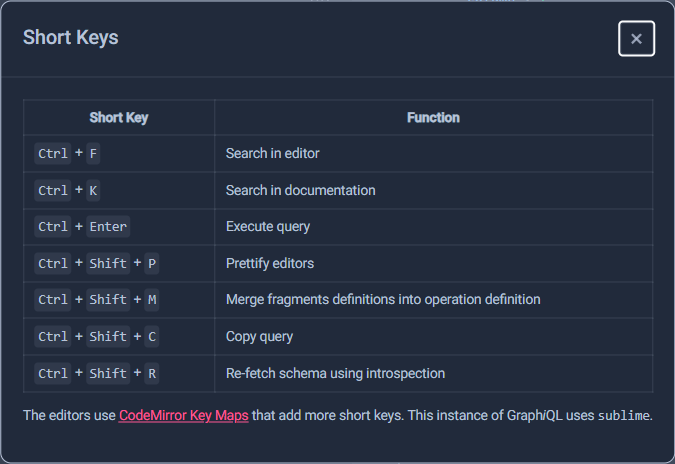
-
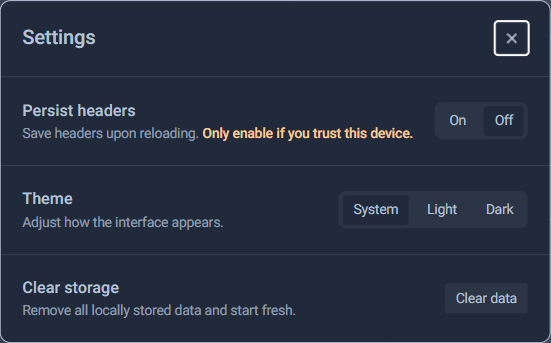
Open Settings dialog – Customize the GraphiQL interface appearance and session behavior.
-
Persist headers – Select On to save configured HTTP headers (for example, authentication headers) and reload them automatically when GraphiQL reopens.
CautionOnly enable if you trust this device, as sensitive headers could be exposed on an untrusted computer.
-
Theme – Change the color scheme of the GraphiQL interface.
- System – GraphiQL automatically matches your operating system's light or dark mode setting.
- Light – Forces the interface to always display with a light background.
- Dark – Forces the interface to always display with a dark background.
-
Clear storage – Click Clear data to remove all data GraphiQL has stored locally in your browser, including query history, saved queries, and preferences. Use this to start fresh or troubleshoot issues.
WarningThis action is irreversible for the locally stored data.
-
Query Editor panel
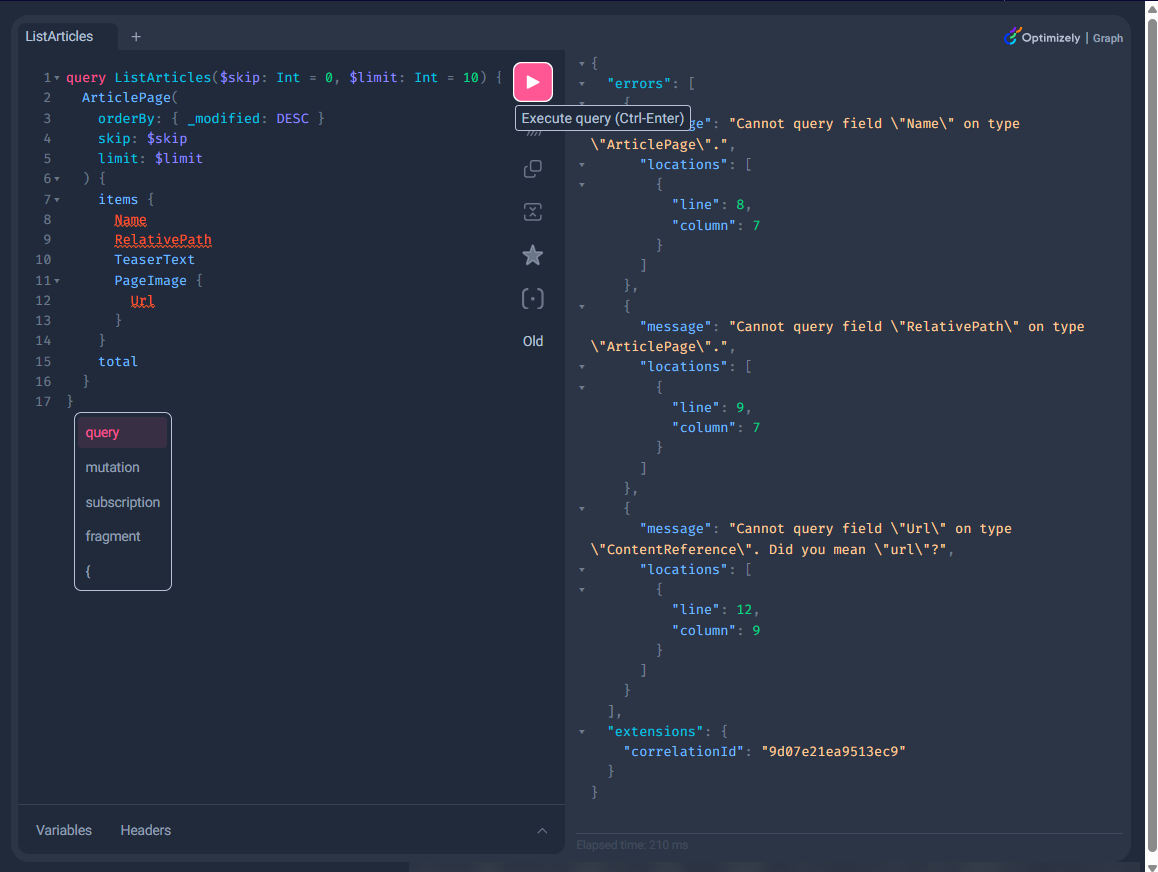
The Query Editor panel is where developers compose and run GraphQL queries against Optimizely Graph. Use it to test queries, format them for readability, and tune execution against different deployment endpoints.
Execution and formatting controls
- Execute Query – Ctrl-Enter – Sends the GraphQL query to the server. Results or errors display in the Results/Error Viewer panel.
- Prettify Query – Shift-Ctrl-P – Formats the query in the Query Editor by indenting code, adding line breaks, and cleaning up structure for readability.
- Copy Query – Shift-Ctrl-C – Copies the GraphQL query text to the clipboard. Use this to share queries, save them externally, or use them in other tools.
- Merge fragments into Query – Shift-Ctrl-M – Expands fragments defined in the query directly into the main query, showing the full unfragmented structure. Use this to understand the complete query or debug issues.
Configuration toggles
- Cache – Toggle on or off to control whether query results are stored in the browser cache. When caching is on, repeated queries for the same data are served faster from the cache, reducing network requests.
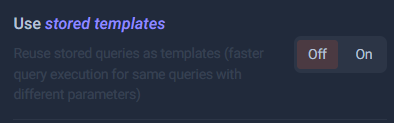
- Stored Query – Toggle on or off. When on, the system uses predefined query templates to speed up execution for queries with the same structure but different variables.
- Use new deployment – Toggle Old or New to switch the target GraphQL API endpoint between deployments. Old points to the stable production environment. New points to a staging or development deployment for testing before production release.
Input tabs
- Variables tab – Define JSON values for query variables here, separate from the main query text. For example, if the query defines
query MyQuery($limit: Int), enter{"limit": 10}in this tab. - Headers tab – Include custom HTTP headers with GraphQL requests. Use this for authentication (for example, passing an
Authorizationtoken), content-type specification, or other API-required metadata. Enter key-value pairs such as{"Authorization": "Bearer YOUR_TOKEN"}.
The Results/Error Viewer panel displays the JSON response from the GraphQL server after a query runs.
Updated 2 months ago