
Approve content
Manage content approvals in Optimizely CMS 13. Understand approval sequences, reviewer roles, notifications, and how to approve or decline content changes.
Content approvals ensure that content is reviewed and approved before publication. When an editor finishes working on a content item, the item is set to Ready for Review. One or more appointed reviewers must then approve the content item before publication. An administrator defines the reviewers in an approval sequence.
NoteIf you want to develop content approvals through code, see Content Approvals in the Develop Content section.
Sequences and reviewers
An approval sequence can include any number of approval steps and any number of reviewers in each step. An administrator configures the sequence as described in Approve sequences.
The approval sequence administrator also defines who can approve a content item individually for each step. Although you can have only one person as a reviewer in a step, having at least two per language is recommended in case one of them is unavailable.
The administrator can prevent editors from approving their own changes. Appointed reviewers then cannot approve any review requests they started. However, they can still cancel their review requests.
When one of the reviewers in a step approves the content, that step is complete, and the item moves to the next step. When a content item enters an approval step, the reviewers in that step are notified by email and in the UI. The editor who started the approval sequence is notified when the last reviewer approves the content item and it is set as Ready to Publish, or if a reviewer rejects it. When the content is approved in all steps, it is automatically set as Ready to Publish, and anyone with publishing rights can publish it.
The approval sequence overview is opened from a page's or assets folder's More menu:
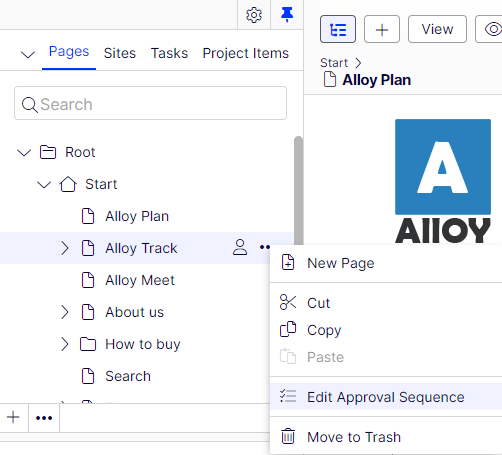
Editors can view an approval sequence but not change it. If an administrator has configured an approval sequence on a node in the page tree, editors without administrator rights cannot bypass it. Publish is replaced by Ready for Review, and selecting Ready for Review starts the approval sequence.
Content approvals on assets
Each Optimizely Content Management System (CMS) page can have its own content approval sequence. Assets, such as blocks and media (and also forms and catalogs if you have Optimizely Forms and Optimizely Commerce Connect installed), cannot have individual approval sequences. Instead, the content approval sequence is configured on each assets folder, and all assets in a folder share the same approval sequence. Global and site-specific assets folders can inherit their approval sequence from a parent folder, or an administrator can define a unique sequence for it (or disable it completely so that assets in the folder do not require approval). Local assets folders inherit their approval sequence from the page they are associated with. See Folders for a description of global, site-specific, and local folders.
Moving folders and assets with content approval sequences works as described in the following sections.
Folders
- Moving a folder to another global or site-specific folder. The folder keeps its original approval sequence. You can move the folder even if items in the folder are in review.
- Moving a folder to a local assets folder. The folder's approval sequence is changed to the local assets folder's sequence. You cannot move the folder if items in the folder are in review.
Assets
- Moving an asset to a global or site-specific folder. The approval sequence on the asset is changed to the new folder's approval sequence. You can move an item even if it is in review. However, it continues its original content approval sequence until it is approved or rejected. After that, it has the same approval sequence as the new folder.
- Moving an asset to a local asset folder. The approval sequence on the asset is changed to the new folder's approval sequence. You cannot move the asset if it is in review.
NoteThe Blocks and Media folders in the assets panel are the same folders in the software and share the same content approval sequences; the Blocks and Media tabs in the assets panel are merely a way of filtering out blocks if you are in the Media tab and vice versa. This means that if Adam is set as a reviewer on the block folder Bunnies, Adam is also a reviewer of media in the media folder Bunnies.
As a result, if you edit a block in the Bunnies folder, which links to images in the media folder Bunnies, and set the block to Ready for Review, the same content approval sequence is triggered for the images.
Forms and catalogs have their structures, so even if you have a Commerce catalog named Bunnies, it does not get the same content approval sequence as the Bunnies folders for blocks and media.
On a multi-language site, images that do not have a language set can be approved by any reviewer, even by reviewers who only have access to a specific language. For example, you have a site in English and German where English is the master language. You configure the approval sequence so that reviewer Julia is responsible for the German content items but not the English items. You keep a folder with two images, Party_teaser_EN.png and Party_teaser_DE.png, for English and German versions. Julia is a designated reviewer in the approval sequence on this image folder. Julia can then approve images in the folder even if Party_teaser_EN.png is used only on English pages, which she cannot access.
Assets added to an assets folder with a content approval sequence set are not auto-published.
Multiple languages
Each language must have at least one reviewer if you have content in multiple languages. The administrator decides whether a reviewer can approve content for all or specific languages. Different reviewers can be assigned to different languages.
Each language version can be set as Ready for Review and approved separately. For example, the German version of an item can be approved in three approval steps and published before the French version passes approval step 1. See Translate content to work with different languages.
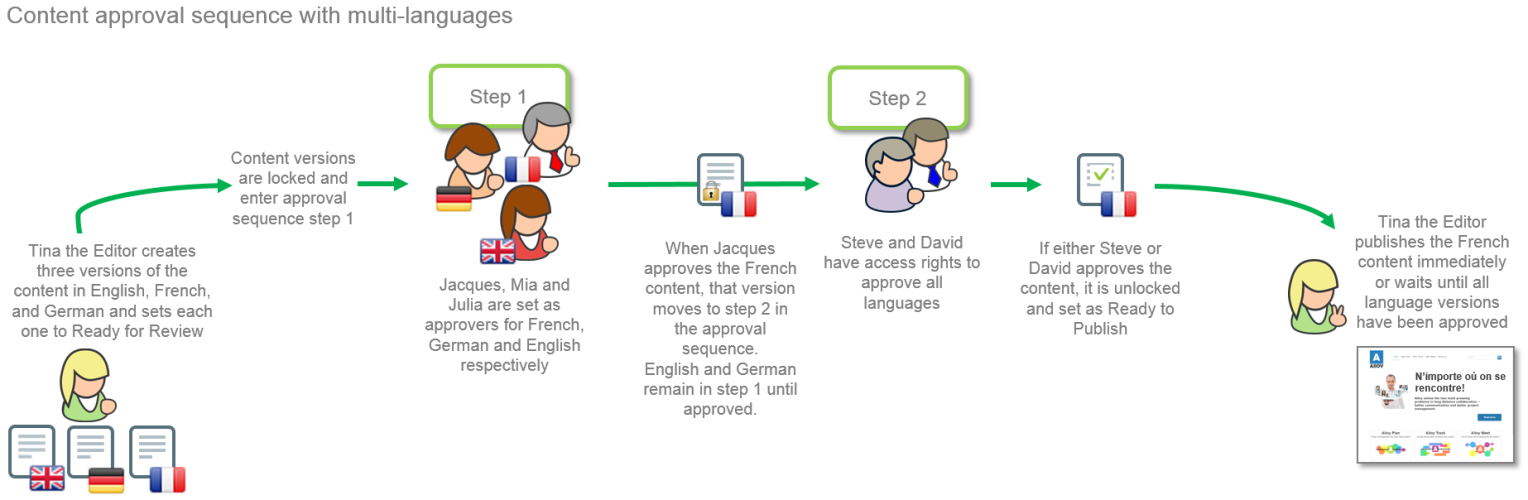
Example: Content approval sequence with multiple languages
In this example, three reviewers are in step 1, one for each language (for simplicity only; in practice, you should have at least two reviewers per language). In step 2, two reviewers have access rights to approve all languages. If one of the reviewers declines the content, that language version is set as Rejected and must be set as Ready for Review again.
Reject approval
If a reviewer does not approve a page and declines it, the page returns to being an editable draft (with the status Rejected). The responsible editor must update the page and set it to Ready for Review again. The approval sequence then starts over, and the reviewer of the first step must approve it again, even if that reviewer had approved the first draft and it was a reviewer in a later step who rejected the page.
Notifications
If you have started a content approval sequence by setting an item to Ready for Review, or if you are an appointed reviewer, you receive notifications in the UI. The toolbar displays the number of unread notifications. Select the notification indicator to display a list of notifications. Go to the item that needs to be reviewed from the notification list.
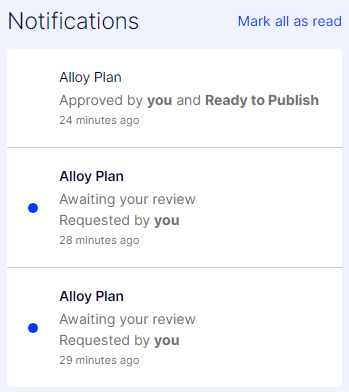
If your system is configured to use email notifications, you also receive an email. How often these notifications are sent depends on the system configuration.
- When an item is set to Ready for Review, the reviewers in the first step get notified.
- Awaiting your approval or one of Z others. Step X of Y (multiple reviewers)
- Awaiting your approval. Step X of Y (one reviewer)
- When an item is approved in a step, the reviewers in the next step get notified.
- Awaiting your approval or one of Z others. Step X of Y (multiple reviewers)
- Awaiting your approval. Step X of Y (one reviewer).
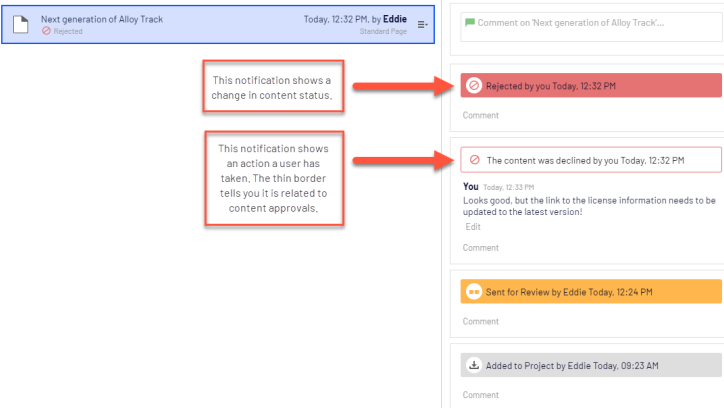
- If a content approval step is declined, the user who started the content approval sequence, and the reviewers in the current and previous steps get notified.
- Declined byusername
- If a content approval step is canceled, reviewers in the current and previous steps get notified.
- Review request canceled byusername
- If all steps are approved, and the item is set as Ready to Publish, the user who started the content approval sequence gets notified.
- The reviewed content has been approved and is now ready to publish.
The email title shows that it is a review request and who requested the review. The email also shows the title of the item to be reviewed (Black Friday shoe sale), the language of the item (en, which stands for English), the item type (Page), and when the review started (October 21, 2017, 3:48 p.m.). Select Review item to open the item.
Tasks
Use Tasks in the navigation panel to keep track of the content items you have sent for review, items waiting for your approval, or items you have already approved.
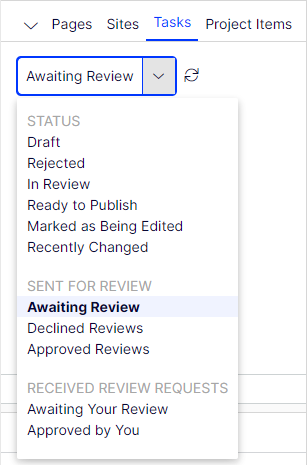
Content approval options in Tasks
- In Review – Lists content items that are set as Ready for Review.
- Awaiting Review – Lists the content items you sent for review and are in content status In Review.
- Declined Reviews – Lists the content items you have sent for review and are declined, that is, in content status Rejected. When the item is updated, it is no longer displayed in this list.
- Approved Reviews – Lists the content items you have sent for review and are approved that are in content status Ready to Publish. When the item is published (or updated), it is no longer displayed in this list.
- Awaiting Your Review – Lists the content items that you are one of the designated reviewers of.
- Approved by You – Lists the content items you have approved. When the item is published (or updated), it is no longer displayed in this list.
Handle unavailable reviewers
Have at least two reviewers per language in each step to avoid content getting stuck in an approval step if a reviewer cannot approve it.
An administrator can approve and publish a page at any time.
Administrators and the editor who started the approval sequence can cancel the approval sequence at any step.
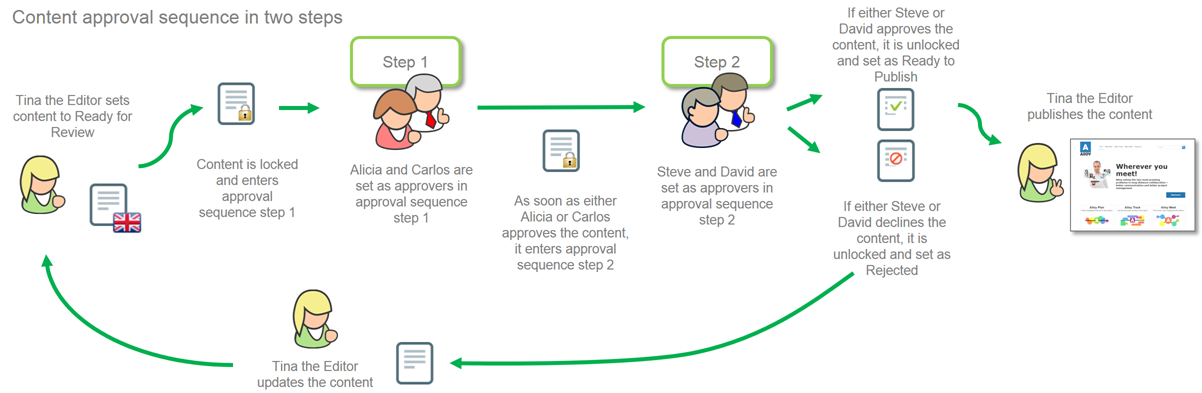
Example: Content approval sequence in two steps
Web editor Tina works in the Marketing department and has prepared a product launch. An approval sequence is configured for the Marketing pages. When Tina is done, she does not have the Publish option. Instead, she must set the product page to Ready for Review. The page is now locked for further editing. According to the predefined approval sequence, one of the chief editors, Alicia or Carlos, must review and approve the page. Alicia and Carlos are notified by email, and when they log in to Optimizely CMS, they have a page to approve.
When Alicia or Carlos has reviewed the page, they approve it.
The approval sequence now states that Steve or David needs to approve the page. They are notified by email and in the UI. When one of them has approved the page, it is set to Ready to publish. The approval sequence is now done, and any editor (or administrator) with publishing rights to the content can publish it. Tina, who started the approval sequence, is notified.
If Steve or David declines the approval, the content is set as Rejected, and Tina must update it and set it to Ready for Review again. Alicia or Carlos will then have to approve the second draft as well.
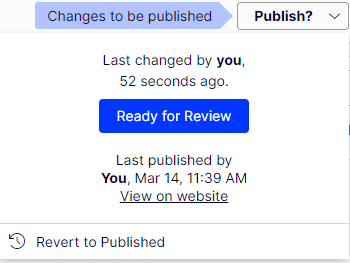
Start an approval sequence
If an approval sequence is defined for the content you are working on, you cannot publish directly. Instead, start the approval sequence by selecting Publish > Ready for Review.
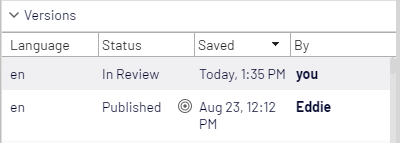
When a content item is in review, its status changes to In review in the Versions gadget. The item is locked for editing until it is approved in all steps of the approval sequence. When approved in all steps, it is set as Ready to Publish, and you are notified in the UI and by email.
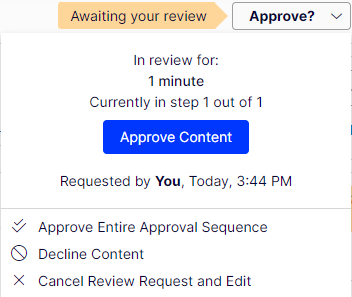
Approve or decline an approval step
If you are an appointed reviewer for a content item, you are notified in the UI and by email (if configured) when it is ready for your review. Select the notification or the link in the email to open the content item. If a previous version exists, use the compare feature to see where changes were made.
After reviewing the content item, select Approve? and then select Approve Content or Decline Content. You may have to give a reason for approving or declining the content item.
If you approve the content item, it moves to the next step in the approval sequence, or if you were the last reviewer in the sequence, it is set as Ready to Publish.
If you select Decline Content, it is set as Rejected, and the editor needs to update the content and set it to Ready for Review again.
If you have multiple review requests, you can use the Tasks panel to see which items you should review and to go between them, and the compare feature to see where changes were made.
Cancel an approval sequence
Cancel an approval sequence that you started regardless of which step the content item is in. Select Approve? > Cancel Review Request and Edit. You can then edit the content again. When done, set it as Ready for Review, and the approval sequence starts over from step 1.
Comment on approvals and declines
When approving or declining content, depending on your system configuration, you may need to provide a reason. Your comment is visible in the UI and email notifications to the person who started the content approval sequence. The comment also displays in the project overview if the content item in review is associated with a project.
Updated 2 months ago