
Scheduled jobs through code
Describes scheduled jobs in Optimizely Content Management System (CMS) that run in the background at preset time intervals and typically perform cleanup and updating tasks.
Scheduled jobs automate recurring background tasks in Optimizely Content Management System (CMS), such as content publishing and cleanup. A sample CMS installation includes several predefined scheduled jobs administered in the admin view. Customize, configure, and create scheduled jobs to meet your requirements.
During initialization, CMS scans registered jobs and checks their next execution time. At the appointed time, the system executes the job. Execute a job manually from the admin view as an alternative. Scheduled jobs run in an anonymous context. The site's web server must be up and running because scheduled jobs are executed in the same process as the site. To ensure this, use Application Initialization or have a site supervisor ping the site periodically. In Azure Web Apps, enable Always On.
See also Scheduled jobs through the UI.
Default scheduled jobs
A standard CMS installation includes several default scheduled jobs, such as emptying the trash and managing scheduled content publishing. These jobs are available from the CMS administration view.
Implement a scheduled job
To implement a scheduled job, create a class that inherits from the EPiServer.Scheduler.ScheduledJobBase base class. Decorate the class with the ScheduledJobAttribute and define if the job should be enabled and what interval should be used initially. Assign a GUID to the job to allow changing the name or namespace later.
Note
ScheduledJob.PingTimeis replaced bySchedulerOptions.PingTime.
The following example shows a basic scheduled job that supports stopping through the Stop method override and reports progress through the StatusChanged event.
using System;
using EPiServer.Core;
using EPiServer.PlugIn;
using EPiServer.Scheduler;

namespace MyOptimizelySite.Jobs {
  [ScheduledJob(DisplayName = "ScheduledJobExample", GUID = "d6619008-3e76-4886-b3c7-9a025a0c2603")]
  public class ScheduledJobExample: ScheduledJobBase {
    private bool _stopSignaled;

    //private readonly IContentLoader _contentLoader;

    // Here you can add dependencies to constructor, In this example if the scheduled job has dependencies then they can be injected in the constructor. Here example of the job has dependency to IContentLoader
    // public ScheduledJobExample(IContentLoader contentLoader)
    // {
    //  _contentLoader = contentLoader;
    //  IsStoppable = true;
    // }

    public ScheduledJobExample() {
      IsStoppable = true;
    }

    /// <summary>
    /// Called when a user clicks on Stop for a manually started job, or when ASP.NET shuts down.
    /// </summary>
    public override void Stop() {
      _stopSignaled = true;
    }

    /// <summary>
    /// Called when a scheduled job executes
    /// </summary>
    /// <returns>A status message to be stored in the database log and visible from admin mode</returns>
    public override string Execute() {
      //Call OnStatusChanged to periodically notify progress of job for manually started jobs
      OnStatusChanged(String.Format("Starting execution of {0}", this.GetType()));

      //Add implementation

      //For long running jobs periodically check if stop is signaled and if so stop execution
      if (_stopSignaled) {
        return "Stop of job was called";
      }

      return "Change to message that describes outcome of execution";
    }
  }
}
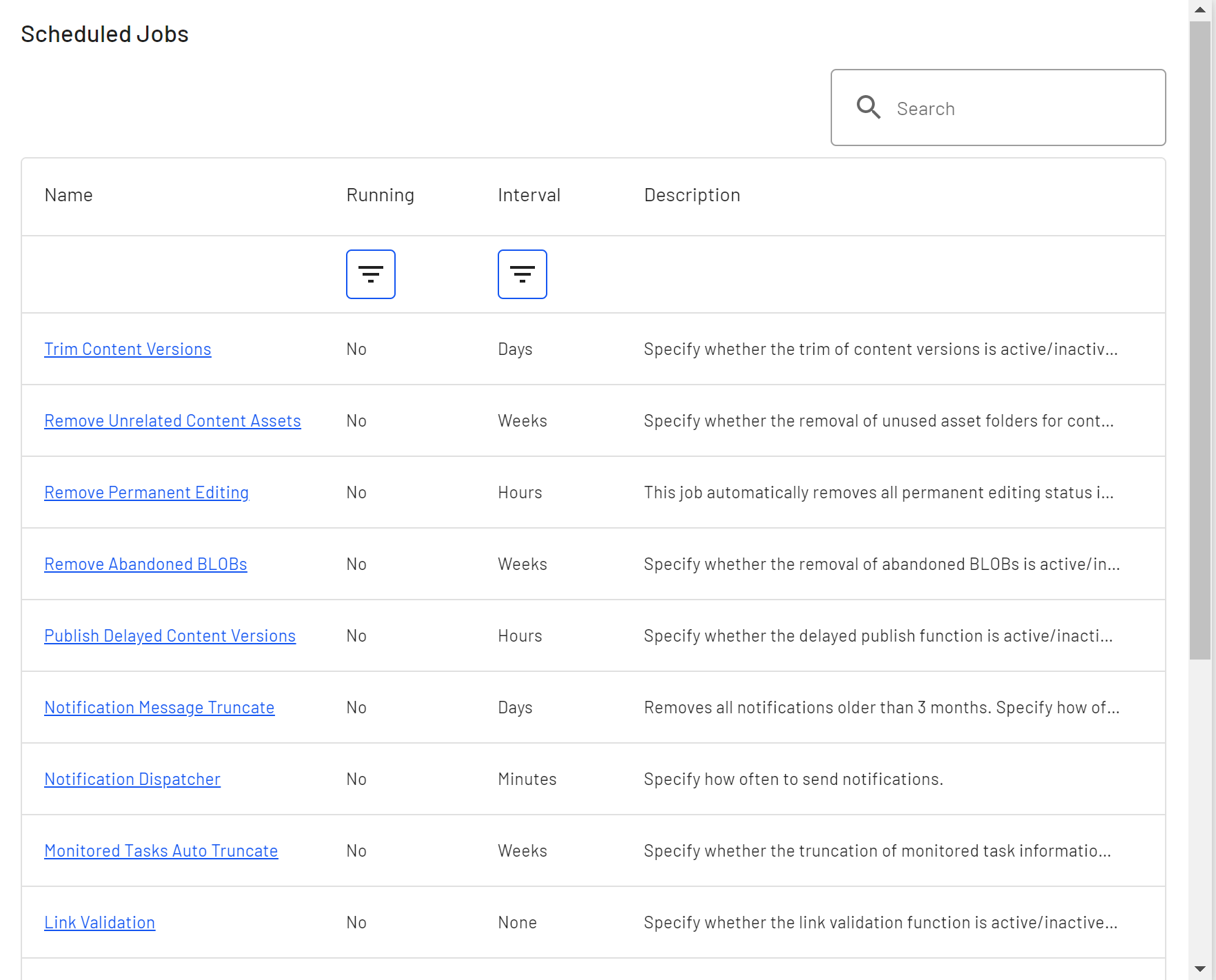
The example scheduled job as it displays in the admin view:
NoteIn CMS 11, a job could behave differently when started manually compared to it being scheduled because scheduled jobs ran in an anonymous user context and manually started jobs ran as the current user. In CMS 12 and 13, the job never runs as the current user.
Run a job with special privileges when it needs elevated access, such as deleting files.
In CMS 11, set the principal directly:
PrincipalInfo.CurrentPrincipal = new GenericPrincipal(
  new GenericIdentity("Some Dummy User"),
  new [] {
    "WebEditors"
  }
);
In CMS 13, PrincipalInfo.CurrentPrincipal is read-only. Access the principal through IPrincipalAccessor instead:
_principalAccessor.Principal = new GenericPrincipal(
  new GenericIdentity("Some Dummy User"),
  new [] {
    "WebEditors"
  }
);
The following example shows IPrincipalAccessor used in a scheduled job:
[ScheduledJob(DisplayName = "My Scheduled Job")]
public class MyJob: ScheduledJobBase {
  private readonly IPrincipalAccessor _principalAccessor;

  ...
  public MyJob(IPrincipalAccessor principalAccessor) {
    _principalAccessor = principalAccessor;
  }

  public override string Execute() {
      _principalAccessor.Principal = new GenericPrincipal(
        new GenericIdentity("Some Dummy User"),
        new [] {
          "WebEditors"
        }
      );

      // Do some stuff that needs WebEditor privileges.
    }
    ...
}
Multi-server scenario
In a load-balanced scenario where several sites share a database, control which site executes scheduled jobs. Set the Enabled property to true on SchedulerOptions for the site that runs the jobs, and to false on the other sites. Configure SchedulerOptions in the appsettings.json file or in code.
NoteRunning the job manually ignores the Enabled setting and runs the job on the particular server or instance.
Enable scheduler by appsettings.json file:
{
  "EpiServer": {
    "Cms": {
      "Scheduler": {
        "Enabled": "true"
      }
    }
  }
}
Enable scheduler by code:
public class Startup {
  public void ConfigureServices(IServiceCollection services) {
    services.Configure<SchedulerOptions>(o => {
      o.Enabled = true;
    });
  }
}
When several sites run scheduled jobs, the system schedules each job for execution on all sites. However, the first site that starts executing a job marks it in the database as executing, so the other sites do not execute that job in parallel.
Restartable jobs
If the application crashes or is recycled when a job is running, the scheduler runs the job at the next scheduled time by default. A restartable job is started again to make sure it can run to completion. The job can restart on any available server.
Set the Restartable property on the ScheduledJob attribute. The job should also be implemented so that it can be started repeatedly. For example, if the job processes data, it should be able to continue where it was aborted. Also implement a stoppable job. Note that the Stop method runs only for controlled shutdowns that ASP.NET detects. Uncontrolled shutdowns, such as crashes or external changes, do not trigger Stop.
[ScheduledJob(Restartable = true)]In the unlikely event that the job is repeatedly canceled or the job itself is causing the shutdowns, there are a maximum of 10 start attempts per job. The job runs at the next scheduled time after that limit is reached.
Custom content cache expiration
Content loaded from the database and added to the cache by scheduled jobs has a shorter cache expiration (default 1 minute) because it is unlikely that the content will be used again, and to keep down the memory usage of long-running jobs.
Customize the cache expiration for database-loaded content with the ContentCacheScope class.
using(var x = new ContentCacheScope {
  SlidingExpiration = TimeSpan.FromMinutes(10)
}) {
  // _contentLoader can be injected by constructor injection
  var content = _contentLoader.Get(contentLink)
  //etc..
}
Scheduled job defaults
When registering custom scheduled jobs in code, be aware of the following default behaviors introduced in recent CMS versions:
InitialTime– The initial execution time is now randomized by default across a startup window to prevent all jobs from running simultaneously after a deployment or restart.IntervalLength– Defaults to1if not explicitly set. Ensure you set a meaningful interval to avoid unintentionally frequent execution.Name– TheNameproperty resolves to the fully qualified type name of the job class, not its display name. Use the[ScheduledJob]attribute'sDisplayNameparameter to set a human-readable name shown in the UI.
[ScheduledJob(
  DisplayName = "My Custom Job",
  GUID = "YOUR-GUID-HERE",
  IntervalType = ScheduledIntervalType.Hours,
  IntervalLength = 6)]
public class MyCustomJob: ScheduledJobBase {
  public override string Execute() {
    ...
  }
}
Updated 2 months ago