
Catalogs (UI)
A container for products and variants, organized into categories or nodes.
A catalog consists of products and variants (SKUs) organized into a structure based on product categories or nodes. A catalog is the top-level container for all types of products and is independent of other catalogs. A product can exist in multiple catalogs.
NoteThis article describes examples from the sample catalog delivered with the Optimizely Commerce Connect sample site. Your installation may look different from the sample catalog.
Products and variants have associated information such as:
- Markets
- Warehouses
- Inventories
- Pricing
- Add products and variants, such as images and documents
Catalog structure
Structure a catalog in several ways. For example, your site has several brands or product lines, and each brand or product line has its own catalog. Or, a retailer may have multiple suppliers, and you can segment each supplier into its own catalog. See Catalog entries.
- Create as many catalogs as you want and assign them to multiple websites.
- Import product catalogs from an externally integrated system, or create them manually.
- Define dates when a catalog is available, so you can prepare future revisions to items and review them before the release date.
Catalog meta-classes and meta-fields
Define meta-classes and meta-fields for both catalogs and orders in the Settings page. For example, you create a meta-class called Wine. Then, add meta-fields to capture characteristics of wine, such as color, taste, vintage, and maturity.
Catalog content
An ecommerce website displays content from the product catalog through categorization, faceted navigation, or filtering. In Optimizely Commerce Connect, content is information entered onto Optimizely Content Management System (CMS) pages and blocks, and information related to ecommerce catalog entries such as categories, products, and variants. Catalog content often is based on data retrieved from external systems.
Different user groups update content. For example, merchandisers organize the product catalog, manage pricing, and enrich product information, whereas marketers and editors create campaign pages and promote products.
Catalog content consists of various types of catalog entries, such as categories, products, variants, packages, and bundles.
The Catalog page lets you:
-
Create categories and add products and variants to these in the product catalog structure. See Categories.
-
Browse the catalog tree to see the structure of catalog entries, and the content types on which they are based.
-
Create relationships between catalog entries using drag-and-drop functionality.
-
Edit catalog entries such as categories, products, and variants from the On-Page Editing or the All Properties editing views.
-
Add text, media such as images and videos, and links to properties in different content types such as adding a product description. See Manage content in CMS.
-
Manage pricing across products, markets, and customer groups, compare prices filtered by markets and customer groups, and make adjustments as needed. See Pricing.
-
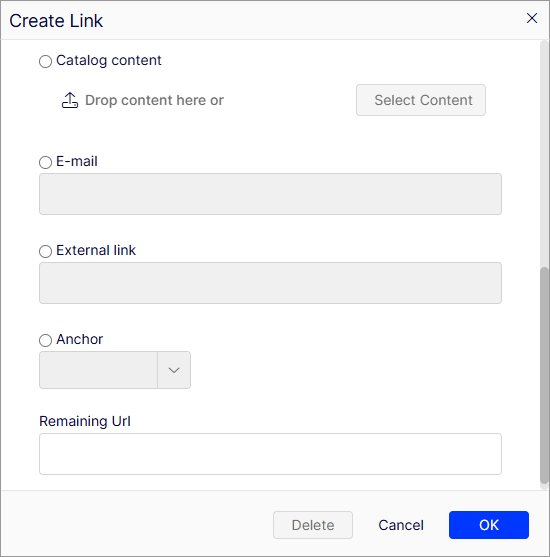
Create a link to an entity in the product catalog using the Link tool. From the Create Link dialog box in the editor or a link property in the content, create a link to a catalog, a category, catalog entry, or a variant.
-
Publish changes directly on the website, or schedule it for later publishing.
-
Create a link to a marketing campaign or promotion using the Marketing content field.
Catalogs gadget
Access the Catalogs gadget in the CMS and Commerce Connect Asset panel. Use the gadget to drag catalog entries into the rich-text editor or a content area of a CMS page or block to display and promote product information, such as on a campaign page.
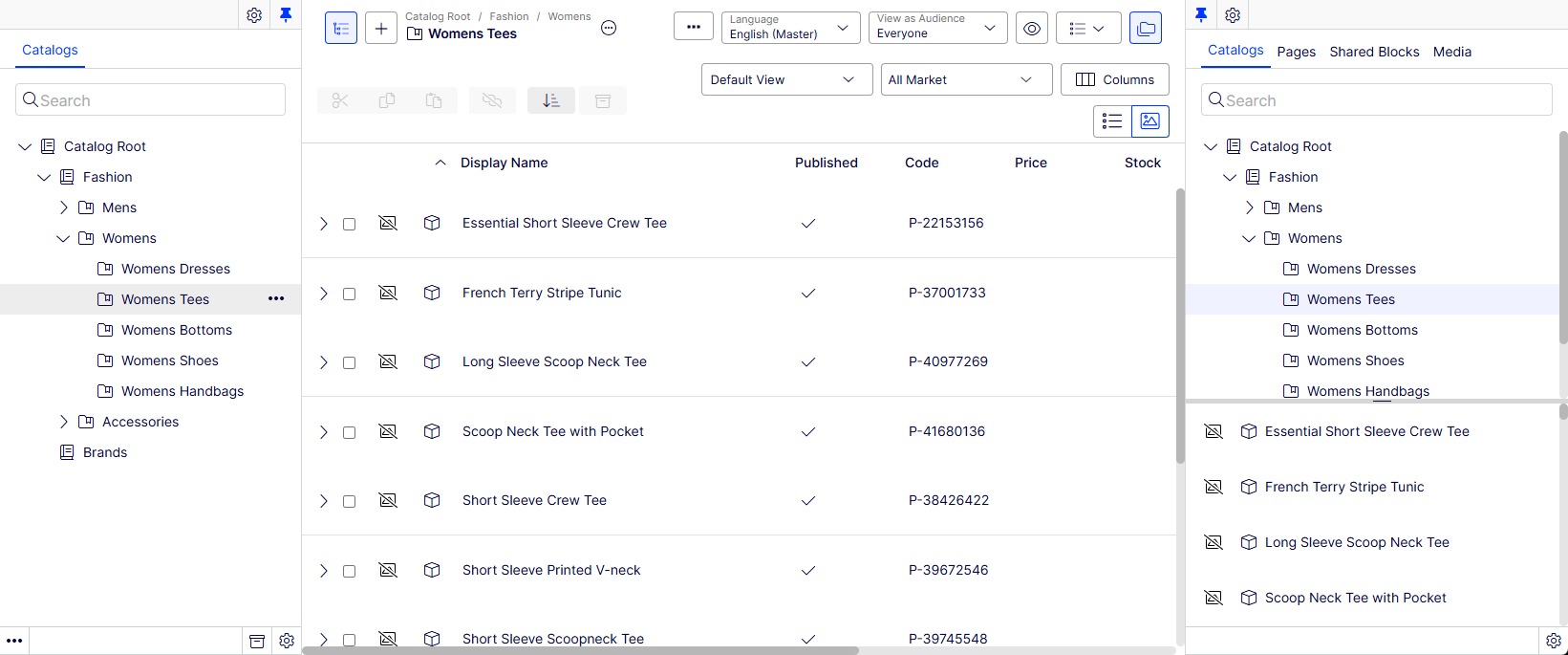
You can also use the Catalogs gadget to create relation links between catalog entries by dragging catalog items into the Relations tab of other catalog entries. See Catalog entries.
To properly display product information when used in other types of content, you must adapt the rendering templates to display catalog content.
Multiple language content
If you have business in multiple markets, you may need your website and content catalog to be in multiple languages, which you can activate in Commerce Connect. See Languages.
Publish or unpublish content
Optimizely CMS gives you several publishing actions (including unpublishing) and ways to manage versions and create shared content. See Publish content for information.
Personalized content
The personalize with audiences feature in Optimizely CMS targets content to specific visitor groups. For example, design campaigns based on recent orders or the total spent amount for a customer. The personalization option is available in the rich-text editor, and is also applied to available blocks on your website.
Updated 2 months ago