
Marketing (UI)
Overview of the Commerce Connect marketing system for campaigns and discounts.
Use the Optimizely Commerce Connect Marketing system to create discounts and promotions that you can apply to products, orders, or shipping. Typically, marketing and catalog managers create and manage promotions.
The marketing features let you create campaigns with these discounts. Discounts are typically based on a percentage or fixed value. Target discounts to specific customers, time periods, or markets.
A marketing campaign is a coordinated series of steps, events, and associated content to achieve a specific result. A campaign often includes promotion of products and sending campaign messages in various communication channels.
Create, plan, and execute a campaign for multiple channels and coordinate large volumes of personalized messages. You can also track your campaign's performance and analyze the results.
Manage campaign content
Create your landing pages and craft the marketing message in Optimizely Content Management System (CMS). Drag and drop your text, images, video, and products onto the page. Use the View as Audience drop-down to personalize content as desired.
Review and publish campaign items
Review and adjust messages before going live. Use Work with projects to get an overview of campaign items and add your review comments. Use Approve content for the final review and approval, and publish campaign items simultaneously or schedule a desired publishing time.
Product campaign discounts
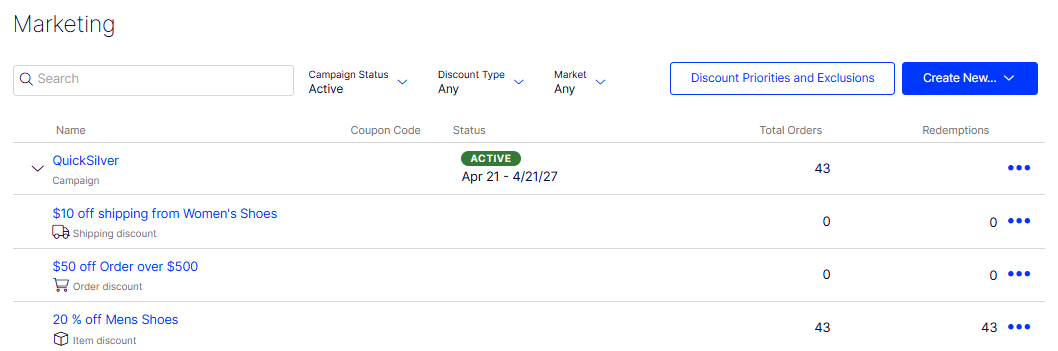
Create discounts for desired product catalog items in a campaign and set the availability dates.
Omnichannel messaging
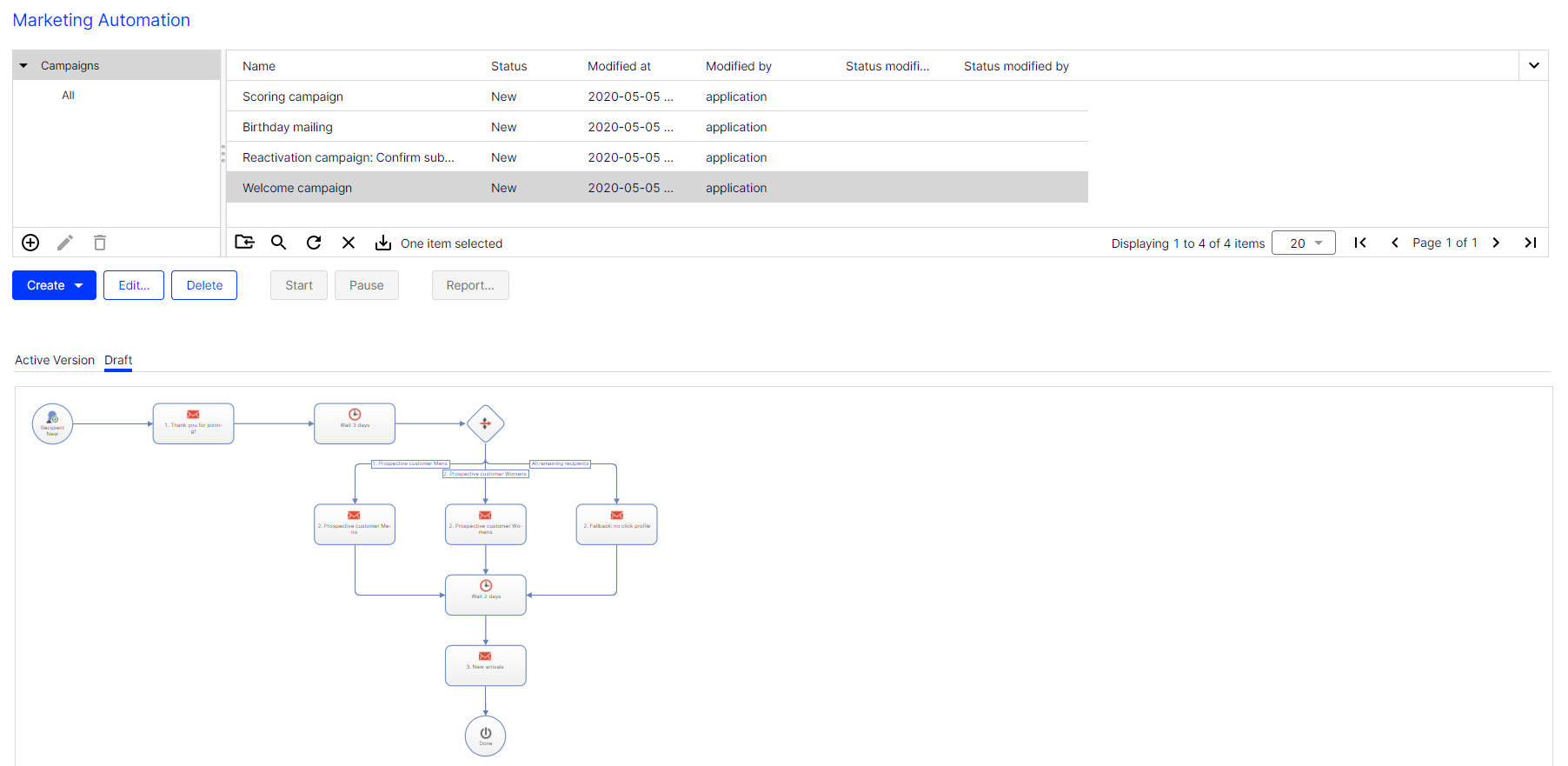
Use Optimizely Campaign to orchestrate multichannel campaigns and send triggered emails based on real-time behavior. Coordinate and segment large volumes of messages, including personalized product recommendations.
Common marketing tasks
The following list shows common marketing tasks. Available tasks depend on whether you are using the new marketing system or the legacy marketing system.
Marketing view
- Create and manage campaigns
- Create discounts
- Built-in discounts
- Prioritize discounts
- Discount exclusions
- Exclude catalog items from a discount
Permissions for Functions
Control access to Commerce Connect pages through the CMS Permission For Functions feature. When logging in using Opti ID authentication, configure permissions manually for the CommerceAdmins role.
-
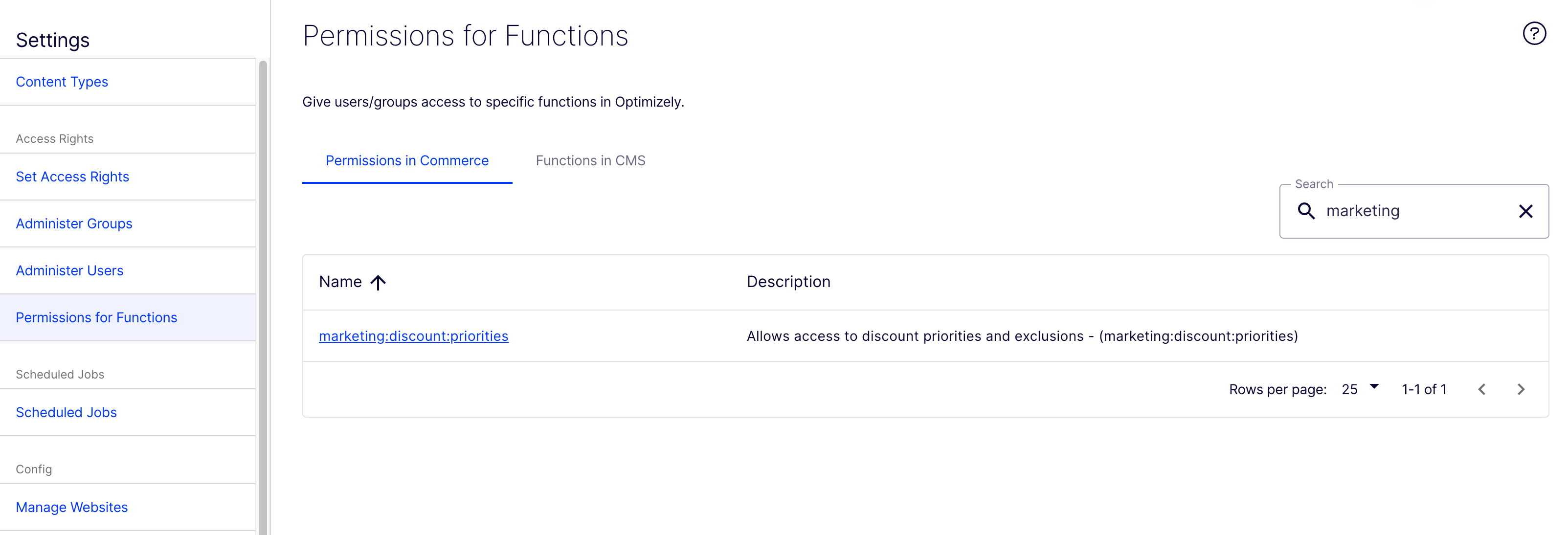
In Optimizely CMS, set permissions for Marketing tasks. Go to CMS Admin > Settings > Permissions for Functions.
-
Select a function, such as marketing:discount:priorities.
-
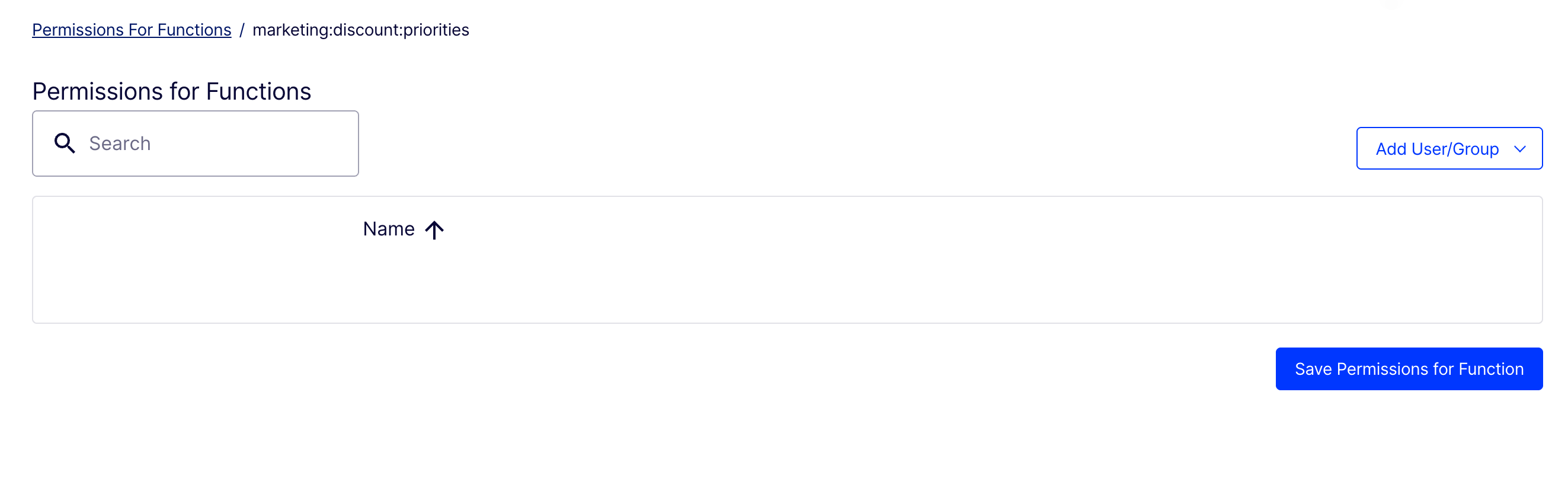
Select the CommerceAdmins role in the Add User/Group dropdown
-
Assign the appropriate permission level
-
Click Save to apply changes
Click the permission name to open the detail page.
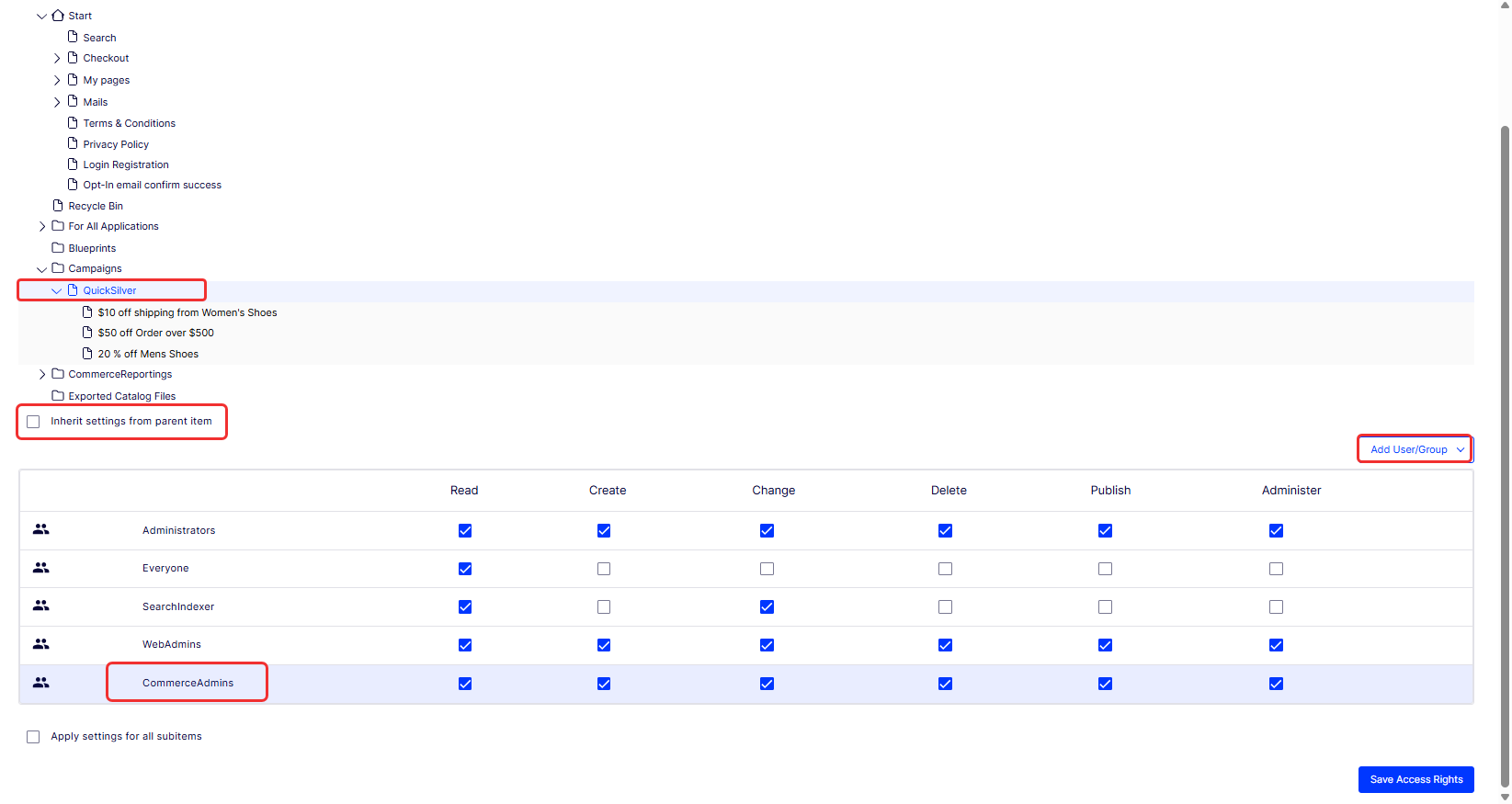
Set access rights for campaigns
In Commerce Connect, set the following access rights:
- Read – Lets users see the content. If disabled, users do not see the content. This applies to campaigns and discounts.
- Create – Lets users create discounts for the selected parent campaign or create campaigns for the selected folder.
- Change – Lets users edit content. This applies to campaigns and discounts.
Note
The user must have Change and Publish permissions to edit content.
- Delete – Lets users delete content.
- Publish – Lets users publish content.
- Administer
Follow these steps to set the access rights:
-
Go to CMS Admin > Settings > Set Access Rights.
-
Open the campaign.
-
Clear Inherit settings from parent item.
-
Select who can Read, Create, Change, Delete, Publish, or Administer. By default, set permissions for Administrators and Everyone. Click Add User/Group to set permissions for a specific user or group.
-
Click Save Access Rights.
Updated 2 months ago