
Shipping methods
Create and manage shipping methods with providers, markets, restrictions, and weight-based rates.
Shipping methods are the customer-facing delivery options presented at checkout. Each method combines a provider, a base price, a currency, and display settings to define exactly how a shipping option displays and behaves. Common scenarios include:
- Currency-specific methods – Create separate methods for each currency you support (for example, Express AUD, Express BRL, Express CAD) so that rates display in the customer's local currency without requiring runtime conversion.
- Service-level differentiation – Define distinct methods for different delivery speeds (Express, Fast, Regular) so customers can choose between cost and delivery time at checkout.
- Provider assignment – Each method is tied to a specific shipping provider, letting different carriers or gateways power different checkout options simultaneously.
- Default method control – Designating one method as the default ensures a pre-selected option is presented at checkout, reducing friction for the most common delivery choice.
- Active or inactive toggling – Methods can be deactivated without deletion, making it straightforward to disable seasonal or promotional shipping options without losing their configuration.
Go to Settings > Shipping Methods.
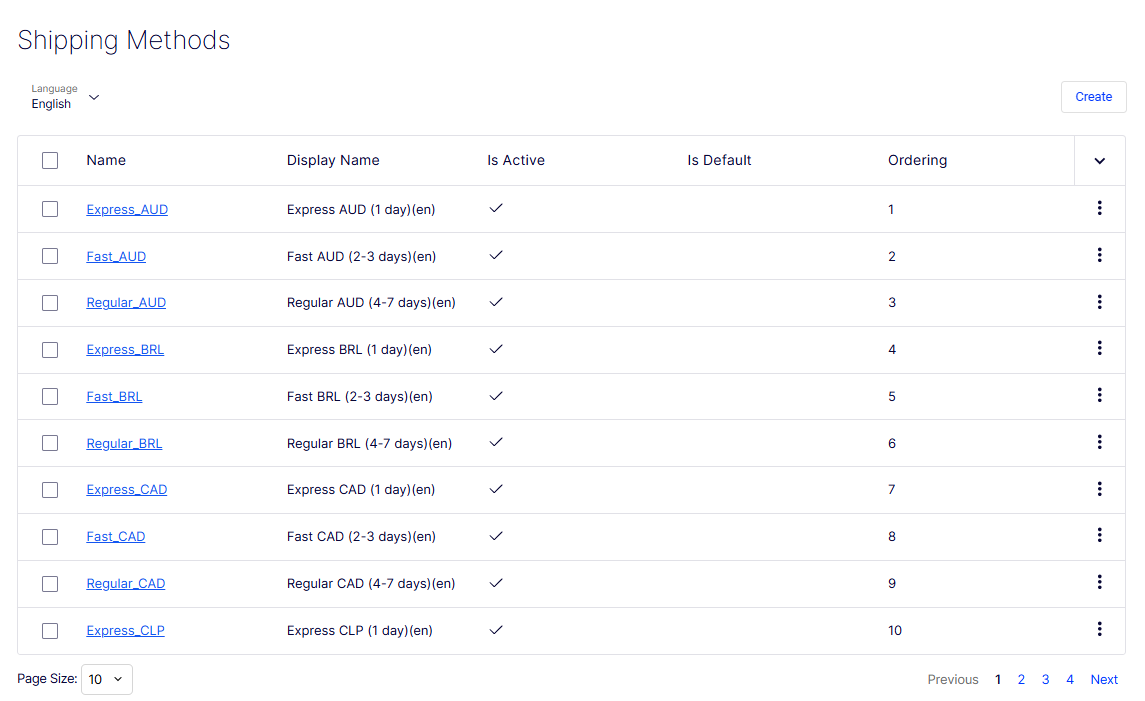
The Shipping Methods list page displays all configured delivery options and provides controls to create and manage them.
- Language – Filters the list to show display names and descriptions in the selected language. Defaults to English.
- Create – Opens the Create Shipping Method form to define a delivery option.
- Checkbox column – Selects one or more rows, typically for bulk actions.
- Name column – Displays the internal name of each shipping method as a clickable link (for example, Express_AUD, Fast_BRL). Clicking the name opens the record for viewing or editing.
- Display Name column – Shows the truncated customer-facing display name for each method as it displays at checkout.
- Is Active column – Indicates whether the method is currently enabled. A checkmark means the method is active and visible to customers.
- Is Default column – Indicates whether the method is pre-selected at checkout. A checkmark identifies the default method. Only one method should be set as default per context.
- Ordering column – Shows the numeric sort order controlling the sequence in which methods display at checkout. The highlighted column header indicates the list is currently sorted by this column.
- Sort toggle (
∨) – Changes the sort column or direction when clicked. - Row action menu (⋮) – A context menu on each row exposing record-level actions such as Edit and Delete.
The Create Shipping Method form defines a customer-facing delivery option. It is organized into tabs: Overview, Settings, Parameters, and Price Per Weight, which become fully accessible after the initial record is saved.
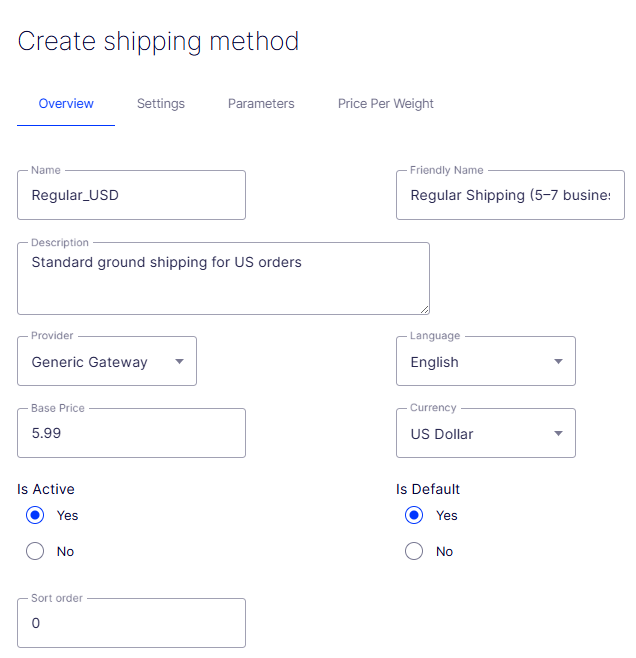
- Overview tab – The active tab on creation. Contains the core identity, pricing, and visibility fields for the method.
- Settings tab – Configures additional behavioral options for the method. Available after the record is saved.
- Parameters tab – Defines key-value pairs passed to the provider at runtime. Available after the record is saved.
- Price Per Weight tab – Configures weight-based rate adjustments applied on top of the base price. Available after the record is saved.
- Name – A required free-text field for the internal identifier of the method (for example,
Express_AUD). Used in the admin UI, API calls, and reporting. - Friendly Name – A required free-text field for the customer-facing label displayed at checkout (for example, Express Shipping (AUD)).
- Description – An optional multi-line text field for internal notes about the method, such as carrier details, applicable regions, or rate logic.
- Provider – A required drop-down list linking this method to a configured shipping provider. The provider's class handles the rate calculation for this method.
- Language – A required drop-down list specifying the language context for the Friendly Name and Description values. Defaults to English.
- Base Price – A required numeric field for the flat shipping charge applied before any weight-based adjustments. Must be a valid number (for example,
5.99). - Currency – A required drop-down list specifying the currency in which the base price and any calculated rates are expressed.
- Is Active – A radio button controlling whether this method is visible to customers at checkout. Defaults to No. Set to Yes to make the method available immediately upon saving.
- Is Default – A radio button controlling whether this method is pre-selected at checkout. Defaults to No. Only one method should be set as default per storefront context.
- Sort order – A numeric field controlling the position of this method relative to others in the checkout options list. Lower numbers display first. Defaults to
0. - Cancel – Discards all entered data and exits the form without creating a method.
- Save – Submits the form and creates the shipping method. The button is disabled (grayed out) until all required fields, Name, Friendly Name, Provider, Language, Base Price, and Currency, are filled in.
Control markets for methods
The Settings tab on a shipping method controls which markets the method is available in and which countries or regions are explicitly restricted from using it. Configuring these settings ensures the right delivery options display for the right customers. Common scenarios include:
- Market-scoped availability – If your store operates across multiple markets (for example, USA, Sweden, Australia), limit a shipping method to only the markets where it is valid, preventing it from displaying at checkout for unsupported regions.
- Country-level restrictions – Some carriers cannot deliver to specific countries due to customs regulations, sanctions, or service limitations. Moving those countries into the Chosen Countries list blocks the method from being offered to customers in those locations.
- Region-level restrictions – For finer control within a country, the Restricted Regions section lets you exclude specific states, provinces, or territories from a method's availability.
- Default market fallback – Including Default Market in the Chosen Markets list ensures the method is available to customers who do not fall under a specifically defined market.
The Settings tab is divided into two sections, Markets and Restrictions, each using a dual-list (shuttle) control to manage membership.
Markets
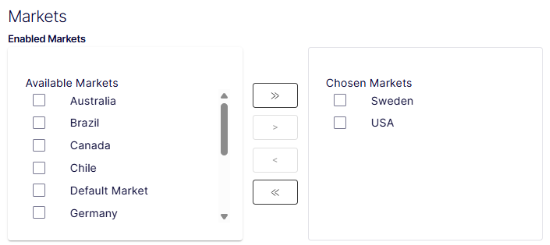
- Enabled Markets – A dual-list control that defines which markets this shipping method is active in:
- Available Markets – The left panel lists all markets defined in your system that have not yet been enabled for this method. The list is scrollable. In this screenshot, available markets include Australia, Brazil, Canada, Chile, Default Market, and Germany, among others.
- Chosen Markets – The right panel lists the markets for which this method is currently active. In this screenshot, Sweden and USA are enabled.
»(Add All) – Moves all available markets into Chosen Markets.>(Add Selected) – Moves only checked markets into Chosen Markets.<(Remove Selected) – Moves selected markets from Chosen Markets back to Available Markets.«(Remove All) – Clears Chosen Markets entirely, disabling the method for all markets.
Restrictions
-
Restricted Countries – A dual-list control that defines countries where this shipping method is explicitly blocked:
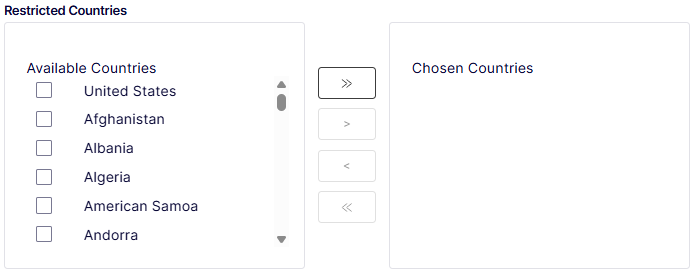
- Available Countries – The left panel lists all countries not currently restricted. The list is scrollable and includes the full country catalog.
- Chosen Countries – The right panel lists countries that are blocked from using this method. Empty in this screenshot, meaning no countries are currently restricted.
-
Restricted Regions – A dual-list control (partially visible) that blocks specific sub-national regions, such as states, provinces, or territories, from using this method. Use this when a country-level restriction is too broad and you only need to exclude particular areas within an otherwise supported country.
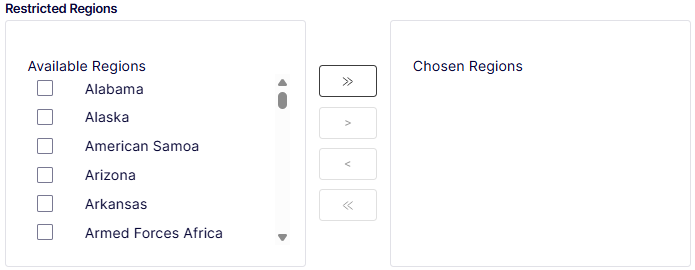
- Available Regions – The left panel lists regions not currently restricted. The list is scrollable and includes the full country catalog.
- Chosen Regions – The right panel lists regions that are blocked from using this method.
-
Restricted Payments – A dual-list control that blocks specific payment methods from being used in combination with this shipping method:
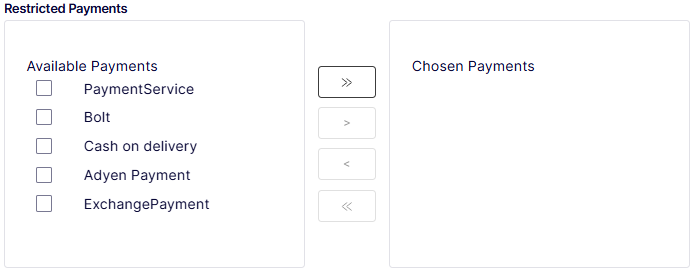
- Available Payments – The left panel lists all payment methods configured in your system that are not currently restricted for this shipping method. In this screenshot, available payment methods include PaymentService, Bolt, Cash on delivery, Adyen Payment, and ExchangePayment.
- Chosen Payments – The right panel lists payment methods that are blocked from being used alongside this shipping method.
Add parameters
Parameters let you pass runtime configuration values to a shipping method without modifying its underlying provider code. Each parameter is a key-value pair that the method's assigned provider class reads during rate calculation or fulfillment processing. Common scenarios include:
- Rate adjustments – Define values such as a handling fee, per-kilogram charge, or free shipping threshold that modify the base price at checkout.
- Delivery estimates – Supply minimum and maximum delivery day values that the method surfaces to customers during checkout.
- Eligibility rules – Set weight or order value limits that prevent the method from being offered when an order falls outside the supported range.
- Carrier instructions – Pass flags such as signature requirements or insurance thresholds to the fulfillment system at the point of shipment creation.
The Parameters tab lists all key-value pairs currently assigned to this shipping method and provides a button to add ones. Clicking Add parameter opens the Add new parameter dialog.
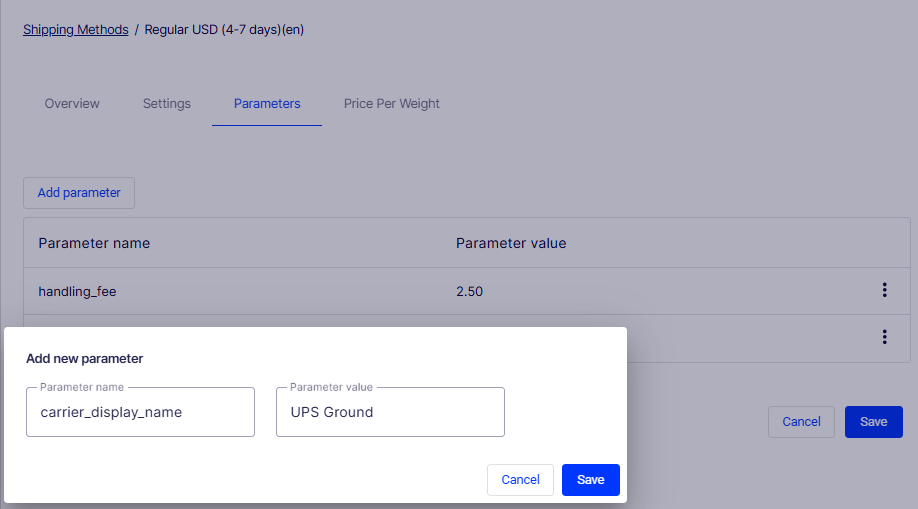
- Add parameter – Opens the Add new parameter modal dialog to define a key-value pair for the method.
- Parameter name column – Displays the key portion of each saved parameter.
- Parameter value column – Displays the value assigned to each saved parameter.
- Add new parameter window – A modal overlay containing the fields and controls needed to define a single parameter:
- Parameter name – A required free-text field for the key that the provider's class reads at runtime (for example,
handling_fee,max_delivery_days). The accepted names depend on the provider's implementation. Consult your platform documentation or the provider's class definition for valid keys. - Parameter value – A free-text field for the value assigned to the parameter name (for example,
2.50,7). - Cancel – Closes the dialog without saving the parameter.
- Save – Adds the parameter to the method and closes the dialog. The button is disabled (grayed out) until the required Parameter name field is filled in.
- Parameter name – A required free-text field for the key that the provider's class reads at runtime (for example,
Add price per weight
The Price Per Weight tab lets you define weight-based shipping rate adjustments scoped to specific jurisdiction groups and date ranges. This gives you precise control over how shipping costs scale with order weight across different regions and time periods. Common scenarios include:
- Weight-tiered pricing – Charge more for heavier shipments by creating multiple entries with increasing weight thresholds, each carrying a higher price.
- Regional rate differentiation – Apply different per-weight prices to different jurisdiction groups (for example, a higher rate for international shipments than domestic ones).
- Seasonal or promotional rates – Use the start and end date fields to schedule temporary rate adjustments, such as discounted shipping during a promotional period, without manually editing the method.
- Carrier surcharge recovery – When a carrier applies weight-based surcharges above a certain threshold, mirror those surcharges here so your base price remains consistent for lighter orders.
The Price Per Weight tab lists all weight-based rate rules currently assigned to this shipping method and provides an Add button to create ones. Clicking Add opens the Configure Price Per Weight for Jurisdiction Group window.
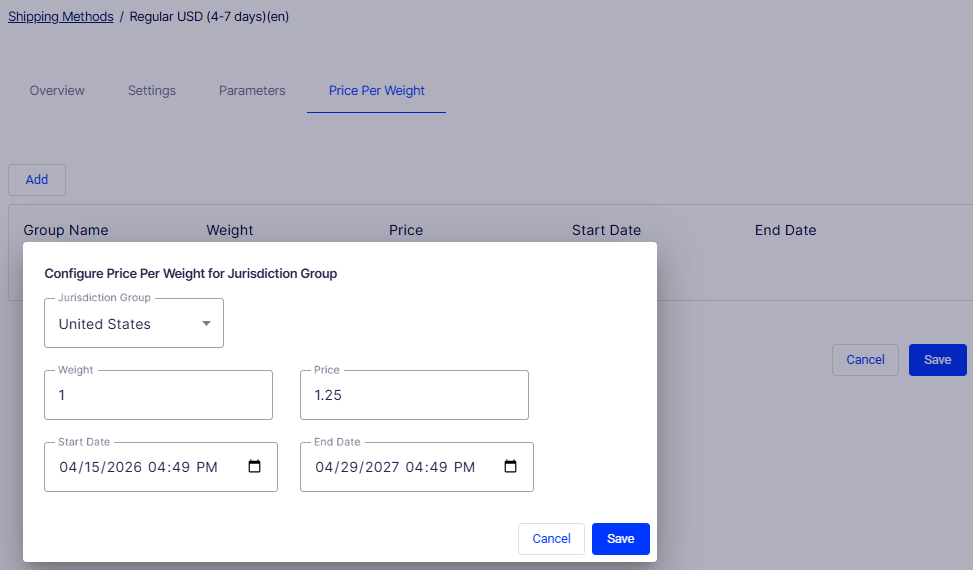
- Add – Opens the Configure Price Per Weight for Jurisdiction Group modal dialog.
- Group Name column – Displays the jurisdiction group each weight-based rule applies to.
- Weight column – Displays the weight threshold for each rule.
- Price column – Displays the rate applied when the order meets the weight threshold.
- Start Date column – Displays the date and time from which the rule is active.
- End Date column – Displays the date and time at which the rule expires.
- Configure Price Per Weight for Jurisdiction Group – A modal overlay containing the fields needed to define a single weight-based rate rule:
- Jurisdiction Group – A required drop-down list for selecting the jurisdiction group this rule applies to. In this screenshot, United States is selected. Only jurisdiction groups configured in Settings > Shipping Jurisdiction Groups display here.
- Weight – A numeric field for the weight threshold at which this price applies. Defaults to
0. The unit (for example, kg or lbs) is determined by your system's global unit settings. - Price – A numeric field for the rate charged when the order weight meets the threshold. Defaults to
0. - Start Date – A date-time field specifying when this rule becomes active. Defaults to the current date and time.
- End Date – A date-time field specifying when this rule expires. Defaults to one year from the current date and time. Leave this at a far future date if the rule should apply indefinitely.
- Cancel – Closes the dialog without saving the rule.
- Save – Adds the weight-based rate rule to the method and closes the dialog.
Delete shipping methods
Go to More Options > Delete on the Shipping Methods page to delete a method. Click OK to confirm.
Updated 2 months ago