
Carts
Create, view, edit, and delete shopping carts and manage line items and discounts.
NoteIn roadmap communications, Order Management is referred to as the CSR Portal.
A cart is a collection of products that a website customer selects. (A cart is also known as a shopping cart or basket.) This topic describes how to work with carts on the Orders page.
The system creates a shopping cart when a visitor clicks Add to cart, such as on a product page. Manually manage shopping carts from Order Management > Carts, where you can view carts and convert them into a purchase order or subscription. See also Shopping flow.
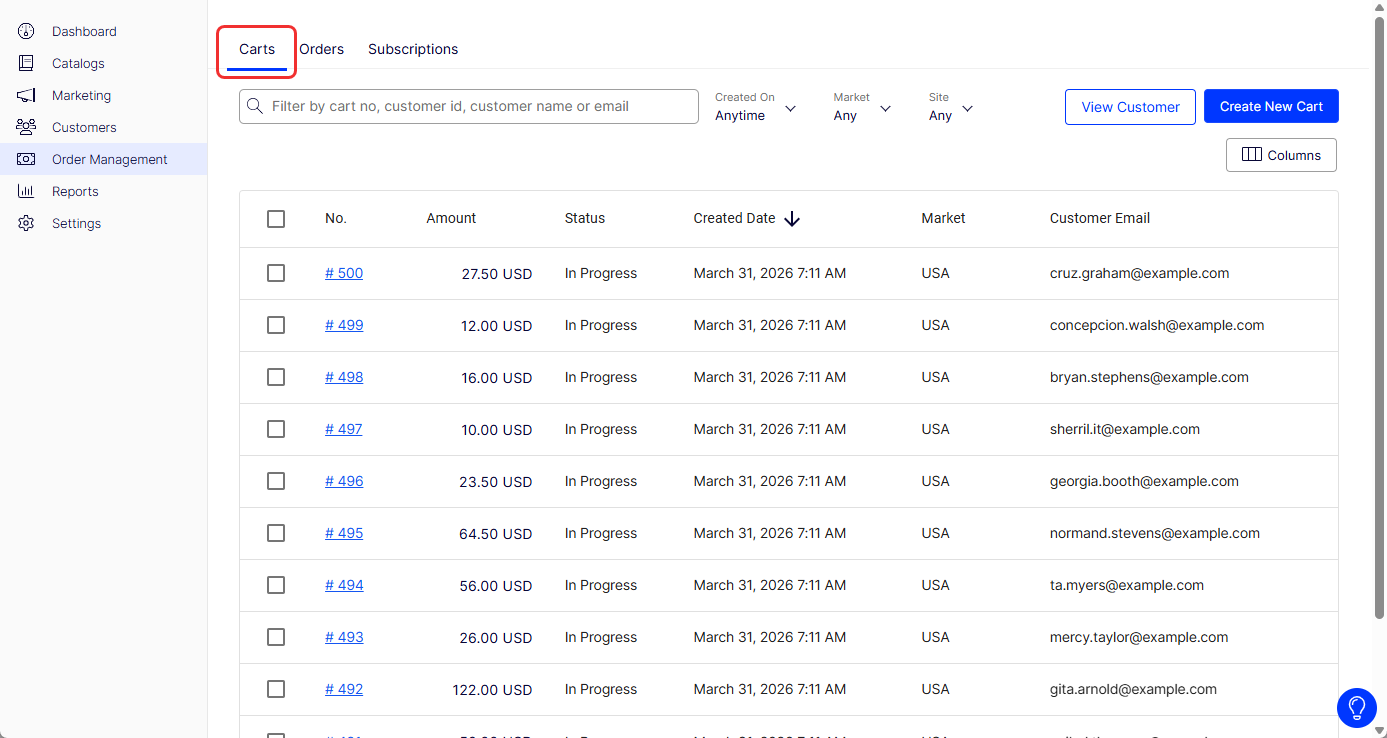
Each shopping cart has its own unique ID. A customer can have only one cart open at a time. If the customer already has an open cart, the system redirects to the open cart.
The Order Management page initially lists shopping carts by Cart number in reverse numerical order. To choose what columns to display, click the Columns icon and deselect the columns you do not want to show.
When a cart's checkout is complete with a submitted payment, the cart becomes a purchase order, no longer displays in the Carts list, and displays in the Orders list.
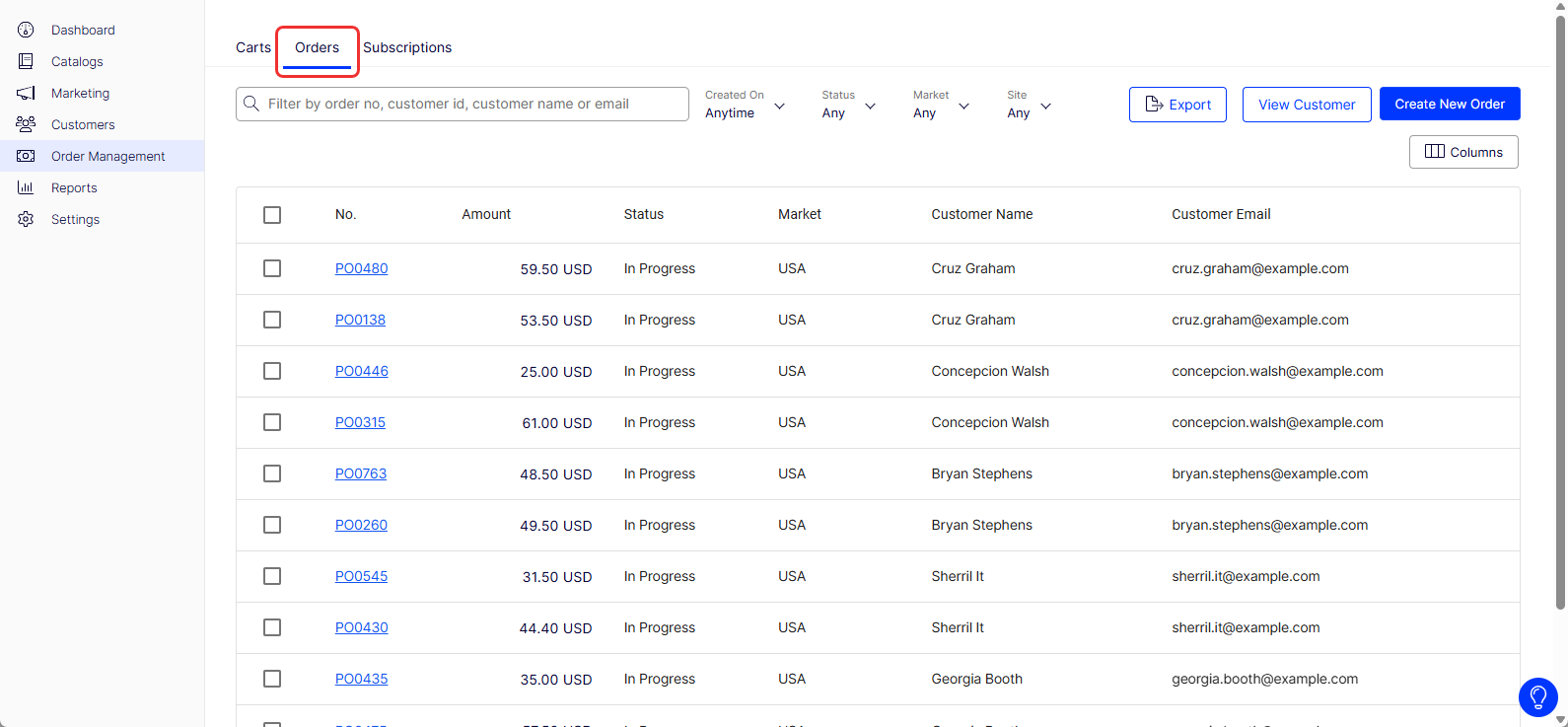
Add a cart
Create a cart for a customer from the Order Management page.
NoteIf a customer already has a cart for a market, you cannot create another cart for that market.
-
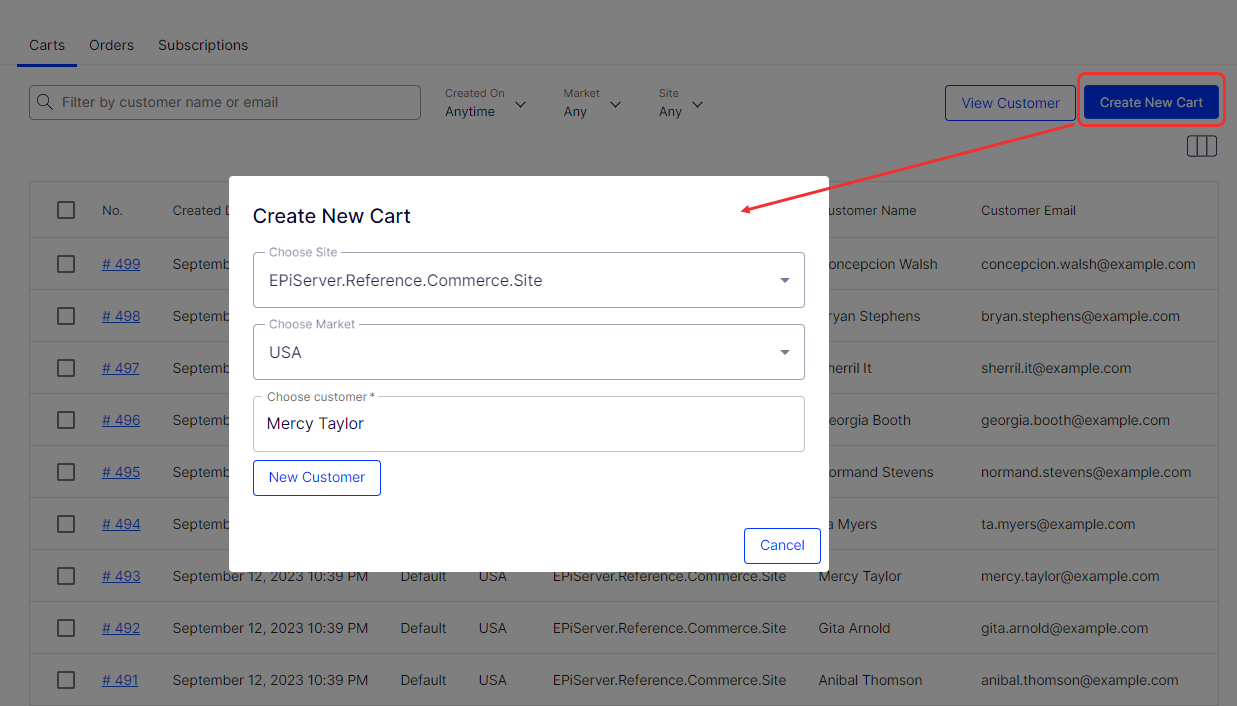
Click Create New Cart. The Create New Cart dialog box displays.
-
Select a site for the cart.
-
Select a market for the cart.
-
Select an existing customer by typing the customer name in the Choose Customer field, or click New Customer.
-
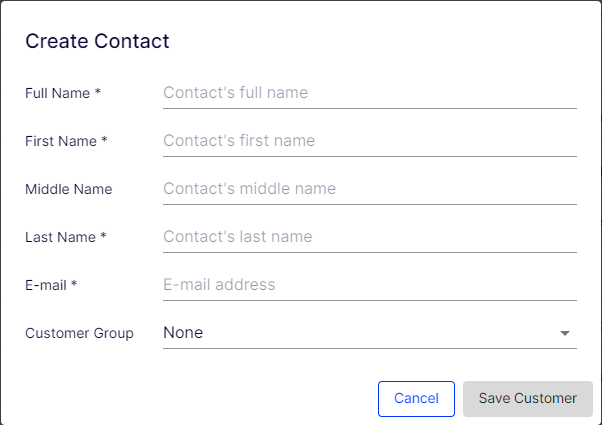
If you click New Customer, enter the name, email, and Customer Group information and click Save Customer.
-
Click Open cart. The Cart Details page displays.
Filter carts
Filter carts by search, Created On timeframe, or Market.
By customer name or email
Search for carts by customer name (partial match) or email address (exact match). Begin entering the customer's first name or exact email address in the Filter box. Use % to search for any consecutive string of letters or numbers. Press Enter to execute the search.
For example, if the customer name is Bryan Stephens, enter B, Br, or Bry. To search for the last name, type %ste to see results with that string of letters. The results become more refined as you enter more characters.
By Created on date
Filter the Order Management page using the Created On filter. Select a specific Start Date and End Date, or use one of the following options: Anytime, Today, This Week, Last 7 days, This Month, Last 30 days, or Custom. Click Apply to see the results.
By Market
Filter the carts by market. Select Any (default), Default Market, or a specific market such as USA, Australia, or Germany.
Edit a cart
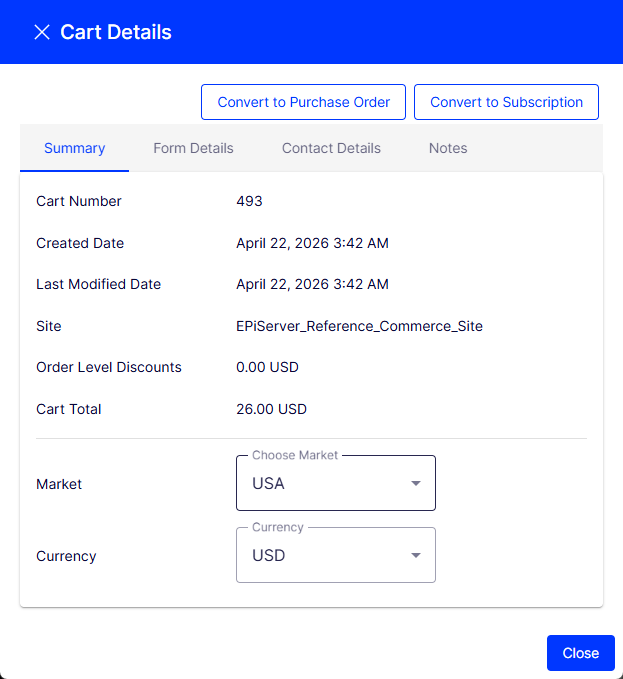
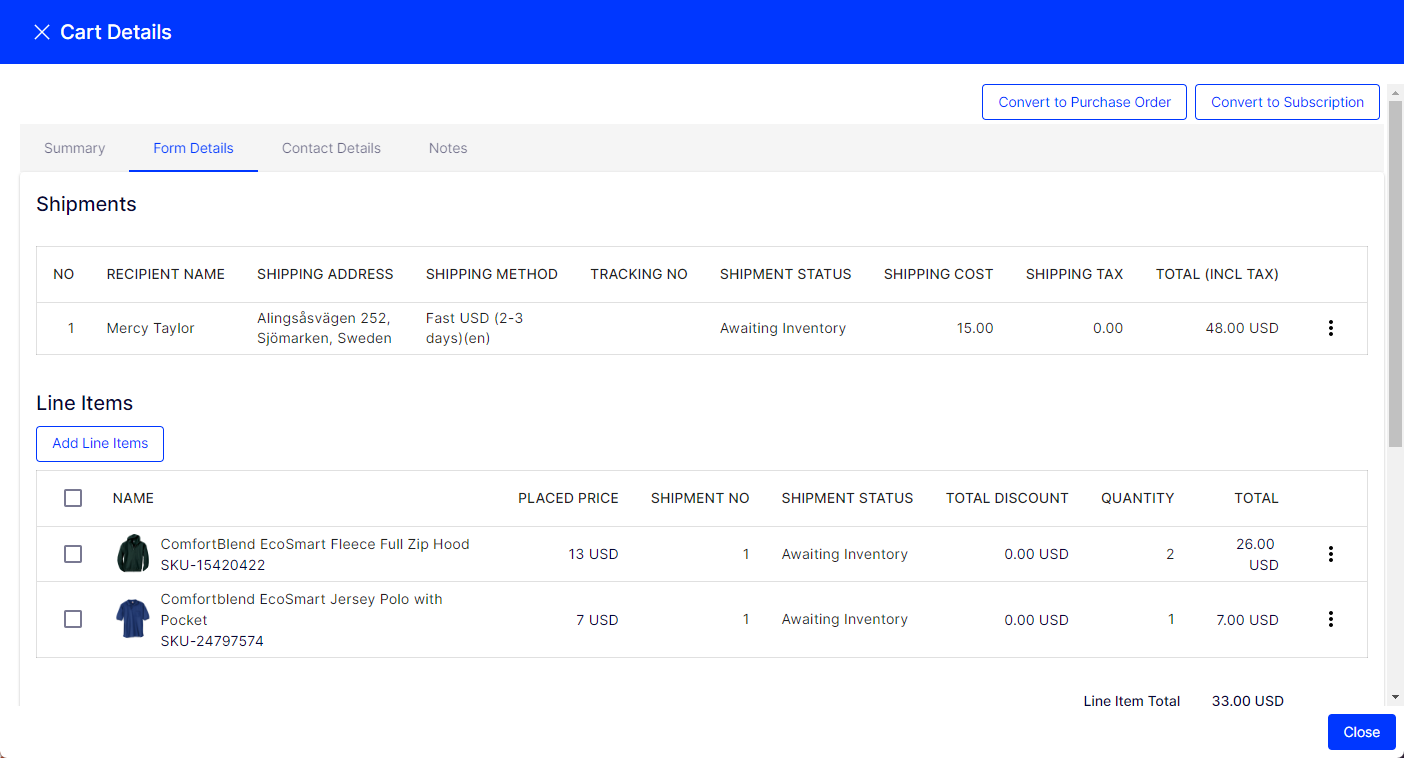
The Cart Details page shows the following information about the selected shopping cart. You can edit some details of the cart.
If you edit a cart's line items, the system recalculates the total. Also, if the edits affect applicable discounts for the cart, the Discounts display changes.
Summary tab
Change a cart's Market and Currency. Note that changing these values may affect other order information, for example, an item's price, available shipping methods, available promotions, and so on. See also Convert a cart to a purchase order and Convert a cart to a subscription.
Form Details tab
-
To edit shipping details, open the option menu, select Edit, and modify the address and shipping method. Every shipment needs a shipping address. If a customer has several shipping addresses, use search to find the correct one. You can also enter another shipping address. Addresses are stored in and editable on Contact Details > Address book.
-
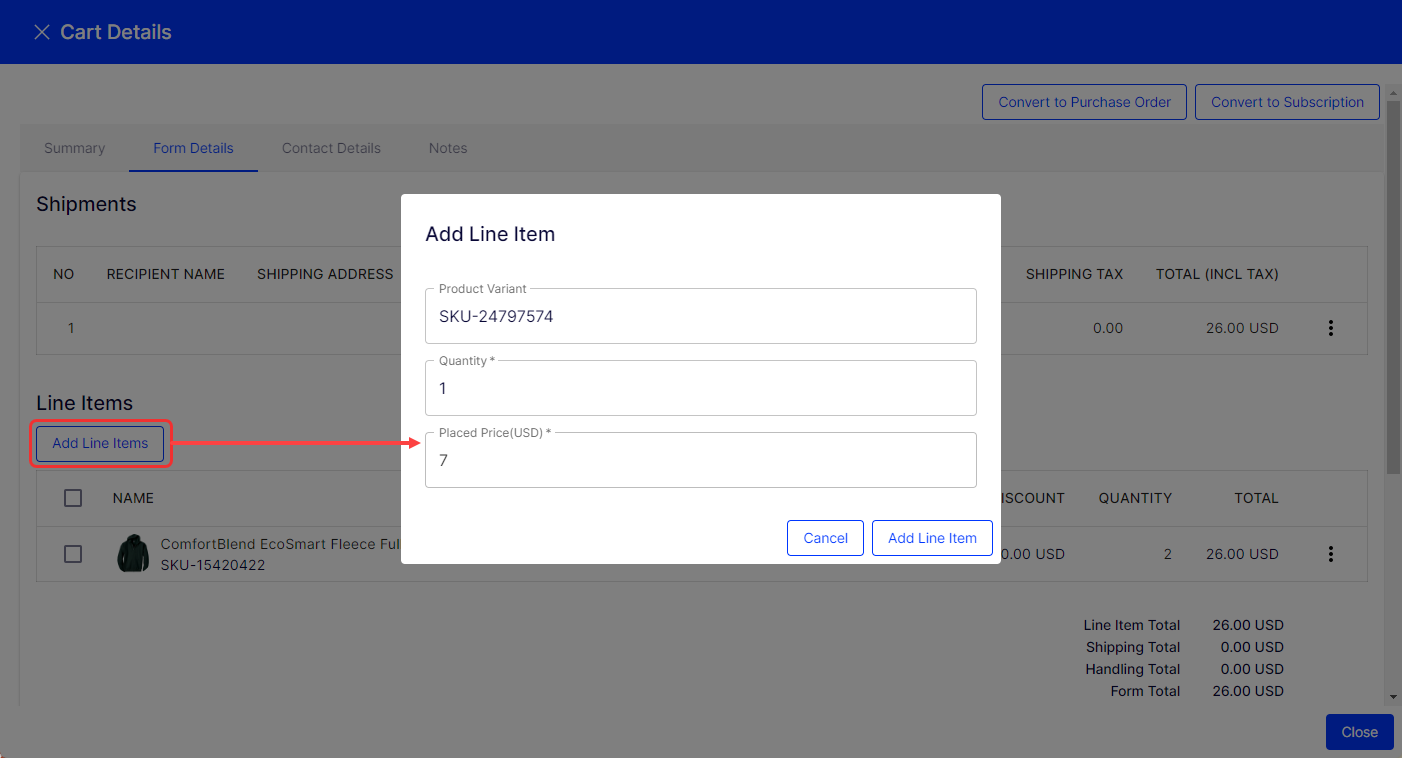
To add a line item, click Add line items.
-
Begin typing in the Product Variant field to display matching products.
-
Adjust the Quantity and Placed Price.
-
Click Add Line Item to update the cart.
-
-
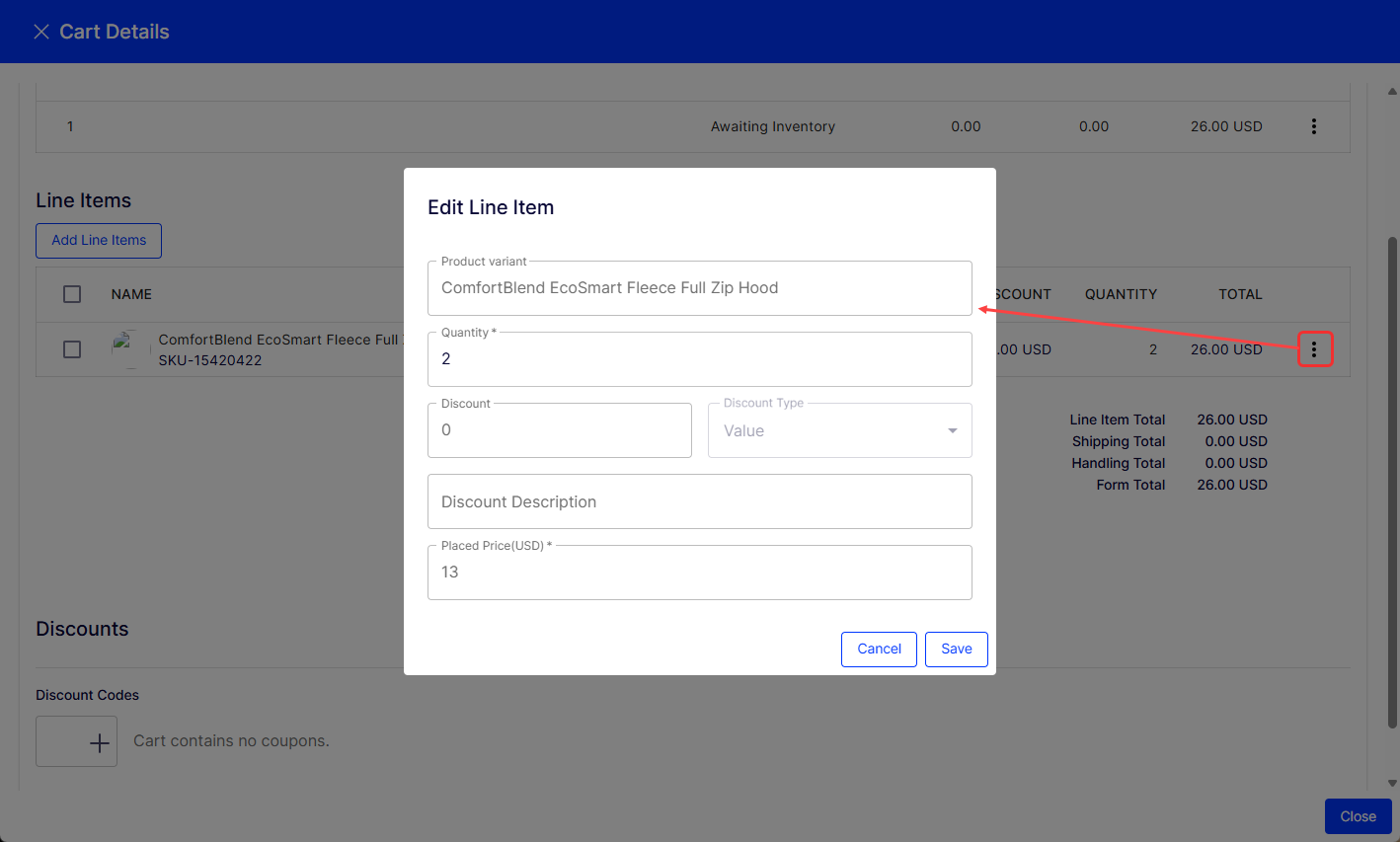
To edit a line item, select the line item's option menu and select Edit.
-
Begin typing in the Product Variant field to display matching products.
-
Adjust Quantity, Discount, Discount Type, Discount Description, and Placed Price.
-
Click Save to update the cart.
-
Edit discounts
A discount code is an additional criterion that you can apply to any discount. For example, customers who enter discount code CouponABC during checkout receive 10% off the cart total.
A cart's submitted discount codes display above the discount list. You can also manually add discounts to a cart. If a code that you enter satisfies an item's or order's business logic, the system deducts the discount amount from the cart total.
Apply discounts to a cart or line items if conditions are met. For example, a discount stipulates a $10 reduction for a cart whose total exceeds $100. When that becomes true, the $10 discount displays under Discounts, and the system adjusts the cart total.
Create a discount that lets customer service representatives apply refunds to customer carts for loyalty, compensation for problems, and so on. To do this, create a discount for this purpose, enter a discount amount, and a coupon code. Then, train your CSRs to use the code where appropriate to reduce the customer's cart total.
Delete a line item
To delete a line item, open the item's option menu and select Delete.
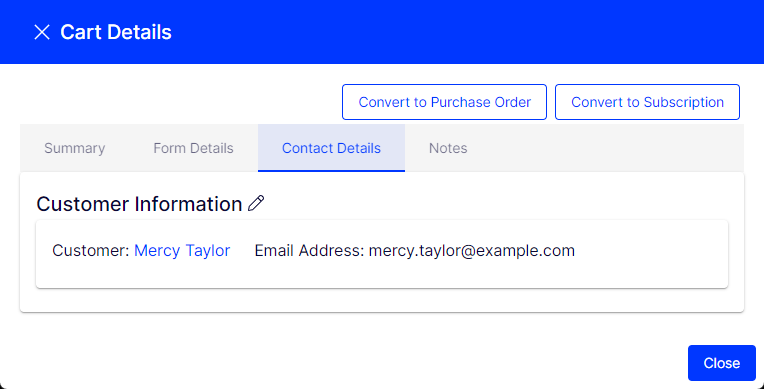
Contact Details tab
To edit customer information, see Customers.
Notes tab
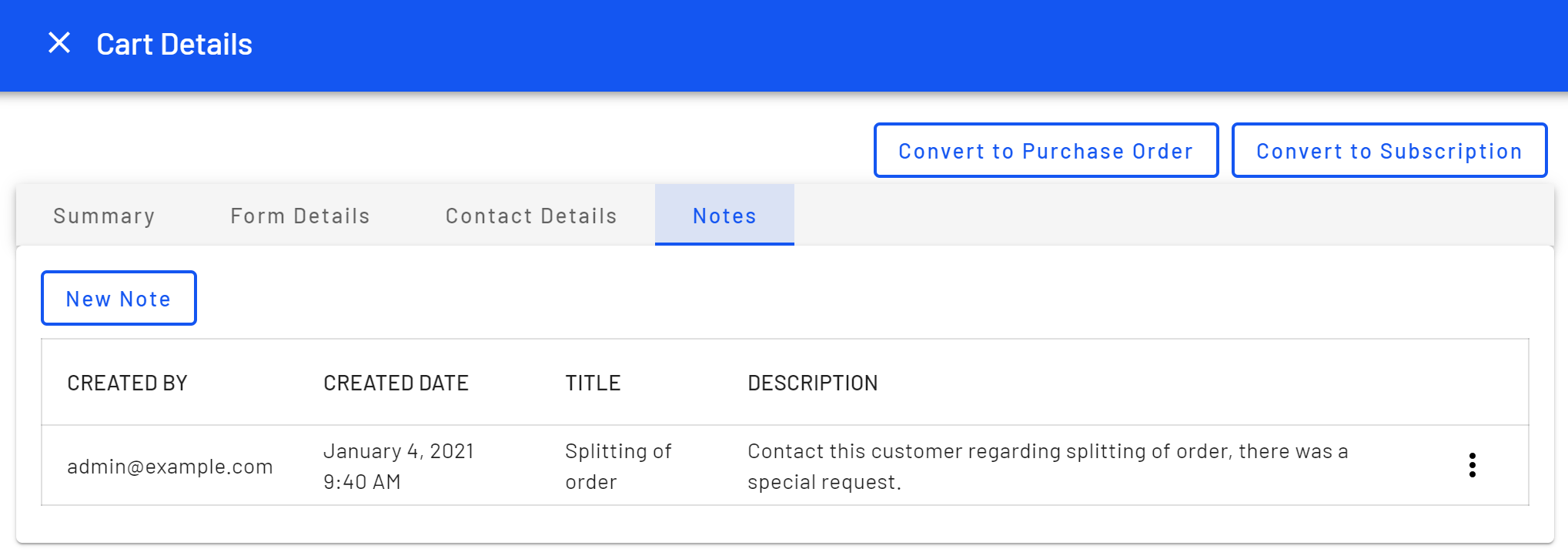
Add notes associated with carts, orders, and subscriptions. Notes are listed by creation date on the Notes tab, where you can access details like description and note creator.
Delete carts
Delete one or more carts on the Order Management page.
NoteDeleting a cart removes its record from the system.
-
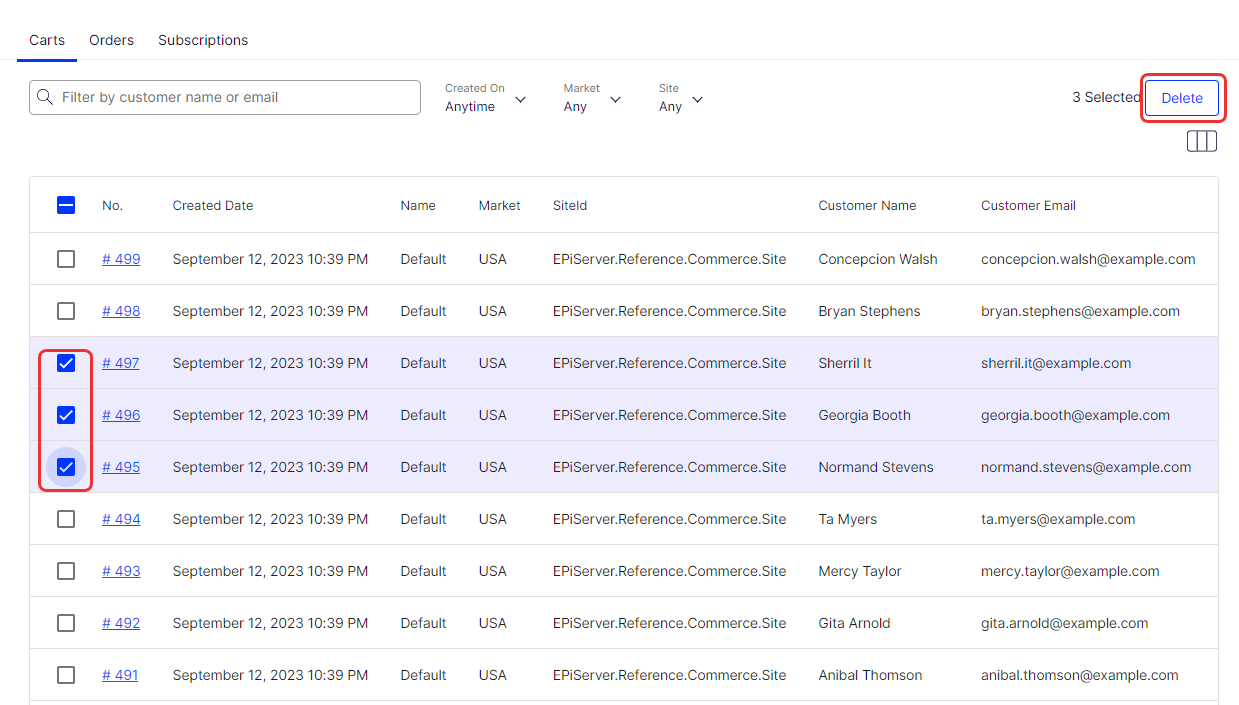
Select the checkbox for the cart you want to delete. If you have multiple pages, you can continue selecting carts on each page.
-
Click Delete.
-
Click Delete to confirm that you want to delete the selected carts.
Updated 2 months ago